

Creating an Anonymized Raffle
What's on this page
Warning: We recommend you take extra care when setting up surveys that involve incentives (e.g., setting up the anonymous raffles described on this page, use of a single-instance incentive, or setting up your own incentive survey). Using the correct settings and configuration is essential to ensure that the incentives are restricted to your intended respondents. Without appropriate settings, it may be possible for people to take advantage of your survey distributions and claim the incentives. Please carefully review the settings you can use to protect your survey on the Security Survey Options page.

About Creating an Anonymized Raffle
We often want to reward our respondents for helping us with our research. But most researchers also need to keep their data anonymous, so they can stay unbiased in their data analysis. Anonymizing data can also help keep us unbiased if we can only choose a few winners.
To create an anonymized raffle, you will need two surveys:
- Survey One: Your main study. Totally anonymous. Asks consent before sending respondents to the raffle.
- Survey Two: Raffle sign-up form.
Qtip: There are two versions of survey two. In one, you are responsible for randomizing a winner and sending the incentive yourself. In the other, Qualtrics will randomize and distribute for you, but you must use the a third-party incentive task to set up your incentives. You are always responsible for paying for the incentives.

Attention: Since this method uses two surveys, each respondent will generate two responses. Please keep this in mind for any response limits your account or license may have.
Survey One: Main Study
This is the main survey you are sending out to your respondents, which contains your primary study or feedback form.
Anonymizing Data
You can ensure your data collection is anonymous by distributing the survey through the anonymous link. If you are emailing the survey through Qualtrics, you can make sure your link type is anonymous.
However, the anonymous link still collects IP Address data. Select Anonymize responses under Security survey options to remove all personal data, including IP address.
Linking to the Raffle
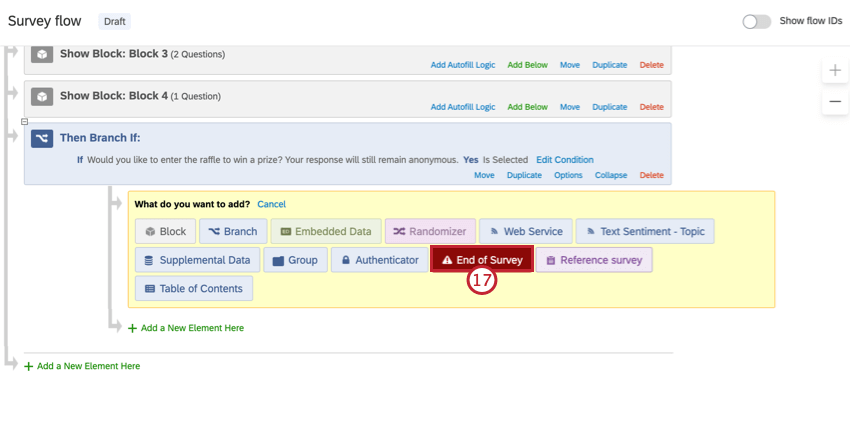
You want to set the main study up so that once respondents get to the end, they can enter the raffle or opt out and get a standard thank you message.
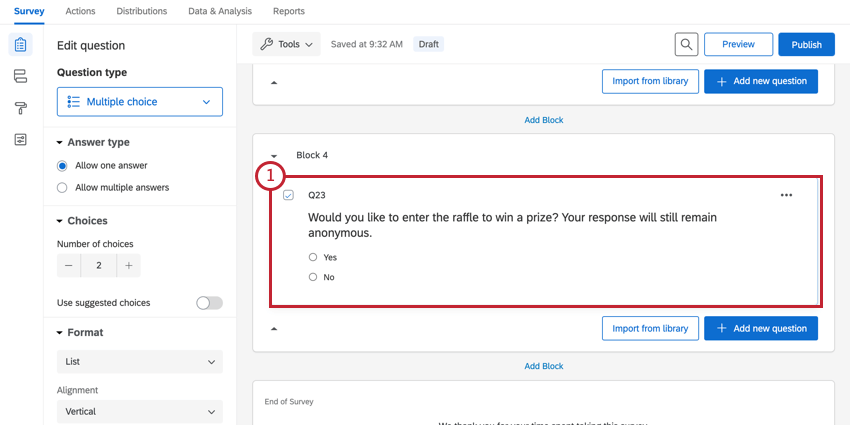
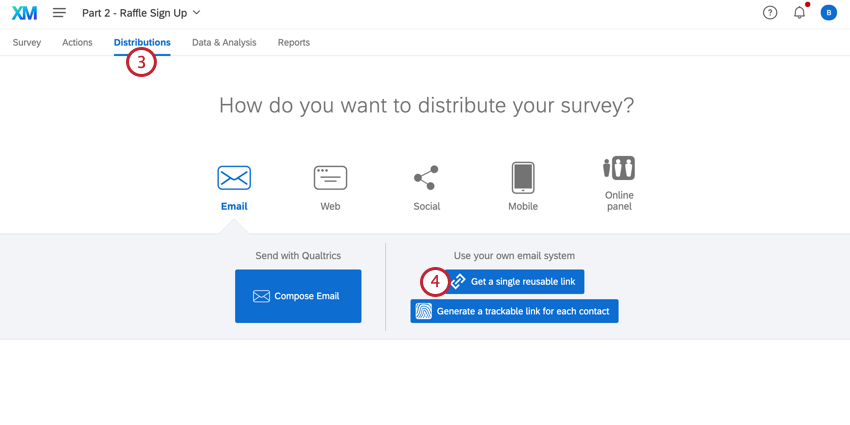
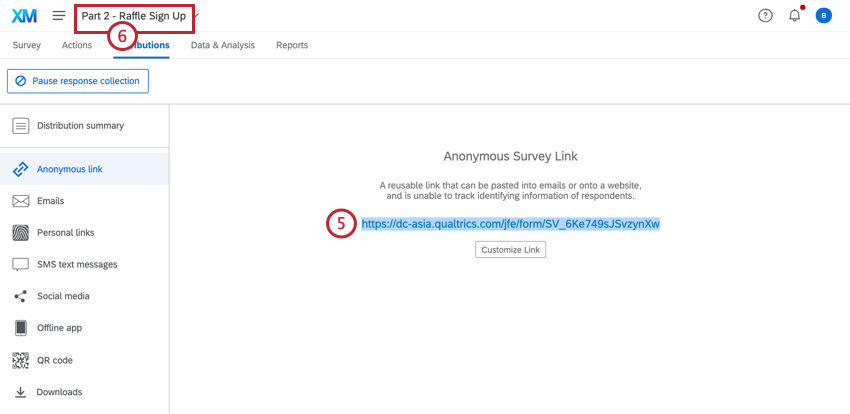
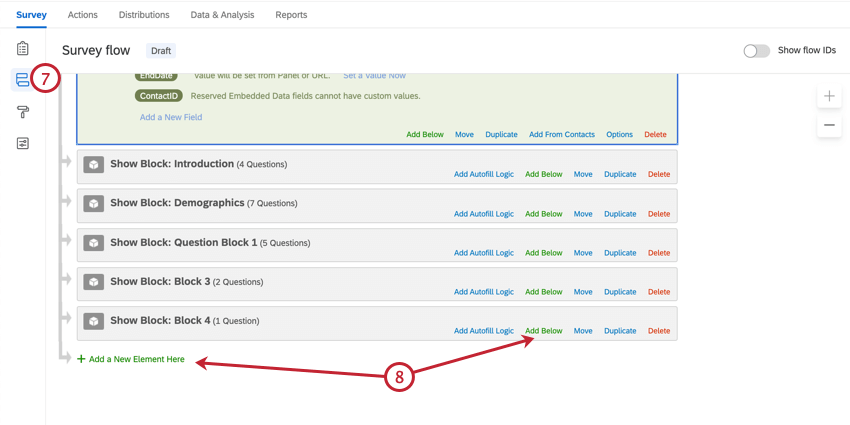
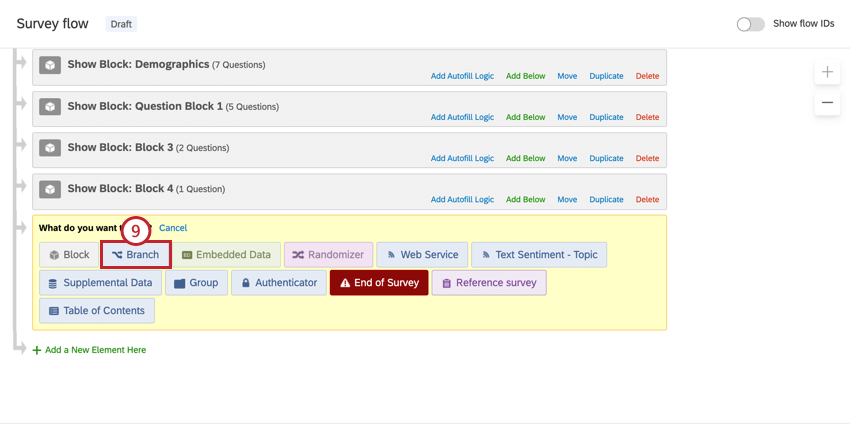
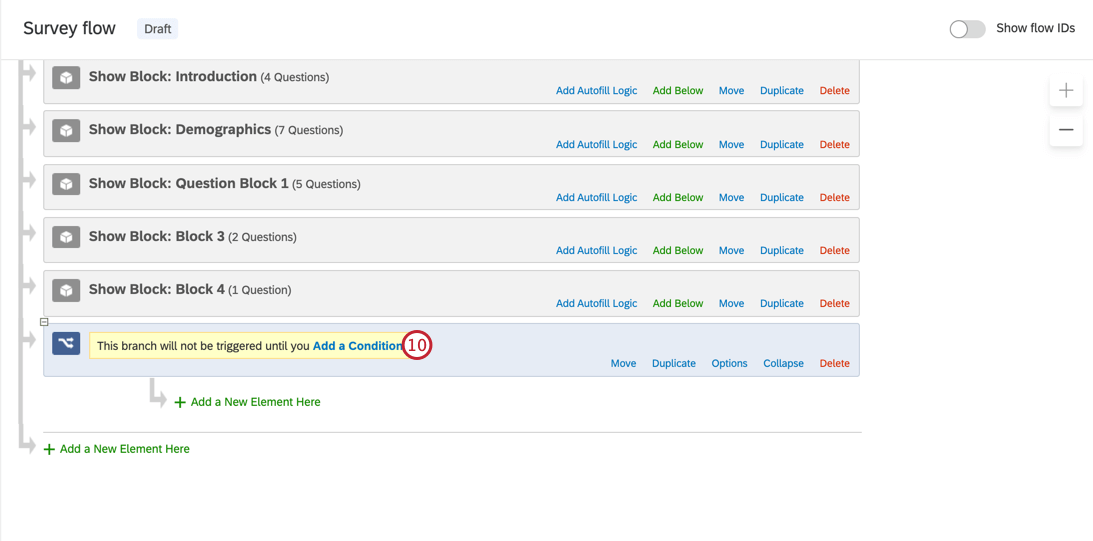
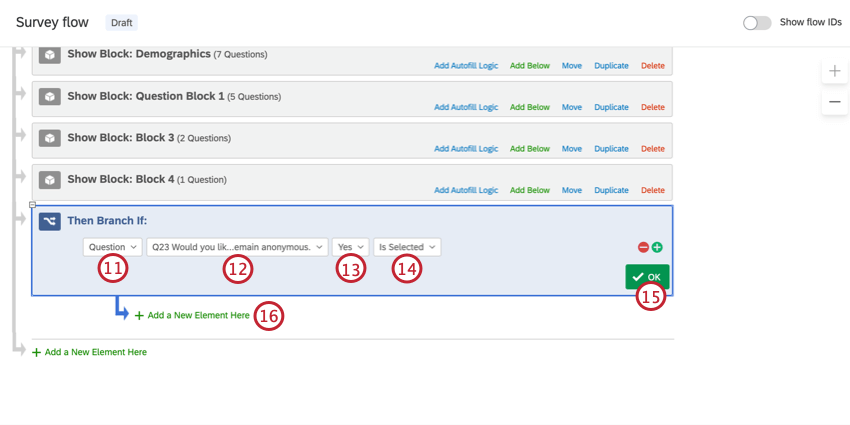
Qtip: If you do not add a new element in the correct place, this set up will not work!
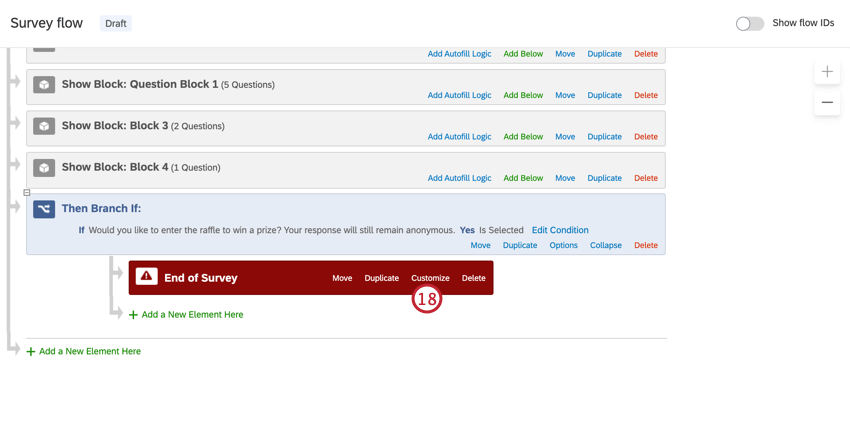
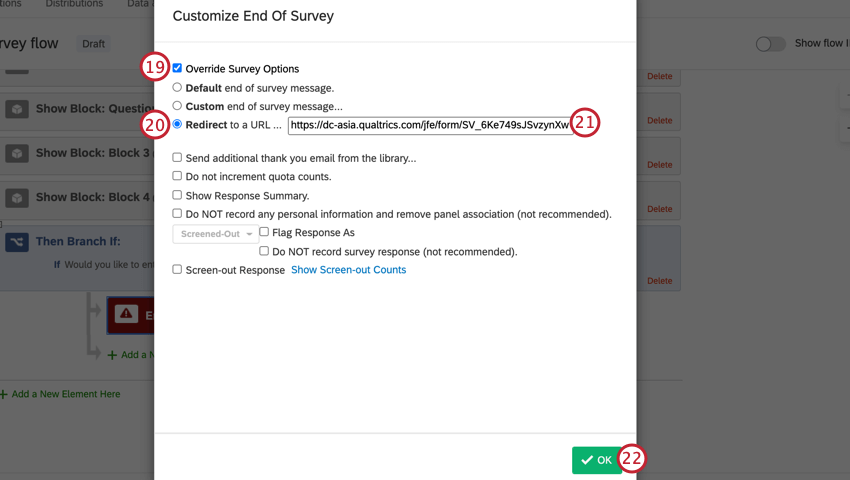
Qtip: This feature is not available for free accounts.
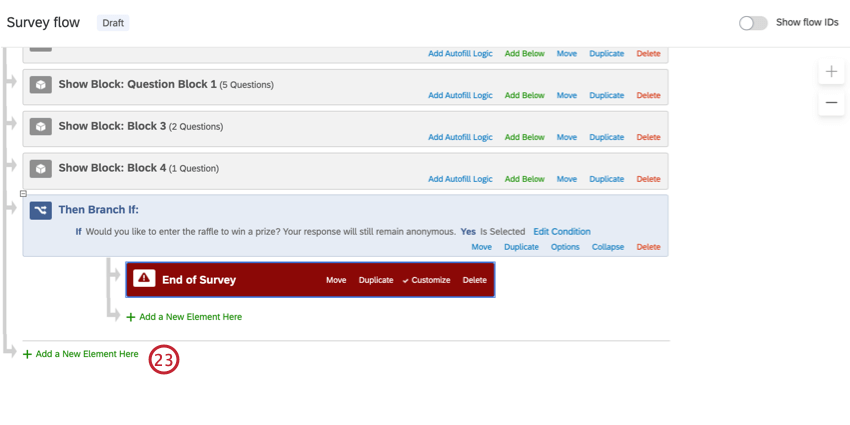
Qtip: Make sure you are adding the new branch at the end of the survey flow, and not indenting it under the first branch!
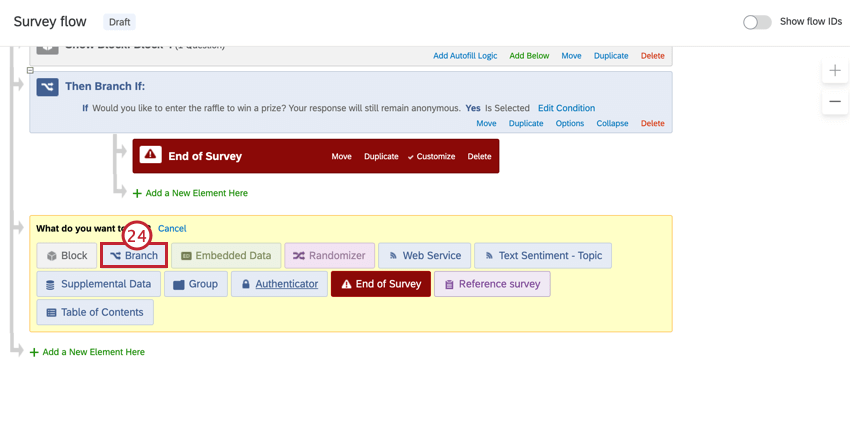
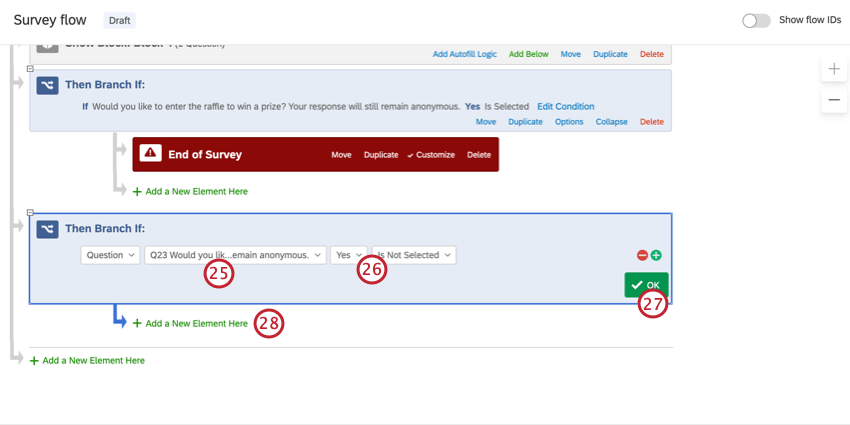
Qtip: Saying “Yes” “is not selected” specifies that if someone doesn’t answer the question, they will also get the non-raffle ending.
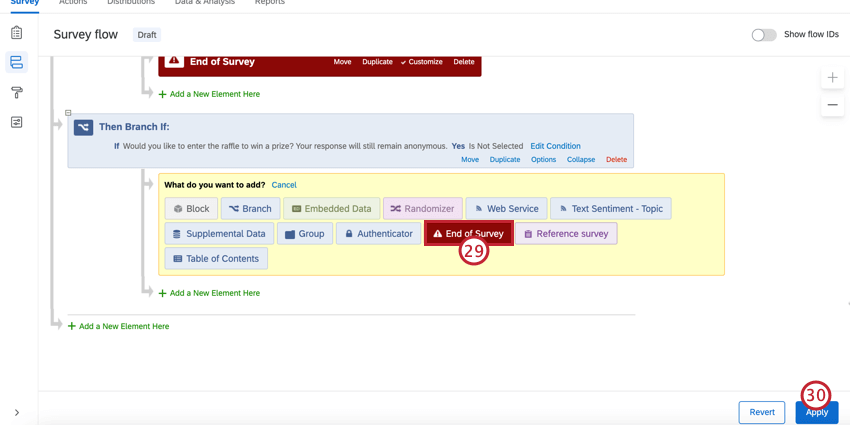
Survey Two: Manual Raffle
Qtip: This option requires that you randomly select a winner and contact them on your own. You will also be expected to provide your own incentives.
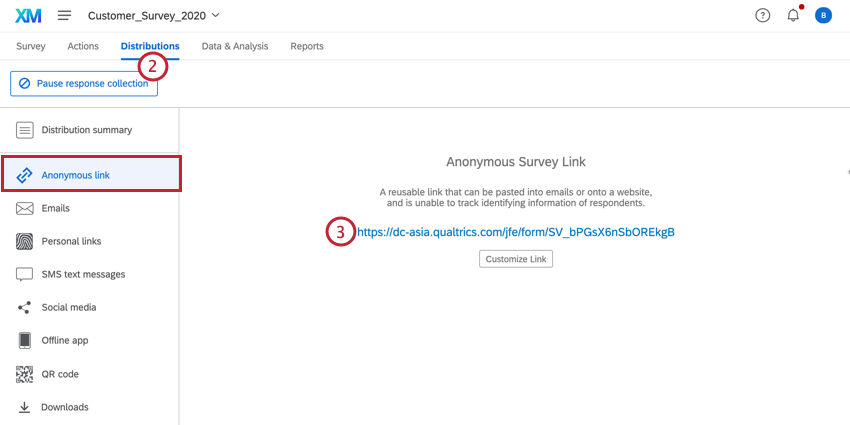
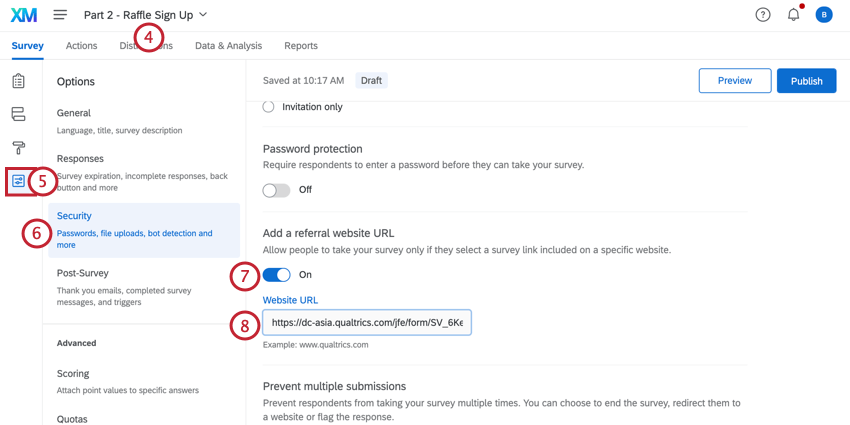
Qtip: This step ensures your raffle contestants can’t give the survey link to just anyone! Only people who came from your previous survey can come here. However, please be aware that software is available for spoofing HTTP referers. To improve your survey’s security, you should combine this feature with other fraud detection measures.
Qtip: You can add an additional question if you want! These steps just go over the essentials.
Qtip: If you do not have a Publish button, disregard this step.
Once you have your list of raffle winners, you will have to randomly select a winner and reach out to them with the incentive yourself.
Survey Two: Raffle Automated by Qualtrics
Qtip: This option requires that you have an account with a third-party incentive provider. You will be responsible for paying and setting up the incentives, but Qualtrics will take care of randomly awarding and sending the reward for you.
In this version, Qualtrics will automate the rewarding of a raffle for you.
Go to your first survey, where the main study is.
Click the Distributions tab.
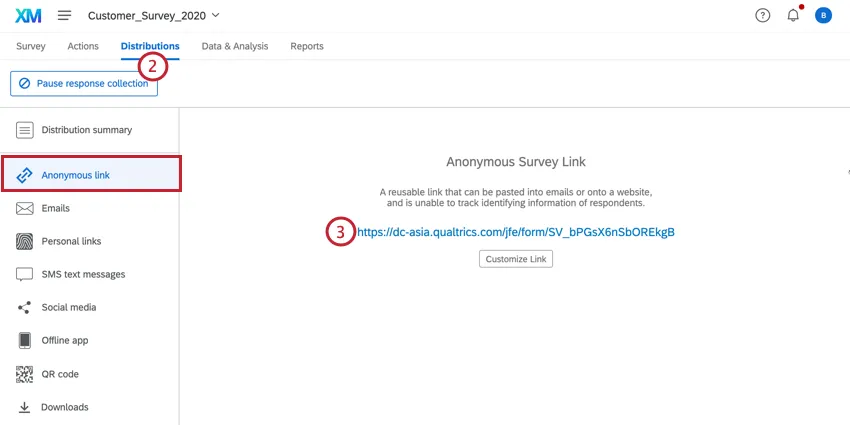
Copy the Anonymous Link.
Go to your second survey.
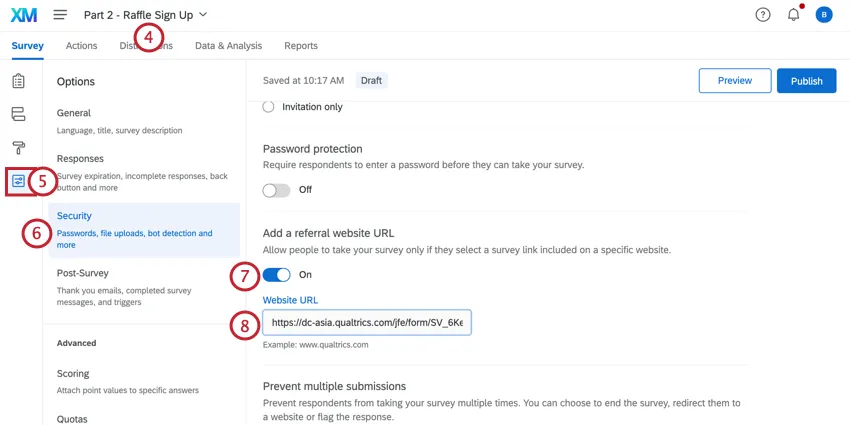
In the Survey tab, click Survey options.
Go to Security.
Set the Add a referral website URL option to On.
Qtip: This step ensures your raffle contestants can’t give the survey link to just anyone! Only people who came from your previous survey can come here. However, please be aware that software is available for spoofing HTTP referers. To improve your survey’s security, you should combine this feature with other fraud detection measures.
Paste the anonymous link you copied in Step 3 into the field.
Navigate to the survey builder.
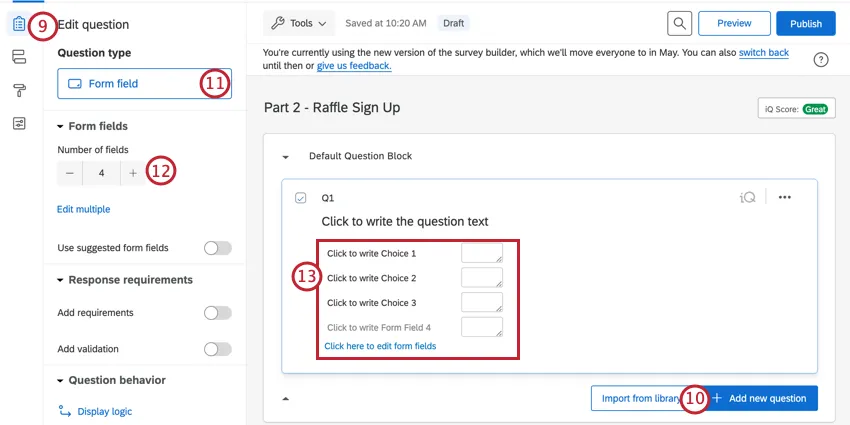
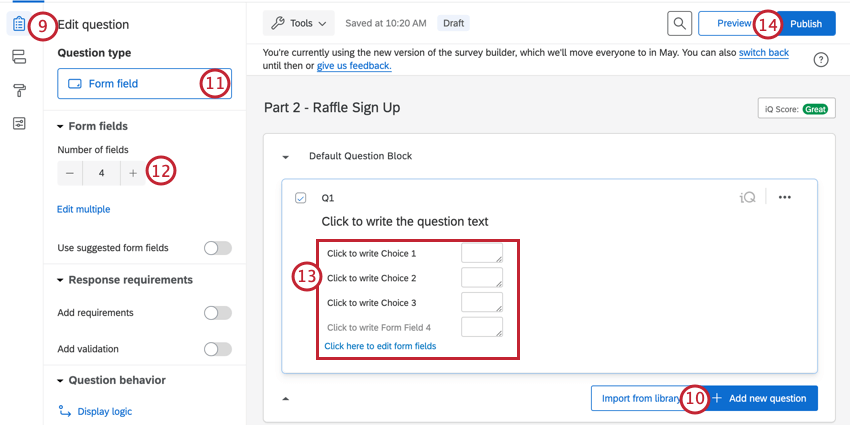
Click Add new question.
Change the question type to Form field.
Adjust the number of form fields.
Name your form fields and change the question text to capture your respondent’s contact information. Make sure you have an email field.
Qtip: You can add an additional question if you want! These steps just go over the essentials.
Go to Survey options.
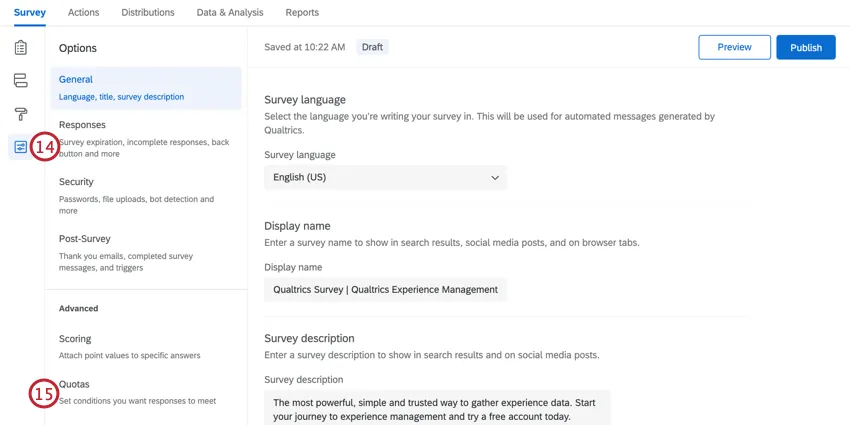
Select Quotas.
Click Add Quota.
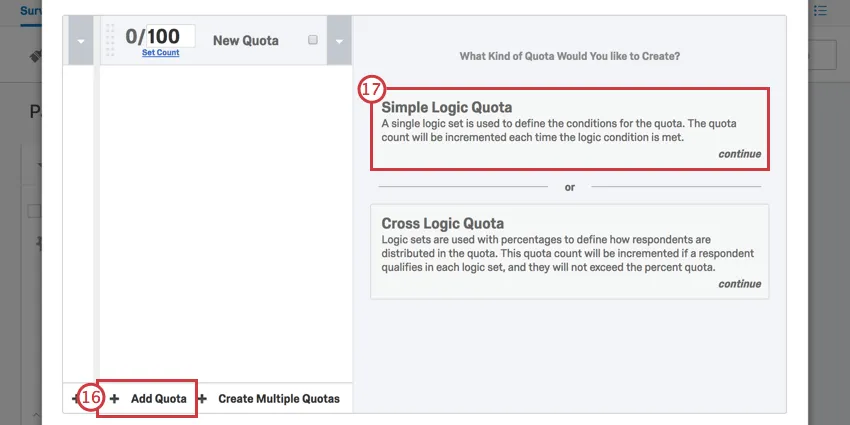
If given the choice, select Simple Logic Quota.
Change the first field to Embedded Data.
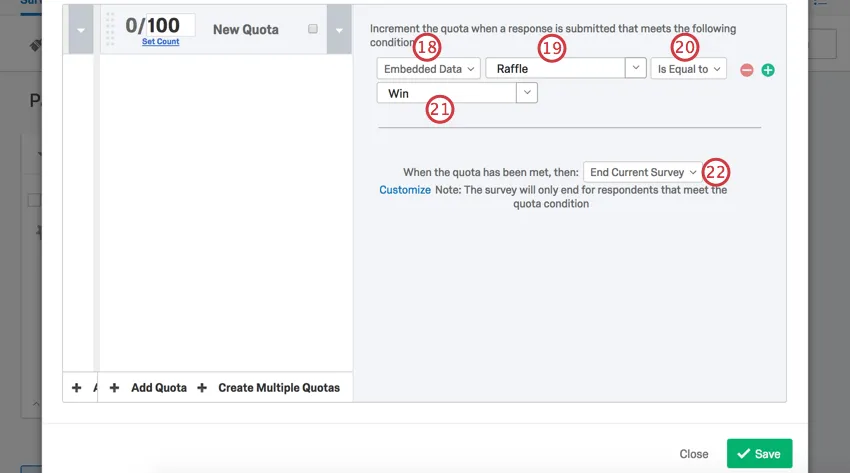
Type Raffle.
Select Is Equal to
Type Win.
From the dropdown, select None.
Change the maximum count to 1.
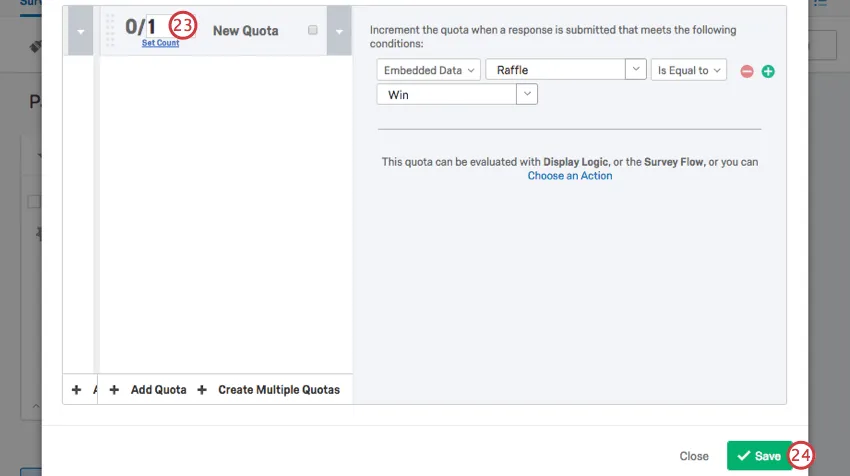
Qtip: This specifies that there can be only one winner of the raffle.
Click Save.
Go to the Survey flow.
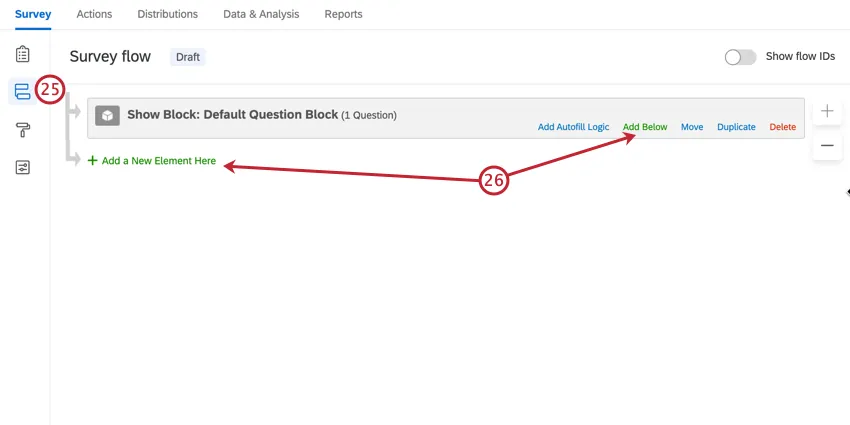
Click Add a New Element Here or Add Below.
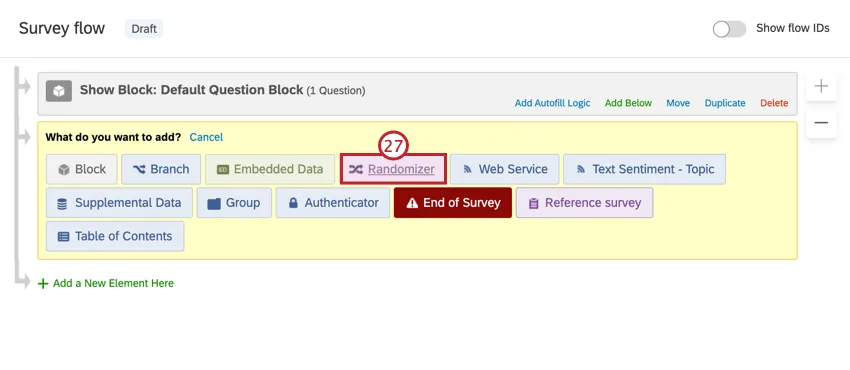
Select Randomizer.
Click Add a New Element Here below the randomizer.
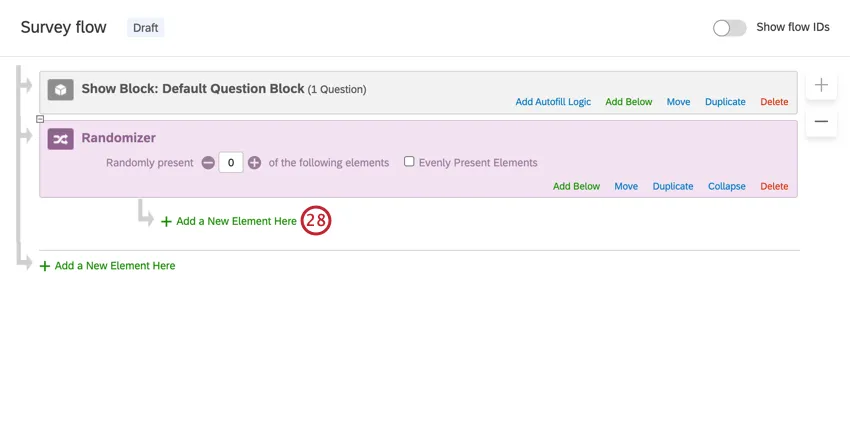
Qtip: Make sure this element is indented under the randomizer!
Select Embedded Data.
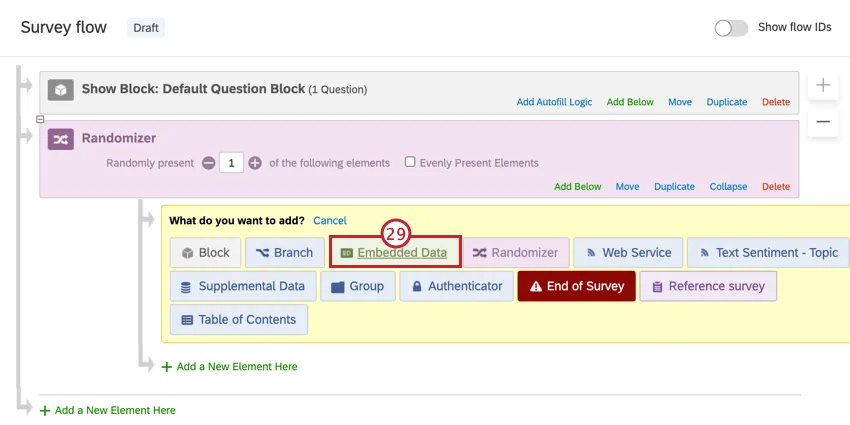
Name the embedded data element Raffle.
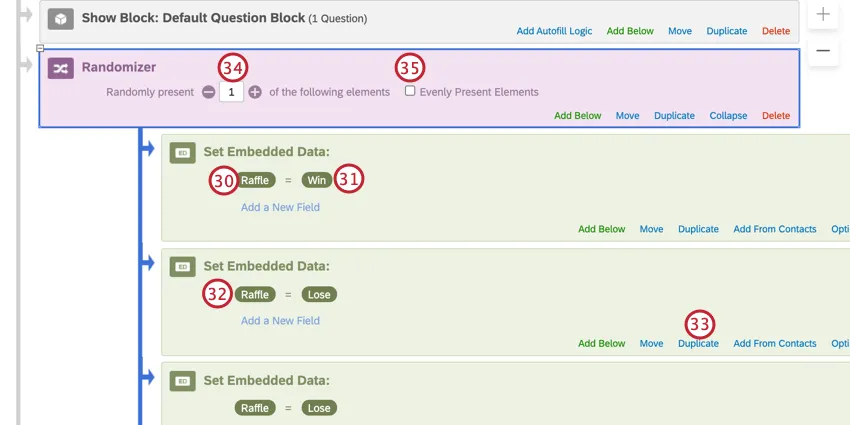
Set the value as Win.
Add another embedded data element. Name this one Raffle, too, but make sure it is equal to Lose instead.
Click Duplicate on the embedded data to decrease the chances any one person coming into the survey will win.
Qtip: For example, if you have 10 embedded data total (including both win and lose), this is a 10% chance each new respondent who enters the survey will win. (Until someone wins. Changes we make in the following steps will ensure that once the prize is won, no one else can get it.) In contrast, if you have just one Win and one Lose, this increases the chance of winning to 50% for every new respondent.
Change the Randomly Present number to 1.
Select Evenly Present Elements.
Qtip: This will still randomize the order of elements.
At the bottom of the survey flow, click Add a New Element Here.
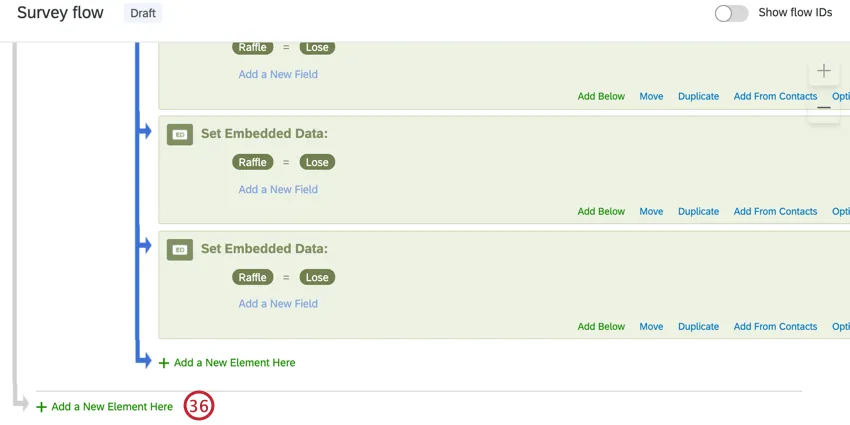
Qtip: Make sure this is not indented under the randomizer!
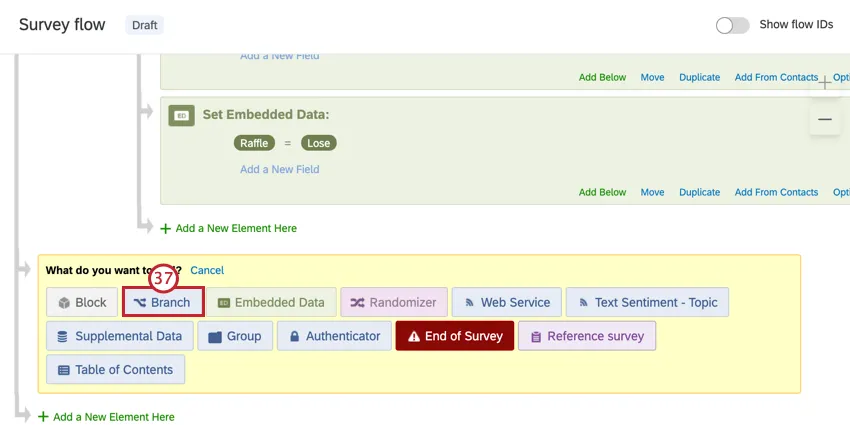
Select Branch.
Click Add a Condition.
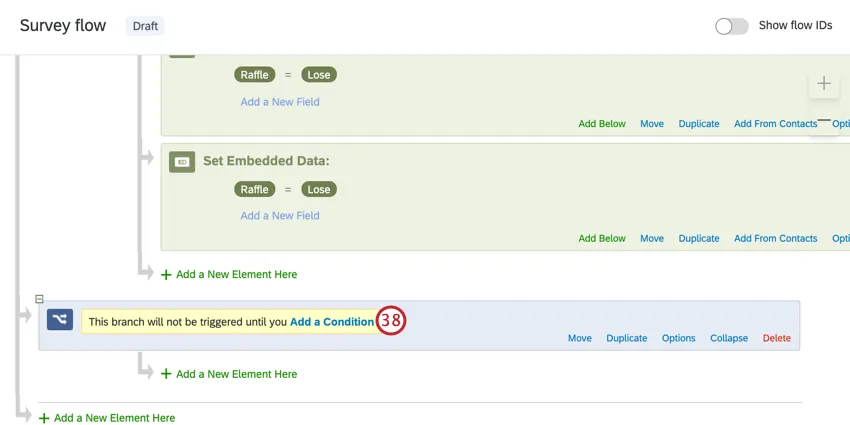
Set the first field to Quota.
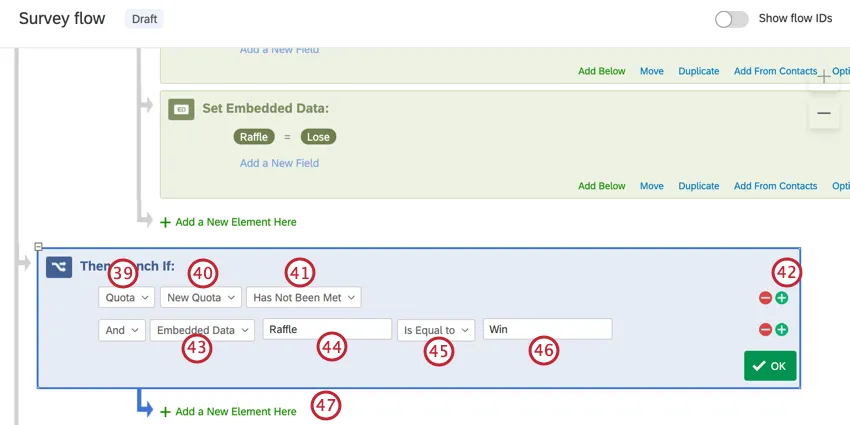
Select the quota you made earlier.
Select Has Not Been Met.
Click the plus sign ( + ) to add another condition.
Qtip: Do NOT change the “And” field.
Change the first field of the new condition to Embedded Data.
Type Raffle.
Select Is Equal to.
Type Win.
Click Add a New Element Here underneath the branch.
Add an embedded data element. Name it after your incentive provider (BHN or Tango) and set it equal to True.
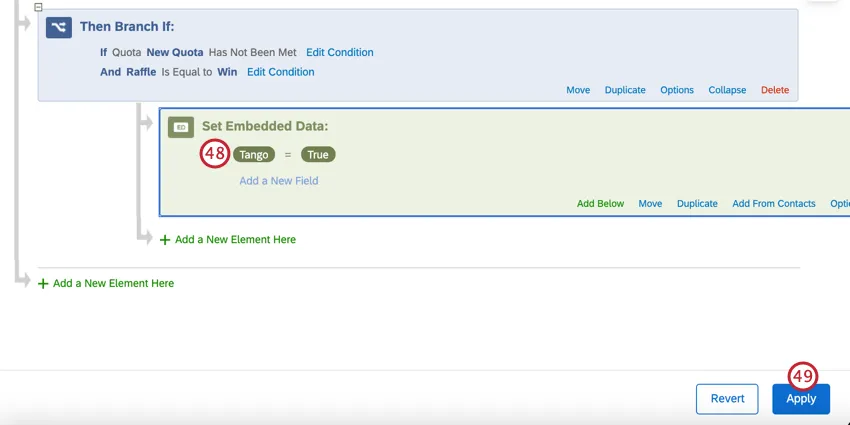
Click Apply.
Go to the Workflows tab.
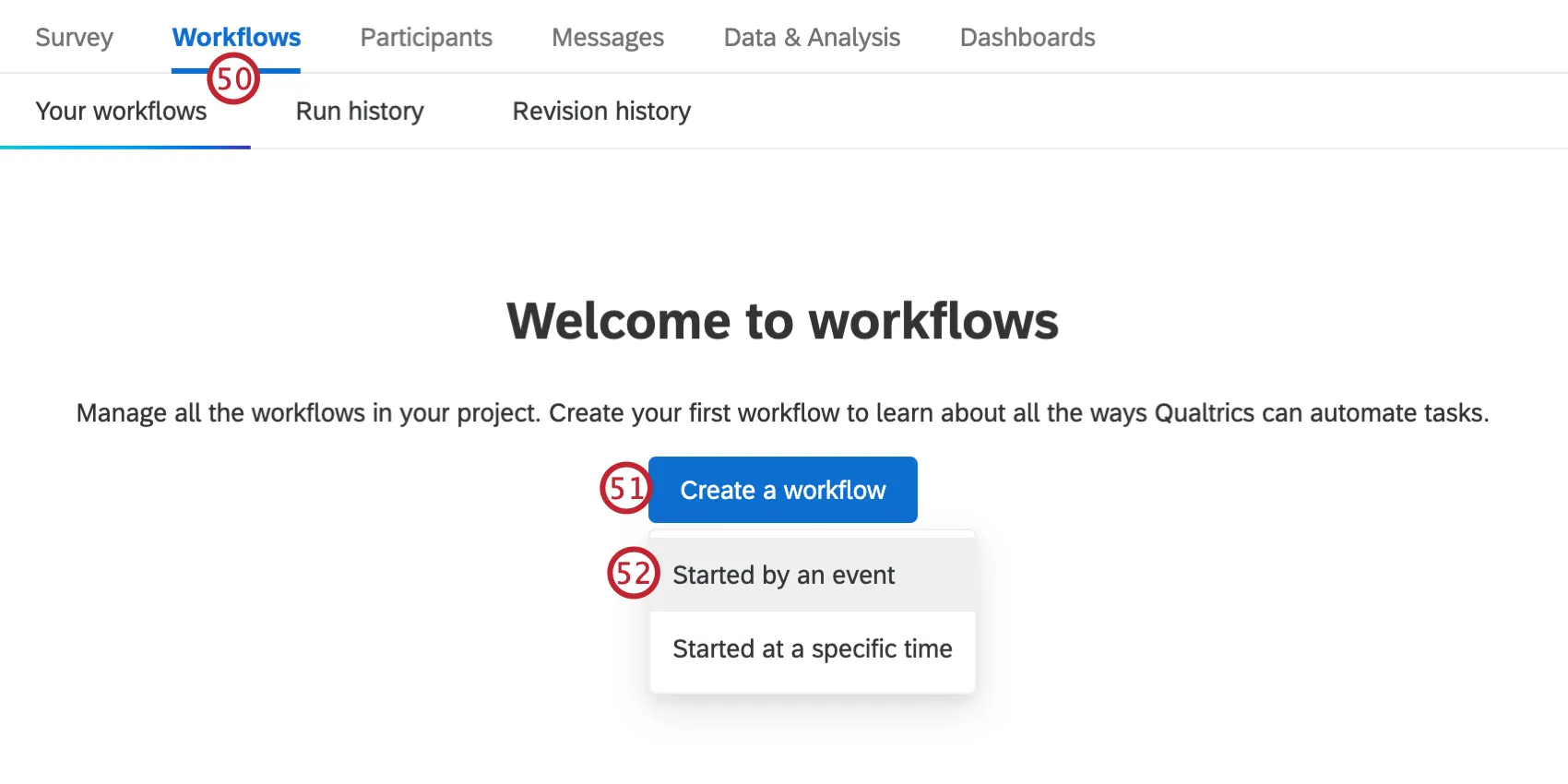
Click Create a workflow.
Select Started by an event.
Select the Survey response event. More information about this event can be found on this support page.
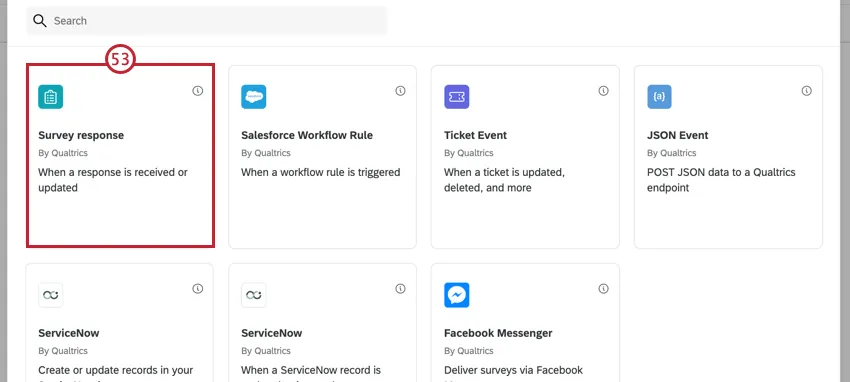
Select Newly created responses.
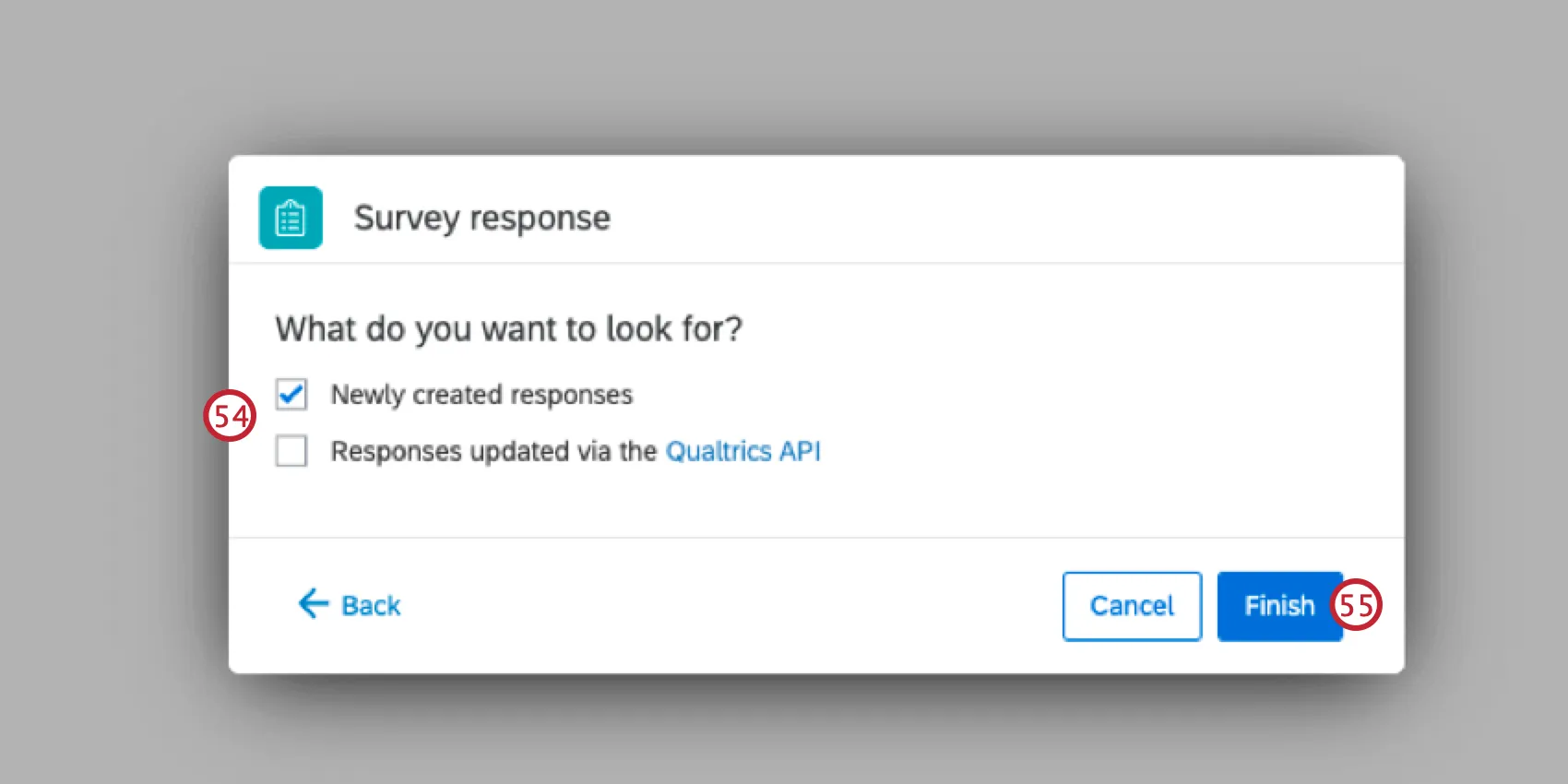
Click Finish.
Click the plus sign (+) and then Conditions.
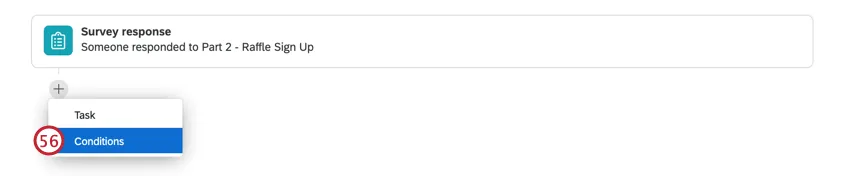
Select Embedded Data.
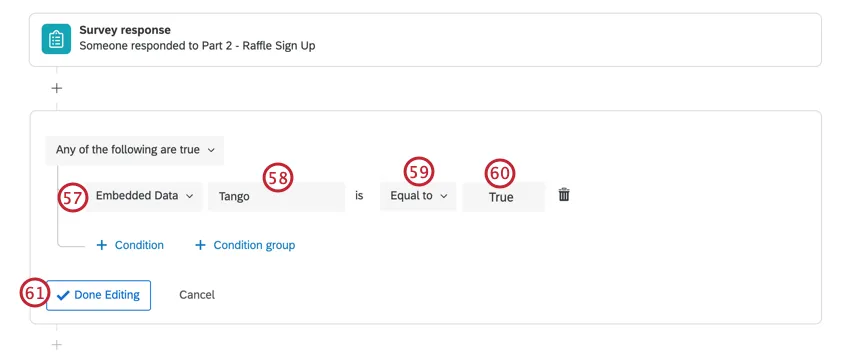
Name the field the same name as the field in step 48.
Select Equal to.
Type True as the value.
Click Done Editing.
Click the plus sign (+) and then Task.
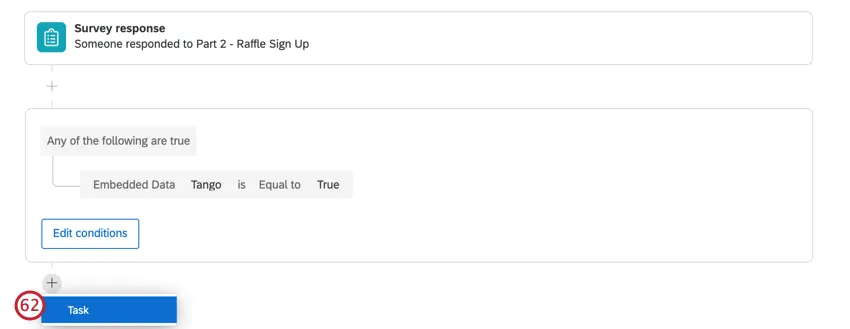
Choose your the task for your incentive provider (Tango or BHN).
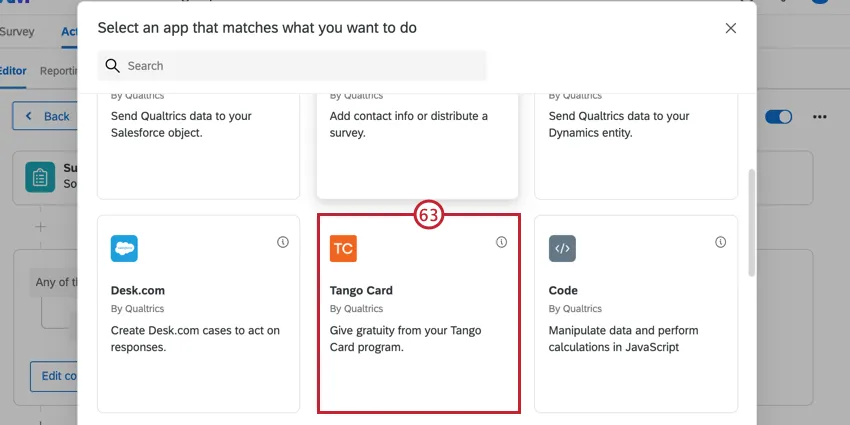
Select Respondent emails will be captured via a survey question.
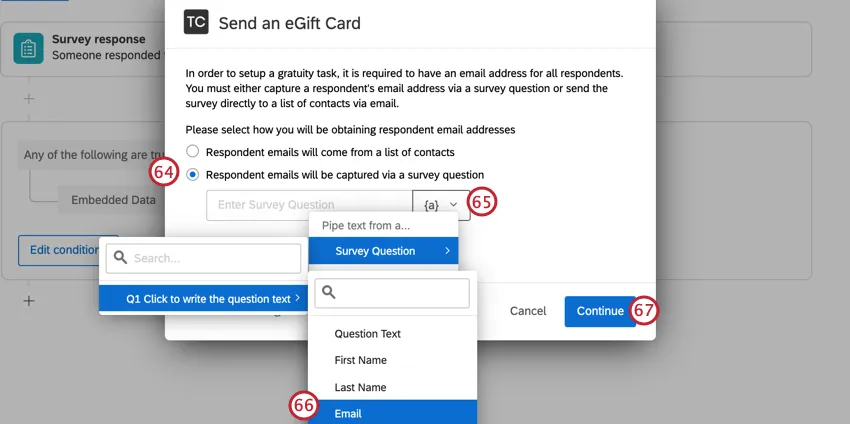
Click the piped text button, {a}.
Select Survey Question, then the form field you made above, and then select the Email field.
Qtip: This ensures the email address a respondent enters is the same one that will receive the incentive!
Click Continue and finish setting up the task by following the instructions linked within the workflow task.
Back in the Survey tab, click Publish to preserve your changes.
If you test this survey, test in a copy. Otherwise, you will have to make changes to your Randomizer counts and your Quota counts.
Qtip: When testing this solution, you must use the anonymous link to your survey. You cannot test this with the preview version of your survey since the referral URL will not work for survey 2. However, please note that responses collected via anonymous link tests are billed to your license.
Qtip: This solution is not foolproof. Quota information is not saved until the respondent submits their survey, giving respondents time to change their answers or deliberate over their choices. Because more than one person can enter the survey at a time, there is a very small chance that two people submit the same answer at the same time, resulting in a quota that should have only had one registrant now having two. This is a rare occurrence.
FAQs
I want to offer the opportunity to enter a raffle following the end of my survey for my participants. I want participants to submit their email address, but keep it separate from their response so it remain anonymous. Is this possible?
I want to offer the opportunity to enter a raffle following the end of my survey for my participants. I want participants to submit their email address, but keep it separate from their response so it remain anonymous. Is this possible?
That's great! Thank you for your feedback!
Thank you for your feedback!