

Passing Information via Query Strings
What's on this page
About Query Strings
A query string allows you to pass information to and from a website by simply adding, or “appending,” that information to the end of a URL. This information is stored in the query string and is captured by the website when it reads the URL.
Data can be passed into a survey using a query string. Once passed, the data can be saved as embedded data with the survey response. At the end of a survey, query strings can be used to pass data to another website or survey.
Query String Structure
General Query String Structure
Query strings follow a very specific syntax. They are added to the end of a URL in the general format of ?FieldName=FieldValue. The FieldName is the name of your data field while FieldValue is the specific data value of your field. Let’s take a look at an example URL with a query string appended to it. The query string is in bold.
https://survey.qualtrics.com/jfe/form/SID=SV_1234?Source=Facebook When a respondent takes the survey with the above link, the data field “Source” with a value of “Facebook” will be saved with the response.
Multiple Query Strings in One URL
Query strings allow you to pass multiple pieces of data within a single URL. However, when your URL contains multiple query strings, the syntax is a bit different. Let’s take a look at a URL with multiple query strings appended to it. The query strings are in bold.
https://survey.qualtrics.com/jfe/form/SV_123456789?Source=Facebook&Campaign=Mobile The second query string begins with an ampersand (&) instead of a question mark (?). This is because URLs can only support one question mark. Additional query strings can be appended by adding more fields in the format of &FieldName=FieldValue.
Attention: While there is no Qualtrics limit to the amount of data you can pass via query strings, web browsers do have URL character length limits. These limits vary by browser. We recommend trying to keep your URLs below 2,000 characters. For information about a specific browser’s limits, consult the browser’s help documentation.

Combining Query String Values in Response Data
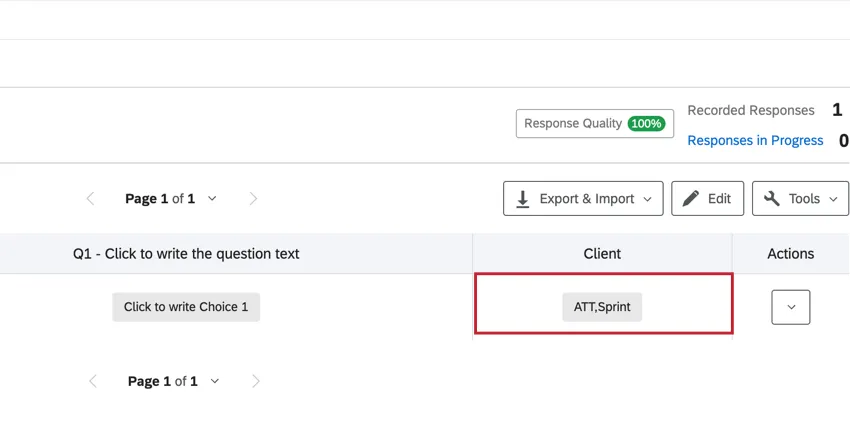
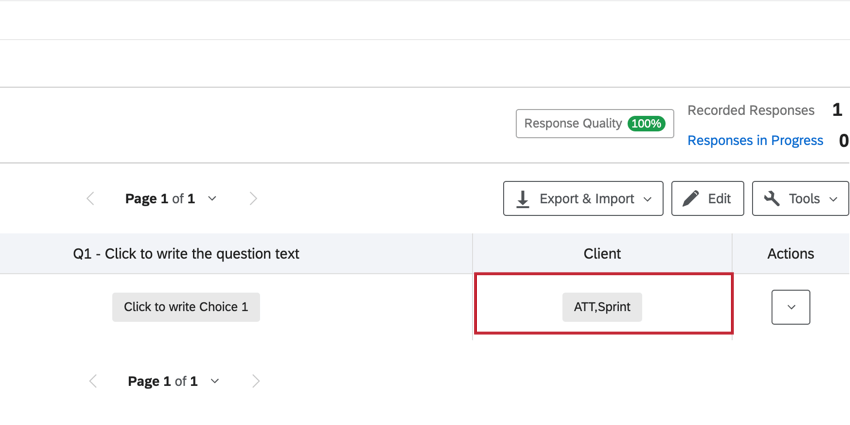
You can pass multiple values for the same field within a query string. The result will be a combined field in your response data that is separated by commas.
For example, if you pass the following query string:
https://survey.qualtrics.com/jfe/form/SV_9GfoihavJJR5R7U?Client=ATT&Client=Sprint The result will be that the “Client” field has a value of “ATT,Sprint.”
Passing Information into a Survey
You can use query strings to pass information into a Qualtrics survey. You can save this information as embedded data and then use this field in branch and display logic along with saving the data with the survey taker’s response.
Example: You can use a query string to track from what source a participant is accessing a survey. Let’s say you’re running a survey on multiple social media sites. If you want to track which participants are coming from Facebook and which are coming from LinkedIn, you could create 2 customized links (query strings in bold).
https://survey.qualtrics.com/jfe/form/SID=SV_1234?Source=Facebookhttps://survey.qualtrics.com/jfe/form/SID=SV_1234?Source=LinkedInThese query strings will save 2 different values for the field “Source”. These values are “Facebook” and “LinkedIn”. You can then use this data in your reporting, pipe it into questions to display for your respondents, and base branch and display logic on it to show or hide relevant questions.

Passing information into a survey via query strings requires a 2-part setup. The first part consists of appending data to your URL with query strings, and the second part consists of creating embedded data elements in your survey flow to capture the information from the URL.
Part 1: Appending Data to a Survey URL
Part 2: Capturing Information from a URL as Embedded Data
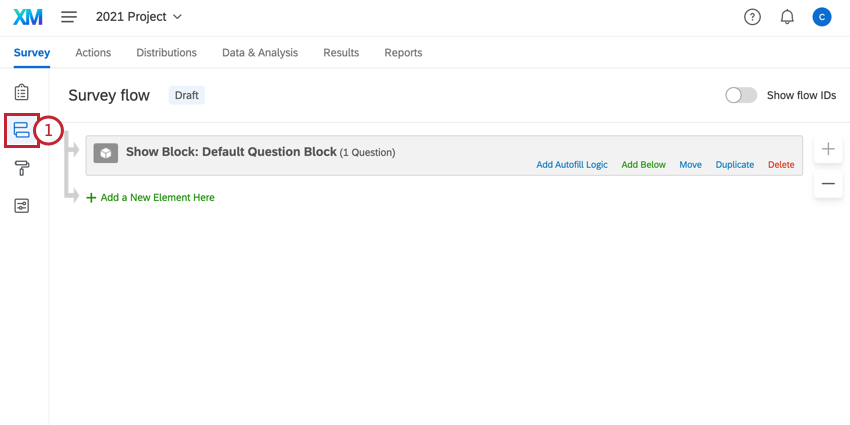
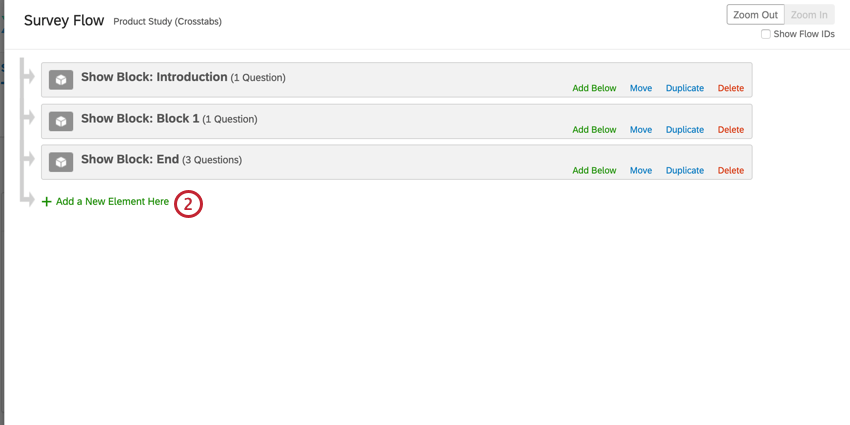
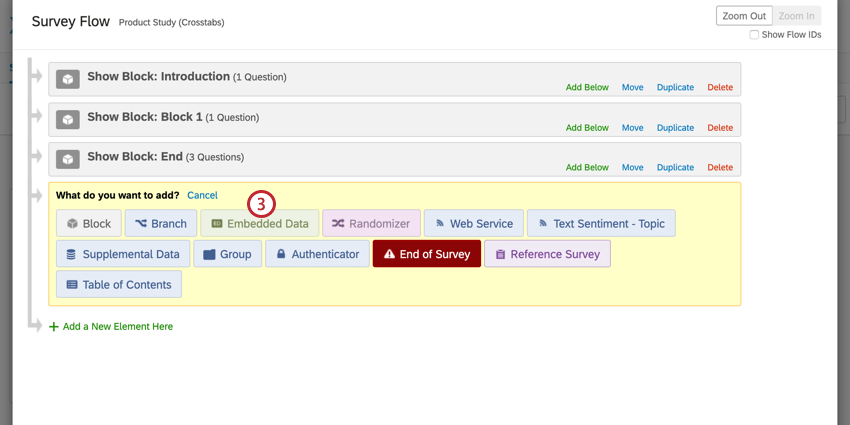
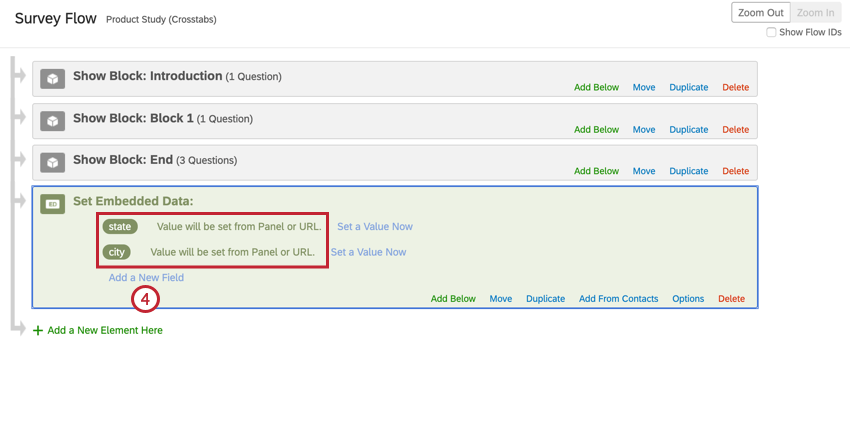
Qtip: The capitalization of your fields matters! Make sure your fields in your survey flow match the capitalization of the fields in your URL.

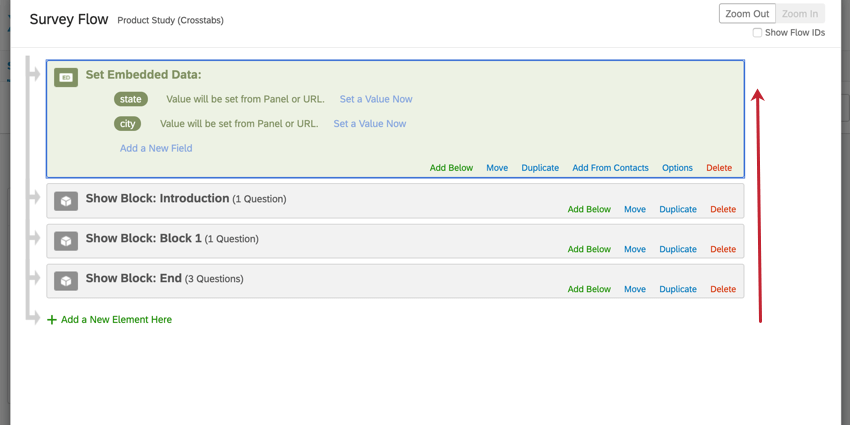
Example: In the Introduction question block, we want to pipe in the value for “city” into some question text. Therefore, we need to move the embedded data element to before the Introduction question block in the survey flow.
Passing Information from a Survey
You can pass information from a survey to another website or from 1 survey to another survey by appending information to the redirect URL. This is commonly done when working with a third party panel provider.
Attention: The redirect destination needs to be configured to accept the information passed in the URL. Otherwise, the passed information won’t be captured. See passing information into a survey above to learn about configuring a survey to accept information passed in the URL.
To Pass Information from a Survey
Example: We want to pass along the respondent’s answer to two of our survey questions. The piped text for our selected survey questions are ${q://QID7/ChoiceGroup/SelectedChoices} and ${q://QID3/ChoiceGroup/SelectedChoices}.
Example: We’re redirecting from one Qualtrics survey to a third party panel provider, so our URL is https://www.survey.panelcompany.com
https://www.survey.panelcompany.com? https://www.survey.panelcompany.com?Q7Answer https://www.survey.panelcompany.com?Q7Answer= https://www.survey.panelcompany.com?Q7Answer=${q://QID7/ChoiceGroup/SelectedChoices} https://www.survey.panelcompany.com?Q7Answer=${q://QID7/ChoiceGroup/SelectedChoices}&Q3Answer=${q://QID3/ChoiceGroup/SelectedChoices}. Qtip: Do you have a query string that does not seem to be working? See our section on URL encoding.
After making your redirect link, you’ll need to make sure your redirect website can capture the information from the query strings. If you’re redirecting to a Qualtrics survey, details about preparing your survey to capture the information can be found in Part 2 of the passing information into a survey section above.
Adding Query Strings to Emailed Links
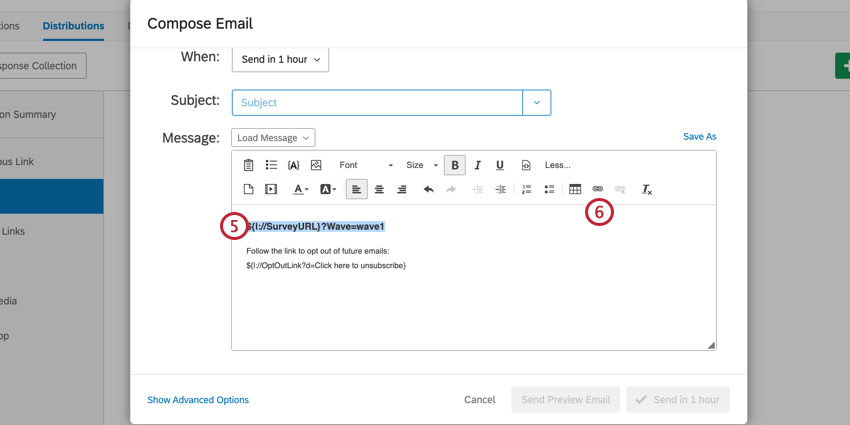
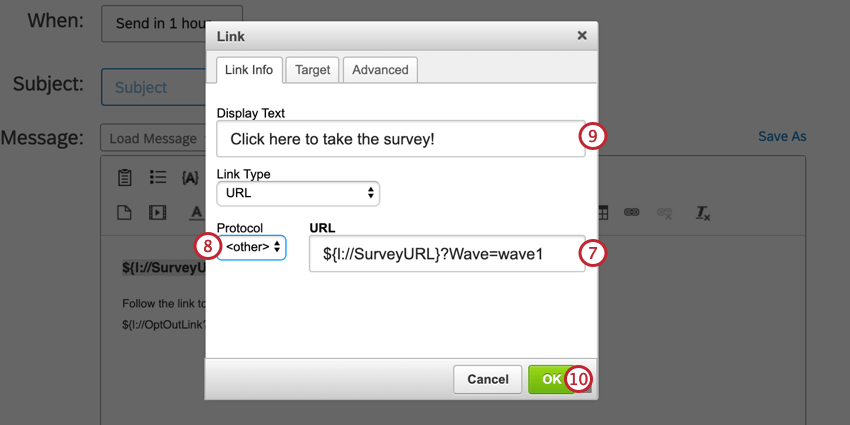
Some of the Qualtrics email editors contain piped text for your survey link instead of the survey link itself. This includes emailed survey invitations along with the Send Survey via Email Task. You can add query strings to the piped text for these links so that the query strings are added to the link when the email sends. One such scenario where this is useful is if you’re sending many similar distributions and want to track which responses come from which distribution. Extra steps need to be taken to make sure your link is built and hyperlinked properly in your Qualtrics emails.
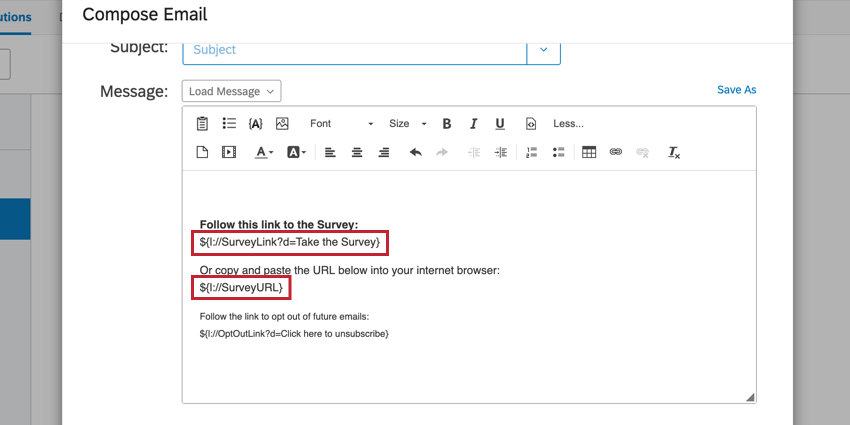
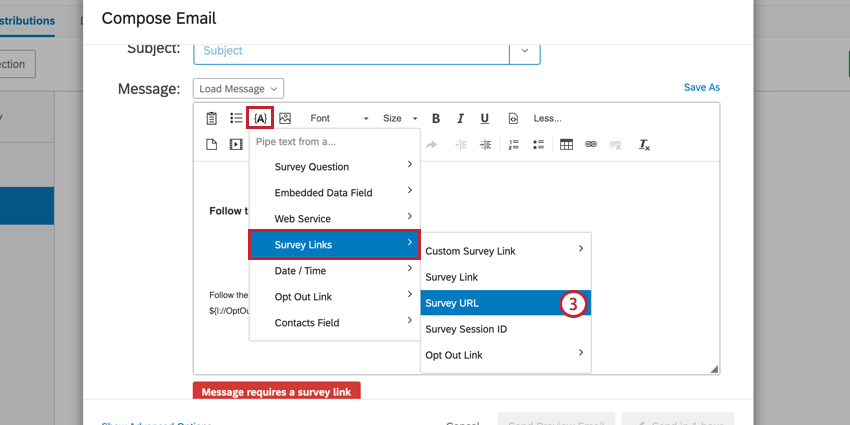
Qtip: When building your query strings, make sure to use an & for each string, as the individual survey link will already contain query strings.
Example: Let’s say we’re sending a survey out in waves and want to track which wave a respondent was a part of. Our URL in the email editor will look like ${l://SurveyURL}&Wave=wave1
Qtip: Do you have a query string that does not seem to be working? See our section on URL encoding.
Encoding URLs for Query Strings
Qtip: This solution only works for workflows that start with a survey response event. For example, if you use a survey response to trigger an email task.
Do you have a query string that does not seem to be working? It might have to do with how your piped text is formatted. URLs can’t always read special characters, such as spaces and symbols, so we need to make sure the URL understands how to process those characters by encoding them.
Best practice is to add “?format=urlencode” to the end of piped text values, before the last bracket. This ensures values with spaces and special characters carry over properly into the query string.
Example: Pull embedded data called Department into your query string by using ${e://Field/Department?format=urlencode} instead of ${e://Field/Department}.
Warning: Do not add ?format=urlencode to Email fields. This will convert the @ symbol to %40.
Warning: Do not add ?format=urlencode to the piped text for the survey URL. Instead, add it to a full survey URL that has piped text in its query string. An example of correct use would be https://qunivocalize.co1.qualtrics.com/jfe/form/SV_xxxxxxx?Department=${e://Field/Department?format=urlencode}&Office=${e://Field/Office?format=urlencode}
Only use a question mark before the URL encode formatting. Do not use an ampersand ( & ) or any other character.
How to Use Q_EED
Q_EED can be used as a URL parameter to pass obfuscated (or Base64URL encoded) embedded data parameters. One of the most common use cases is to pass JSON data in a binary format through a URL.
In the example below, we are going to communicate a respondent’s gender (Male) and age (32) into a Qualtrics survey using Q_EED appended to the end of a survey link as a query string.
Qtip: Do not vary the spelling, punctuation, or case sensitivity of your variables. If your survey flow says “Gender,” the G must always be capitalized to successfully encode and then carry this information over.
Warning: For security purposes, encoded strings cannot contain plus signs ( + ), or the embedded data will not be recorded. Use dashes ( – ) instead.
How to Use Q_PopulateResponse
Q_PopulateResponse is used as a URL parameter to pre-populate survey responses.
Values are passed through the URL as JSON formatted fields:
YourSurveyURL?Q_PopulateResponse={"QID1":"6","QID2":"4","QID3":"this is my text","QID4":"1"}
If you want to pipe in last year’s answers to this year’s surveys, you can upload the answers as embedded data to a contact list and then set up a custom individual link that references these answers. First, write out some clickable text in your distribution email, then get the piped text for the survey URL, and then use the link button in the rich content editor to link to something like this:
${l://SurveyURL}?Q_PopulateResponse={"QID1":"${e://Field/QID1}","QID2":"${e://Field/QID2}","QID3":"${e://Field/QID3}"}
This example is referencing the contact fields QID1, QID2, and QID3. Be sure to encode the quotation marks (“) with %22, but do not encode the entire URL string as it will disable the piped text.
This link will populate last year’s answers. If the person changes some of these default answers and then exits the survey, when they re-enter the survey, the most recent save overrides what the URL states should be populated. Also, if there is display logic on a question, it will fill that question, but it will not be recorded unless the person chooses the correct logic that would display that question.
Qtip: See the FAQs at the bottom of the page for help with JSON formatting.
Common Use Cases
Below are some common Qualtrics use cases that use query strings. Visit the linked pages for more information.
- Pulling Data Into a Second Survey (Longitudinal Surveys)
- Integrating with a Panel Company
- Building a Retake Link
Types of Projects You Can Use Query Strings With
Query strings can be used with any type of project that has a link. This includes:
- Survey projects
- Engagement
- 360
- Lifecycle
- Ad Hoc Employee Research
- Pulse
- XM Solutions
- Conjoints
- MaxDiff
Qtip: This support page was written with survey projects in mind. Not every use case discussed on this page is relevant to every project type.
FAQs
Do I have to populate every question of the survey with Q_PopulateResponse?
Do I have to populate every question of the survey with Q_PopulateResponse?
How do I figure out the JSON formatting for a question?
How do I figure out the JSON formatting for a question?
Multiple Choice Short Format: "QuestionID":"ChoiceID"
Multiple Choice Full Format: "QuestionID":[{"Value":"ChoiceID","Text":"text"}]
Text Entry: "QuestionID":"This is a text field"
Multiple Select Short Format: "QuestionID":"ChoiceID,ChoiceID,ChoiceID"
Multiple Select Full Format: "QuestionID":[{"Value": "ChoiceID"}, {"Value":"ChoiceID", "Text": "Text"}]
Matrix Short Format: "QuestionID":{"StatementID":"ScaleID(s)","StatementID":"ScaleID(s)","StatementID":"ScaleID(s)"}
Qtip: For Matrix Multiple Select, ScaleIDs are comma separated. For example: {"QID1":{"1":{"Value":"1,2,3"}}}
Matrix Full Format: "QuestionID":{"StatementID":{"Value": "ScaleID(s)", "Text": "Text1"},"StatementID":{"Value": "ScaleID(s)", "Text": "Text2"}}
Qtip: For Matrix Multiple Select, ScaleIDs are comma separated. For example: {"QID1":{"1":{"Value":"1,2,3"}}}
Matrix Text Entry & Matrix Constant Sum: "QuestionID":{"StatementID":{"ScaleID": "Text"},"StatementID":{"ScaleID": "Text2"}}
Matrix Text Entry & Matrix Constant Sum Full Format: "QuestionID":{"StatementID":{"Value": {"ScaleID": "Text"}, "Text": "Allow Text Entry"},"StatementID": {"Value": {"ScaleID": "Text2"}}}
Constant Sum: "QuestionID":{"StatementID":"number","StatementID":"number","StatementID":"number"}
Constant Sum Full Format: "QuestionID":{"ChoiceID":{"Value":"number","Text":"Allow text entry"},"ChoiceID":{"Value":"number"}}
Side by Side: "QuestionID":{"ColumnID":{"StatementID":"ScaleID","StatementID":"ScaleID"},"ColumnID":{"StatementID":"ScaleID","StatementID":"ScaleID"}}
Rank Order: "QuestionID":{"ChoiceID":{"Value":"RankID"},"ChoiceID":{"Value":"RankID"},"ChoiceID":{"Value":"RankID"}}
Pick, Group, and Rank: "QuestionID":{"ChoiceID":{"GroupID":"Rank", "Text":"Allow Text Entry"},"ChoiceID":{"GroupID":"Rank"}}
Side by Side Text Entry: "QuestionID":{"ColumnID":{"StatementID":{"ScaleID":"Text1"},"StatementID":{"ScaleID":"Text2"}},"ColumnID":{"StatementID":"ScaleID","StatementID":"ScaleID"}}
Form Field: "QuestionID":{"StatementID":"Text1","StatementID":"Text1"},
Slider: "QuestionID":{"StatementID":"ScaleID","StatementID":"ScaleID"}
Sliding Scale: "QuestionID":"ChoiceID"
Sliding Scale Full Format: "QuestionID":{"Value": "ChoiceID"}
Constant Sum: "QuestionID":{"ChoiceID": "Number", "ChoiceID": "Number"}
Constant Sum Full Format: "QuestionID":{"ChoiceID":{"Text":"TextValue","Value":"Number"},"ChoiceID":{"Value":"Number"}}
Example: "QID4":{"1":{"Text":"exampleText","Value":"13"},"2":{"Value":"50"}}
Hot Spot: "QuestionID":{"SpotID":"ScaleID","SpotID":"ScaleID"}
Qtip: SpotID's start at 4 and you may have to inspect the element to find the IDs. ScaleIDs are 1/2 of On/Off and 1/2/3 for Like/Dislike.
Hot Spot Full Format: "QuestionID":{"SpotID":{"Value":"ScaleID"},"SpotID":{"Value":"ScaleID"}}
Qtip: SpotID's start at 4 and you may have to inspect the element to find the IDs. ScaleIDs are 1/2 of On/Off and 1/2/3 for Like/Dislike.
Heat Map: "QuestionID":[{"x":number, "y":number},{"x":number, "y":number}]
Drill Down: "QuestionID":{"ChoiceID":"AnswerID","ChoiceID":"AnswerID"}
Drill Down Full Format: "QuestionID":{"ChoiceID":{"Value":"AnswerID"},"ChoiceID":{"Value":"AnswerID"}}
Highlight: Highlight is a special case Matrix where the words are statements and the colors are scale points.
Qtip: The first word starts at 4 and you may have to inspect the element to find the IDs.
File Upload and Signature: "QuestionID": {Size: number, Filename: 'name',FileType: 'mimetype',FileThumbnail: ,FileData: ,FileID: 'FileID',S3: true};
If used with an anonymous link and if re-accessing a partially completed survey, will Q_PopulateResponse overwrite the answers manually put in in the previous session?
If used with an anonymous link and if re-accessing a partially completed survey, will Q_PopulateResponse overwrite the answers manually put in in the previous session?
How does Q_PopulateResponse work with display logic?
How does Q_PopulateResponse work with display logic?
Is there a limit for the URL length that can be used with Q_PopulateResponse?
Is there a limit for the URL length that can be used with Q_PopulateResponse?
That's great! Thank you for your feedback!
Thank you for your feedback!