

Document Explorer (Studio)
What's on this page
About Document Explorer
Document explorer lets you browse the actual customer feedback behind different reporting items. For example, you can use the explorer to look through sentences that were categorized into a certain topic, or to browse documents associated with a certain attribute.
Opening Document Explorer from a Widget
You will only see feedback related to the specific reporting widget where you are opening document explorer.
Example: If you group data by topics and open Document Explorer from one of topic-based groupings, you will see all of the sentences that were categorized into that topic, while also taking into account the time period of the report and other filters.

Example: If you further divide the topics by sentiment and open Document Explorer from a negative sentiment stack, it will display only negative sentences categorized into a specific topic.
Qtip: Accessing Document Explorer requires a Drill to Feedback in View Mode permission.
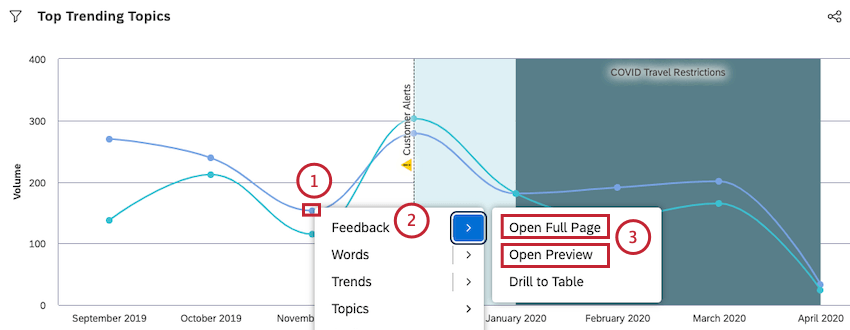
Qtip: For example, you can click a bar, line, segment, or point on a graph.
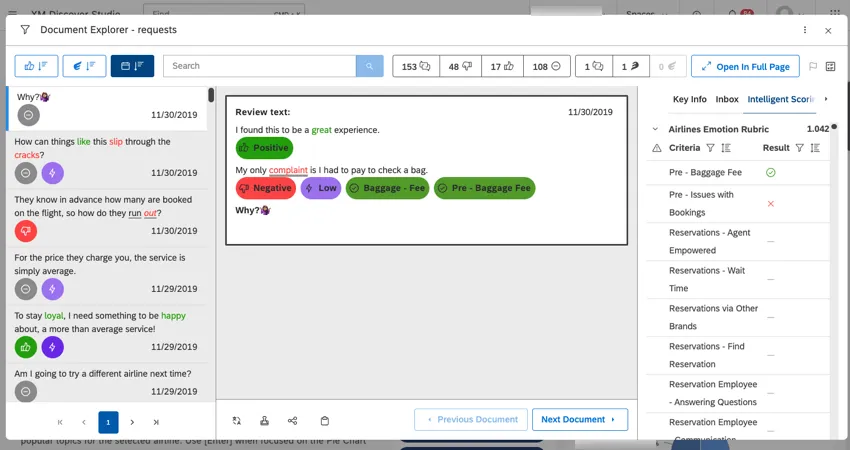
Qtip: Click Open Preview to open Document Explorer and view interactions in preview mode.
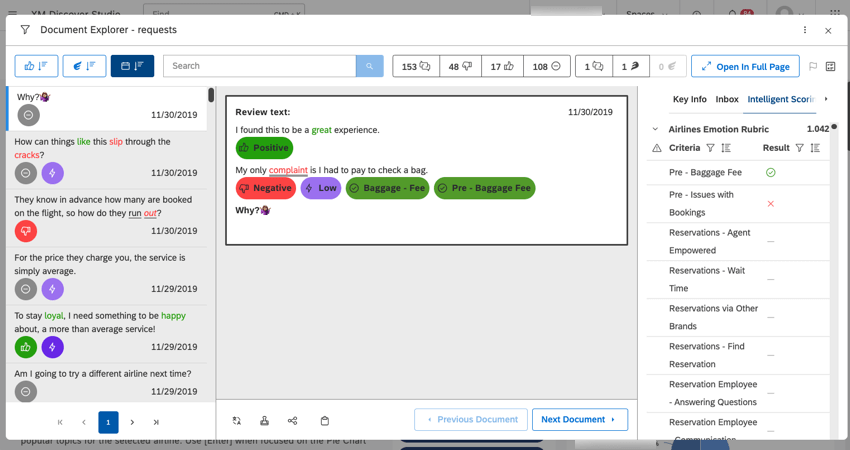
Qtip: You can open document explorer when viewing interactions in preview or in full-page mode.
Navigating Document Explorer
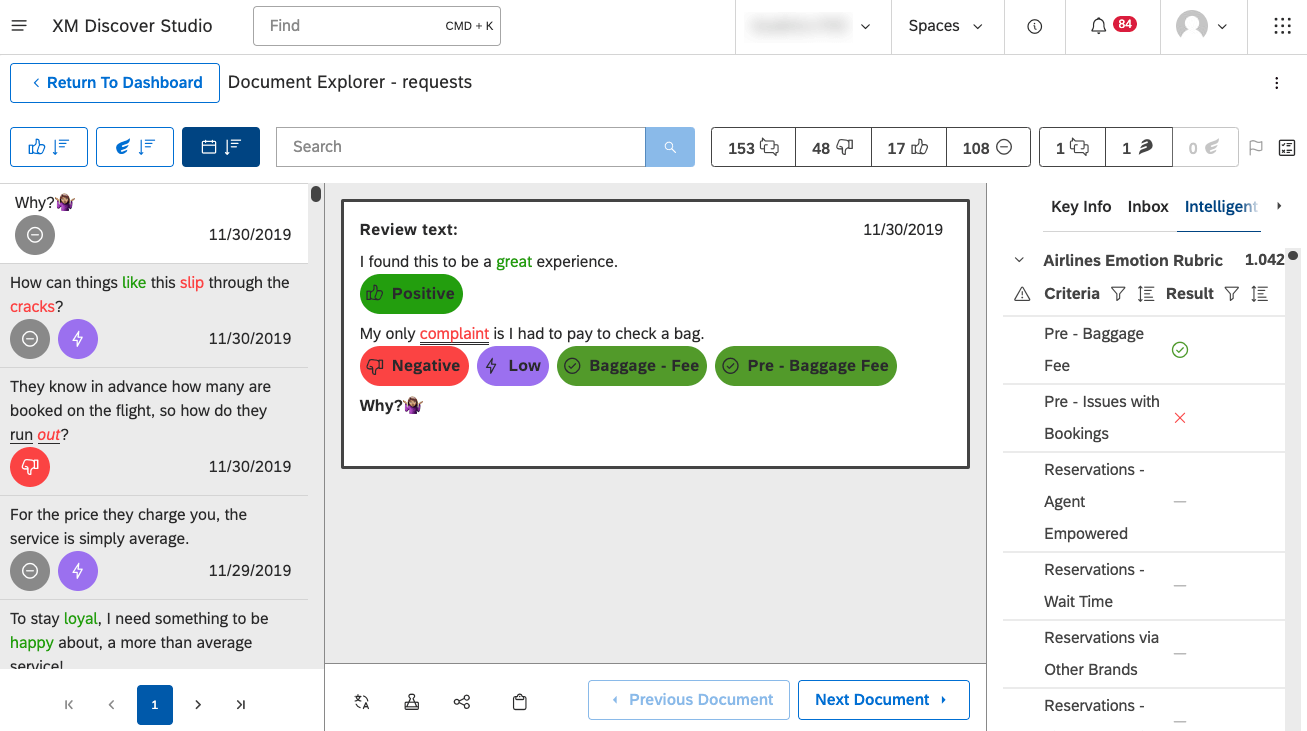
In this section, we’ll cover how to navigate the document explorer, and all of the different tools it provides to make analyzing feedback easy.
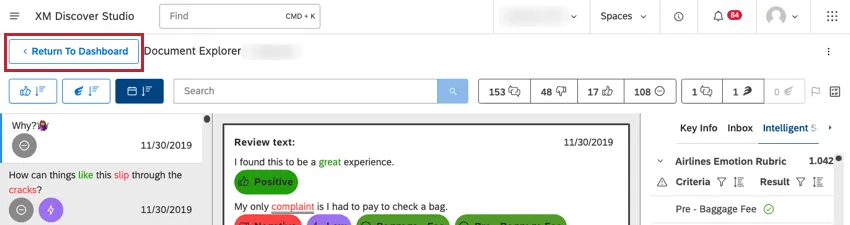
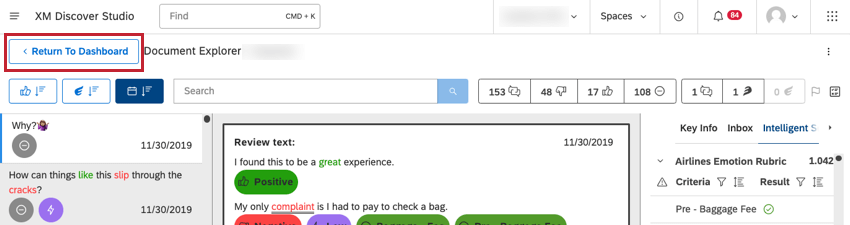
Qtip: When in full page mode, click Return To Dashboard to return to the dashboard when in full page mode.
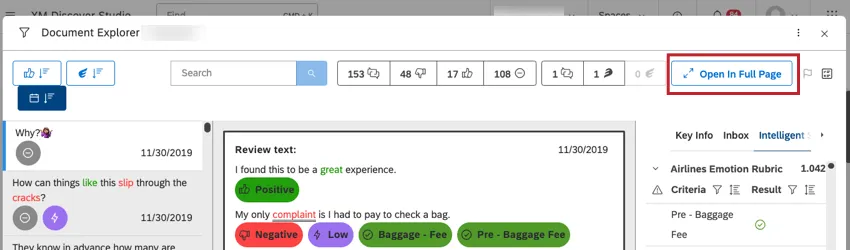
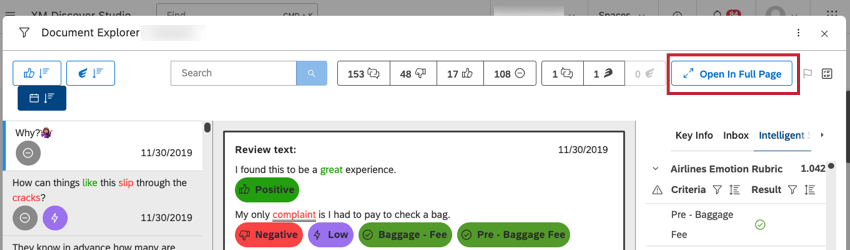
Qtip: When in preview mode, click Open in Full Page to open the dashboard in full page mode.
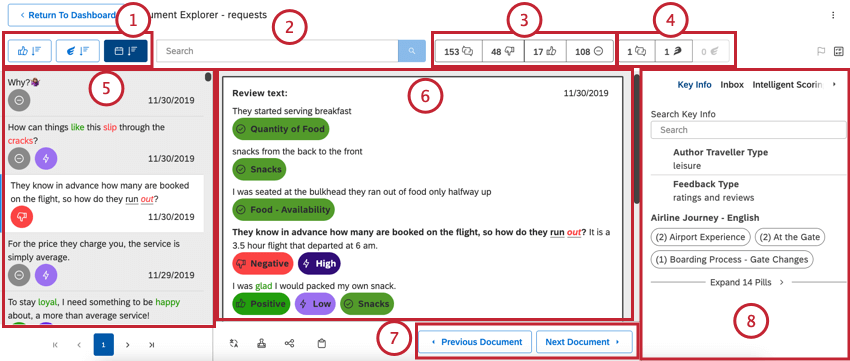
Qtip: Use quotes around multiple words to search for exact phrases. For example, “natural light” to find all mentions of natural light.
Qtip: Results must match your search and whatever sentiment and / or effort filters you have applied.
Qtip: Hover over icons to see their meaning.
Qtip: Volume counts next to sentiment and effort icons refer to the number of documents, not sentences. This is why the total count is usually less than the sum of all documents in each band: a document has as many sentiment and effort scores as there are sentences in it. That is, if a document contains one positive and one negative sentence, it is considered both a positive and a negative document.
Qtip: Interactions have other options for visualizing results.
Qtip: If Quick Translate is enabled for your account, then you can use it to translate the document to a different language.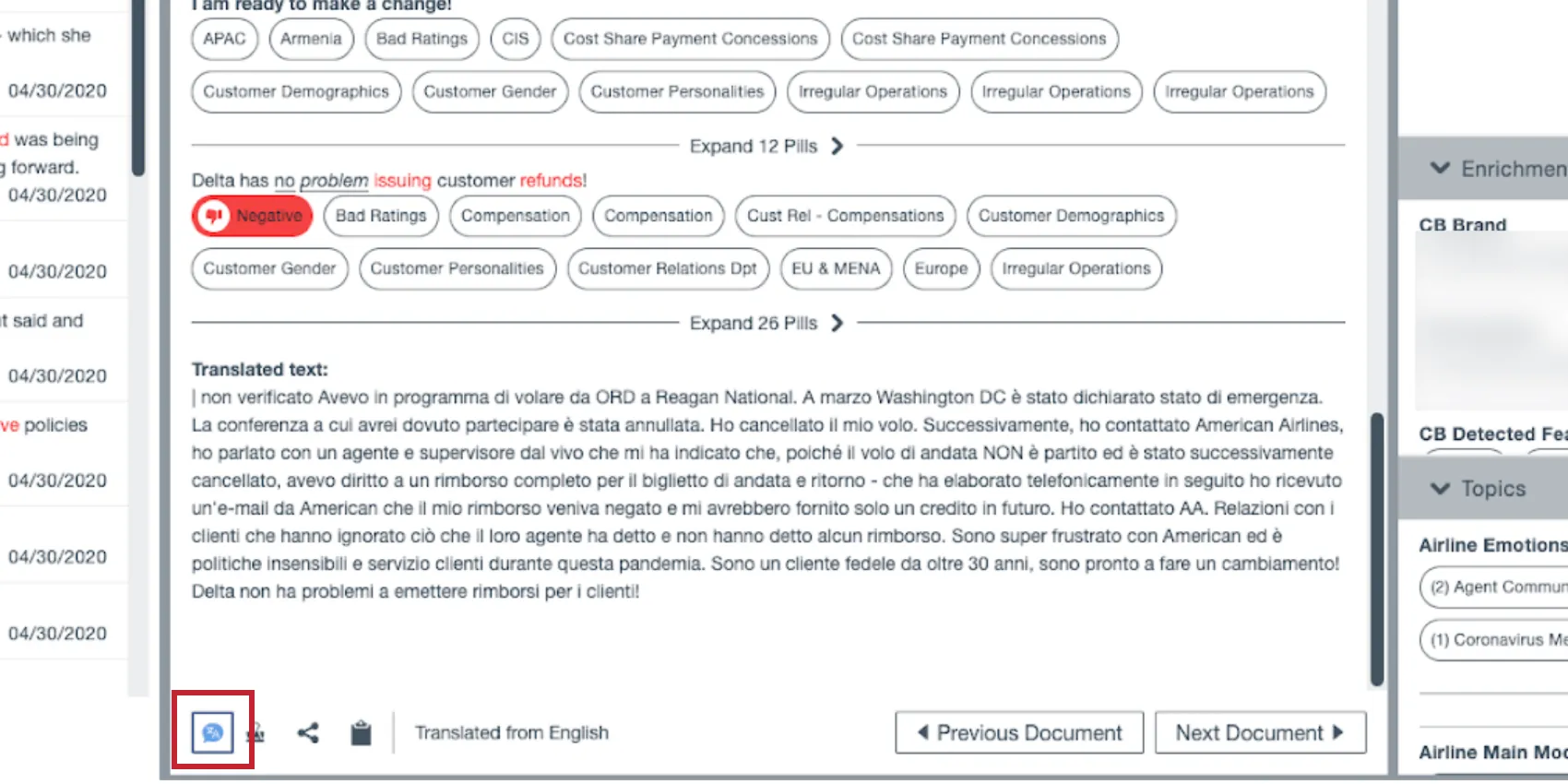
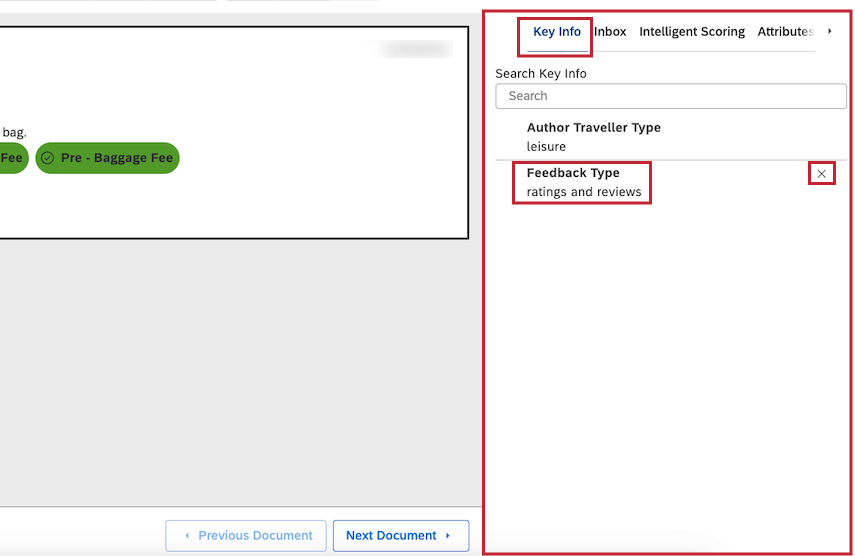
- Key Info: Star items in the Attributes, Enrichments and Topics other tabs to see them appear here. This is a great way to highlight metadata you find especially important. These starred items persist between documents. Hover over an item to see the star option.
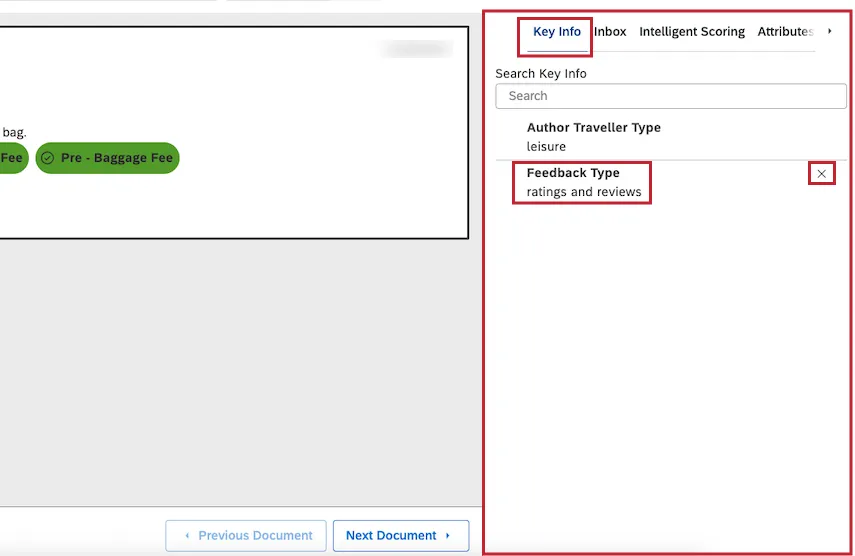 Qtip: When you export from document explorer, only starred attributes and models are included.
 Qtip: To remove an item from favorites, hover over it in the Key Info tab and click the x.
 - Intelligent Scoring: Lists the rubrics used to score the current document. Expand each rubric to see its criteria (topics) and whether the current document passed it or failed. For details, see Viewing Scorecards per Document. Qtip: This option only appears if you have Intelligent Scoring. Contact your Discover representative to learn more.
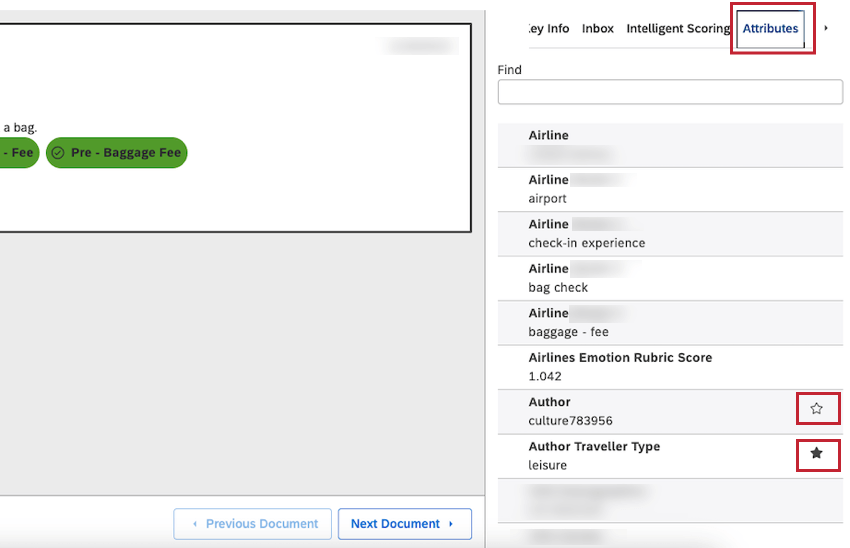
- Attributes: View relevant attributes. For example, the feedback may have a person’s age, name, or the product purchased saved to it. Particular attributes depend on the source of feedback and usually vary from dataset to dataset.
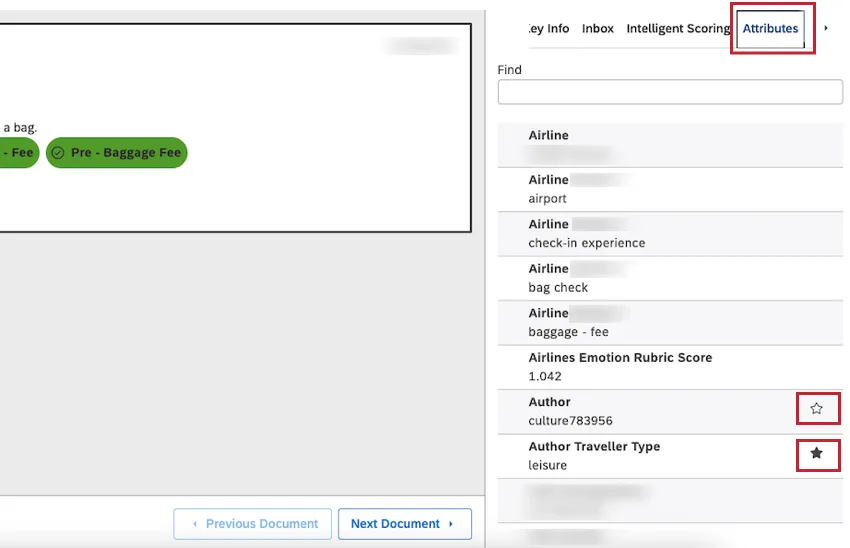 Qtip: Star items in the Attributes, Enrichments and Topics other tabs to see them appear in the Key Info tab. Hover over an item to see the star option. To remove an item from favorites, click its star icon.
 - Enrichments: Lists structured data derived by XM Discover for the current document. Qtip: Enriched data is CX data derived by the XM Discover NLU (natural-language understanding) engine. Data that is enriched will have a variety of metadata added by the NLU engine to documents during processing at sentence or document level and stored in the database.
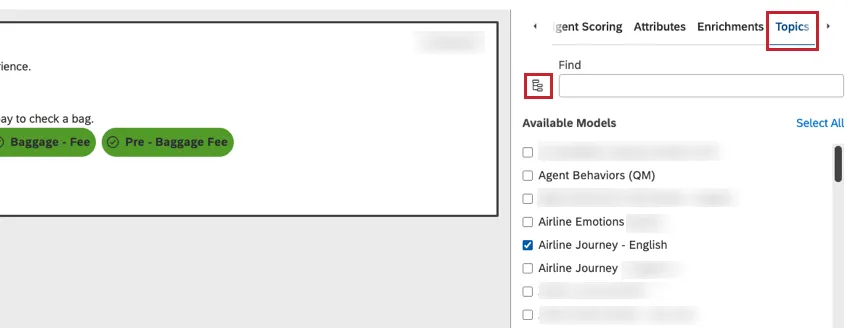
- Topics: View topics assigned to sentences in the document. Click a topic to highlight related sentences in the document. You can filter out topics of your choice using the filters icon.
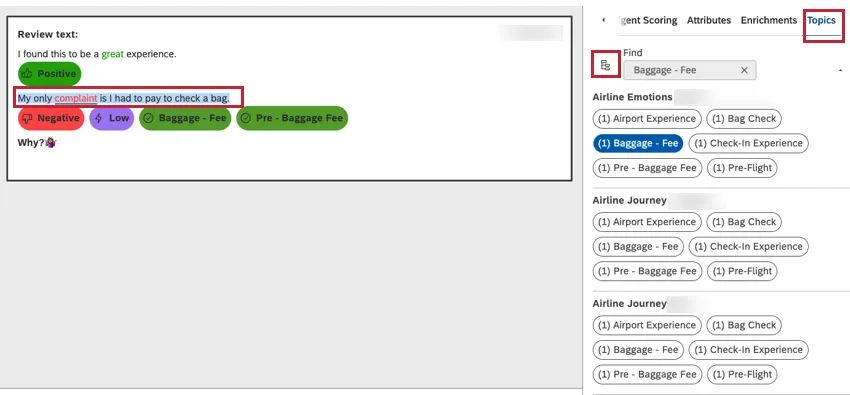 Qtip: If a classification model is excluded from document explorer in project settings, it will not appear in the Topics tab.
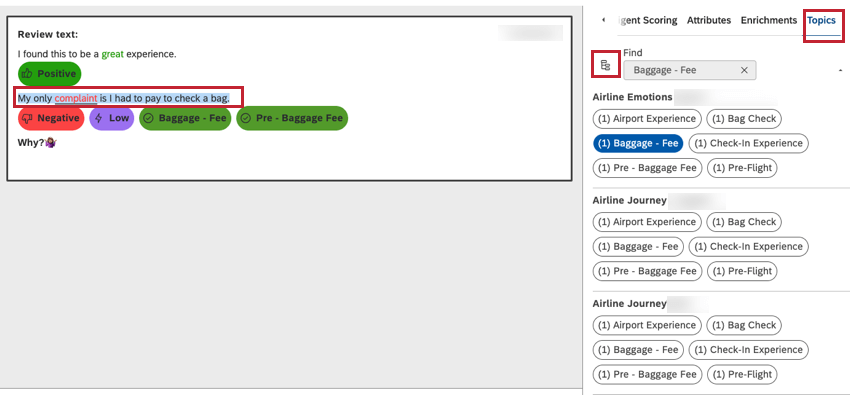
Qtip: You’ll see a slightly different view for conversational data.
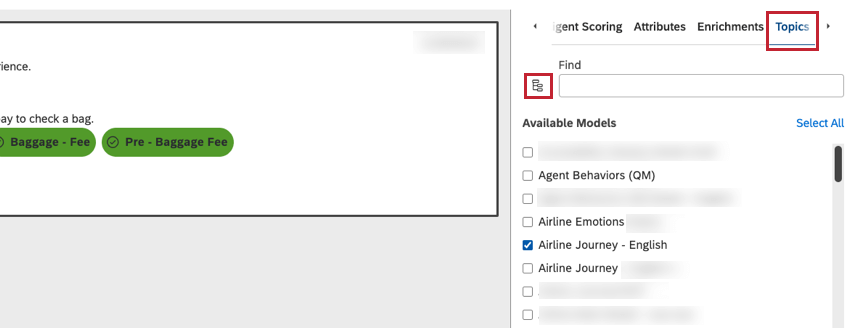
Qtip: If a topic you’ve starred is excluded by filters you have applied (see screenshot below), then the topic won’t show up in Key Info, but it will be included in exports.
Different Sentence Views
On the left of the document explorer, you can choose from different sentences in a document. The sentence you click will then display a document in the middle.
However, based on the type of data you’re looking at and the drilling applied, the sentences you see listed on the left might vary.
Qtip: These different views are applied automatically, without any configuration on your part.
- All sentences from all documents listed: In this mode, the left pane will show multiple sentences from the same document. This mode can be useful when you drill on categorization model topics. You may have feedback where different topics are mentioned in different sentences, and this allows you to explore sentence-by-sentence.
- Only the first sentence of each document listed: In this mode, the left pane will only display the first sentence of each relevant document. This mode is useful when results contain extremely long documents with hundreds of sentences. Instead of a single document taking up multiple pages of results, it becomes easier to skim document-by-document using just the first sentences.
Example: You are looking at a graph that shows “Top countries by volume” and choose to drill on the value “Spain.” Discover filters to find all the sentences in documents from Spain, and generally displays all of those sentences.
However, there’s longform data, like call data, where a single document can have 2000 sentences or more. That means a single document’s sentences could take up the first 100 pages of sentences listed. To avoid this, we would only list the first sentences of each document.
Qtip: When you apply any sentence-level sorting or filtering inside Document Explorer, the Results pane switches to the all-sentences mode even if the initial drilling is document-level.
Qtip: Sorting by sentiment or effort always switches document explorer to all-sentences mode, even if the initial drilling is document-level only.
Navigating Feedback by Topics and Enrichments
When navigating through customer feedback, click on topics and enrichments to quickly jump through related sentences.
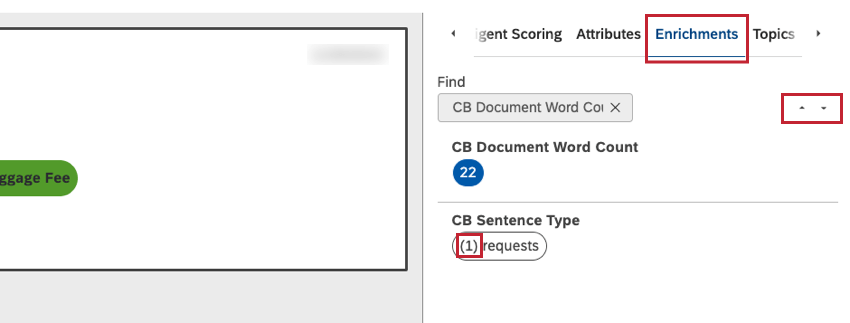
The number in front of each topic or enrichment indicates how many sentences contain it in the current document. This is only shown for sentence-level enrichments.
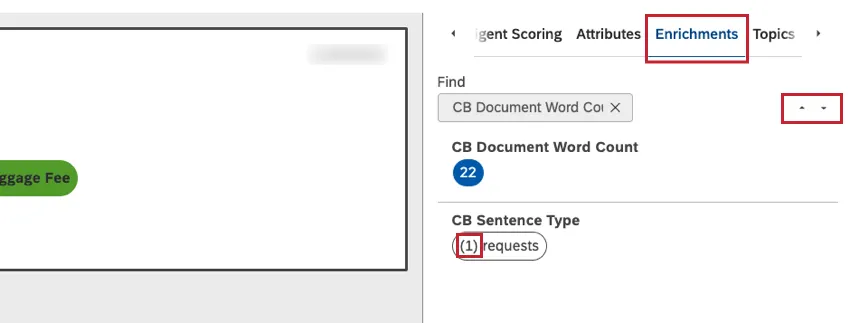
Arrows will appear next to an item you’ve selected. Use these arrows to navigate different mentions.
Customizing Document Explorer
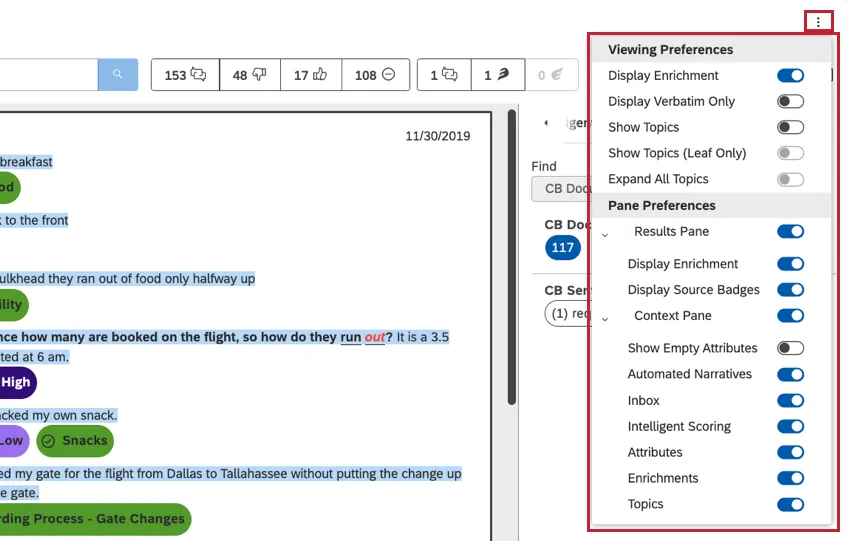
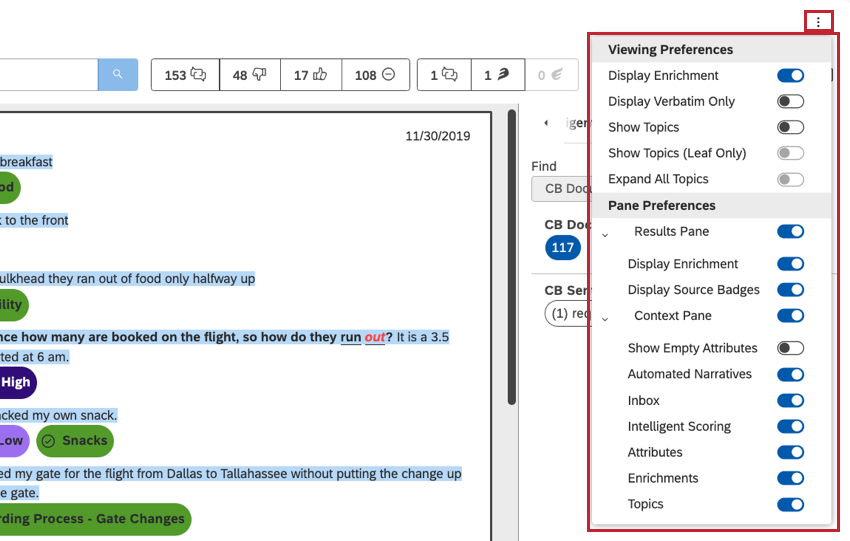
You can customize what you see in document explorer and what gets exported from it. Just use the menu in the upper-right to see your options.
Viewing Preferences
- Display Enrichment: Show or hide enrichment badges (such as sentiment and effort) and sentiment formatting in the central document pane. This setting also determines whether enrichment data is included in export.
- Display Verbatim Only: Instead of showing the whole document, only show the verbatim field that contains the selected sentence. This makes sense if a document contains multiple verbatims (or textual feedback fields), and you wish to have a more focused view. Qtip: Sometimes a document may contain more than one verbatim, or text feedback field. By default, the central pane shows all of these fields. Display verbatim only lets you display just the relevant verbatim instead of the whole document.
- Show Sentences: Display sentences in the document pane. This option only appears for conversational data. Qtip: Hiding sentences while showing topics and effort provides a high-level summary of the conversation.
- Show Topics: Show or hide topics under categorized sentences.
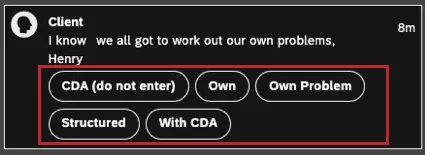
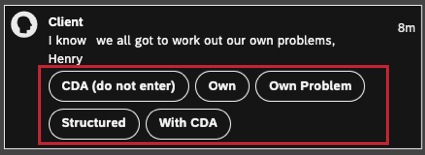
- Show Topics (Leaf Only): Instead of showing topic pills from all model levels, only show topic leaves—that is, the most granular topic levels. This setting also determines whether non-leaf topics are included in export.
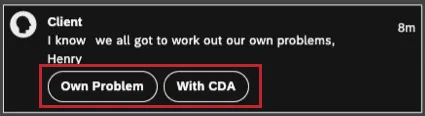
- Expand All Topics: Automatically show all available topics, including those that were hidden by default. Qtip: By default, topics are displayed in alphabetical order and are collapsed after the first 2 rows for better readability.
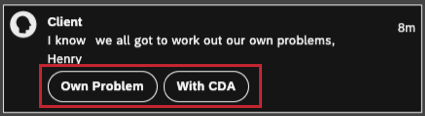
Playback Preferences
These options are only available when viewing conversational data with an audio recording available.
- Playback Speed: Adjust playback speed for voice interactions. The left arrow decreases playback speed; the right arrow increases playback speed. The current speed modifier is displayed in the middle, 1 being the default speed.
- Skip Silence: Automatically skip pauses in the conversation.
Qtip: When you listen to call audio, Studio will remember the time stamp you listened to for 30 days in both document explorer and feedback widgets in the document pane view. After that point, the audio will start playing from the beginning.
Pane Preferences
- Results Pane: Show or hide the left pane.
- On: Show the Results pane in document explorer. Include sentence-level data in export.
- Off: Hide the Results pane in document explorer. Include document-level data in export.
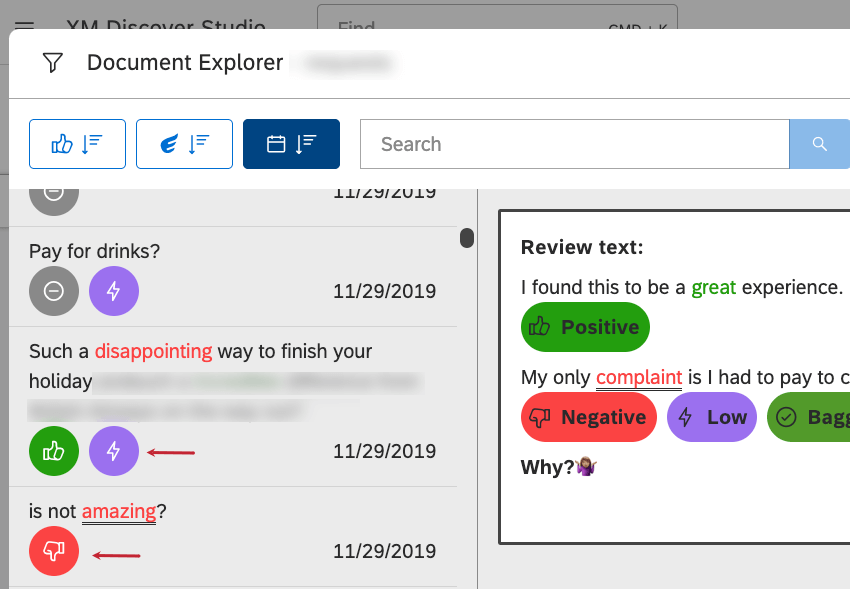
- Display Enrichment: Show or hide enrichment badges next to sentences in the Results pane.
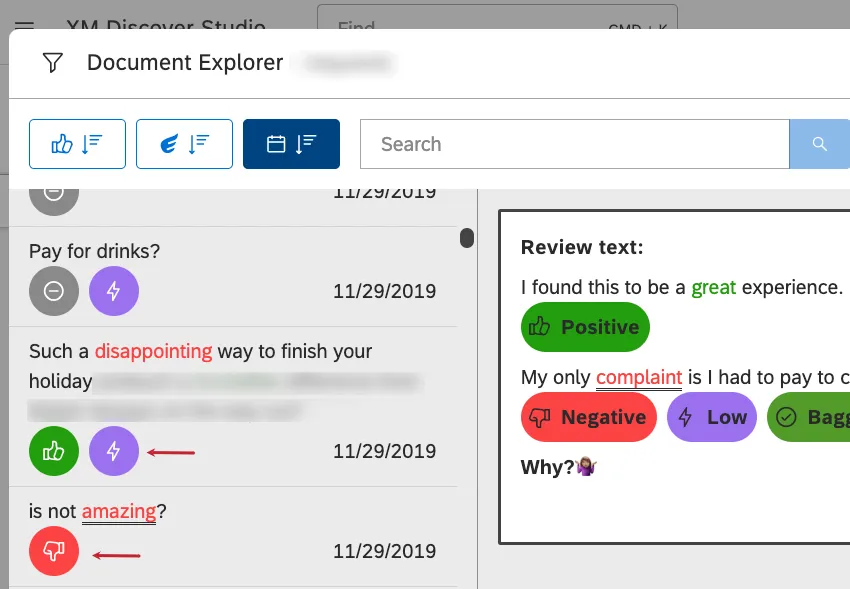
- Display Source Badges: Show or hide source-specific badges next to sentences in the Results pane.
- Context Pane: Show or hide the right pane with the document’s metadata.
- On: Show the Context pane in document explorer. Include starred topics and attributes in the export. Qtip: When the Context pane is shown, you can additionally control which sections to display there.
- Off: Hide the Context pane in document explorer. Do not include topics and attributes in the export.
- On: Show the Context pane in document explorer. Include starred topics and attributes in the export.
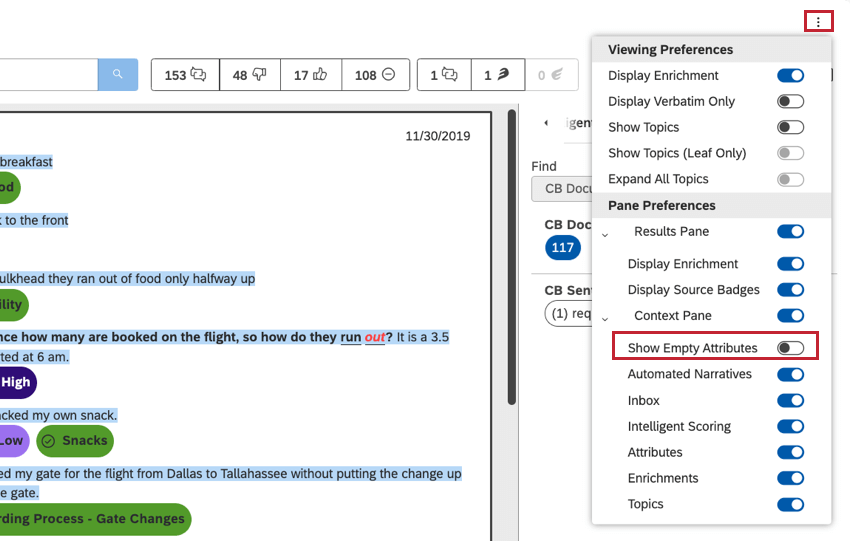
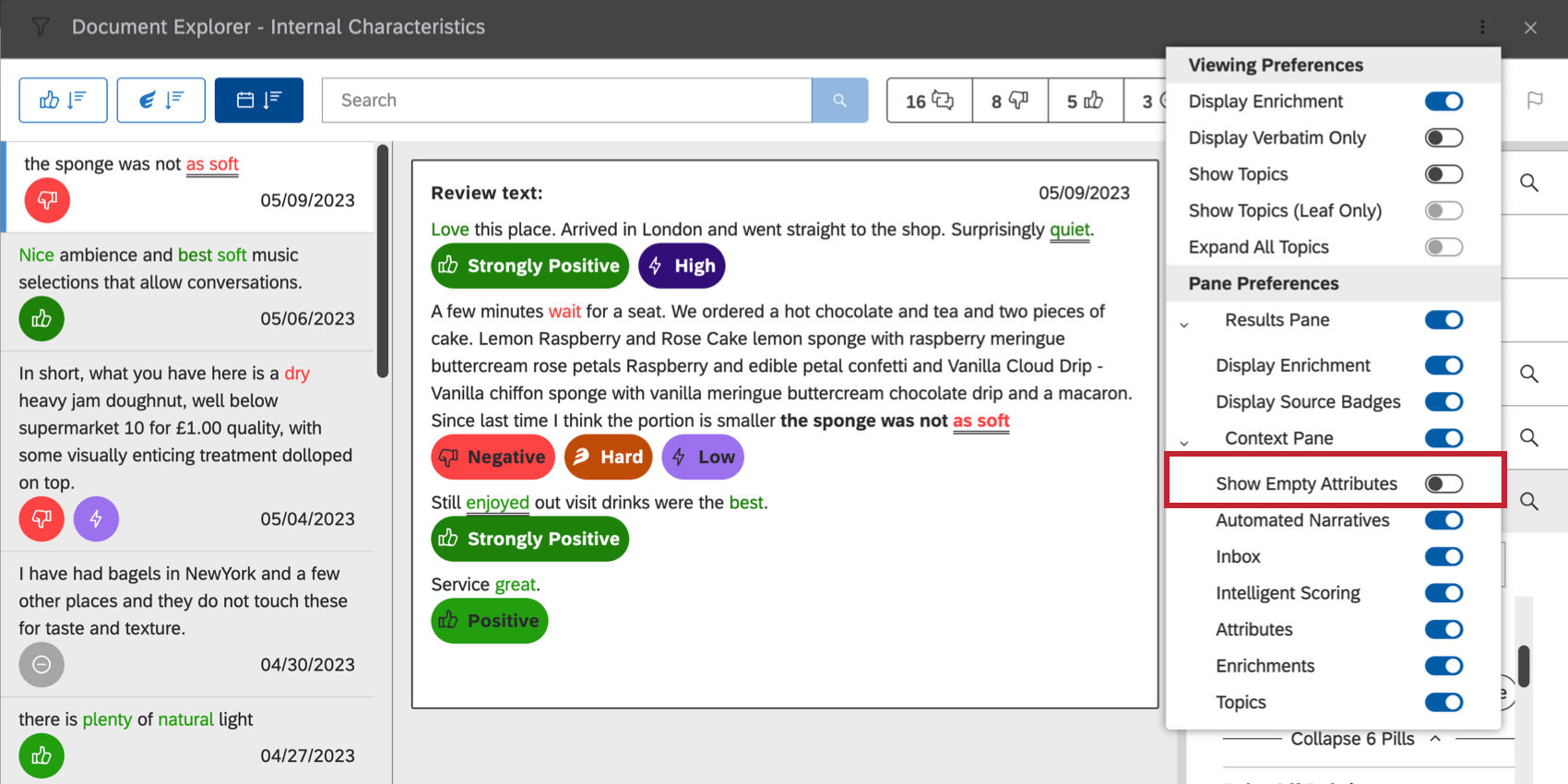
- Show Empty Attributes: Show or hide empty attributes (i.e., attributes that do not have any value associated with the current document) in the Attributes and Key Info sections.
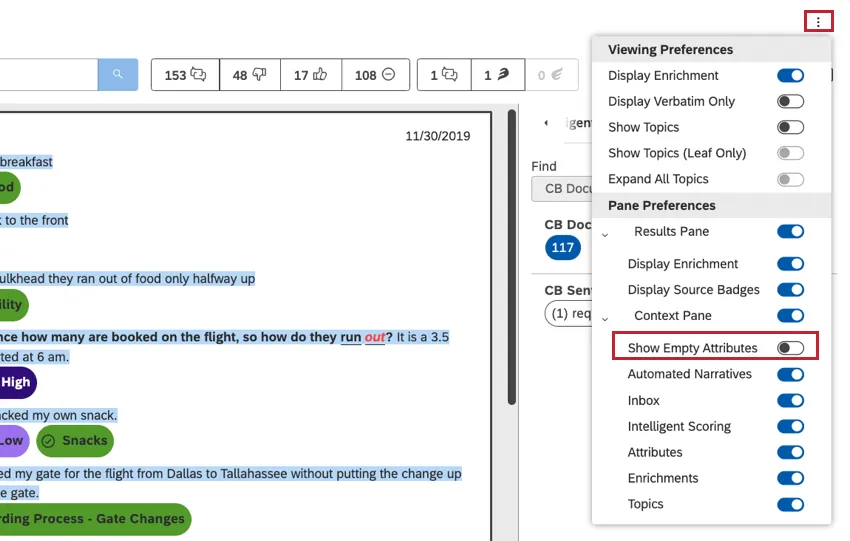 Qtip: Some documents may not contain any textual feedback at all. In this case a “Feedback record without verbatim” message is displayed in the central pane. You can also hide empty attributes by disabling Show Empty Attributes.
 - Inbox: Show or hide the Inbox section, which lists the details of cases triggered by the current document.
- Intelligent Scoring: Show or hide the Intelligent Scoring section, which displays the scorecards for the current document.
- Attributes: Show or hide the Attributes section, which lists structured data available for the current document, such as a person’s age or a product name.
- Enrichments: Show or hide the Enrichments section, which lists structured data derived for the current document.
- Topics: Show or hide the Topics section, which lists topics assigned to sentences from the current document.
FAQs
What is considered a document?
What is considered a document?
When will an attribute value appear in document explorer?
When will an attribute value appear in document explorer?
What is the difference between feedback and conversational data?
What is the difference between feedback and conversational data?
Conversational (or dialogic data) includes transcribed conversations between representatives (or bots) and customers on audio and digital channels.
One of XM Discover’s strengths is its ability to adapt its text analytics to the differing needs of different kinds of data. For each of these kinds of data, you’ll see different information available in document explorer, as described on this page.
That's great! Thank you for your feedback!
Thank you for your feedback!