About Managing Studio Homepages
Attention: To perform the actions on this page, you must have the Manage Settings permission enabled.
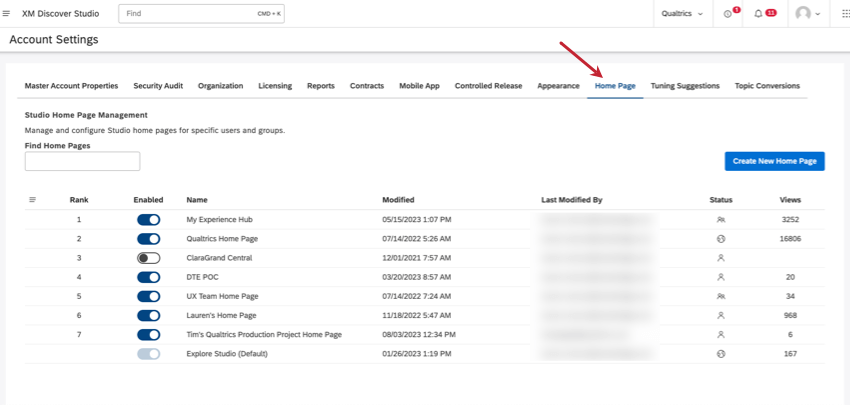
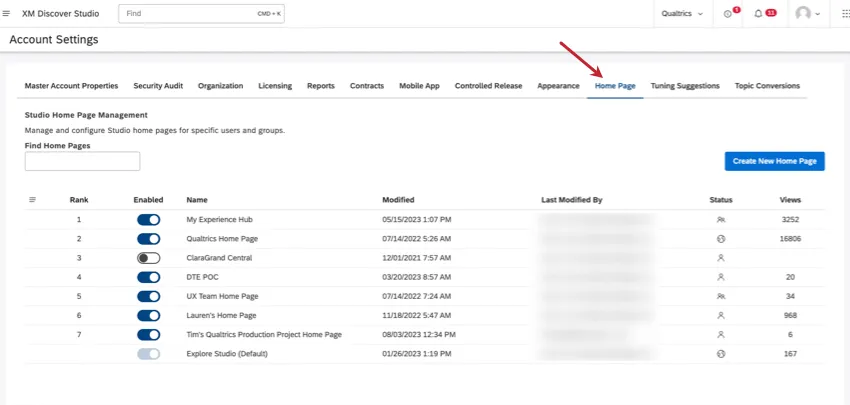
The Home Page tab of Account Settings is where you manage homepages created in Studio. On this page you can do the following:
- Filter homepages by name
- Create a new homepage
- Use the actions menu to manage homepages:
- Enable or disable homepages
- Duplicate homepages
- Change homepage ranking
- Delete homepages
- View homepages’ rank
Viewing Homepage Information
The Studio homepages table provides the following information:

Rank: Homepage’s rank determines which homepage to display in case a user has access to more than one homepage.
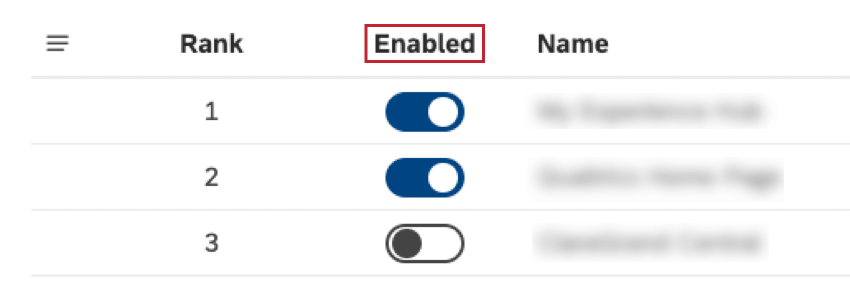
Enabled: Only enabled homepages are shown to users.
Name: The name of the homepage
Modified: The time this homepage was created or last modified according to the current user’s timezone.
Last Modified By: The editor who made the latest change to the homepage.
Status: Homepage’s sharing status:
- Blank: A homepage not shared with anyone, for example if it is still being configured and is not ready for sharing.
- Private: A private homepage indicated by the individual person icon can only be shown to the user who created it.
- Shared: A shared homepage indicated by the people group icon can be shown to all the users with whom it is shared.
- Public: A public homepage indicated by the globe icon can be shown to all users of your Master Account.
Views: The view counter for the homepage.
Accessing the Studio Homepage Management Tab
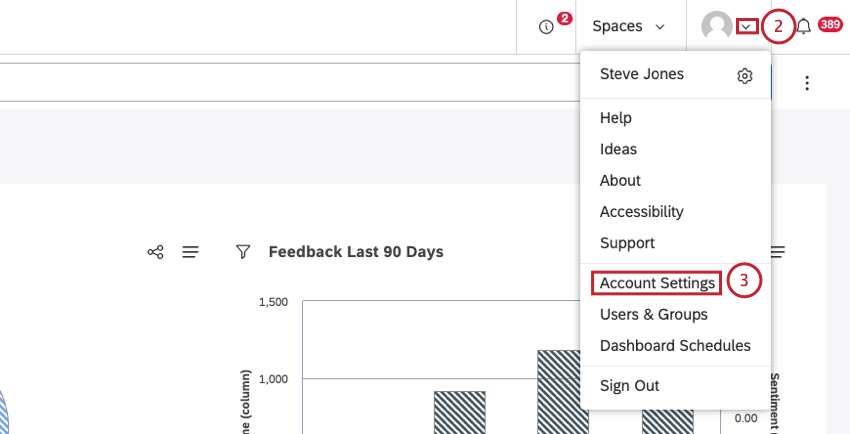
Sign into Studio.
Expand the user avatar menu in the top navigation area.
Select Account Settings.
Select the
Home Page tab and filter homepages by name by entering the homepage name into the
Find Home Pages field.
Creating a Homepage in Studio
Attention: This action requires a Manage Settings permission.
Studio homepages enable you to create and configure multiple custom landing pages for specific users and groups, each with customizable content. Homepages can include XM Discover search, What to Watch insights, and a Dashboard Explorer carousel.
Sign into Studio.
Expand the user avatar menu in the top navigation area.
Select Account Settings.
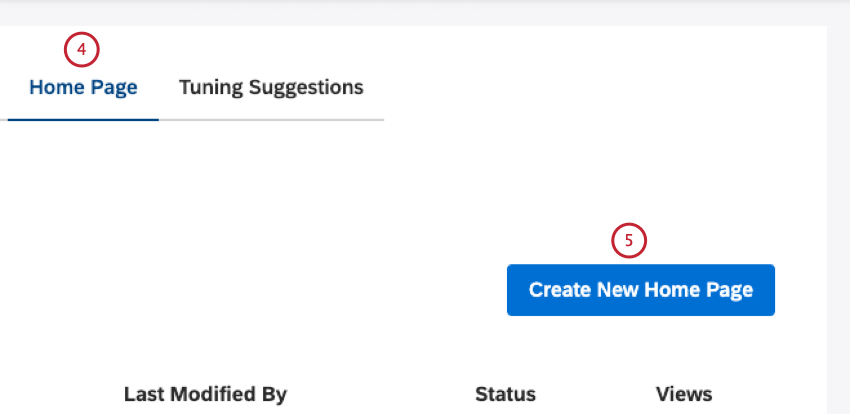
Select the
Home Page tab.
Click Create New Home Page.
In the
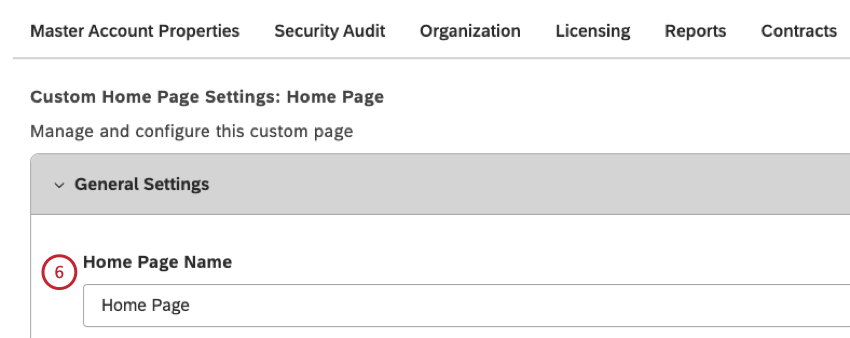
Custom Home Page Settings: Home Page form, you can define the homepage’s settings. Enter a unique name for your homepage into the
Home Page Name field.
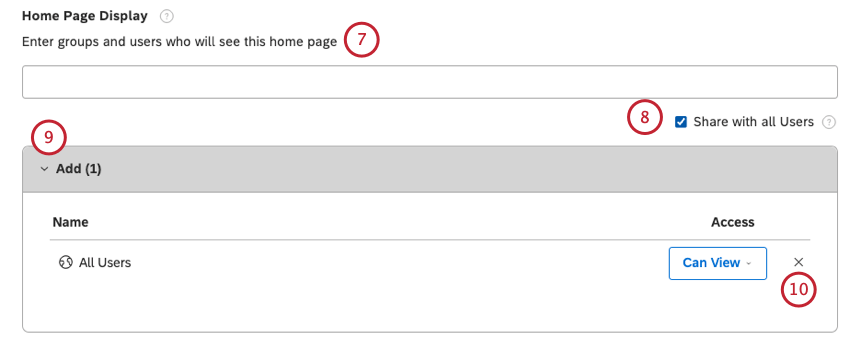
Specify the users and groups who will see this homepage in the
Home Page Display Type the email of the individual Studio user or the Studio group or part of the Studio user or group, wait for it to appear in the drop-down list, then select it.
Qtip: Type your email in the Home Page Display box to be able to view the homepage live in Dashboard Explorer.
Select the Share with all Users
All the users and groups with whom the homepage will be shared will be listed under the
Add Qtip: Leave this section empty if you don’t wish to show this homepage to anyone yet, including yourself.
User and group access to a homepage can be removed if necessary by clicking the X next to the Access
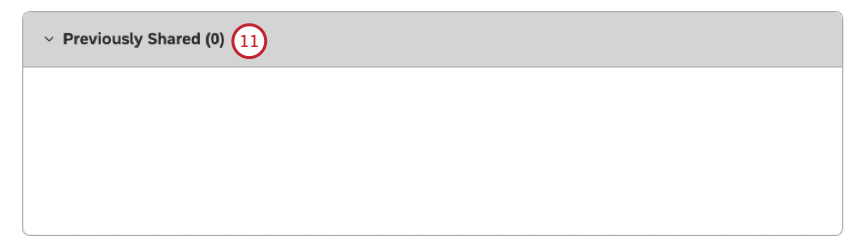
The users and groups with whom the homepage was previously shared are listed under the
Previously Shared section.
In the
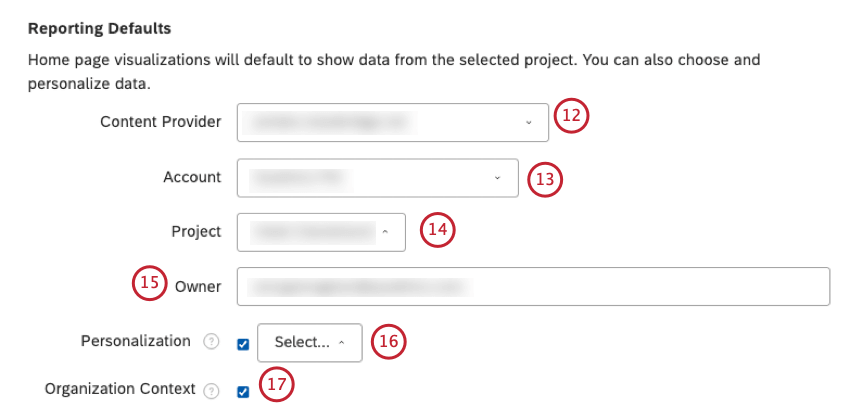
Reporting Defaults section, select the Content Provider for the homepage from the
Content Provider menu.
Select the account for the homepage from the Account
Select the project for the homepage from the Project
Specify the user on whose behalf to display Quick Insights by entering their email address into the Owner
Select an organization hierarchy from the
Personalization menu to link an organization hierarchy to your homepage to personalize the viewing experience of each viewer of the homepage.
Qtip: Homepage personalization ensures that all content and data is automatically filtered based on each viewer’s position and access in the organization hierarchy.

Select the Organization Context checkbox to enable the user to be able to view the full reporting structure of their organization. This means that they can view their position within the greater context of the full hierarchy of their organization. When the Organization Context checkbox is disabled, the user will not be able to view the full reporting structure of the organization. This means that they cannot view their position within the greater context of the full hierarchy of their organization.
Toggle the
Show Quick Insights switch to
On to display XM Discover search, an intelligent search assistant that helps you to explore and investigate insights. Turn the switch to
Off to hide XM Discover search.
You can define the project owner of data for XM Discover to use for
Show Quick Insights:
- Select the Inherit From Home Page Reporting Defaults checkbox to use the Content Provider, Account, Project, and Owner defined in the Reporting Defaults
- Deselect the Inherit From Home Page Reporting Defaults checkbox to specify a different source and owner of data.
Qtip: Quick Insights widgets will display data on behalf of the user specified as the owner here (or in the Reporting Defaults section if Inherit From Home Page Reporting Defaults option is enabled).
Toggle the
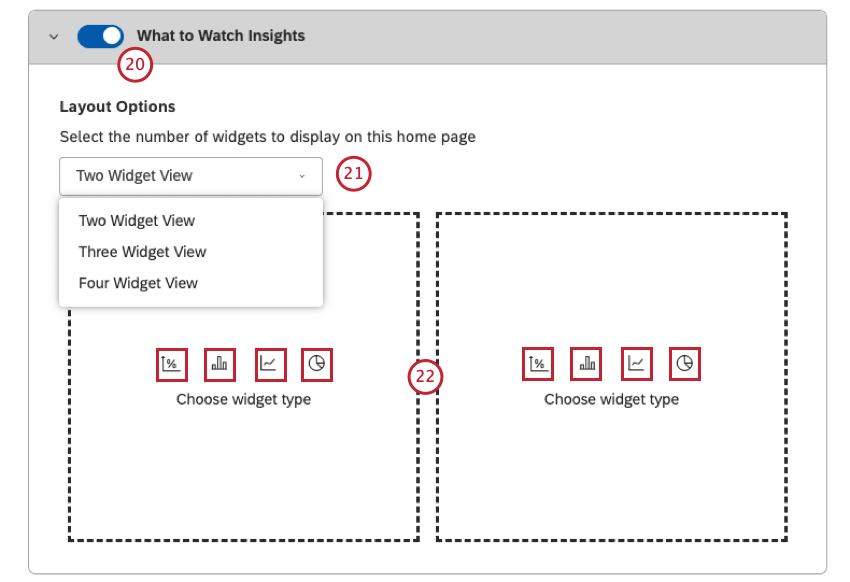
What to Watch Insights switch to
On to display 2, 3, or 4 widgets with key insights defined in the
Layout Options section.
Select one of the following widget display options from the menu:
- Two Widget View
- Three Widget View
- Four Widget View
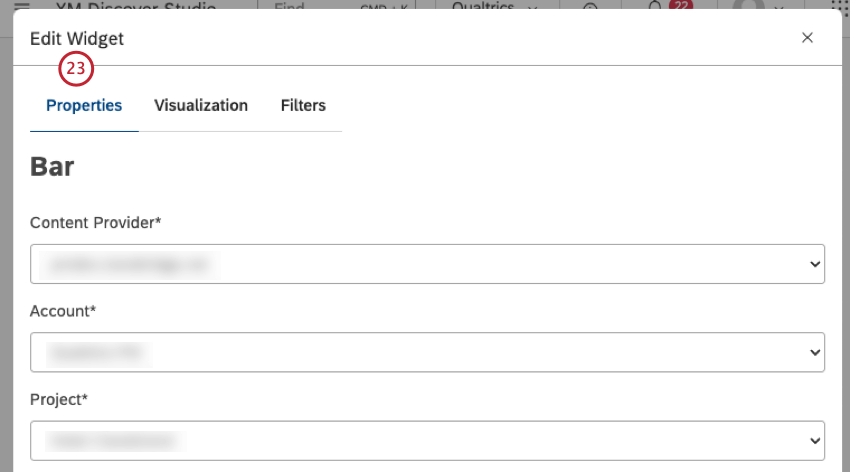
In each widget placeholder, select the type of widget to display by clicking the Metric, Bar, Line or Pie icon.
In the
Edit Widget window you can define the widget properties. For more information about defining widget properties, please see the
Metric Widget,
Bar Widget,
Line Widget and
Pie Widget pages.
Qtip: What to Watch Insights widgets will display data on behalf of the user who configures them.
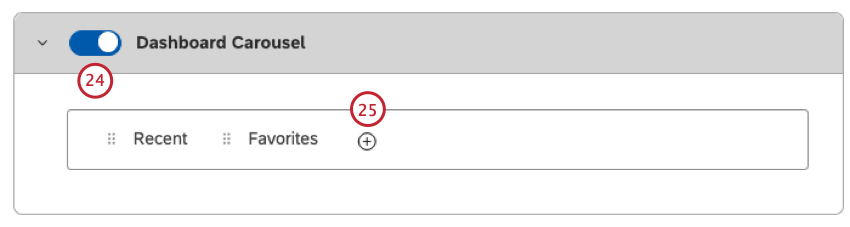
Toggle the
Dashboard Carousel switch to
On to display the thumbnail carousel of books and dashboards. For more information, please see the
Dashboard Explorer Carousel Settings section.
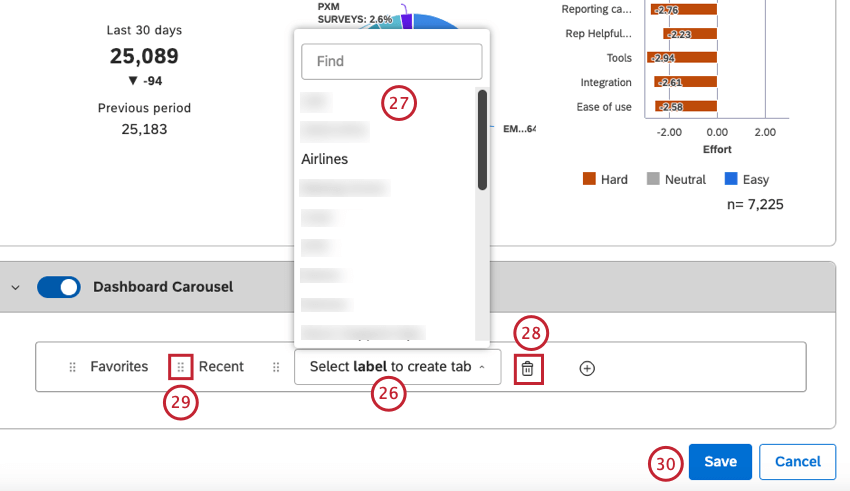
To add a carousel tab that will showcase dashboards and books that contain this label, taking into account individual user’s access, click the plus ( + ) icon.
Inside the empty carousel tab, click the
Select label to create tab link.
Select the label to use for this tab from the list of available labels. The tab will showcase dashboards and books that contain this label, taking into account individual user’s access.
Qtip: Each tab can be linked to only one label.
To delete a carousel tab, click the trash can icon to the right of the tab you wish to delete.
Attention: System tabs (Recent and Favorites) cannot be deleted.
To rearrange carousel tabs, drag the tabs using the move icon (6 dots) on the left to change their order.
Click Save below the tabs box.
Dashboard Explorer Carousel
You can use the Dashboard Explorer carousel to:
- Promote dashboard and book labels.
- Make dashboards and books easier to find.
- Provide additional context to dashboards’ and books’ purpose.
You can customize the Dashboard Explorer Carousel page by adding, removing, or reordering tabs in the thumbnail carousel that appears on top of the dashboards and books table. For information on adding, deleting and rearranging tabs, please see the Creating a Home Page in Studio section.
In addition to standard tabs that present recently viewed and favorite items, you can add custom tabs that display dashboards and books based on their labels.
Carousel Tab Visibility
Carousel tabs are visible to all users in your Master Account, regardless of their permissions and dashboard access. Dashboards and books inside the tabs are only visible to those who have access to them.
Qtip: Curated carousel tabs works best with public dashboards and books.
For information on labeling dashboards and books, please see Labeling Dashboards and Books.
Using XM Discover Search
Attention: XM Discover search is not enabled out-of-the-box; you can add it as part of a custom homepage.
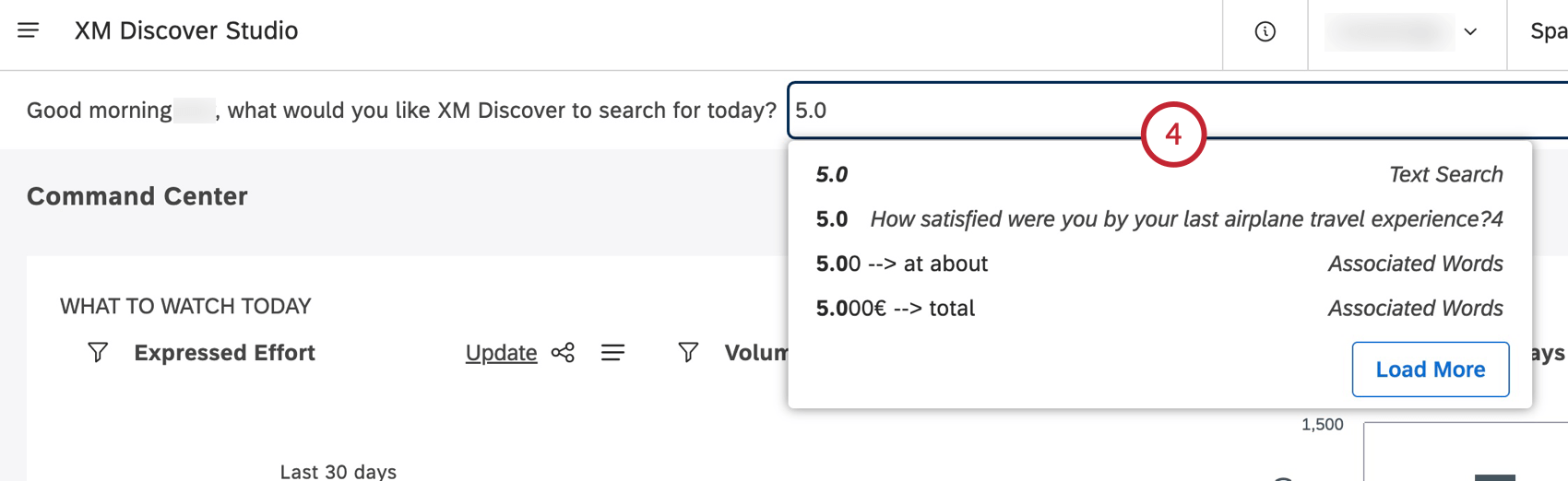
XM Discover search is an intelligent search assistant designed to help you find quick XM Insights without building dashboards and setting up widgets. When enabled, XM Discover search appears as a search bar at the top of the Studio homepage.

Go to the Studio homepage.
Find the search box at the top of the Studio homepage, next to
What would you like XM Discover to search for today?
Start typing your query. As you type, XM Discover search provides suggestions for you below the search bar.
Select one of XM Discover search’s suggestions from the menu or press Enter to run a text search on your current query.
- Text Search: Suggestions tagged as “Text Search” run a keyword search across your data. To learn how text search works, please see About Text Filter.
- Numeric and Text Attribute Value: Suggestions tagged with an attribute name are specific values of an attribute.
Attention: Attributes need to be explicitly included in XM Discover search to appear among suggestions.
XM Discover search returns a set of quick reports and a list of dashboards or books relevant to your query.
Qtip: Like other Studio widgets, you can drill into data points for details or to link to or share individual records.
Enabling and Disabling a Homepage
Attention: This action requires a Manage Settings permission.
After you create a homepage, you need to enable it.
Attention: There is no limit to the number of homepages you can create, but you can enable up to 10 of them.
Once 10 homepages are enabled, enabling new homepages will require disabling a previous one first. The default homepage does not count toward this limit.
Sign in to Studio.
Expand the user avatar menu in the top navigation area.
Select Account Settings.
Select the
Home Page tab.
Scroll down the page and locate the homepage you wish to enable.
Toggle the switch under the
Enabled column to
On to enable the homepage. Turn the switch to
Off to disable the homepage.
Duplicating a Homepage
Attention: This action requires a Manage Settings permission.
You can duplicate homepages. When you duplicate a homepage, Reporting Defaults, Quick Insights settings and Dashboard Carousel settings are copied. Sharing settings and What to Watch Insights widgets are not copied.
Sign in to Studio.
Expand the user avatar menu in the top navigation area.
Select Account Settings.
Select the
Home Page tab.
Locate the homepage you wish to duplicate.
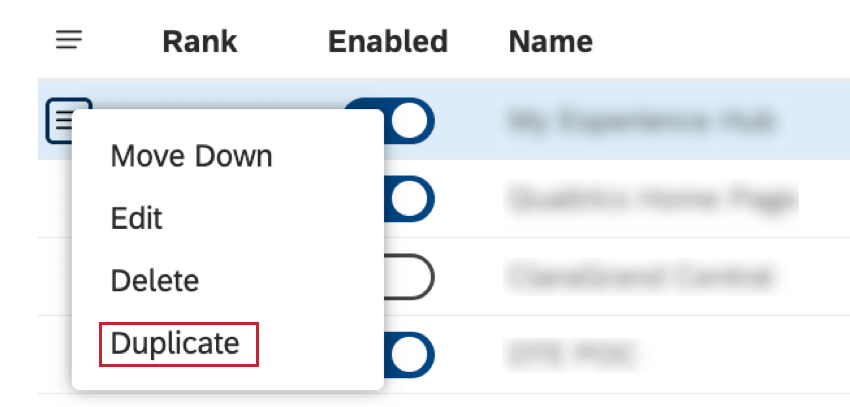
Expand the actions menu next to the homepage and select
Duplicate. This creates a disabled copy of the homepage titled
Copy of home page name one rank higher than the default homepage.
Changing Homepage’s Rank
Attention: This action requires a Manage Settings permission.
A homepage’s rank determines which homepage to display in case a user has access to more than one homepage and has not set a favorite homepage. The page with the highest rank (for example, 1 is higher than 2) is shown first.
Sign in to Studio.
Expand the user avatar menu in the top navigation area.
Select Account Settings.
Select the
Home Page tab.
Locate the homepage you wish to move up or down.
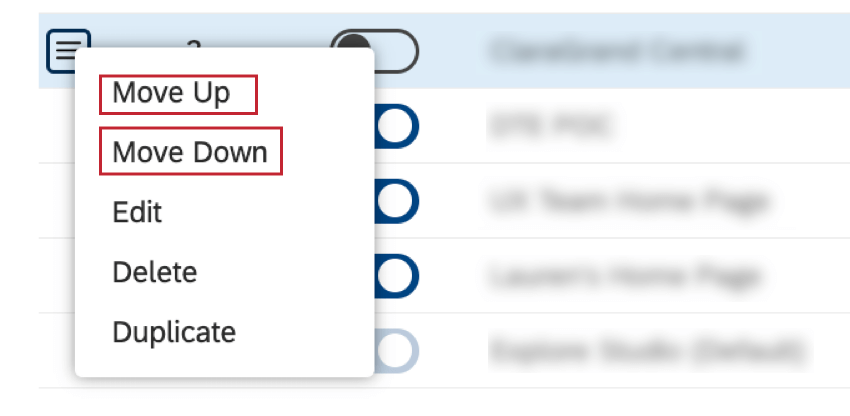
Expand the actions menu next to the homepage and select one of these options:
- Move Up: To increase the rank.
- Move Down: To decrease the rank.
Qtip: The default homepage always has the lowest rank.
Repeat these steps until the homepage’s relative rank suits your needs.
Switching Your Homepage
If you have access to several homepages, you can switch between them manually.
Qtip: The homepage you switch to manually is displayed until the end of your current user session. To permanently change which homepage you see by default, set a favorite homepage or adjust their rank.
Go to the Studio homepage.
Click the logo in the upper-left corner.
If there is no logo, click the XM Discover Studio title in the upper-left corner.
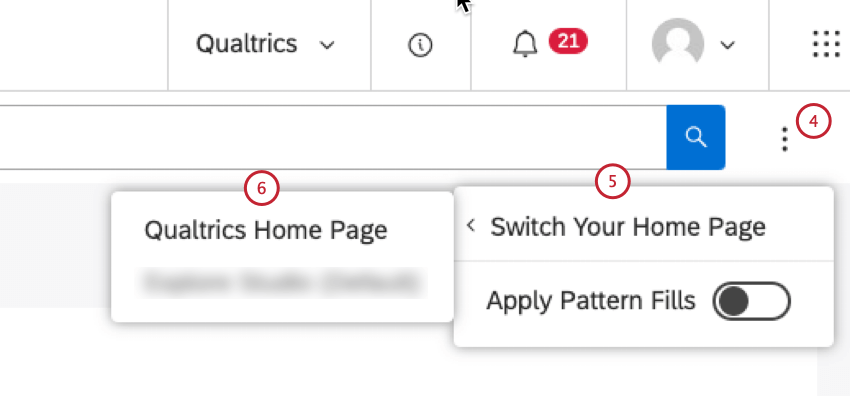
On the homepage, click the options menu in the top navigation area.
Select Switch Your Home Page.
Choose the homepage to use.
Setting a Favorite Homepage
Attention: The Favorite Studio Home Page setting is only available in user preferences if you have access to more than one homepage.
If you have access to several homepages, you can set a favorite homepage to open by default.
Sign into Studio.
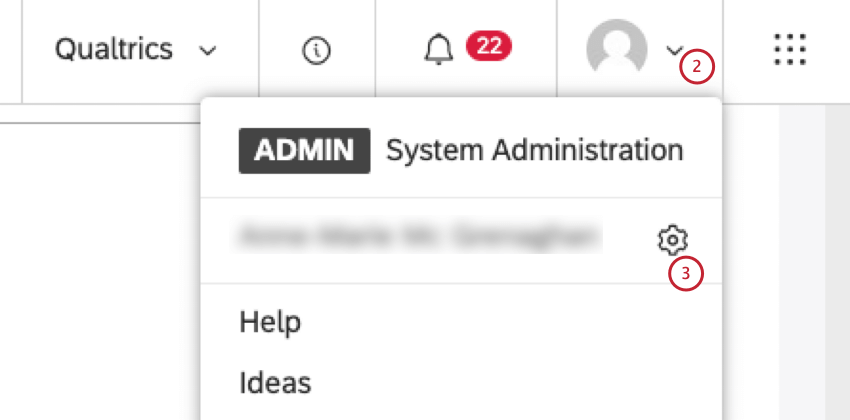
Expand the user avatar menu in the top navigation area.
Click your username with a gear icon next to it.
In the
User Preferences window, under the
PREFERENCES tab, go to the
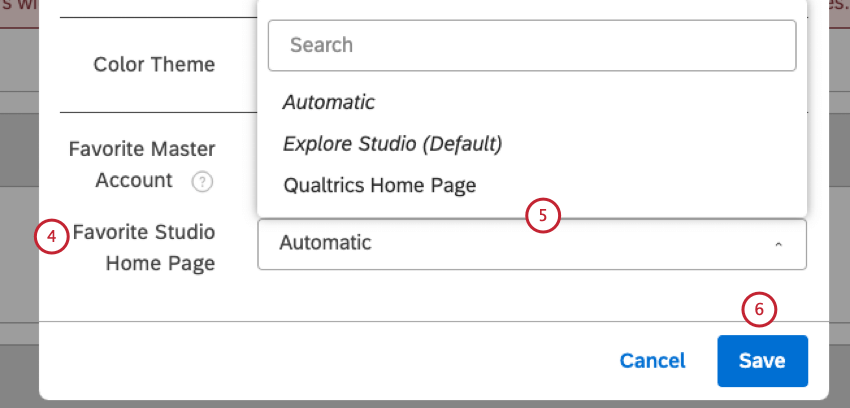
Favorite Studio Home Page section.
Select 1 of the following options from the menu:
- Automatic: Always show the highest ranked homepage available to you.
- Default: Always start with the system’s default homepage.
- Any specific homepage: Pick a homepage to show by default.
Qtip: This setting overrides homepage rankings.
Click Save.
Deleting a Homepage
Attention: This action requires a Manage Settings permission.
You can delete homepages if you no longer need them. When a user’s default homepage is deleted, Studio displays the next-in-rank homepage. When a user’s favorite homepage is deleted, Studio sets this user preference to Automatic.
Sign in to Studio.
Expand the user avatar menu in the top navigation area.
Select Account Settings.
Select the
Home Page tab.
Locate the homepage you wish to delete.
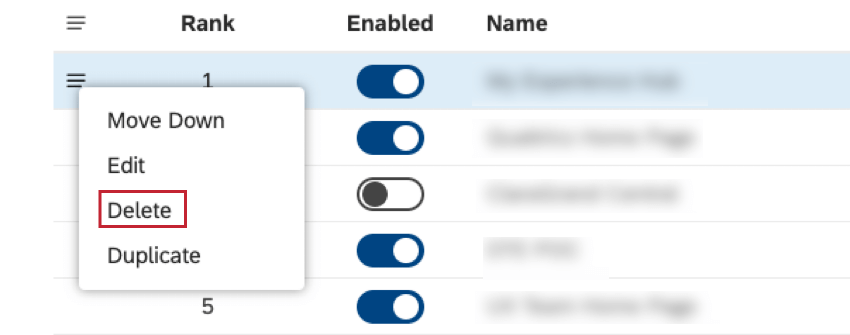
Expand the actions menu next to the homepage and select
Delete.
Confirm your action.
Restoring a Deleted Homepage
Attention: Unless you restore an object, it gets deleted permanently once the holding period is over.
After you delete an object, it goes into the recycling bin. Deleted objects remain in the recycling bin for 30 days. During this period you can restore a deleted object.
For information on restoring a deleted object, please see Using the Recycle Bin (Studio).