

Scoring
What's on this page
About Scoring
Whether you are creating a helpful quiz or a fun personality test, you want to use scoring. This feature gives you the ability to attach a point value to the answers of specific question types. These point values are summed up to give your respondent a final score.
Qtip: Scoring is different than recode values. Scoring is used to assign number values to your survey responses for calculating an overall response score. If you are interested in changing the values that your data exports as, see recode values.
Questions that Can Be Scored
Only the following question types are compatible with the scoring feature:
- All multiple choice variations

Qtip: Carousel and standard likert matrix questions are compatible with scoring. Profile questions are not compatible with scoring.
- Matrix – bipolar
- Text entry – single line
- Text entry – multi-line
- Text entry – essay text box
- Text entry – password
- Slider – slider type
- Side by side – scaled response columns (single answer and multiple answer)
- NPS®
Any questions not listed here (including different types of the questions listed above, such as open-ended matrix tables and form questions) cannot be included in scoring categories.
Qtip: Scoring can be used in most project types, including surveys and 360, but it is not compatible with Engagement, Lifecycle, or Ad hoc employee research. Engagement and Lifecycle projects use scales for scoring instead.
Scoring a Survey
Opening the Scoring Editor
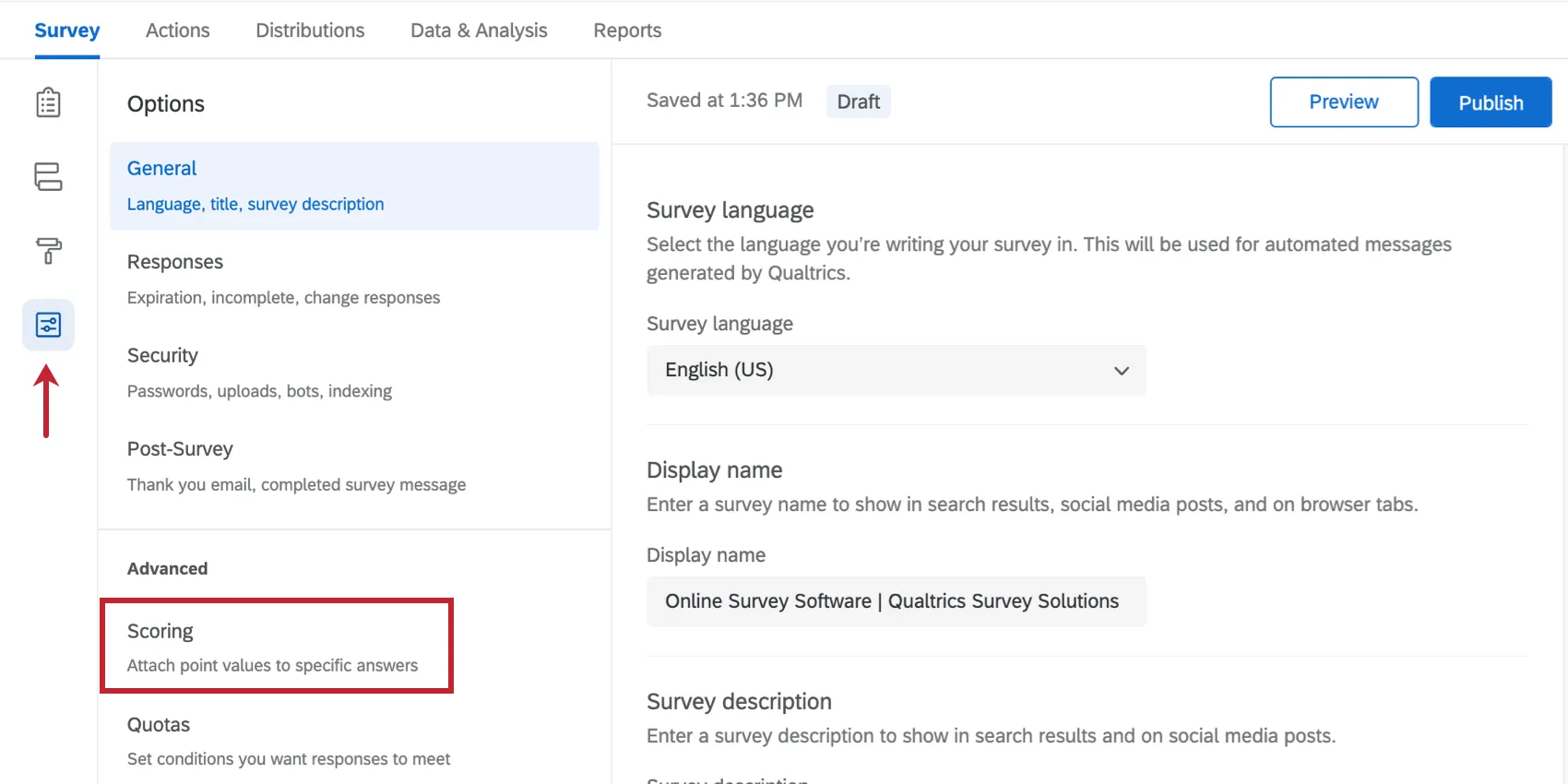
Scoring Multiple Choice Questions
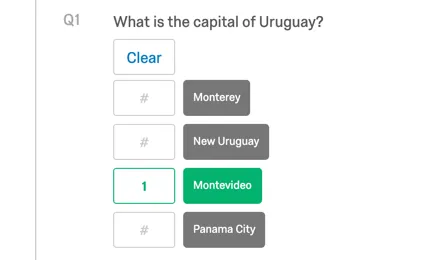
Click on any answer field to assign the default point value of 1.
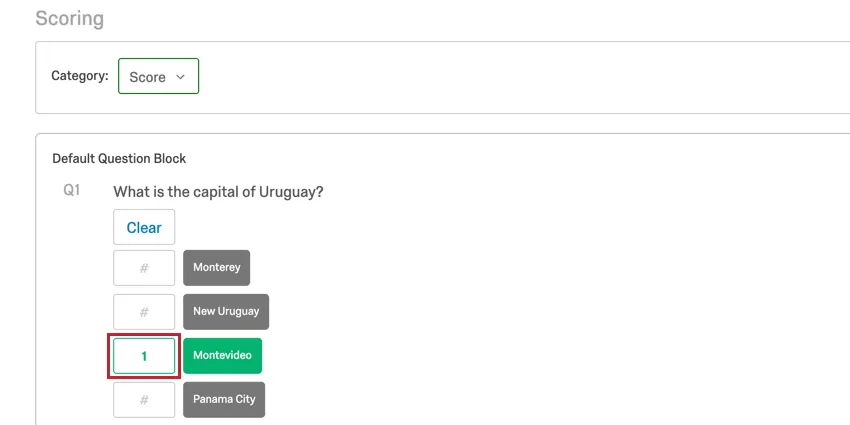
Highlight any point value and type a new number to assign a different value.
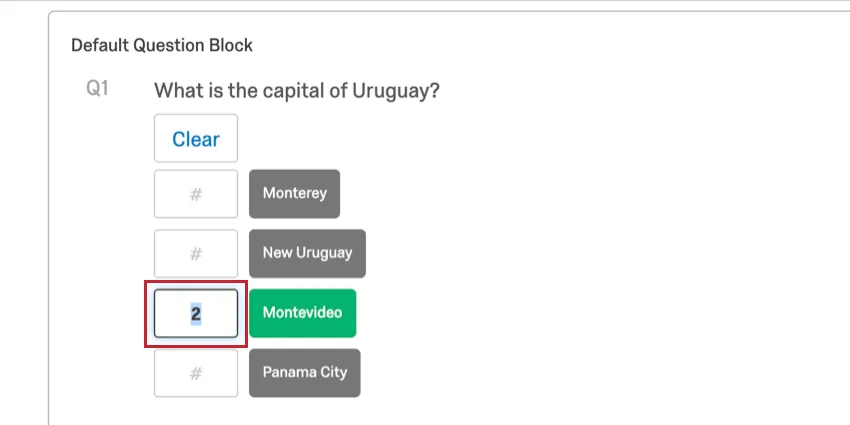
Qtip: You can use negative values and decimals in scoring! If using decimals, you must use a period (.).
Click Auto to assign sequential scores to your question, in ascending order.
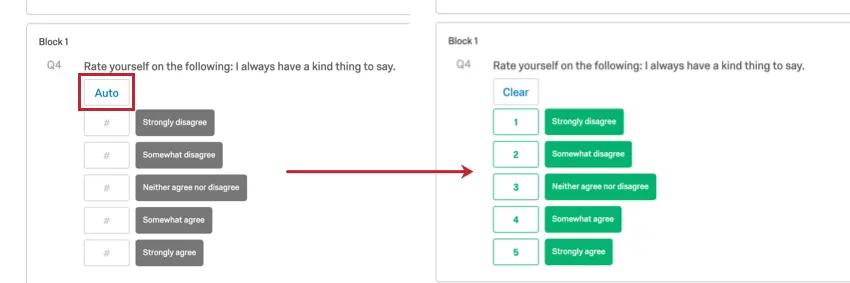
Click Clear to remove scoring from for any question that has assigned scores.
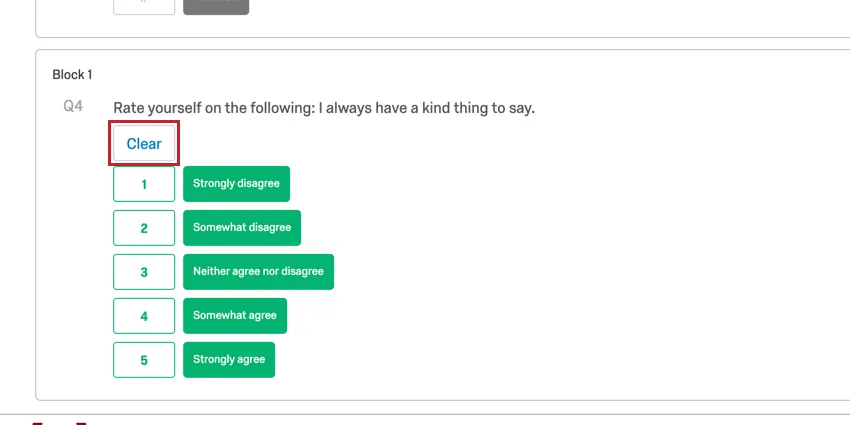
Qtip: You don’t have to score every choice in your question! For example, let’s say 1 choice is correct, and the rest are not. You can assign the correct choice a point value while ignoring the rest.
Scoring Matrix questions
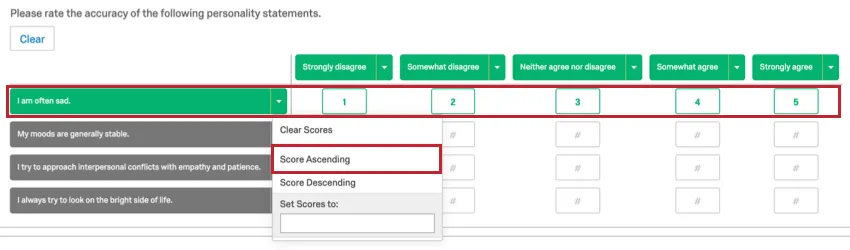
Just like with multiple choice questions, you can click into any of the fields in a matrix table to assign a point value to that answer. However, there are quicker ways to score a matrix table.
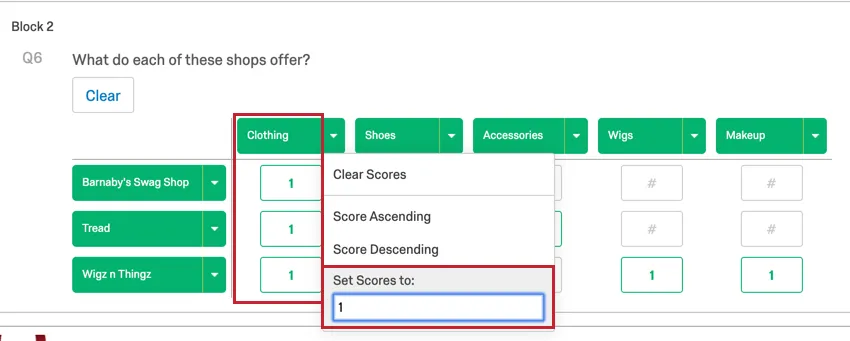
Click on the dropdown menu for any column or row.
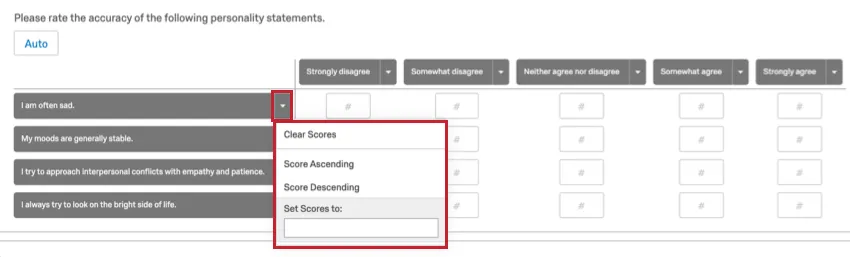
Type in a value into the Set Scores to text box to set all the values at once for that column or row.
Click Score Ascending or Score Descending for any column or row to assign sequential scoring.
Scoring Text Entry questions
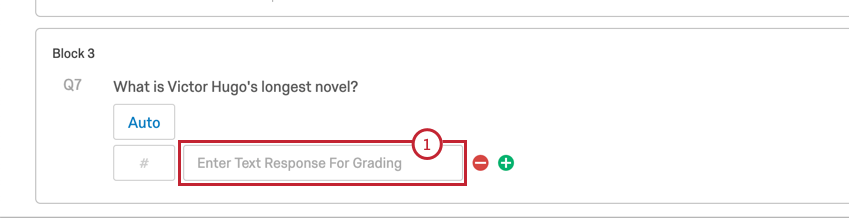
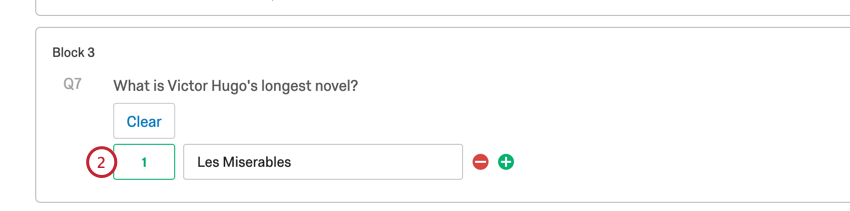
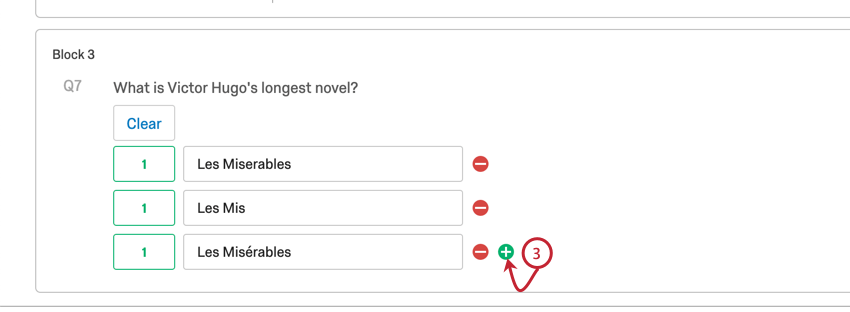
Qtip: In order for the respondent to receive the score for a text entry question, their answer must exactly match the text you indicated in the scoring editor (except for capitalization). Because of this, scoring should never be used to grade essay-style questions.
Scoring Sliders
Sliders are unique in the way they are scored. The score value you assign to each choice acts as a multiplier for the slider value that respondent selects in the survey. If the score value is set to “5” and the respondent selects “10” on a 0–10 slider scale, then the assigned score will be 50 (5 times 10).
Example: Here is a hypothetical question where we ask residents to rate the level of damage in their maintenance request. If there are lots of requests, maintenance can help those residents with the biggest maintenance needs first.
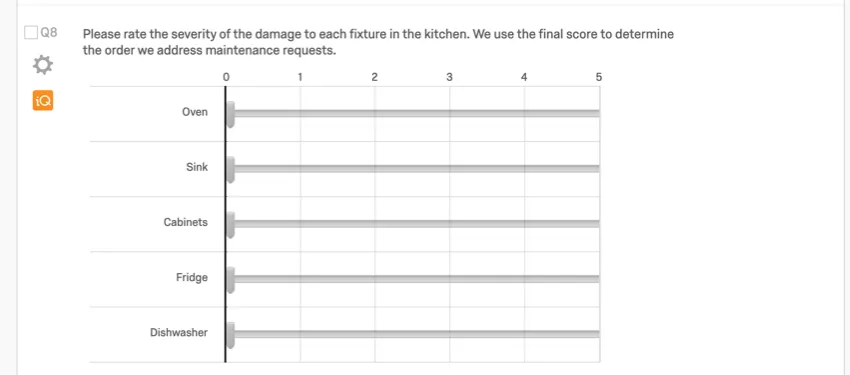
Here is what the question looks like when we score it. We might add multipliers to indicate damage to one fixture is more major than damage to another. For example, all damage ratings for the fridge will be multiplied by 2, since a broken fridge can lead to the tenant’s food spoiling. Meanwhile, damage to the dishwasher is cut in half (multiplied by 0.5), since kitchen utensils can be cleaned in the sink while the dishwasher is broken.
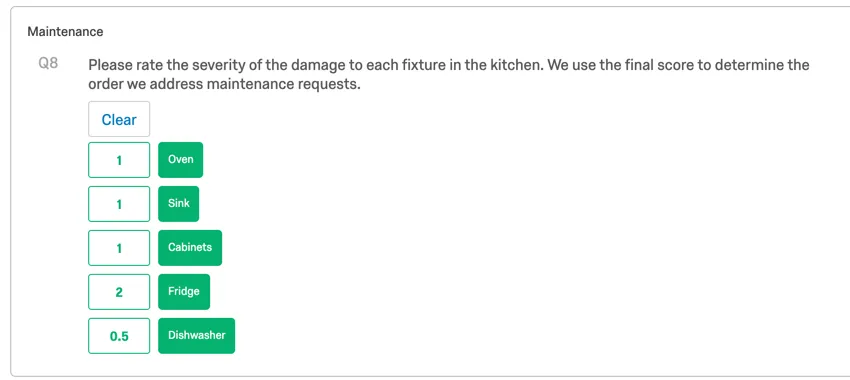

If you want to include your slider responses in scoring as they are, without special multipliers, make sure you assign the point value of 1 to each slider row.
Qtip: If you are having trouble scoring your slider, consider using a matrix table question instead.
Returning to the Survey Tab
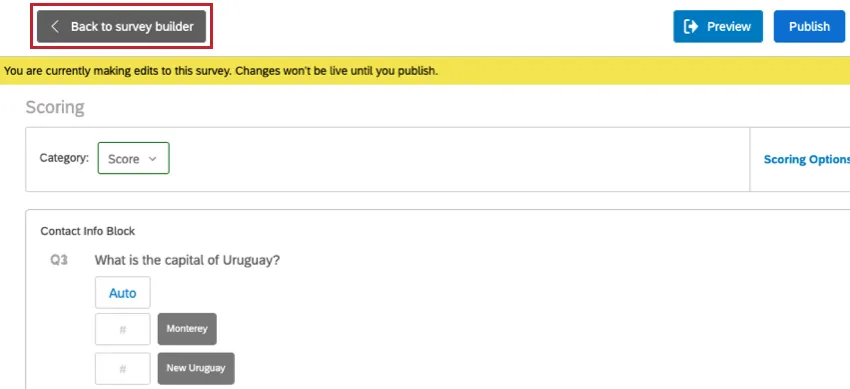
When you’re done editing scores, you can return to the survey editor by clicking Back to survey builder.
Scoring Options
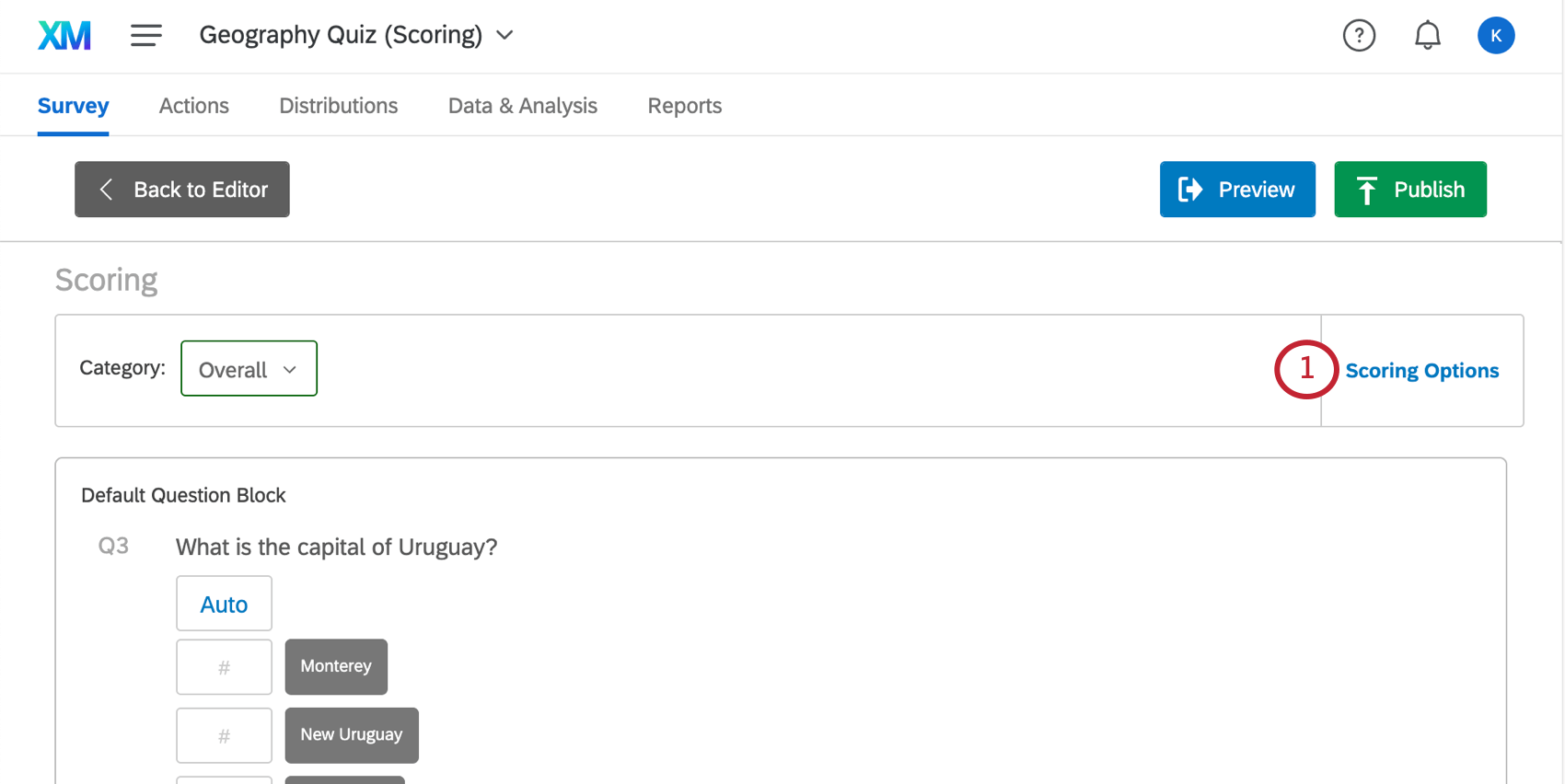
There are a variety of options available to you to customize your scoring scheme. To access these options, click Scoring Options.
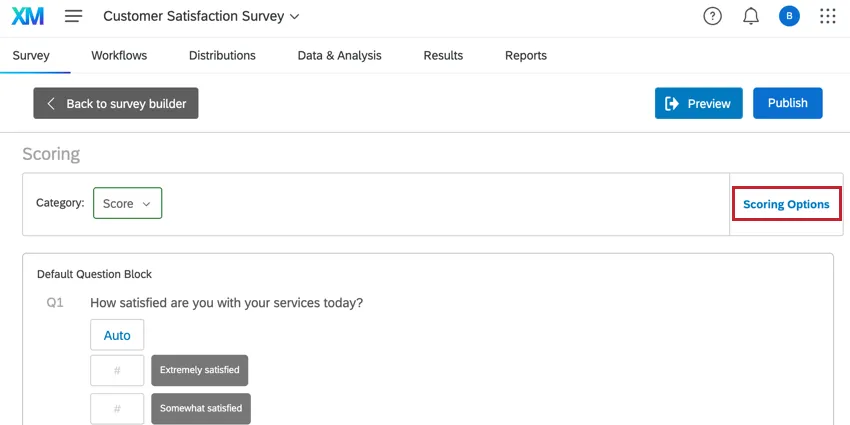
You can then do the following:
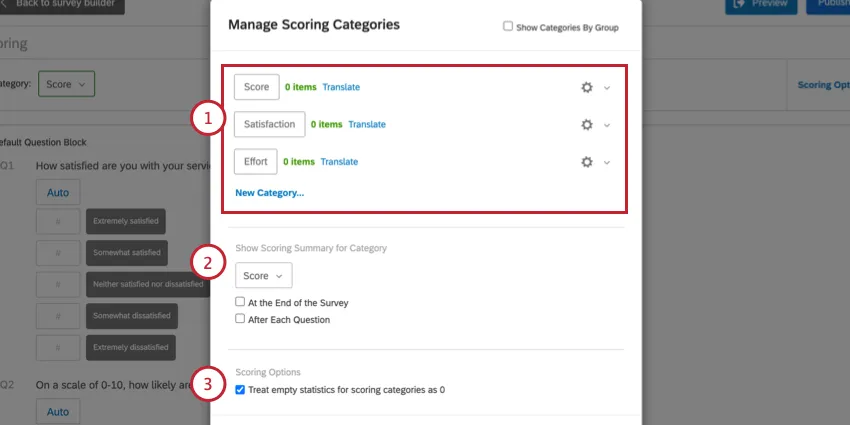
Setting Up Scoring Categories
A Qualtrics survey can be scored multiple times for different categories. For example, in an employee satisfaction survey, you may want to add categories for work ethic, teamwork, and leadership.
By default, there is 1 scoring category labeled “Score.” To use more than 1 scoring category in your survey, you will need to create new categories.
Qtip: Because only 1 scoring category can be shown in the end of survey summary, we recommend not enabling Show Scoring Summary if you create multiple scoring categories.
creating scoring categories
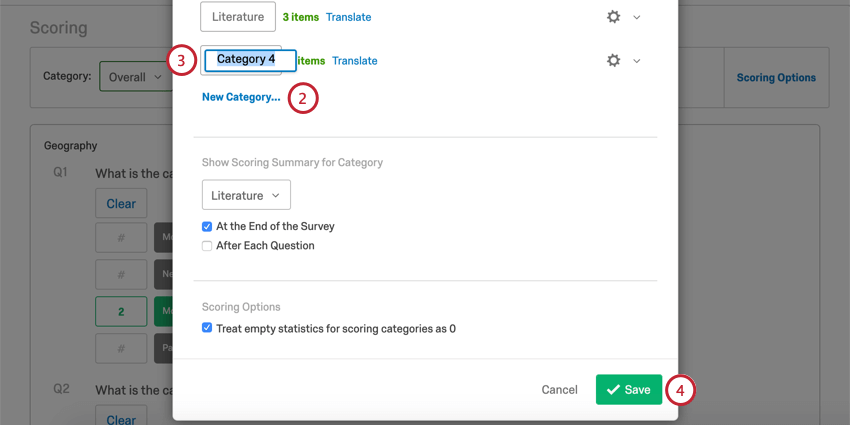
Qtip: To translate the name of your scoring category, select Translate next to the category’s name.
Qtip: Don't worry if you forgot to add scoring categories before sending out your survey! Scoring is retroactive and will be applied to all previously collected and future responses. Each scoring category will have a field automatically created for it which can be found in your dataset. However please note that any embedded data fields or dashboards that use scoring data will need to be manually updated if you've modified your scoring categories.
Choosing the Category You’d Like to Score
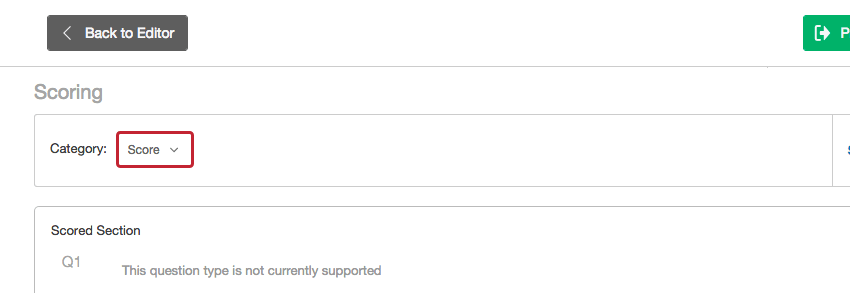
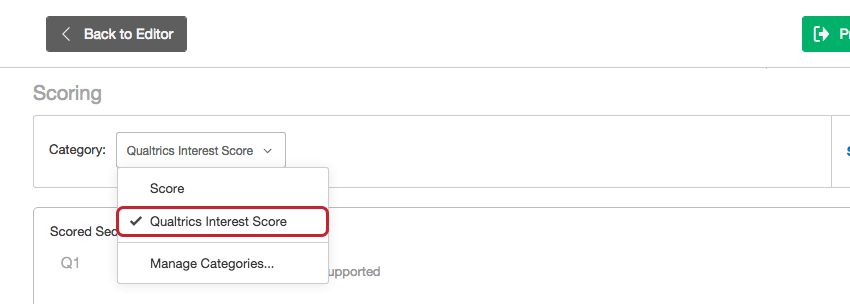
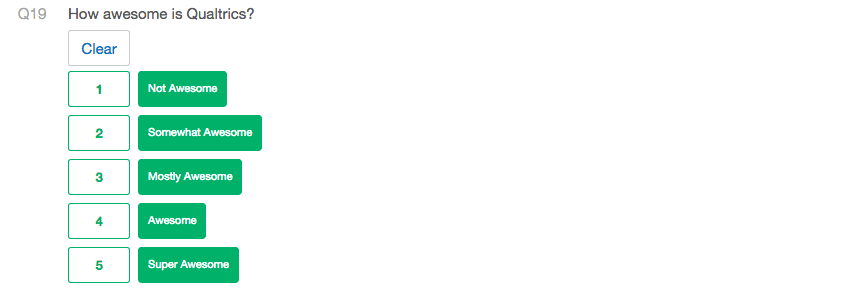
Qtip: You can score the same question multiple times across different categories.
Deleting Categories
Click the gear next to a category and select Delete Category to remove it.
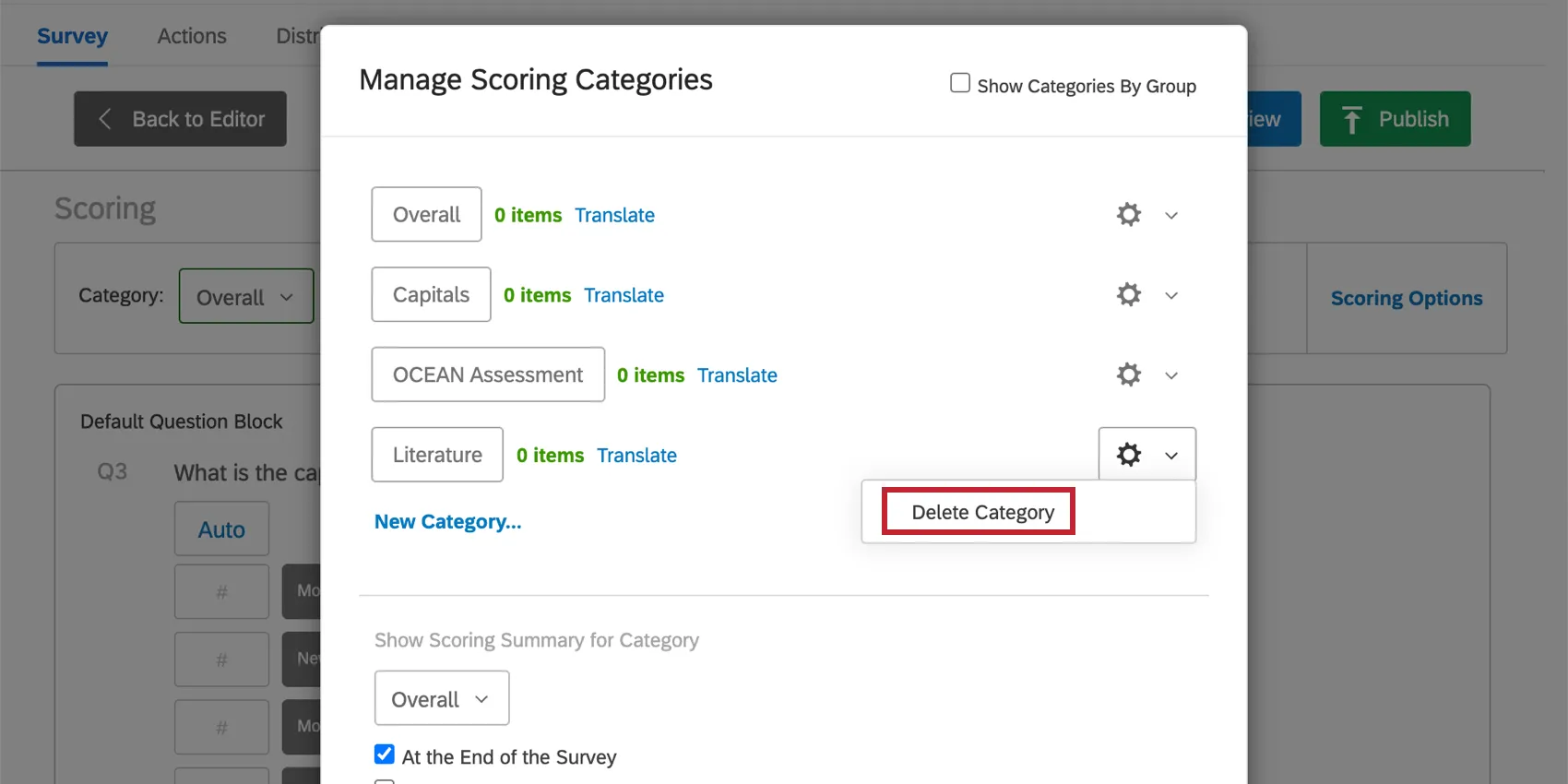
Warning: Any scoring categories you delete are gone permanently and cannot be retrieved. You will need to manually remake any categories you want to restore. Only delete a scoring category if you are positive this is what you want to do.

Displaying the Score for Respondents
Showing Scores After Questions or At the Survey’s End
You can choose to show respondents their scores after each question, or show them a summary of their score at the survey’s end.
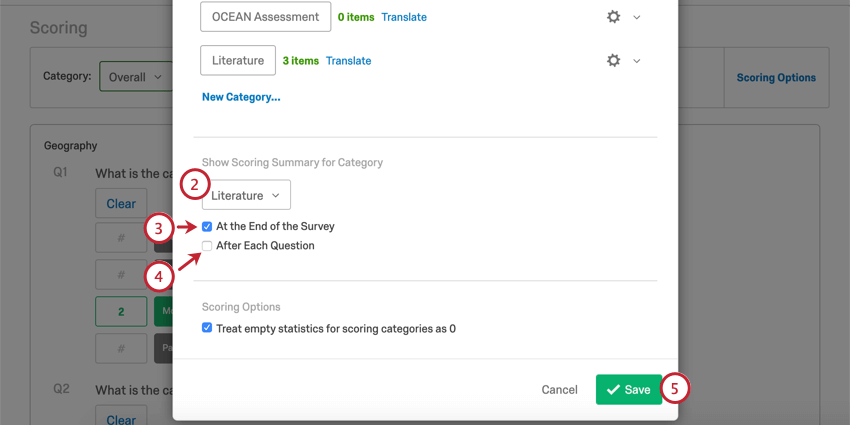
Displaying Scores in Survey Questions and Messages
You can use piped text to show the total score at any point in your survey. Just click on the piped text menu {a} and select Scoring.
You can also use piped text to perform math operations on scores before displaying them to the respondent. For example, the equation $e{ round( gr://ScoreID/Score , 2 ) } will round the score to 2 decimal places.
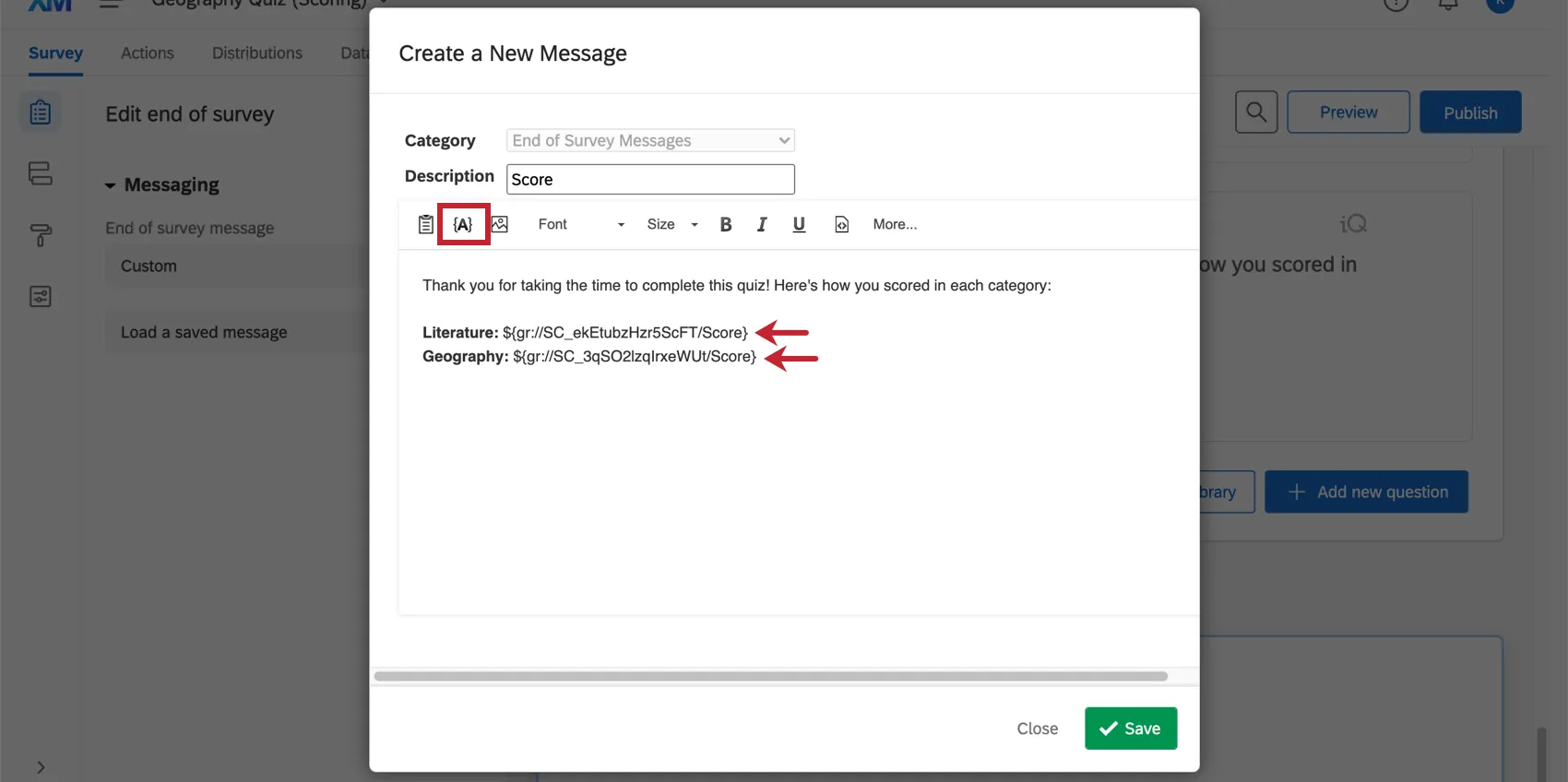
Qtip: Piped text can be used in lots of places, including questions of all kinds, descriptive texts, end of survey messages, and email tasks!
Displaying Different Messages Based on Respondents’ Scores
When it comes to assessments, we want to communicate different things to people based on how they performed. We can congratulate people who scored 100%, but we might want to provide guidance and study guides to those who scored below a 75%. Maybe we’re running a personality assessment, and want to tell the respondent what profile matches their results.
Check out the Displaying Messages Based on Scoring support page to learn more!
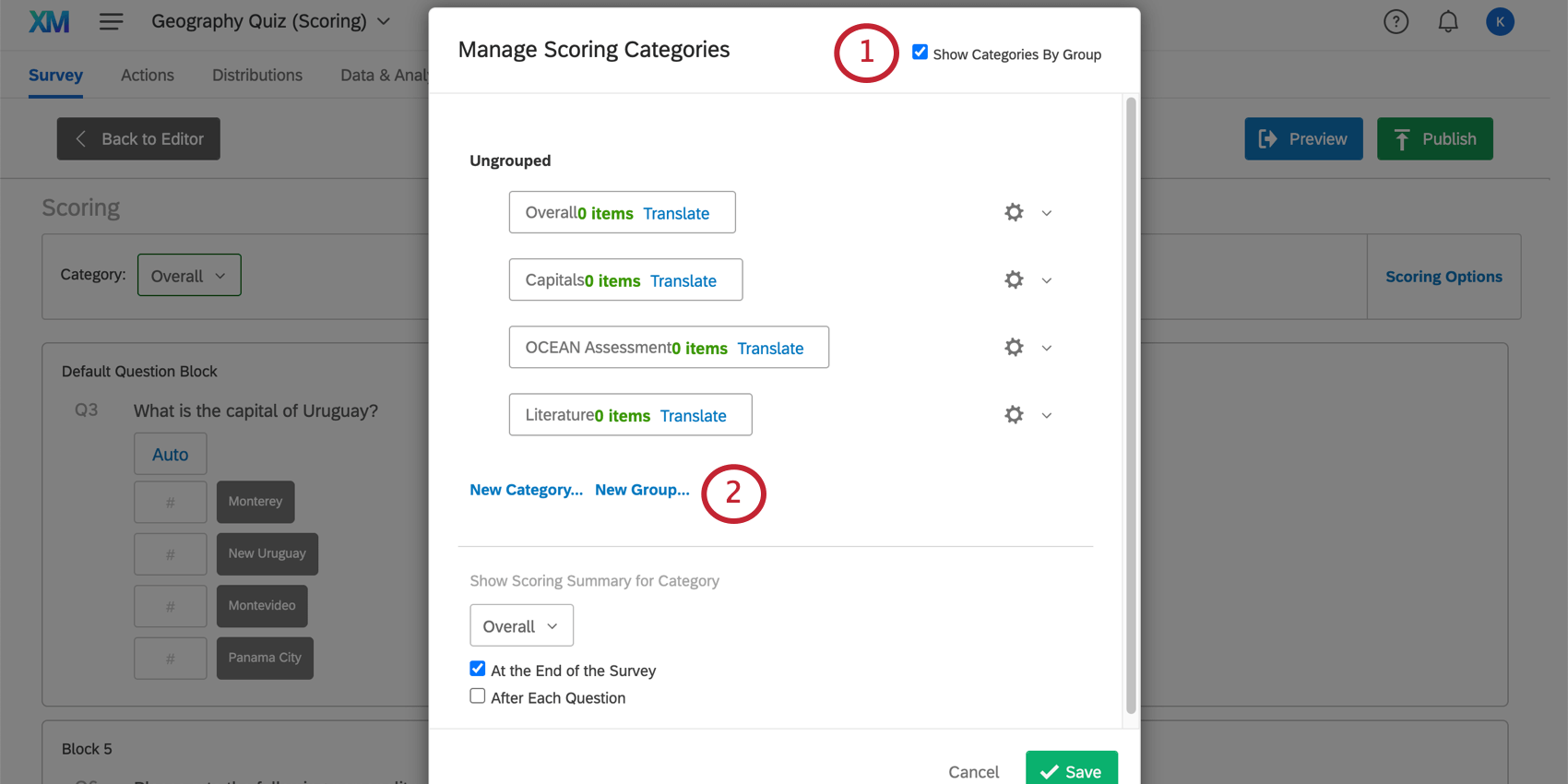
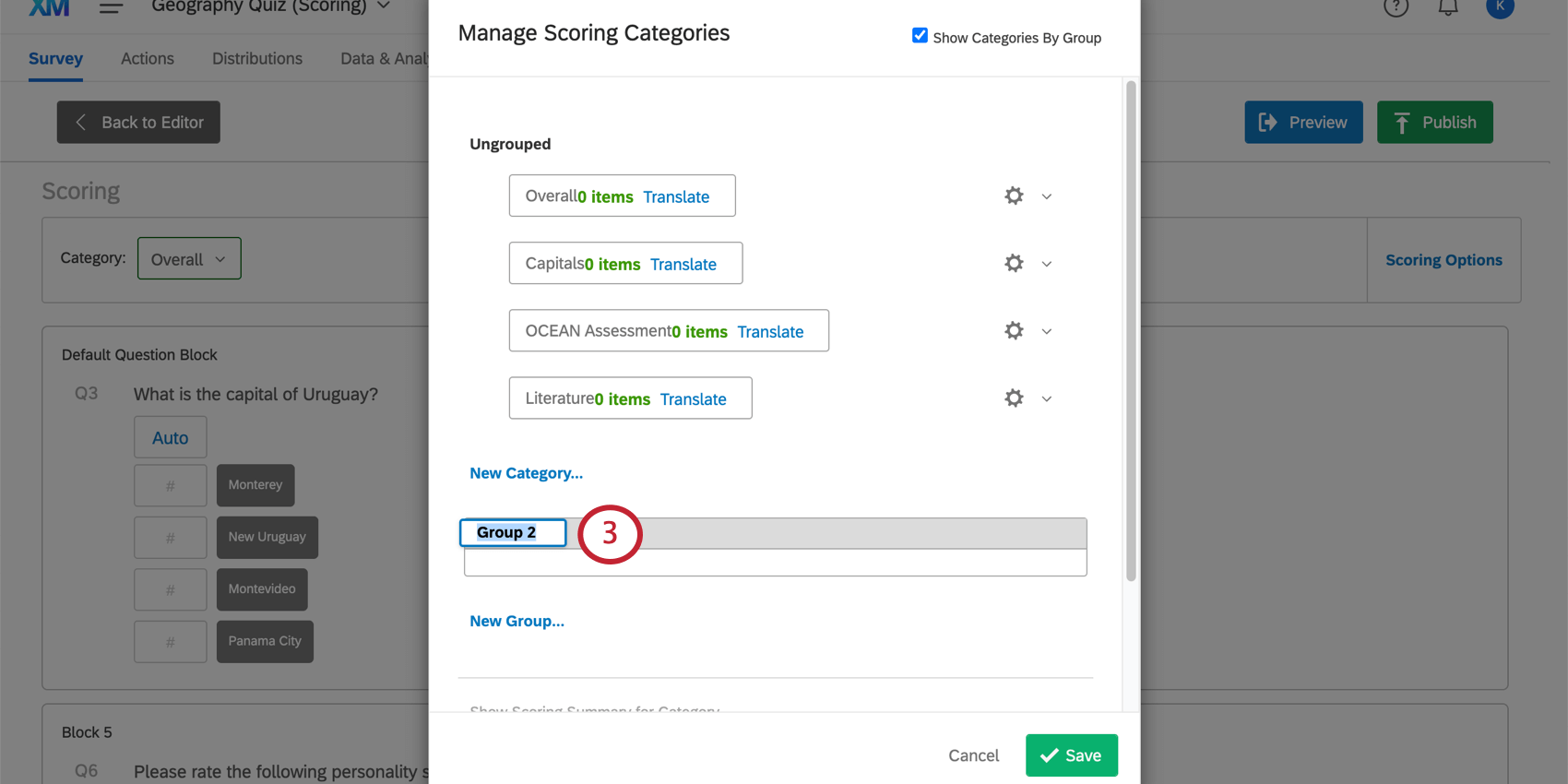
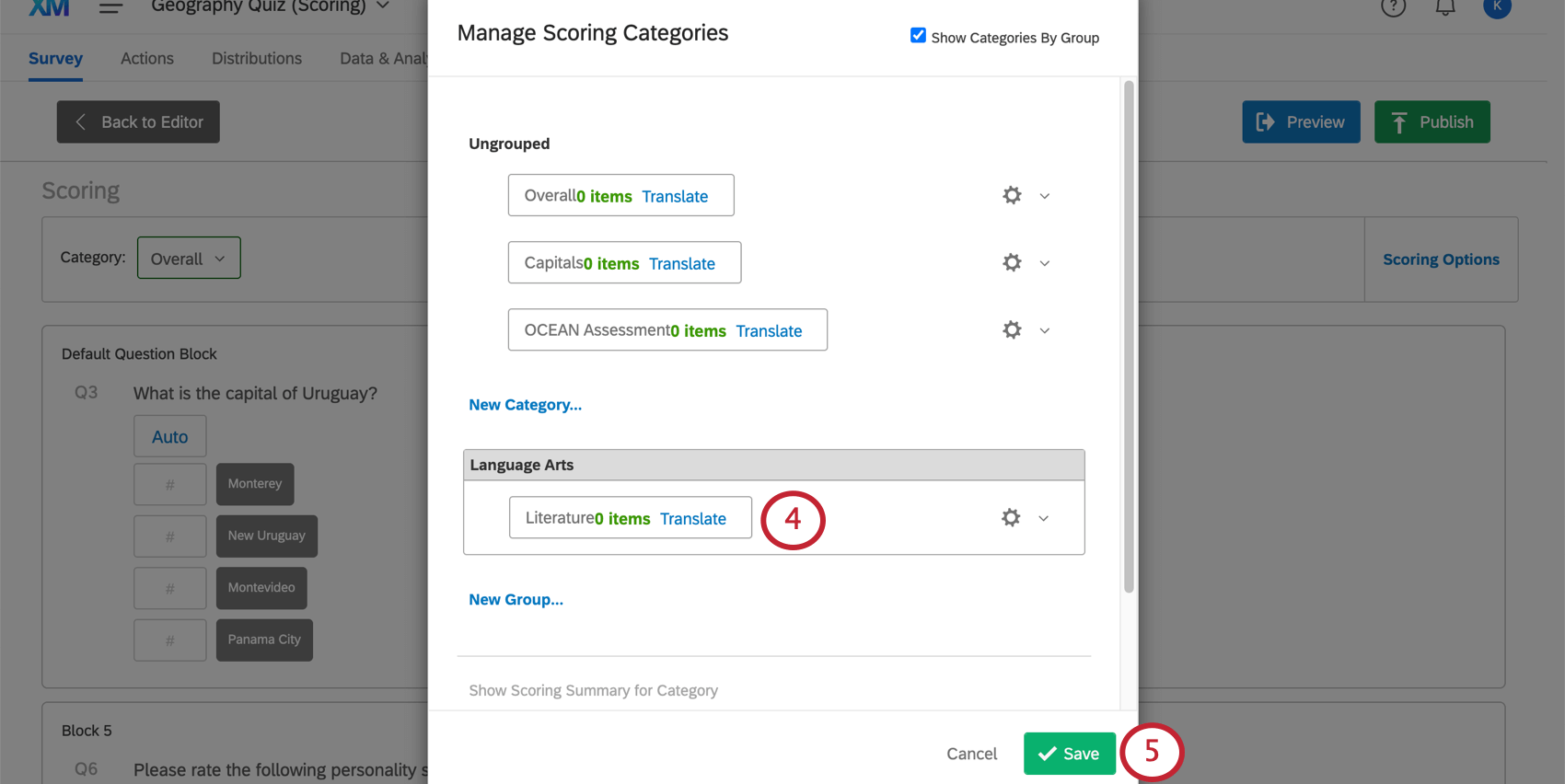
Category Groups
You can sort your scoring categories into groups for your organizational convenience.
Qtip: Groups are for organization. They do not combine categories. For example, if you need a “Central Score” that adds up the results of all your categories, you need to create another category.
Compatible Project Types
Scoring is only available in the following types of projects:
Qtip: Conjoint and MaxDiff-specific content cannot be scored.
FAQs
Can I set up scoring after I collect responses?
Can I set up scoring after I collect responses?
Is scoring data included when I export my survey responses?
Is scoring data included when I export my survey responses?

How do I add all the scores of my different categories together?
How do I add all the scores of my different categories together?
Before you collect your data, you can also also do a Math operation and save it as embedded data. This solution will not work if you already collected data.
That's great! Thank you for your feedback!
Thank you for your feedback!