

Pre-Made Qualtrics Library Questions
What's on this page
About Pre-Made Qualtrics Library Questions
In addition to providing survey templates, Qualtrics has saved some common questions you can put into almost any project’s survey. For example, have you ever needed your respondents to select a date, but didn’t know how to make a clickable calendar? Have you ever wanted them to select from a list of countries without having to find a list of every country yourself? The Qualtrics library questions are here to help!
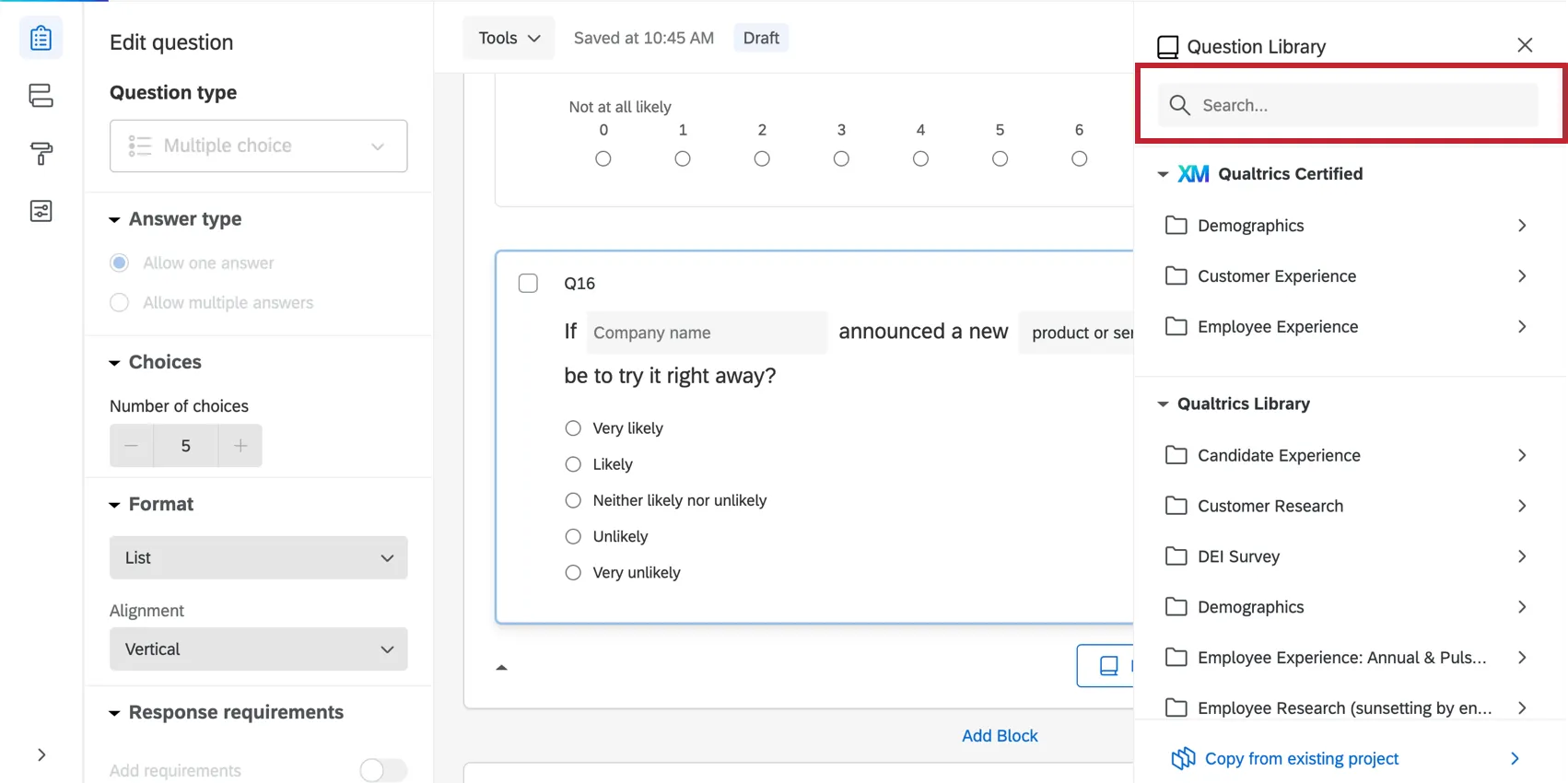
Adding a Question from the Qualtrics Library
Attention: Certified questions leverage Qualtrics best practices to generate high-quality, standardized data to support better insights. Due to these improvements, we recommend using certified questions. Questions from the Qualtrics library will no longer be available in the near future.

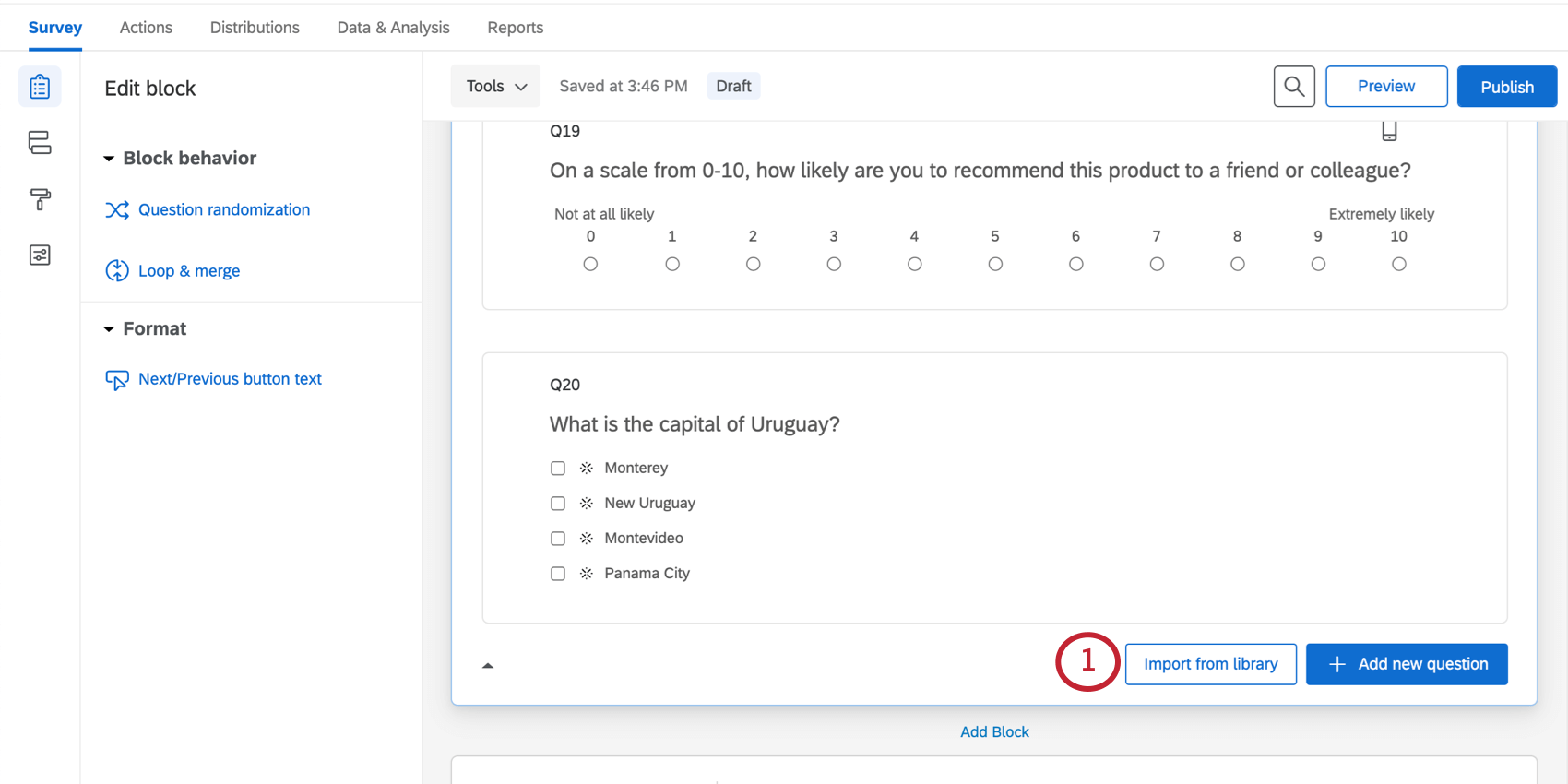
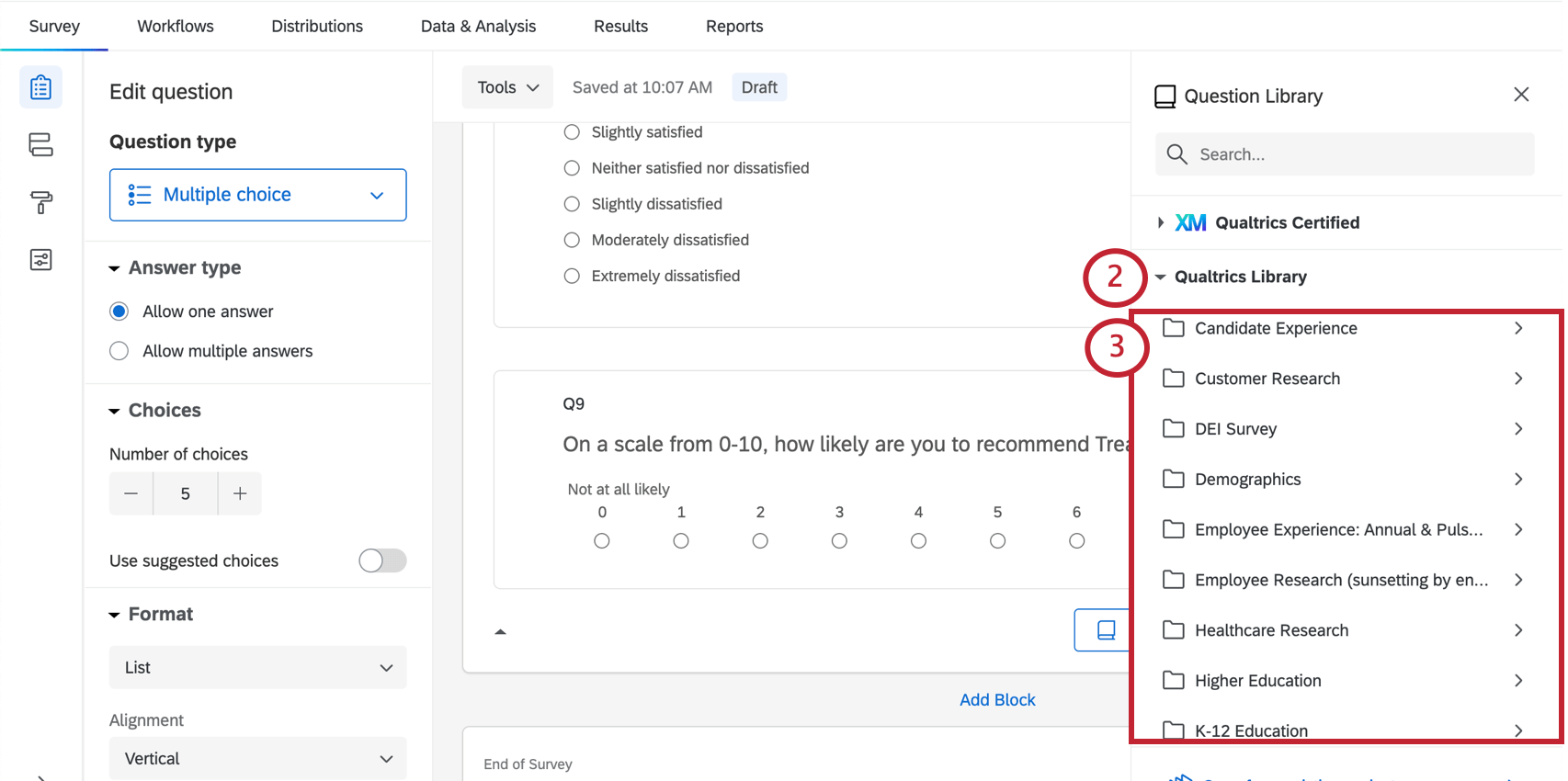
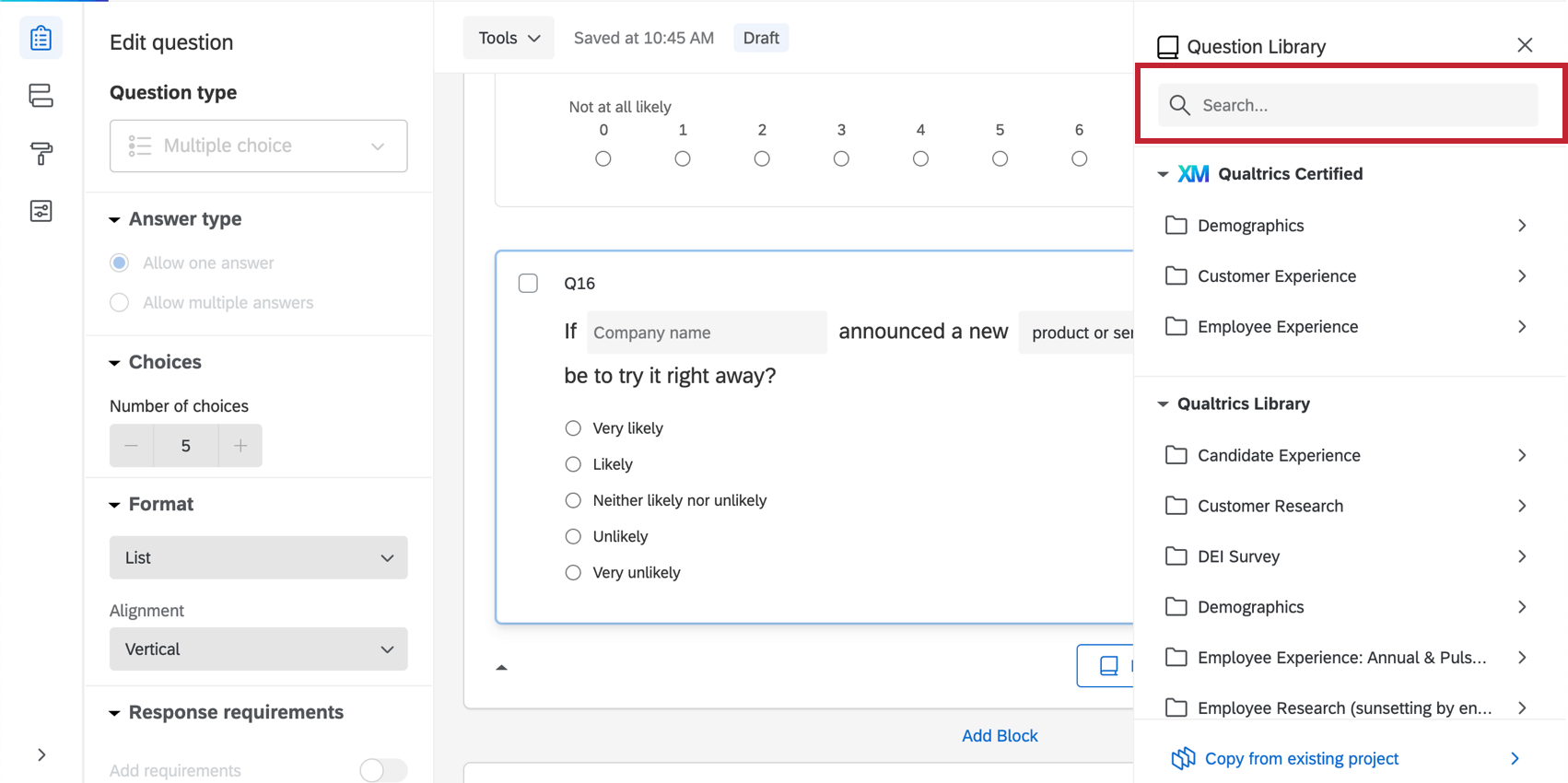
Qtip: You can also use the search bar to locate content! For example, type “date” to see all date-related questions.

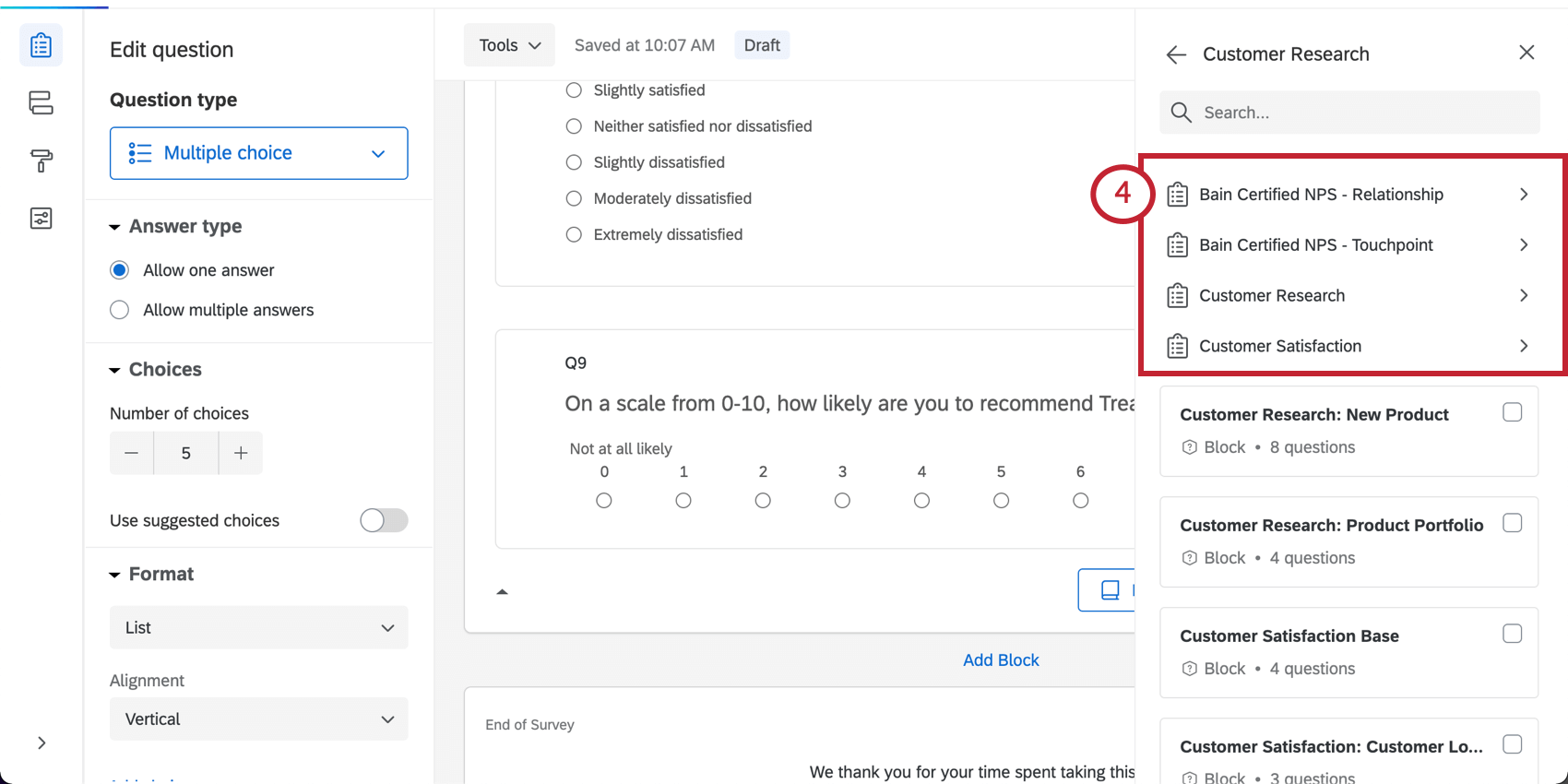
Qtip: You can also use a whole block that’s been saved to the library.
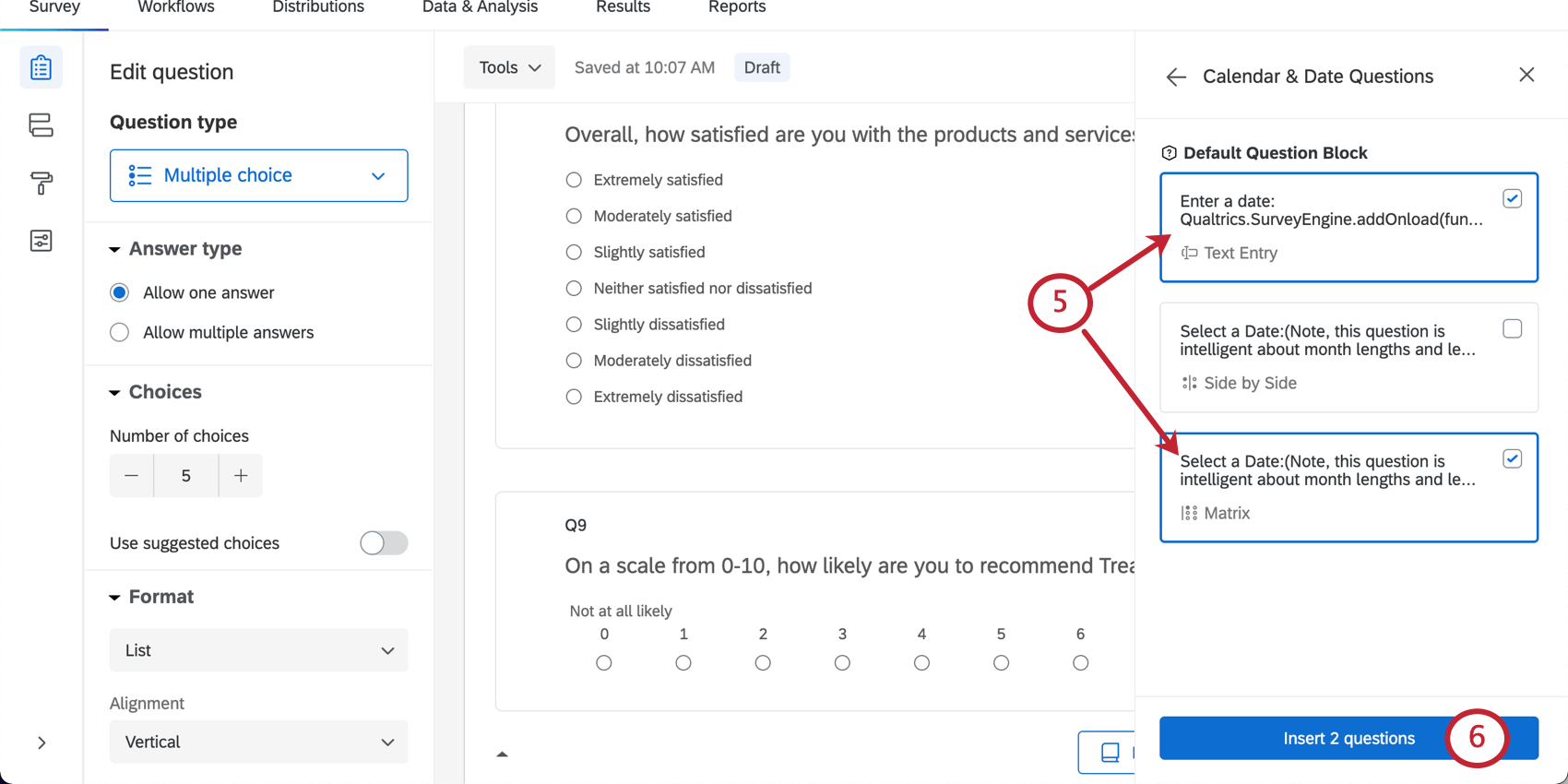
Qtip: For more on importing your own library content, visit the Library support page.
Categories of Content Available
Several categories of surveys are available to you. Their content differs based on these categories.
- XM Qualtrics Certified: Demographics
- XM Qualtrics Certified: Customer Experience
- XM Qualtrics Certified: Employee Experience
- Uncategorized
- Candidate Experience
- Customer Research
- DEI Survey (Diversity, Equity, and Inclusion)
- Demographics
- Healthcare Research
- Higher Education
- K-12 Education
- Market Research
- Website Experience
Certified Questions
Certified questions leverage Qualtrics best practices to generate high-quality, standardized data to support better insights. By standardizing metrics — for example, age, gender, industry, location, CSAT, etc. — an entire XM workflow can be created that delivers better value in the form of unified datasets for comparative analysis, benchmarks, and continually updated and standardized profiles.
Qtip: Certified questions are also readily translated in multiple languages. See Launching pre-made best-practice surveys in multiple languages for a list.
Qtip: For certified questions to work properly, your respondents must be associated with their survey responses. In other words, certified questions do not work for anonymized surveys.
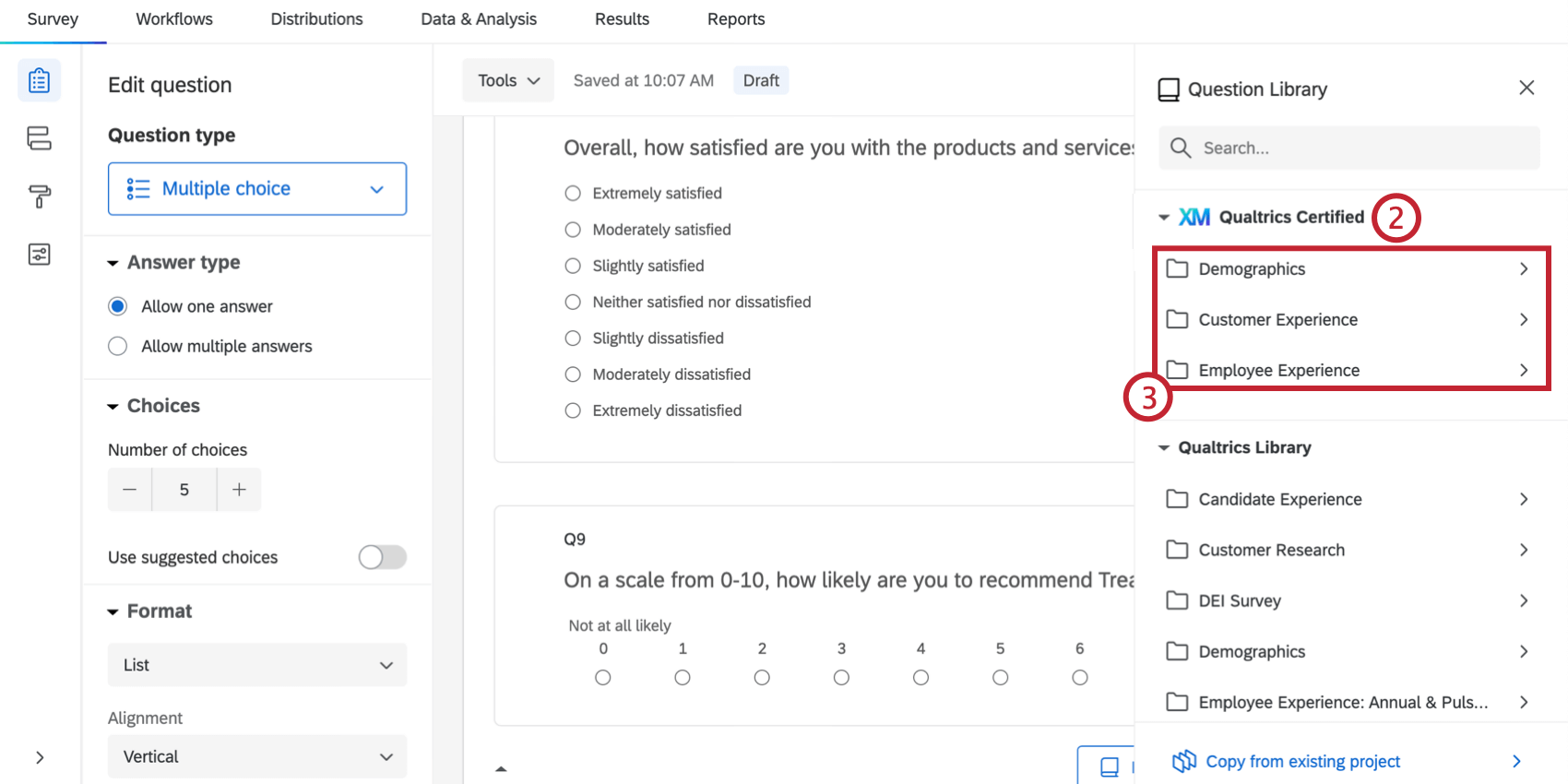
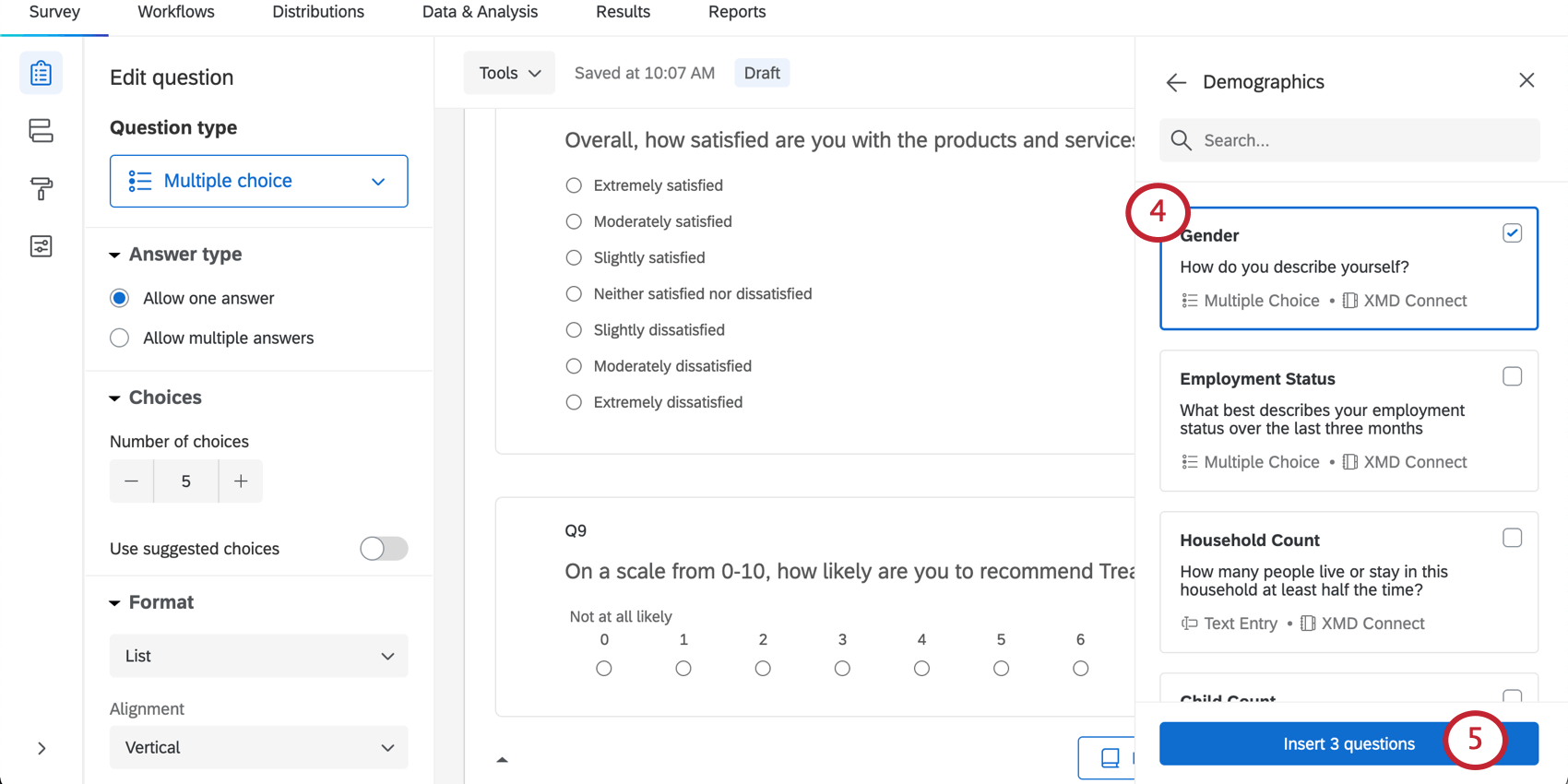
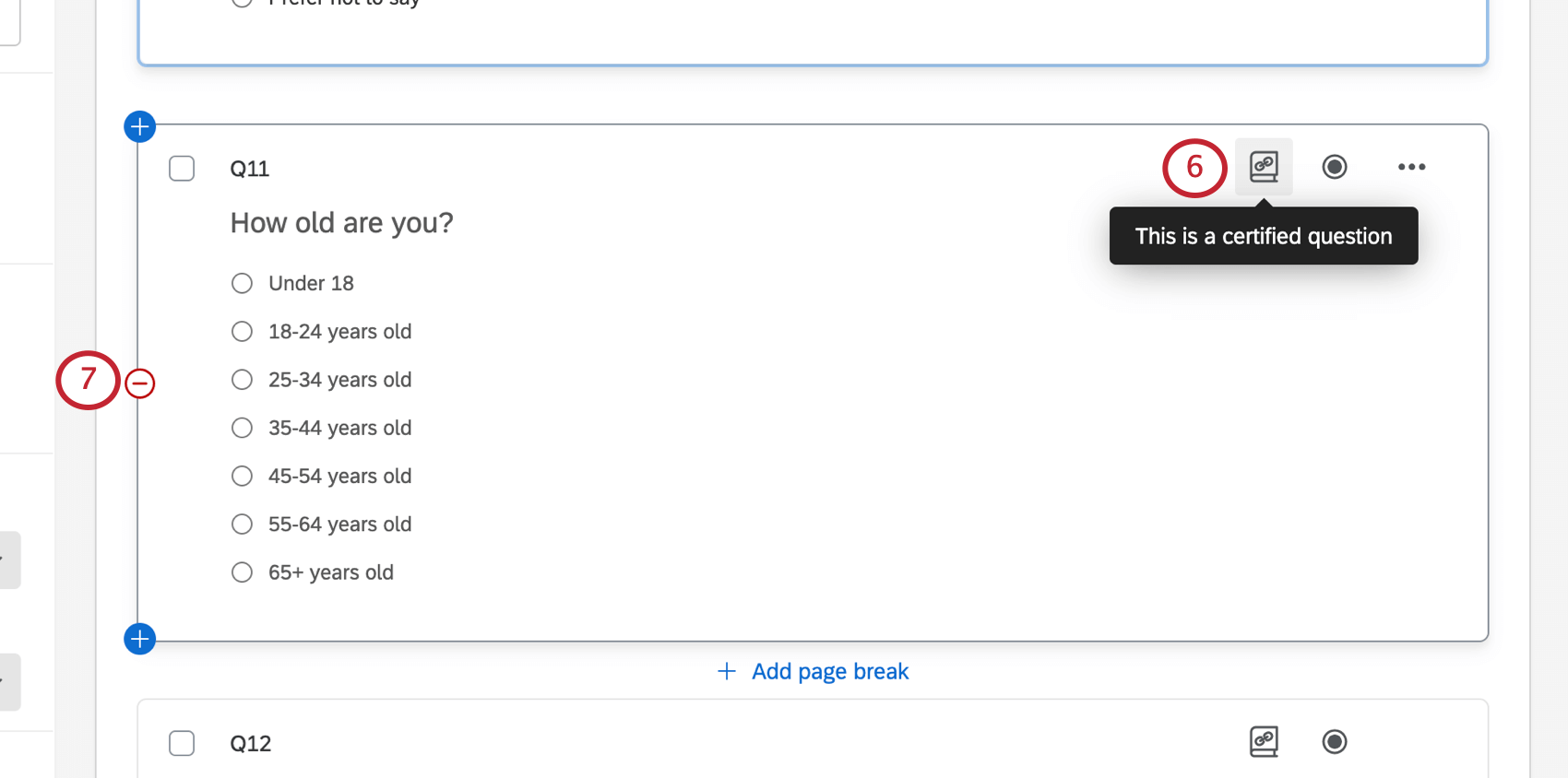
Attention: While certified questions are reviewed by XM Scientists from the methodology perspective, compliance policies may differ. If you are using demographic questions, check with your company’s privacy policies regarding collecting consumer demographic data to determine whether these questions are approved for usage.
Certified Demographic Questions
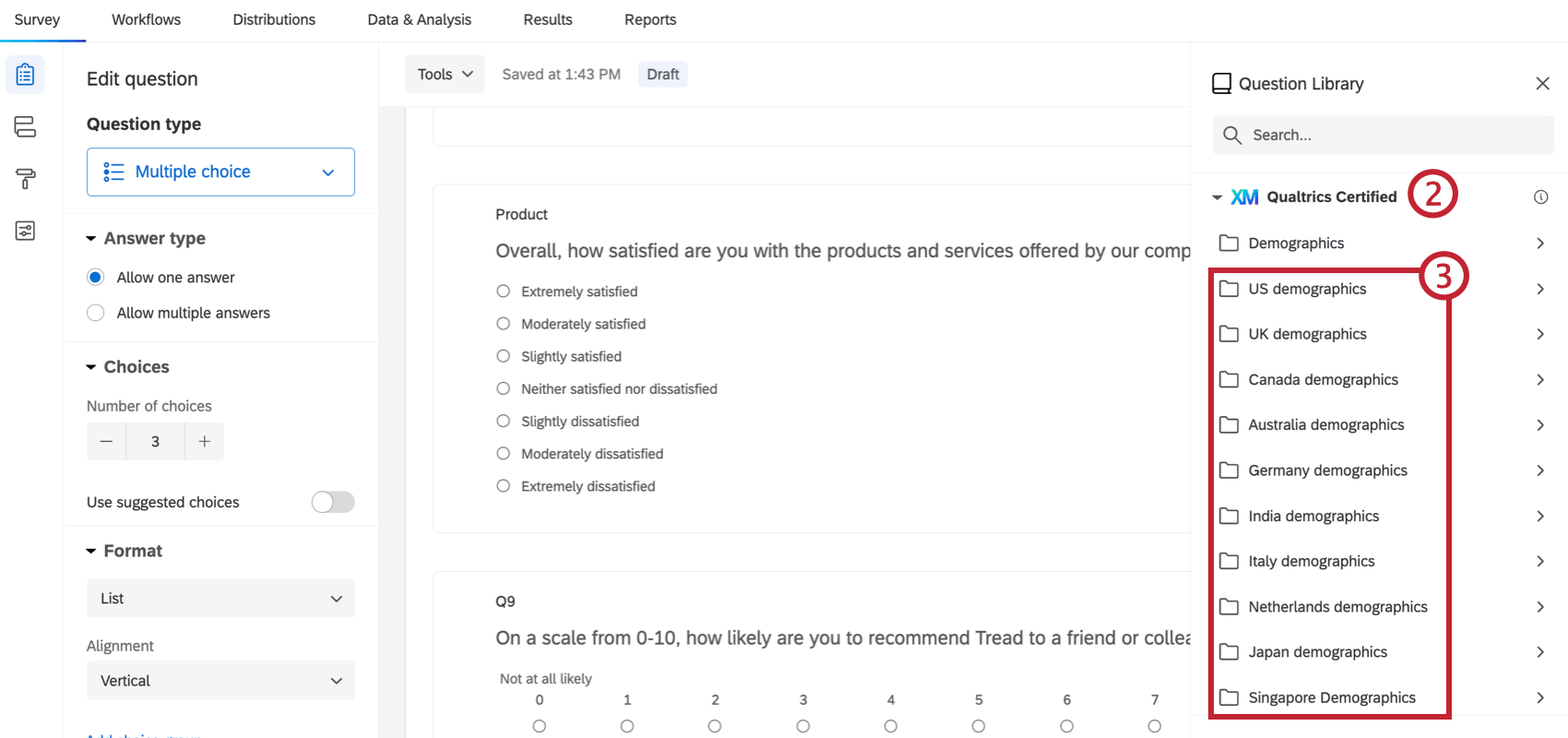
Qtip: Region specific questions are available for the following countries and regions: US, UK, Canada, Australia, Germany, India, Italy, Netherlands, Japan, and Singapore.
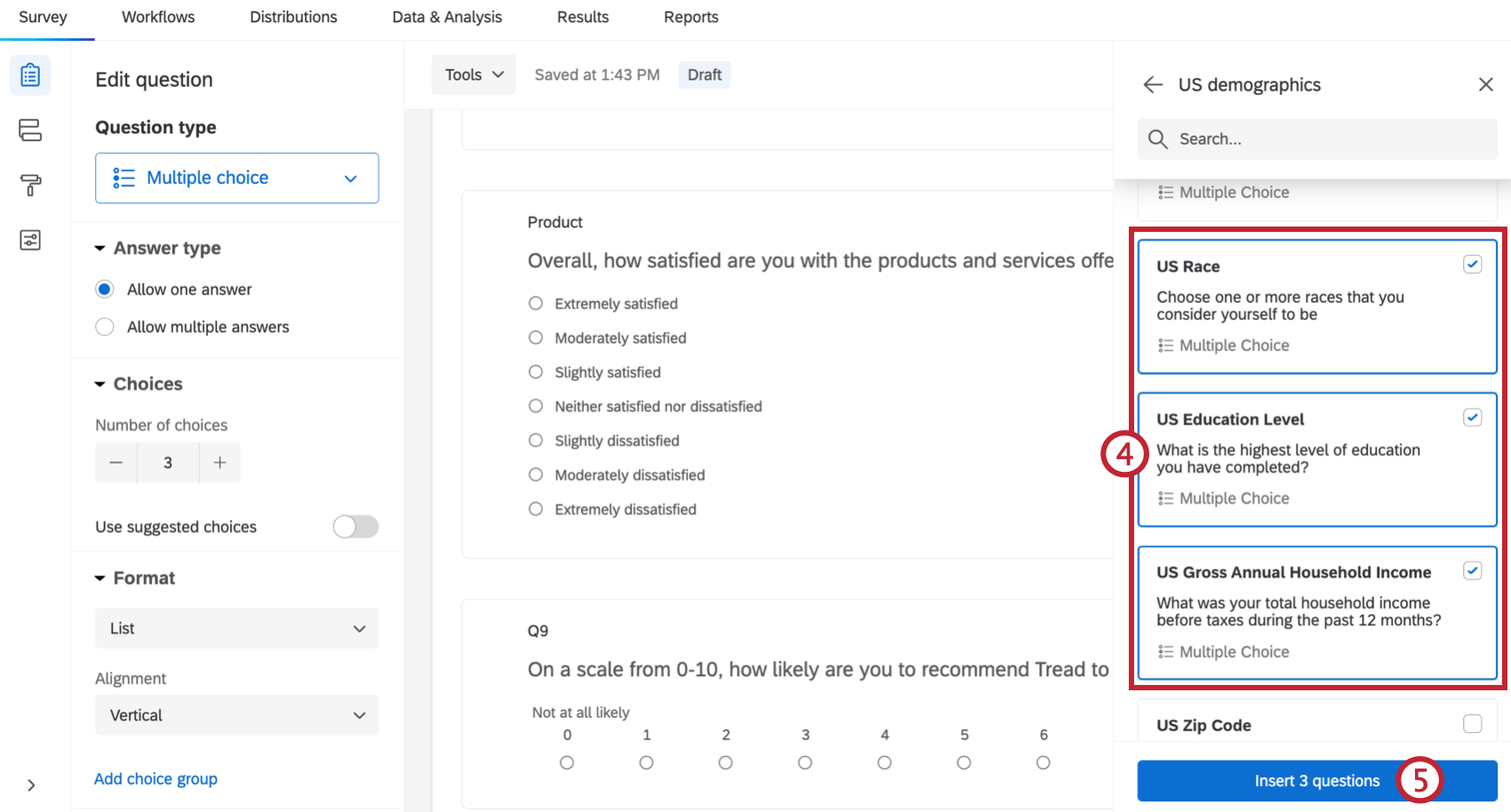
Certified demographic questions use prebuilt questions that collect demographic data from your respondents to automatically push that data to the respondent’s contact entry in your XM Directory. Additionally, demographic data you already have about your respondent will be prefilled in certified questions. In addition to global demographic questions, you can add certified questions that are country or region specific. To add these questions to your survey, follow these steps:
How Demographic Certified Questions Map to Attributes in XM Directory
Below is a table showing how each global certified question maps to which attribute in your XM Directory.
Attention: You should not edit or delete these attributes from your directory.
| Question Text | Attribute Name in XM Directory | Possible Values |
|---|---|---|
| How old are you? | Age Range | Under 18, 18-24 years old, 25-34 years old, 35-44 years old, 45-54 years old, 55-64 years old, 65+ years old. |
| How do you describe yourself? | Gender Identity | Male, Female, Non-binary / third gender, Prefer to self-describe, Prefer not to say. |
| If the respondent selects “Prefer to self-describe” when answering about Gender Identity | Gender Self-Described | Free response. |
| How many under 18 live with you? | Children Count | Free response. |
| What best describes your employment status over the last three months? | Employment Status | Working full-time, Working part-time, Unemployed and looking for work, A homemaker or stay-at-home parent, Student, Retired, Other. |
| What is your current marital status? | Marital Status | Married, Living with a partner, Widowed, Divorced/Separated, Never been married. |
| How many people live or stay in this household at least half the time? | Household Member Count | Free response. |
Region specific demographic questions vary slightly for different regions, and fields for each region will have different attribute names in XM Directory and different possible values. For each region you will see a version of the following 4 questions:
- Ethnic Origin/Race: What best describes your ethnic origin?
- Education: What is the highest level of education you have completed?
- Income: What was your total household income before taxes during the past 12 months?
- Zip Code/Post Code: Where are you located?
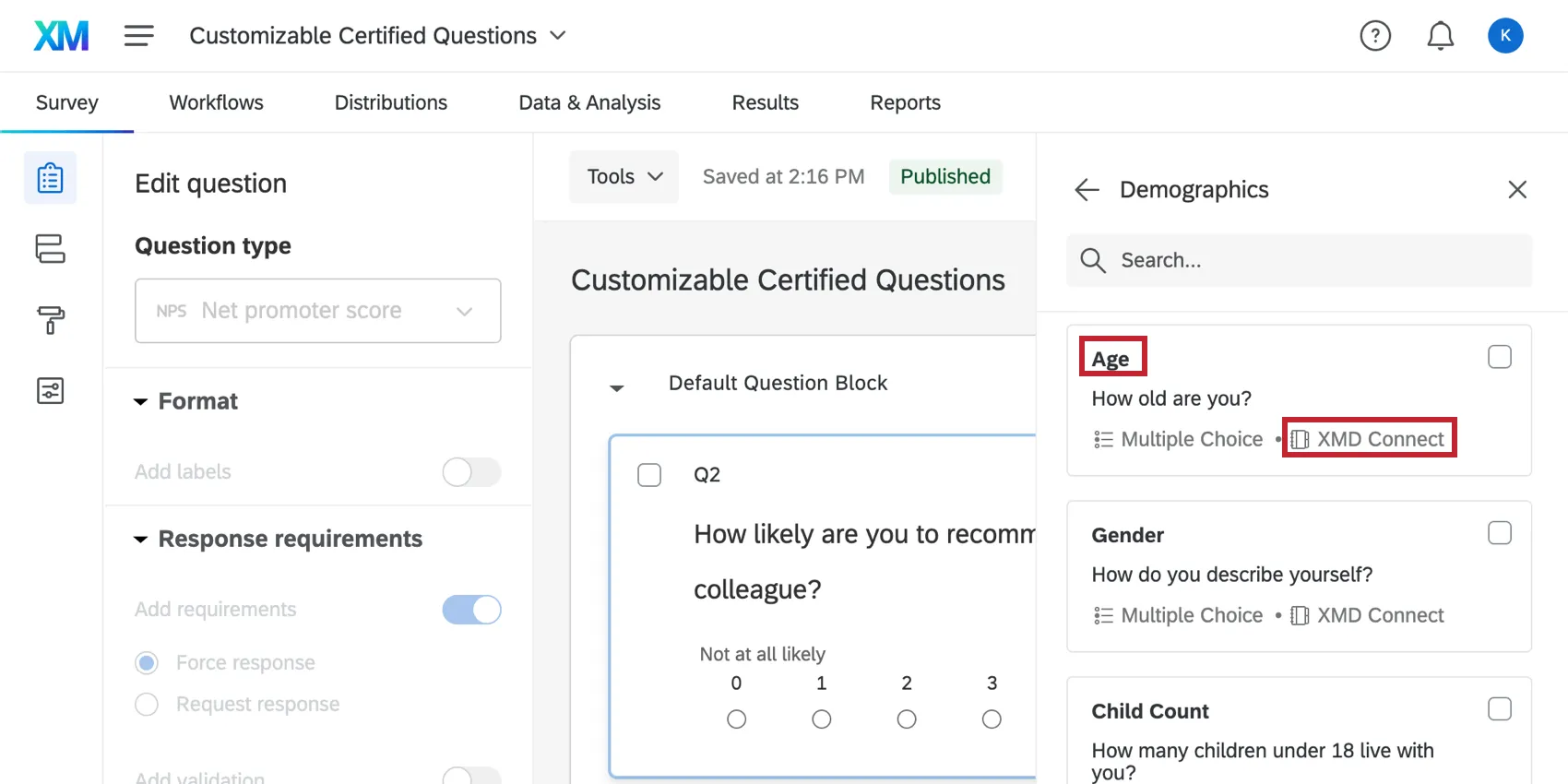
Qtip: Not all certified questions are mapped back to XM Directory. When you add a certified question to your survey, the menu will show you whether this question is mapped to XM Directory by including the tag XMD Connect. The name at the top represents the XM Directory field name. If XMD Connect is not present, the question is not already mapped to XM Directory.
Certified Questions You Can Customize
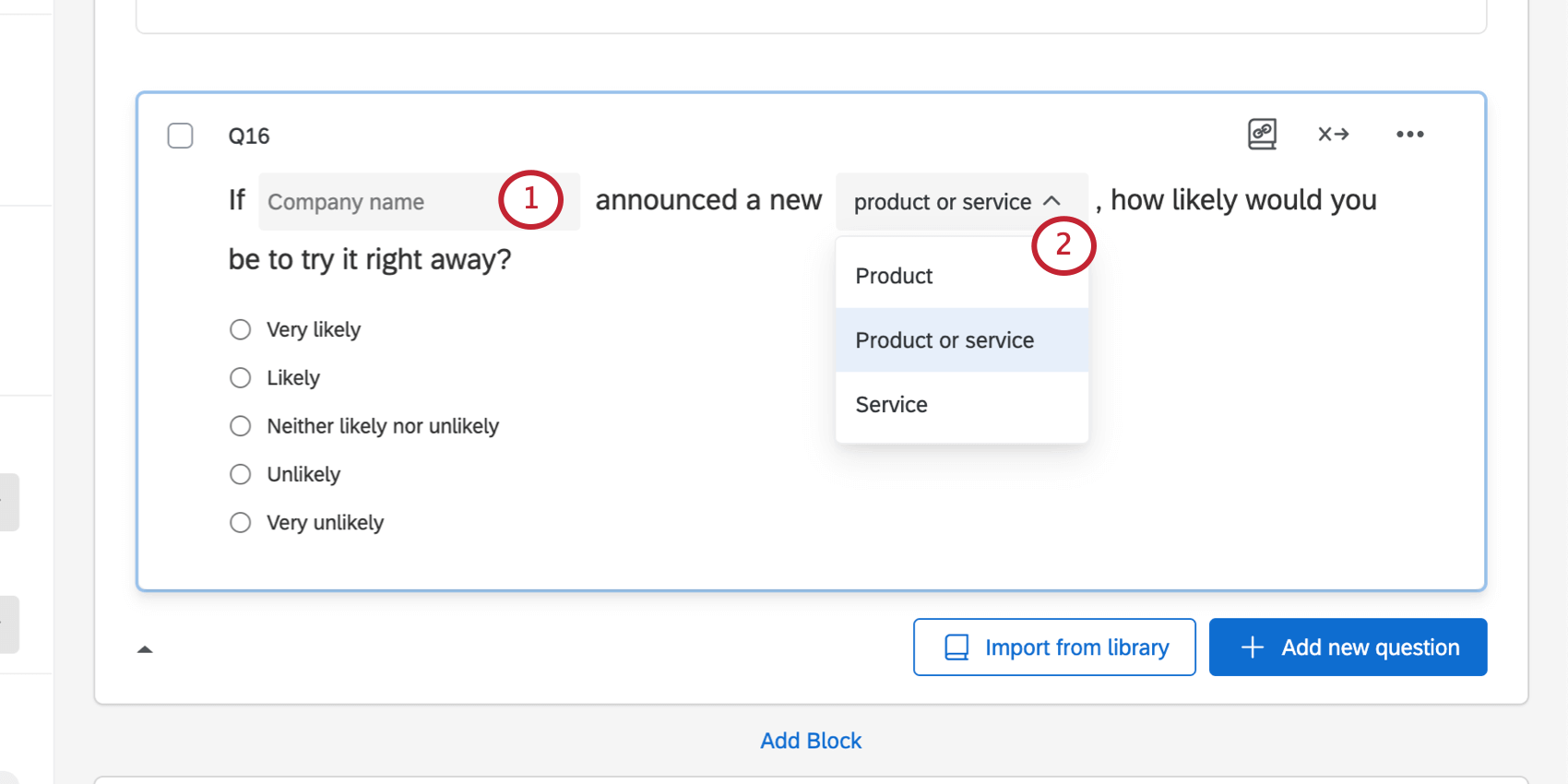
Certified library questions are prebuilt questions that take advantage of Qualtrics methodology to collect standardized data for easier comparisons. Most certified questions are locked from editing to ensure consistency, but some questions have the flexibility to be customized for your organization’s language and use. These questions allow you to change key sentence wording, like company or product name, while still leveraging Qualtrics best practices like benchmarking and standardization.
Attention: The content within certified questions varies depending on your organization’s license. Please contact your Account Executive if you are interested in getting access to additional questions.
Attention: Benchmarking is not included in all licenses. Please contact your Account Executive if you are interested in getting access to this feature.
Adding Questions to Your Survey
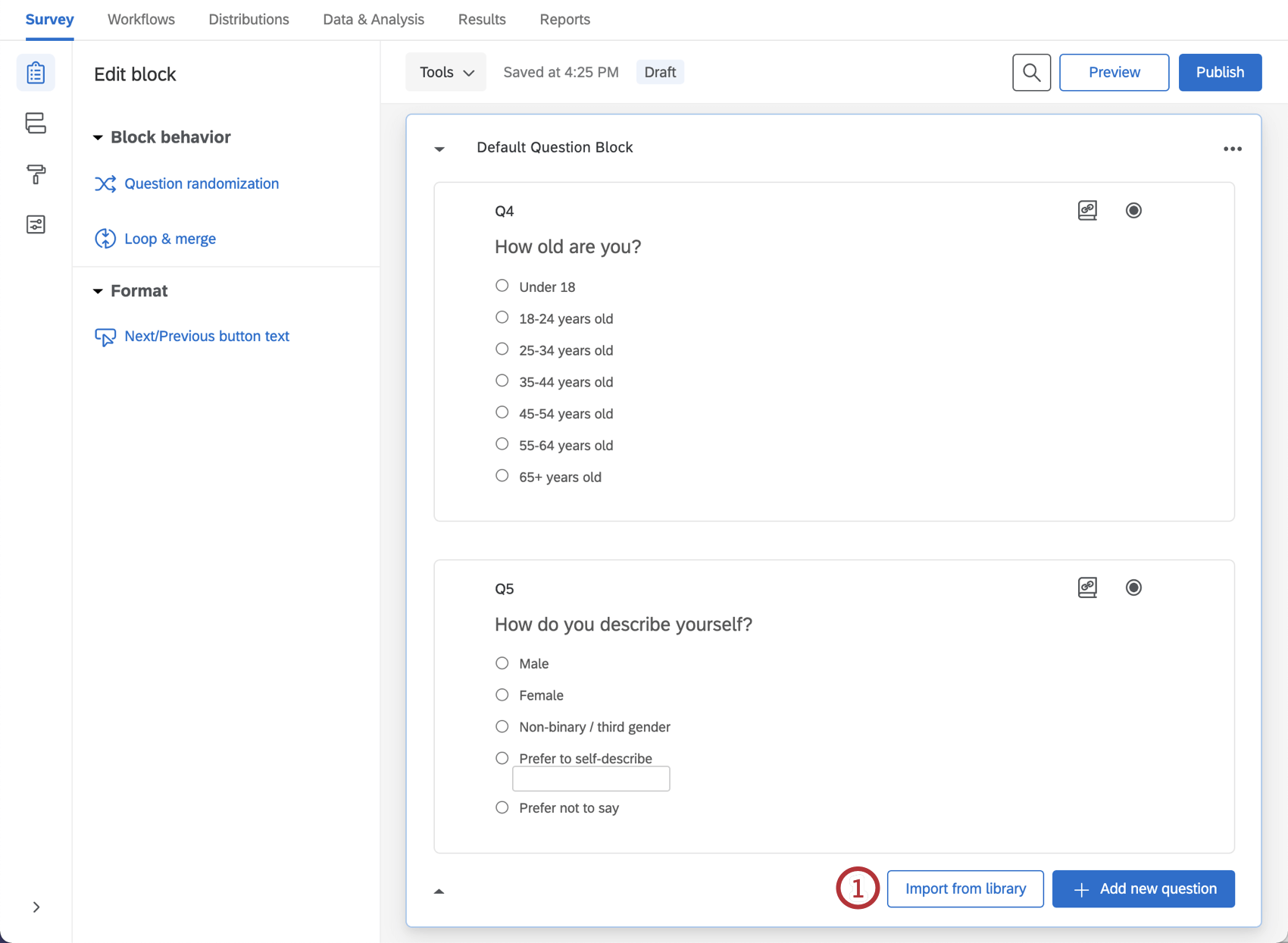
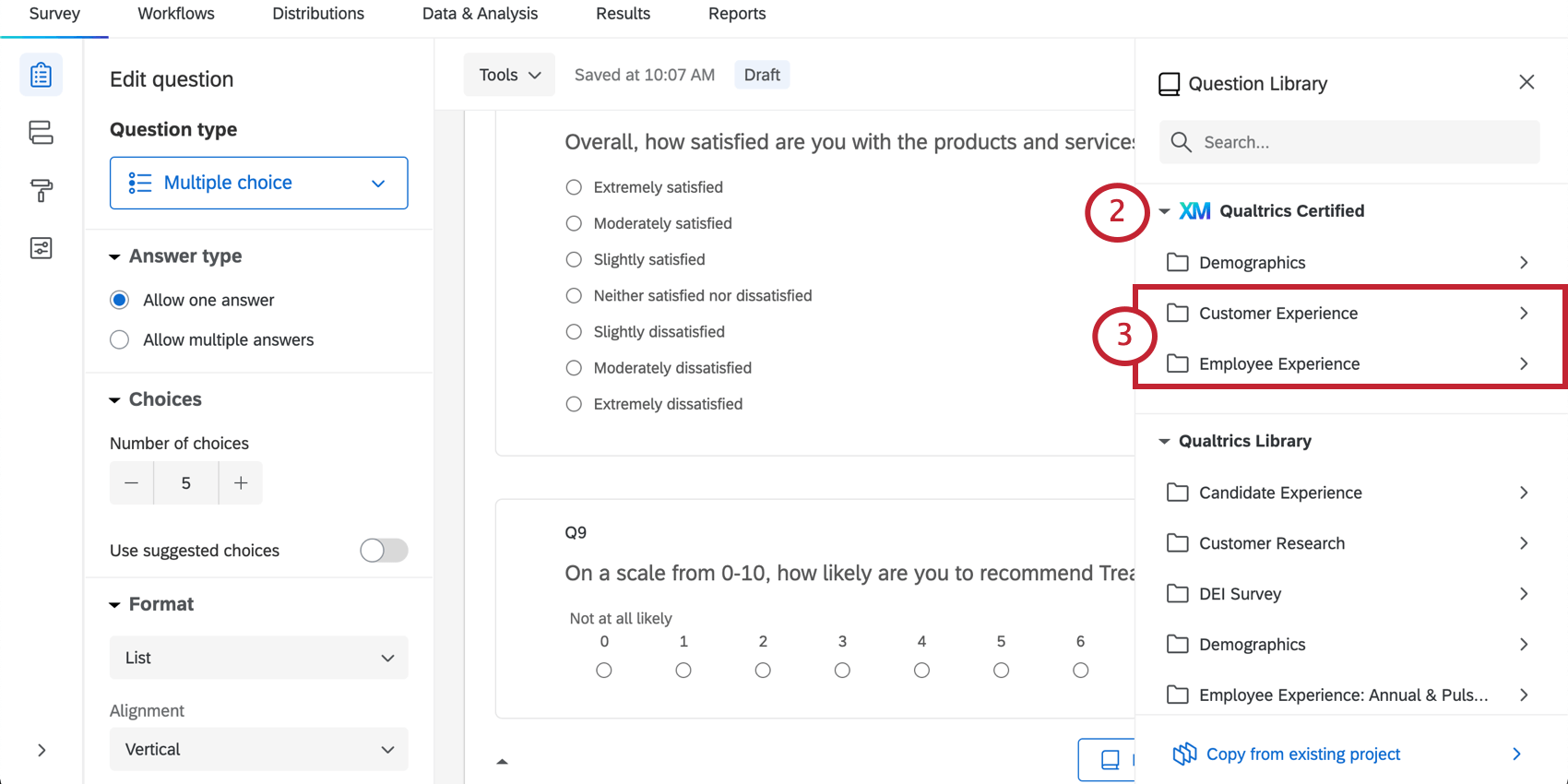
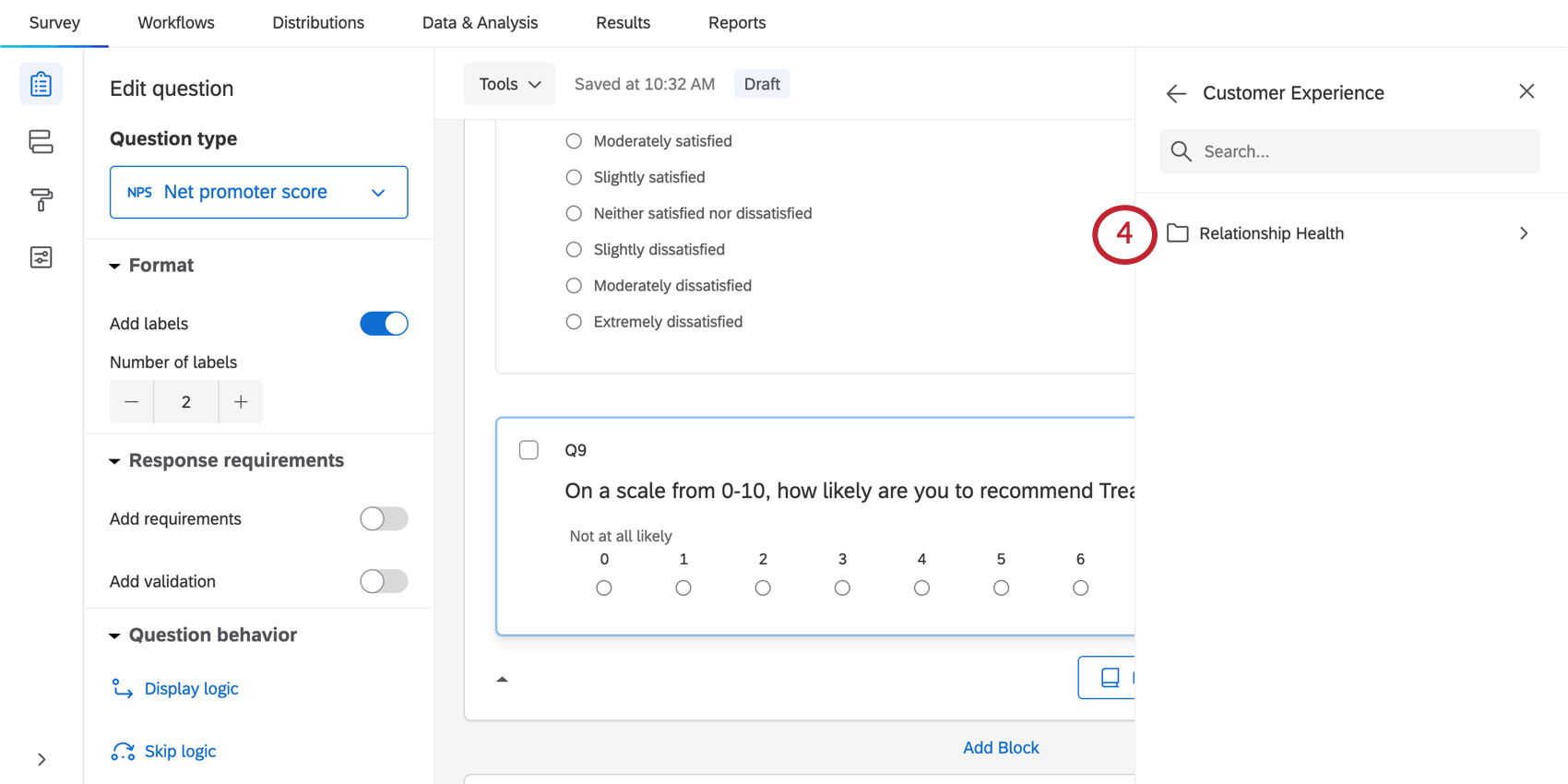
Example: If you want to choose from questions assessing a customer’s relationship with your products and company, click Relationship Health.

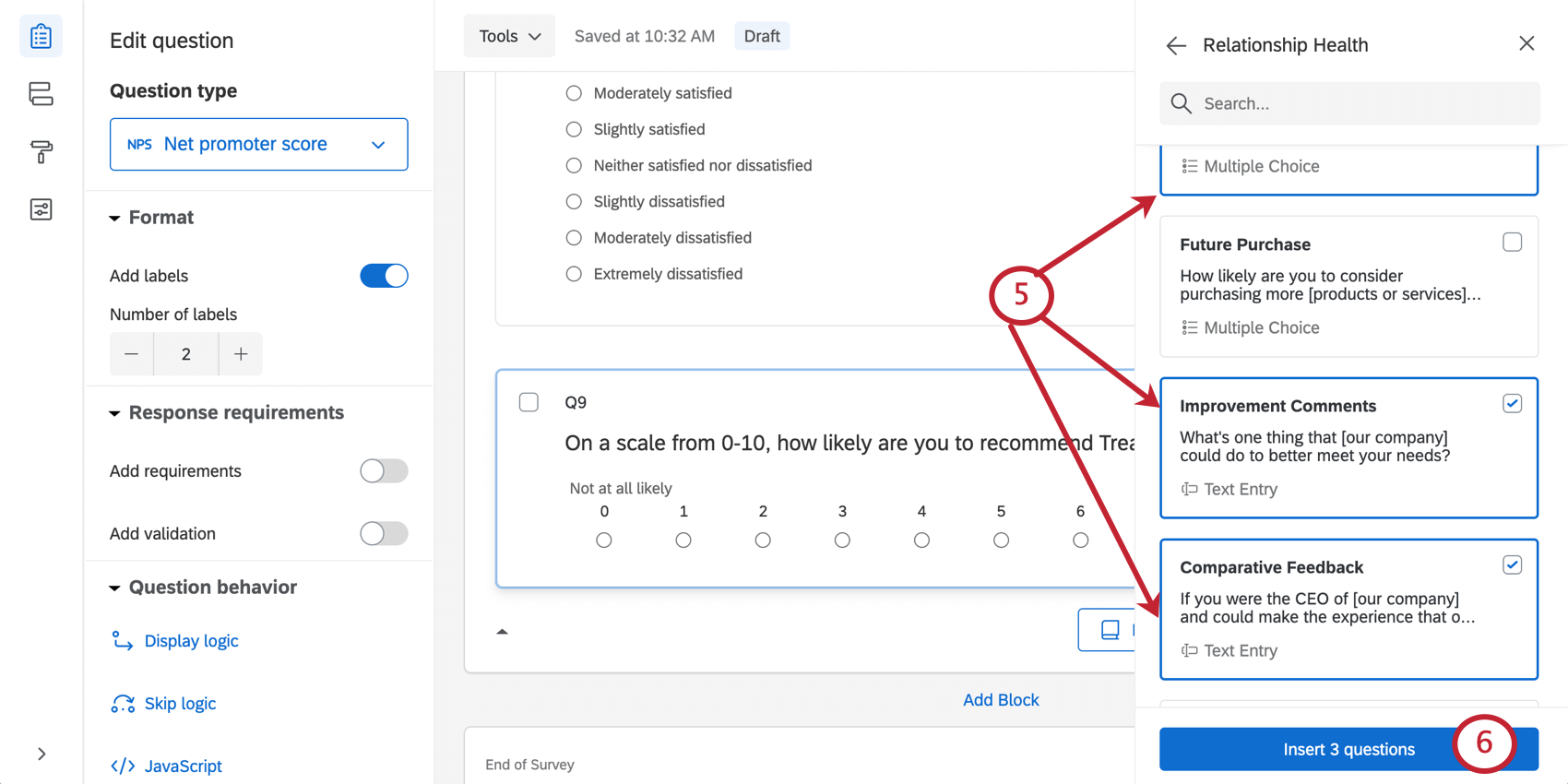
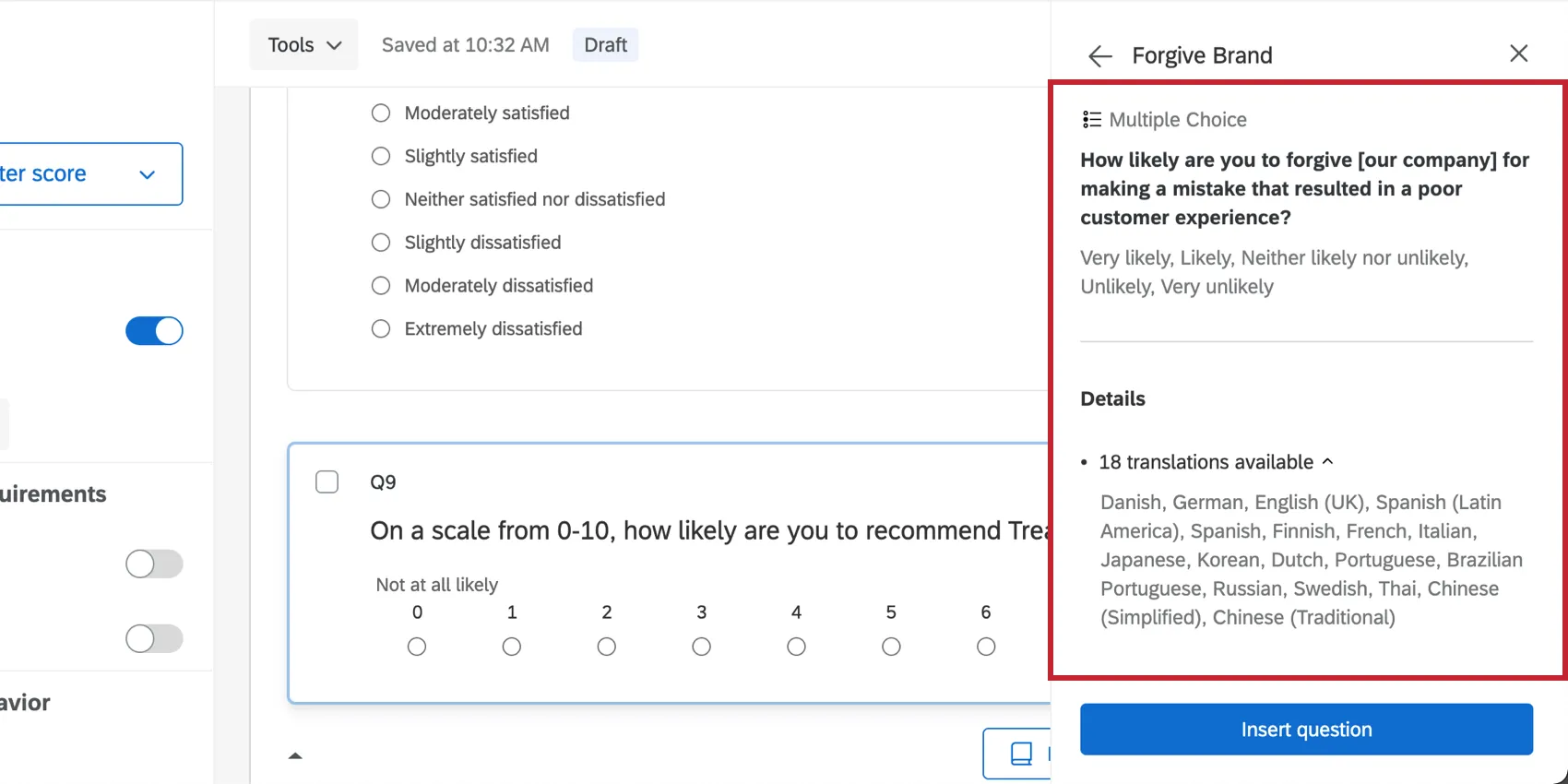
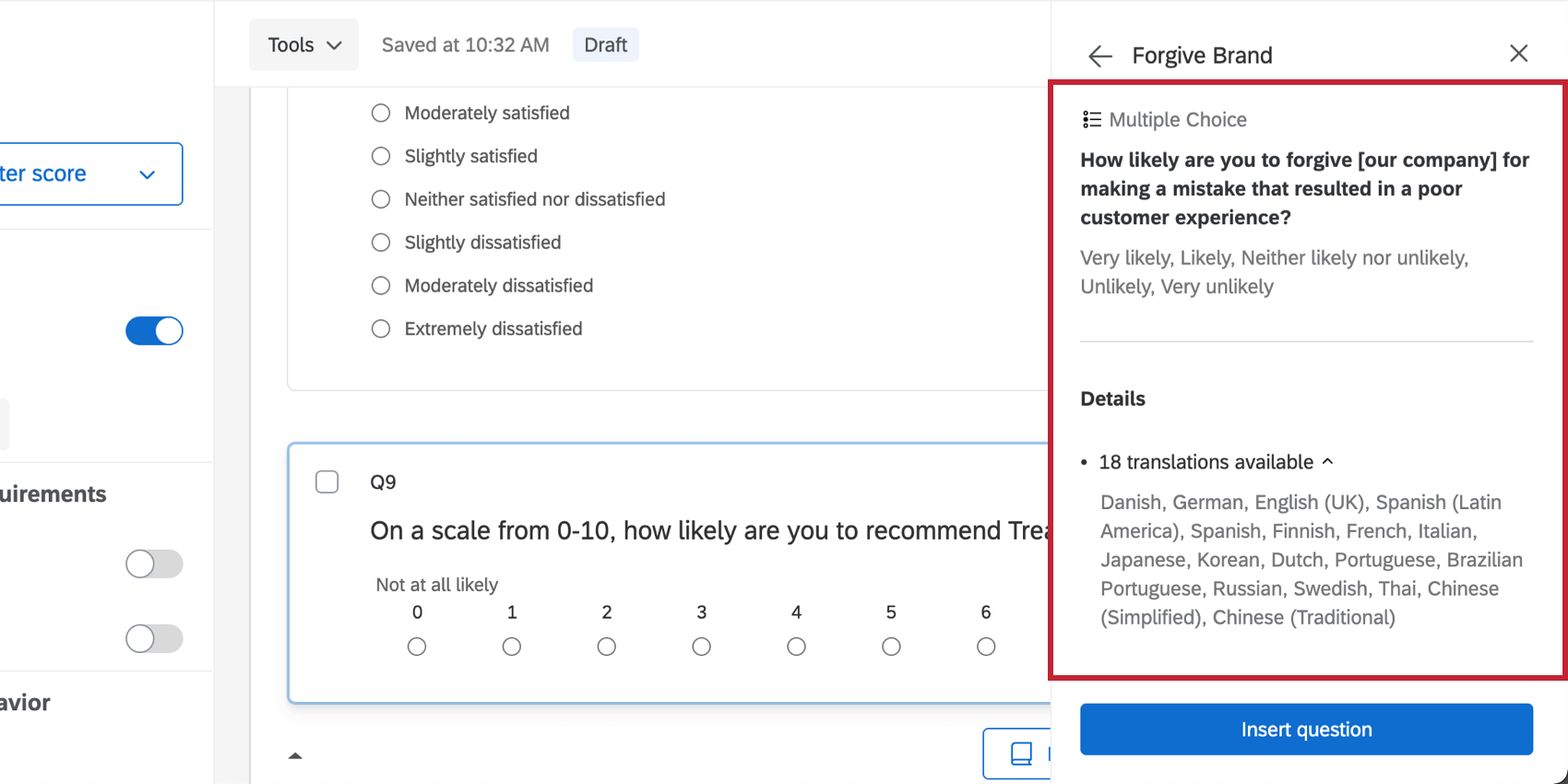
Qtip: Want to see the full text of the question? Want to know how many languages it’s been translated into? Instead of clicking the checkbox, click the question itself to see more information about it. You can always go back to the list of questions using the arrow in the upper-left.
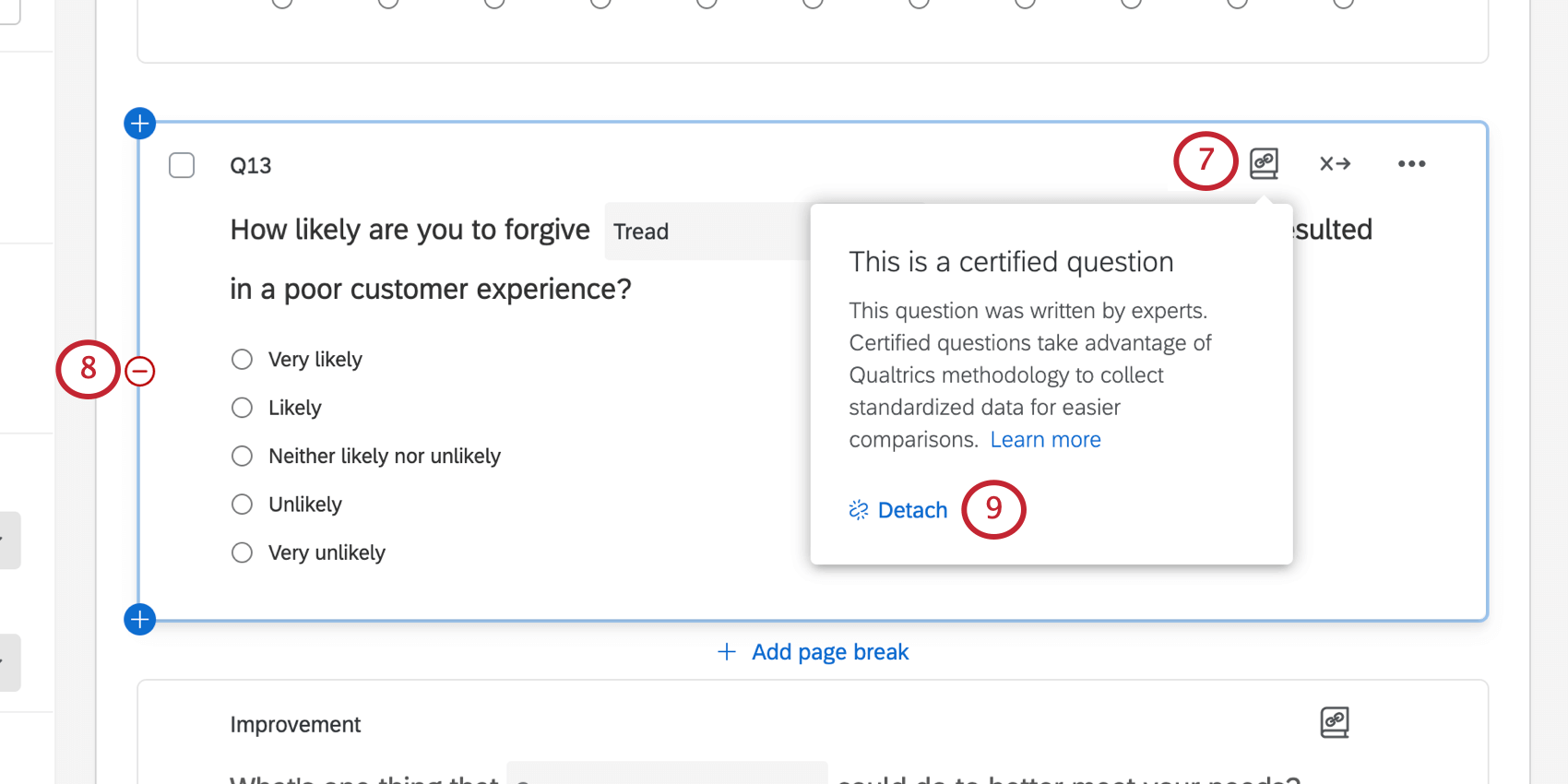
Attention: Detaching a question will remove the benefits of pre-configured internal comparisons and translations.
Editing Questions
Certified questions are locked from being edited when added to a survey. The only fields that can be edited will have a dropdown menu or text box that allows you to input values specific to your organization.
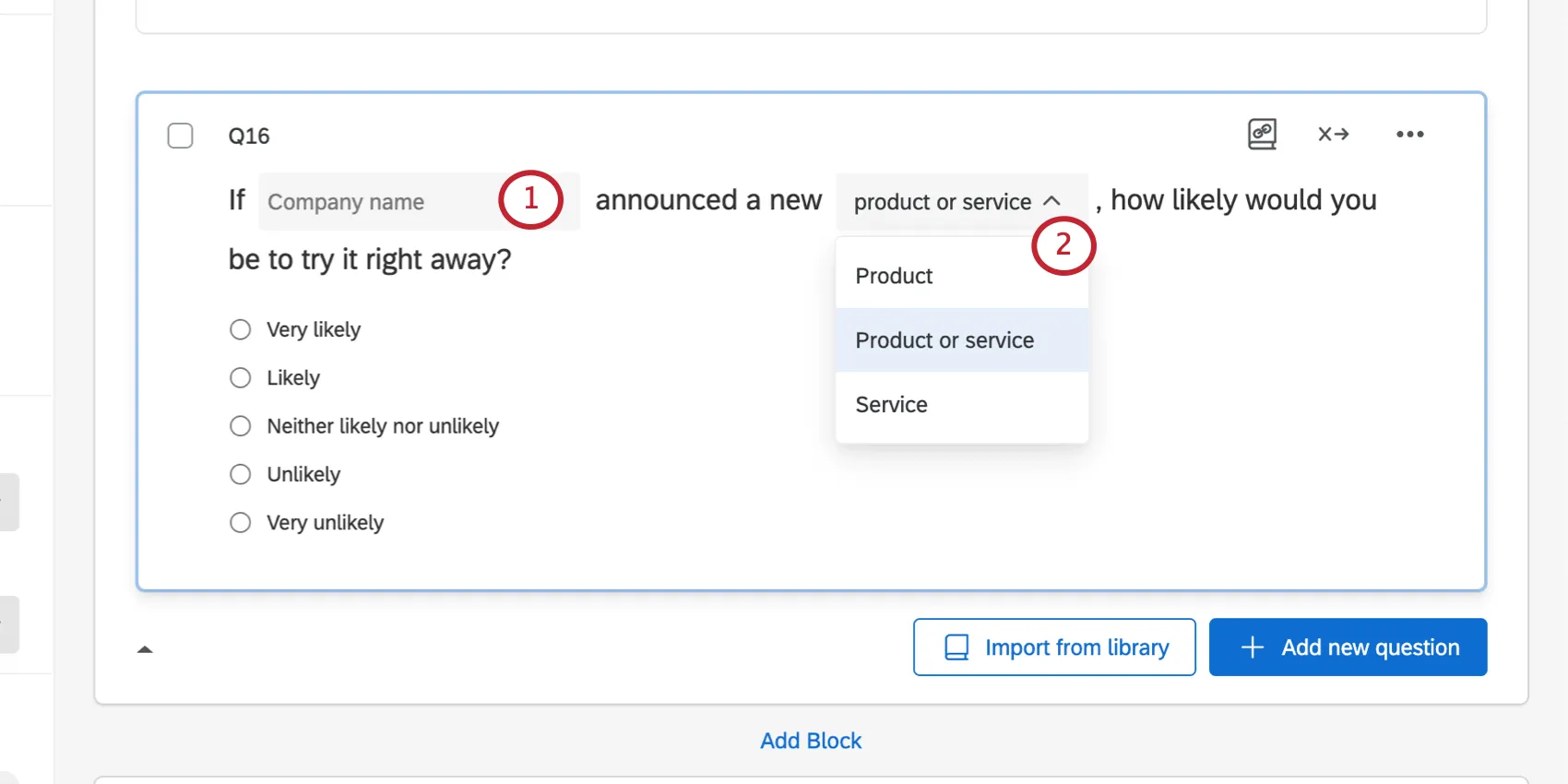
Qtip: When you customize a text box within a certified question, the value you type in will be displayed to all respondents. If you want to display different values to your respondents, based on embedded data or their responses to a previous question, you can use piped text. See Generating Piped Text.
How Customizable Certified Questions Map to Attributes in XM Directory
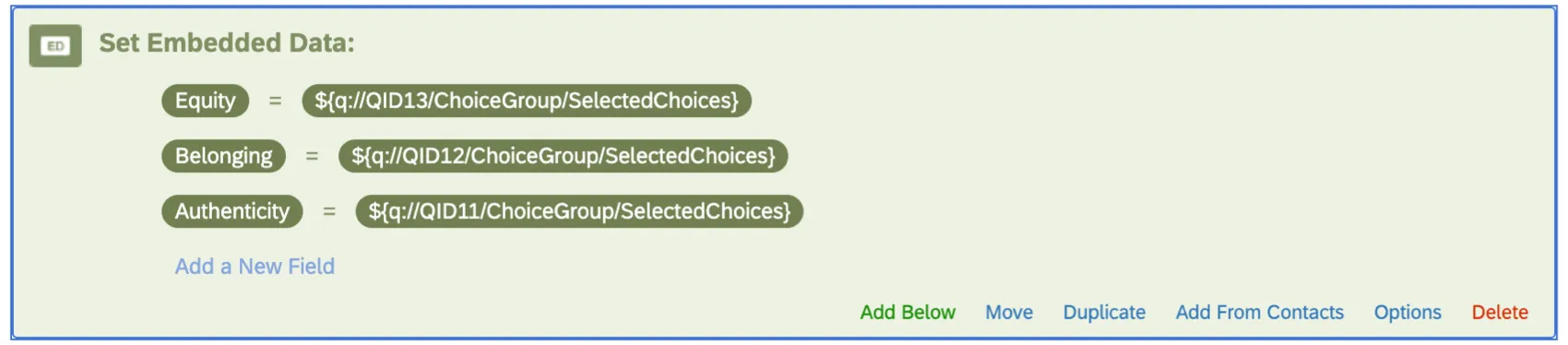
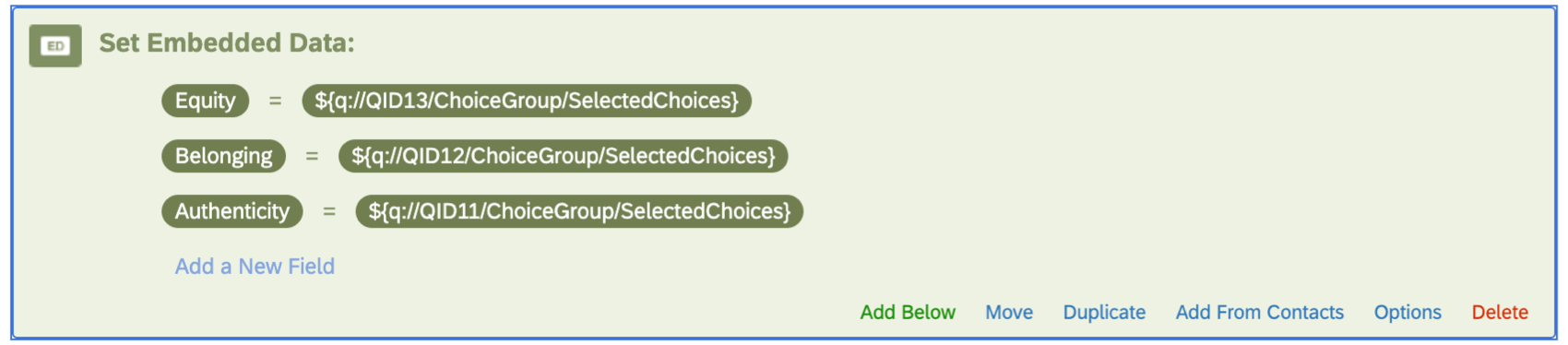
Customizable certified questions do not automatically map to attributes in XM Directory. If you want to save these fields in XM Directory, you have to complete the following steps before you collect data:
Example: Embedded data for employee experience questions related to equity, belonging, and authenticity.
Highlights
Below are examples of some of the most useful pre-made questions. You can find the questions discussed below by typing the Block/Survey name listed in the Search bar.
Calendar Question
Qtip: Instead of the library calendar question described below, we recommend using the official calendar question. The official calendar question has a modern design, is easier to edit, and has more compatibility with existing survey builder features.
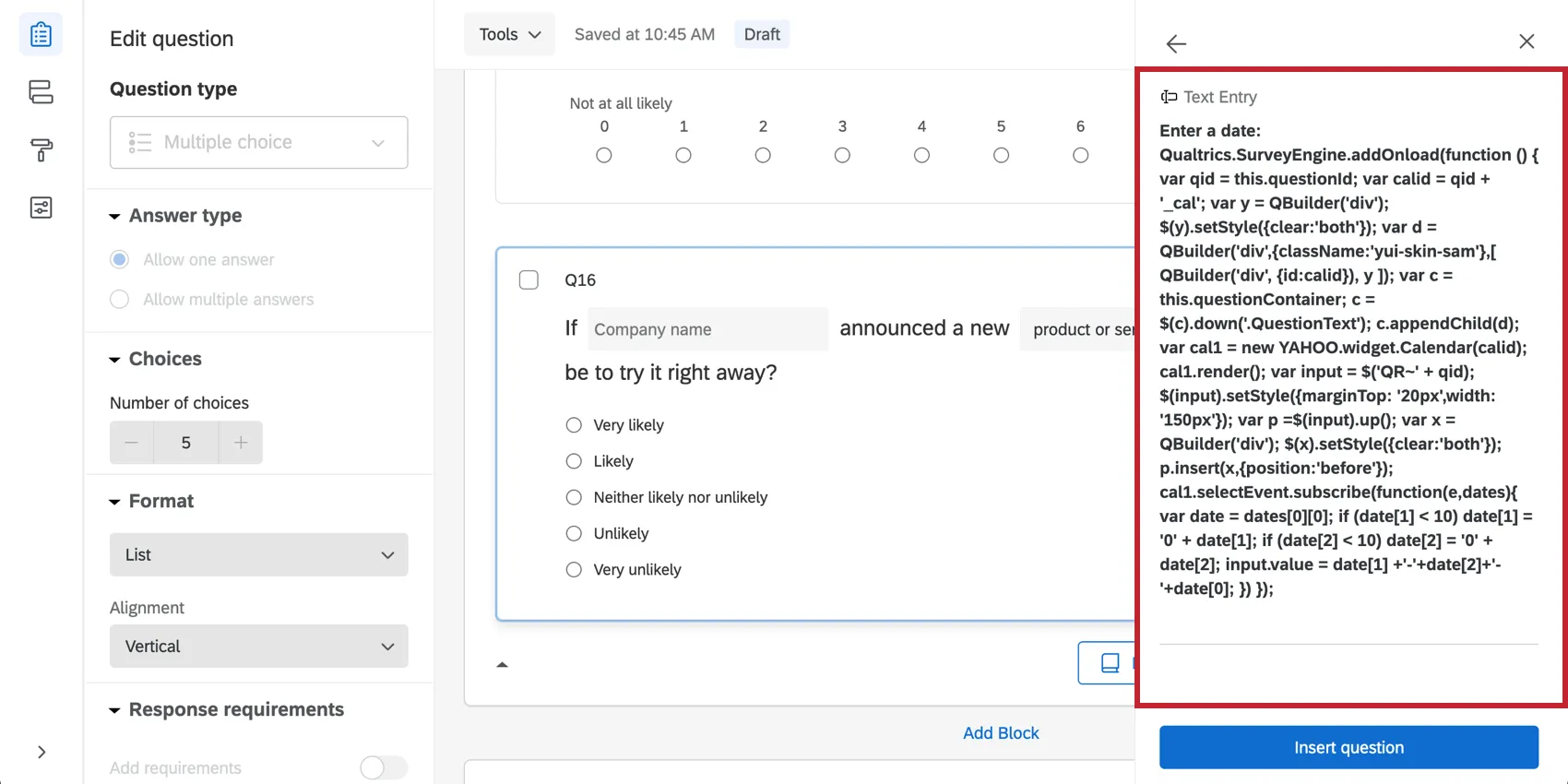
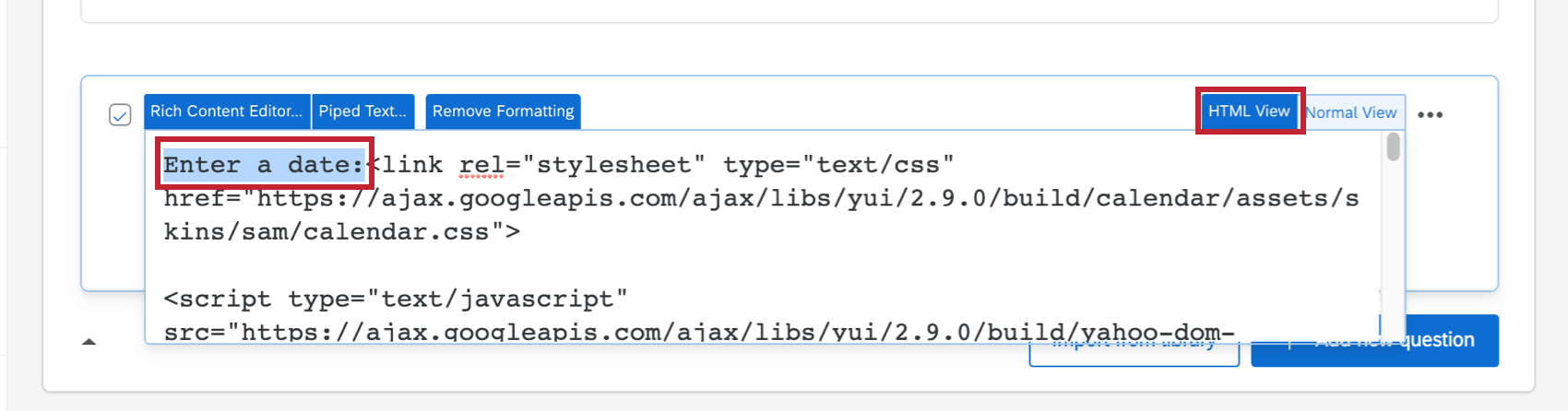
- Question Name: Enter a date:
- Block/Survey: Calendar & Date Questions
- Category: Demographics
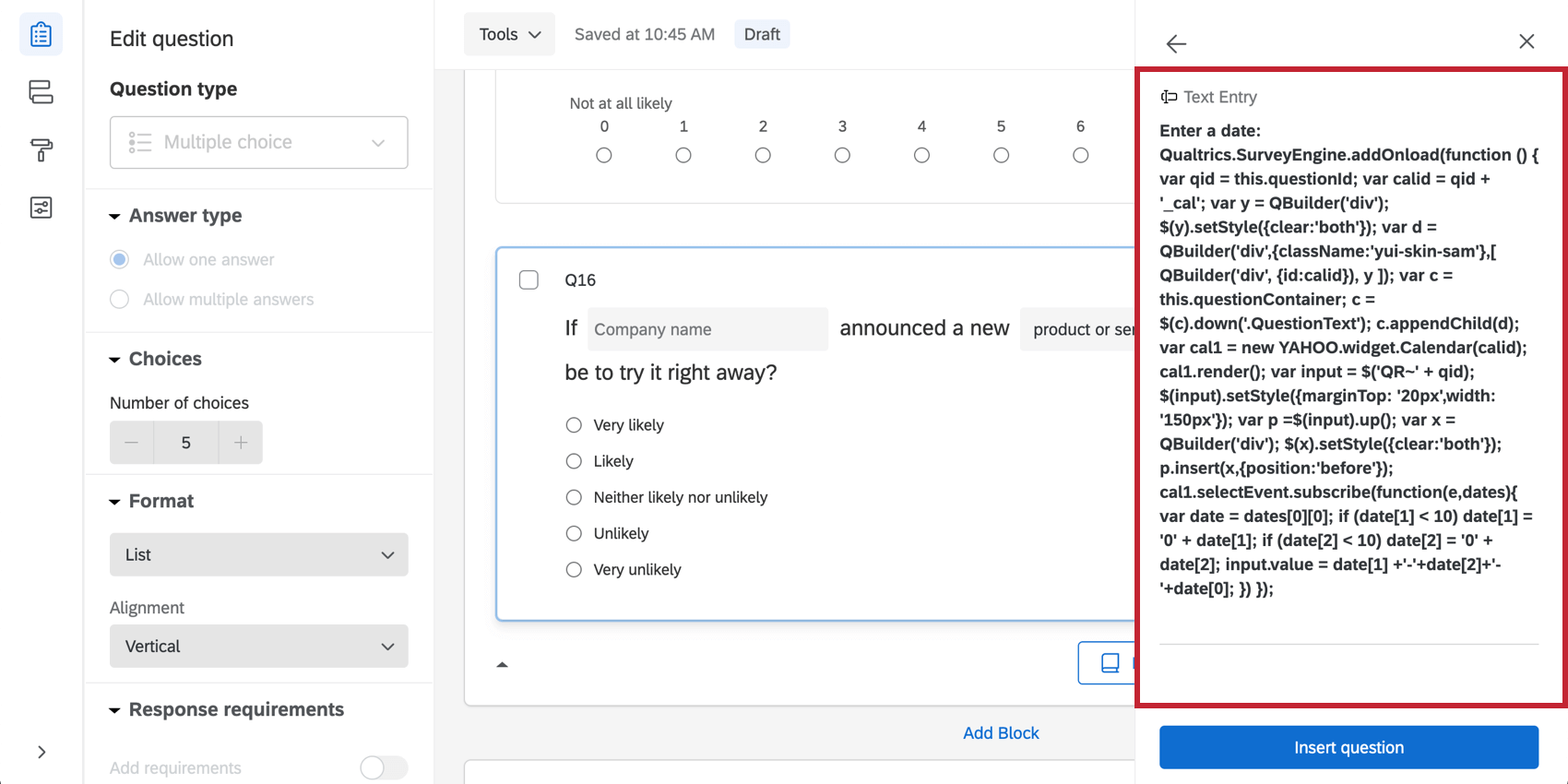
- Function: Allows you to select a date from a calendar.
Here is what it looks like in the library:
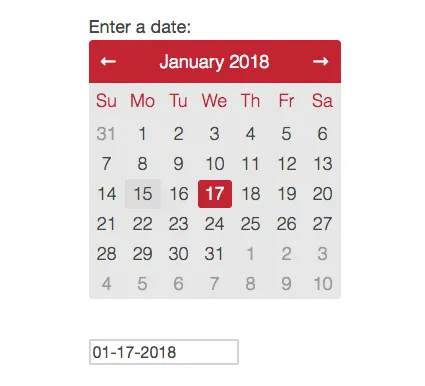
Here is what it looks like in your survey:
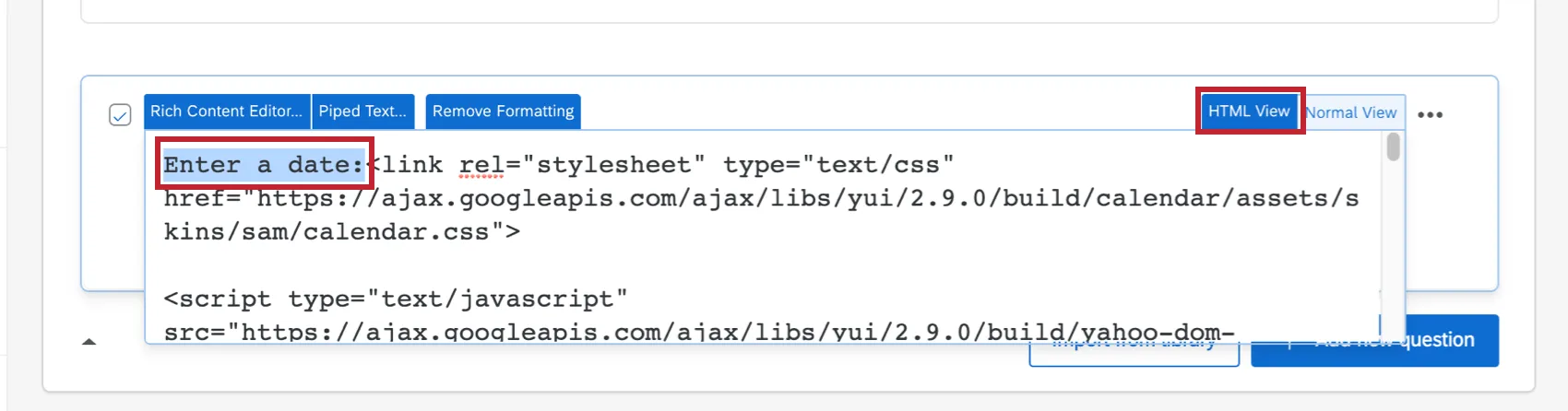
Qtip: Be careful when editing this question! There’s special code here to make the calendar appear. If you want to change the content of the question, be sure to open the HTML view of the question and only edit the Enter the date: text.
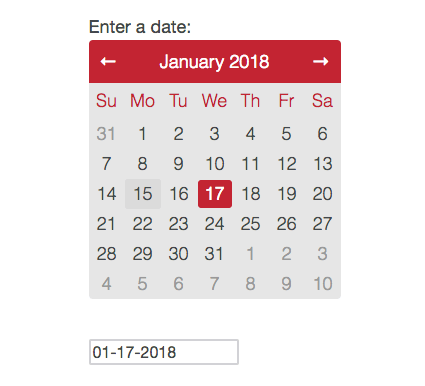
Qtip: Respondents can enter any text into the calendar’s text field. We recommend using date format validation to prevent this.
Date Drill Down
- Question Name: What is (or will be) the date?
- Block/Survey: Calendar & Date Questions
- Category: Demographics
- Function: Allows you to select month, day, and year. The number of days is based off the maximum each month can have. For example, you cannot select February 30 or 31.
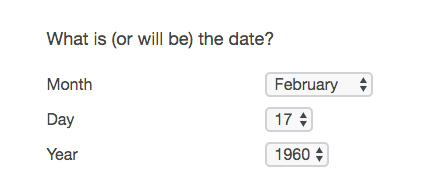
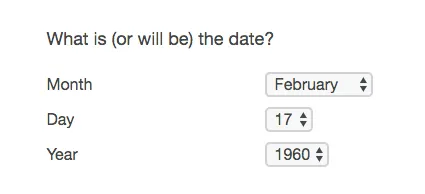
Warning: Because this is a Drill Down question, you must take caution not to edit this question after you’ve collected any kind of data, whether it is test or real data. Read the Drill Down support page for more information on this question type.
Choose from a list of Countries
- Question Name: List of Countries
- Block/Survey: Country & US State
- Category: Demographics
- Function: Allows you to select from a dropdown of 195 countries.
Choose from a list of U.S. States
- Question Name: 50 States, D.C. and Puerto Rico
- Block/Survey: Country & US State
- Category: Demographics
- Function: Allows you to select from all 50 United States, Puerto Rico, and Washington D.C.
EX Library Questions
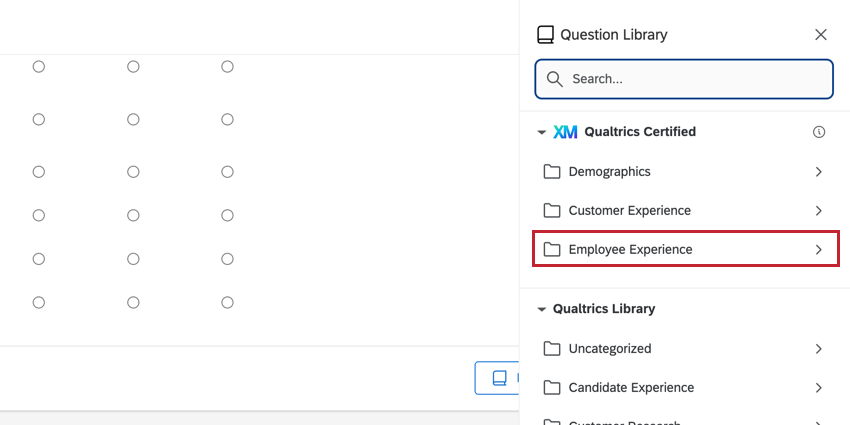
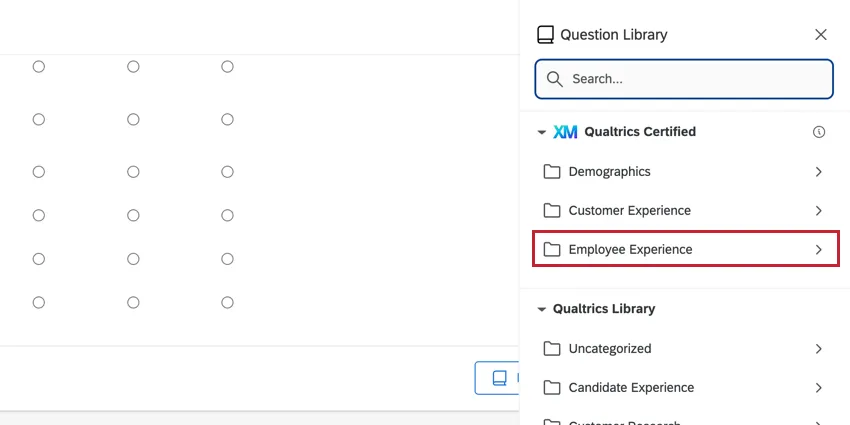
Qualtrics has developed a library of questions for EX surveys. Navigate to the Employee Experience certified questions to get started.
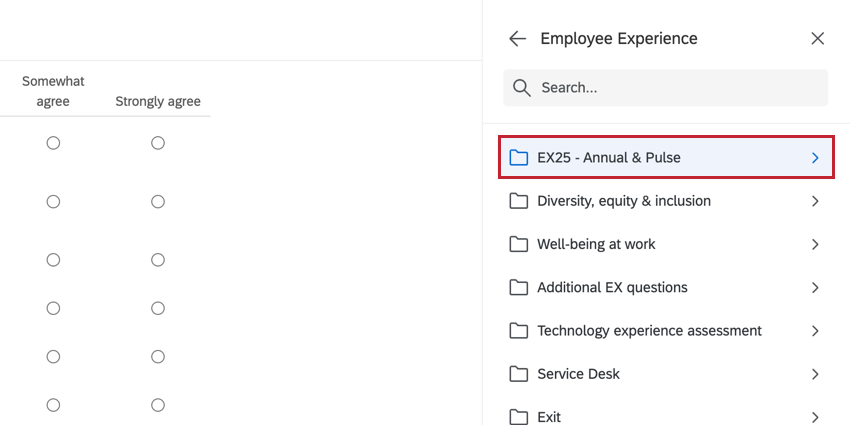
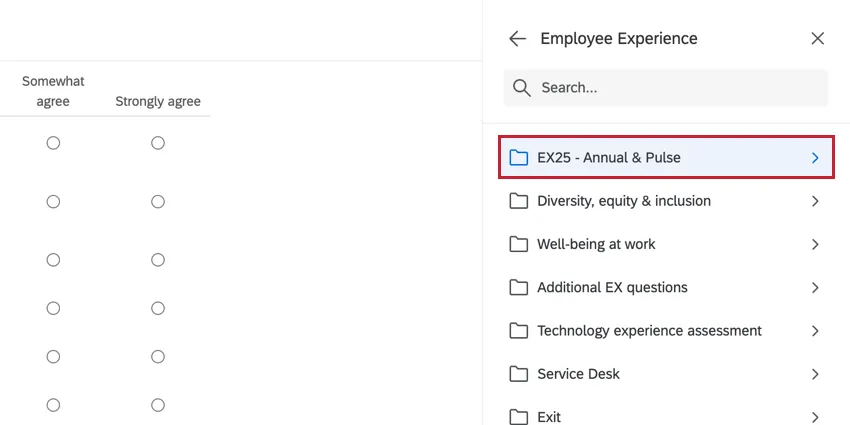
For Engagement surveys, check out the EX 25 – Annual & Pulse certified questions for an additional set of Engagement questions that are built using Qualtrics certified methodology.
That's great! Thank you for your feedback!
Thank you for your feedback!