

Importing Custom Topics
What's on this page
About Importing Custom Topics
With the Sensitive Data Policy feature, you can import custom topics you want to be flagged when users in your brand are building surveys, when users collect data, and when respondents are providing answers to a survey. This page describes how to format a JSON file to successfully import these topics.
When using a JSON file, the topics you import are always added as new topics, not added onto existing similar ones. For example, if you manually selected Social Security as a topic and then imported a JSON file with a topic called Social Security that had additional key words, you would have two Social Security topics in your Sensitive Data Policy. This does not hurt the tool’s ability to check your brand for privacy violations in any way.
Qtip: Your JSON file must be less than 400KB in order to import.

Qtip: This feature is NOT related to Text iQ Topics. Only Brand Administrators have access to this feature.
Attention: Sensitive Data Policy is not available to all brands. Please contact your Account Executive or Account Services if you are interested in gaining access.

Editing the JSON File
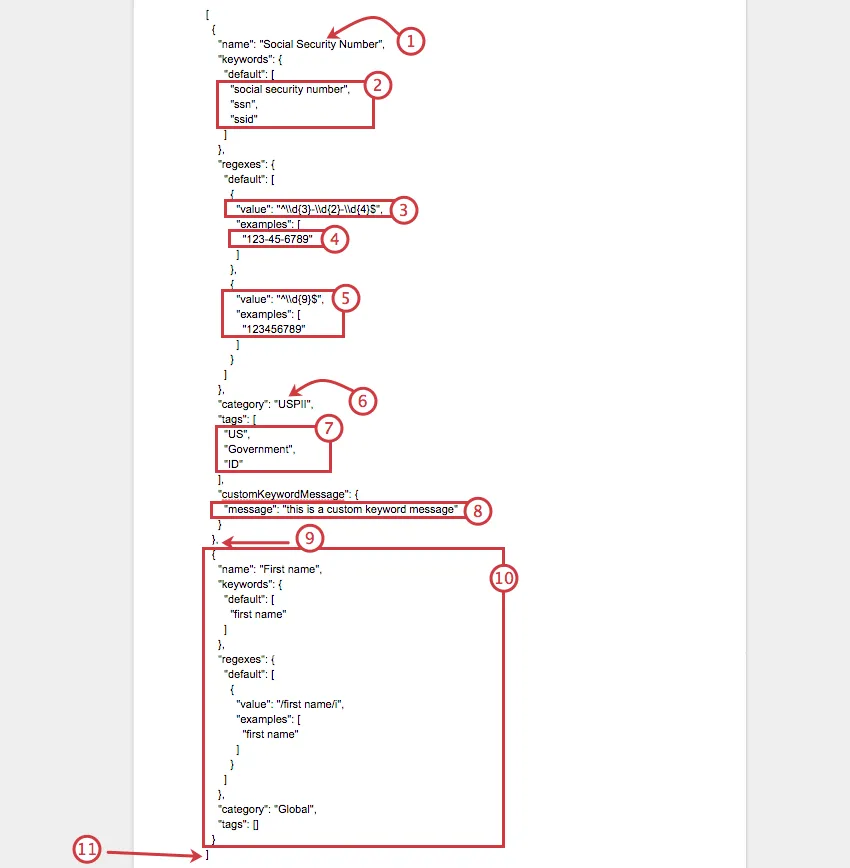
Qtip: Keywords are used to flag potentially problematic questions, and regexes are used to flag problematic responses. If you would like something to be flagged in both places, you should add keywords and regexes.
Qtip: Pay careful attention to where brackets begin and end! Indenting lines can help you align where brackets open and close.
Formatting a JSON File for Import
This section will go over how to format a JSON file so you can import custom topics into your PII checker.
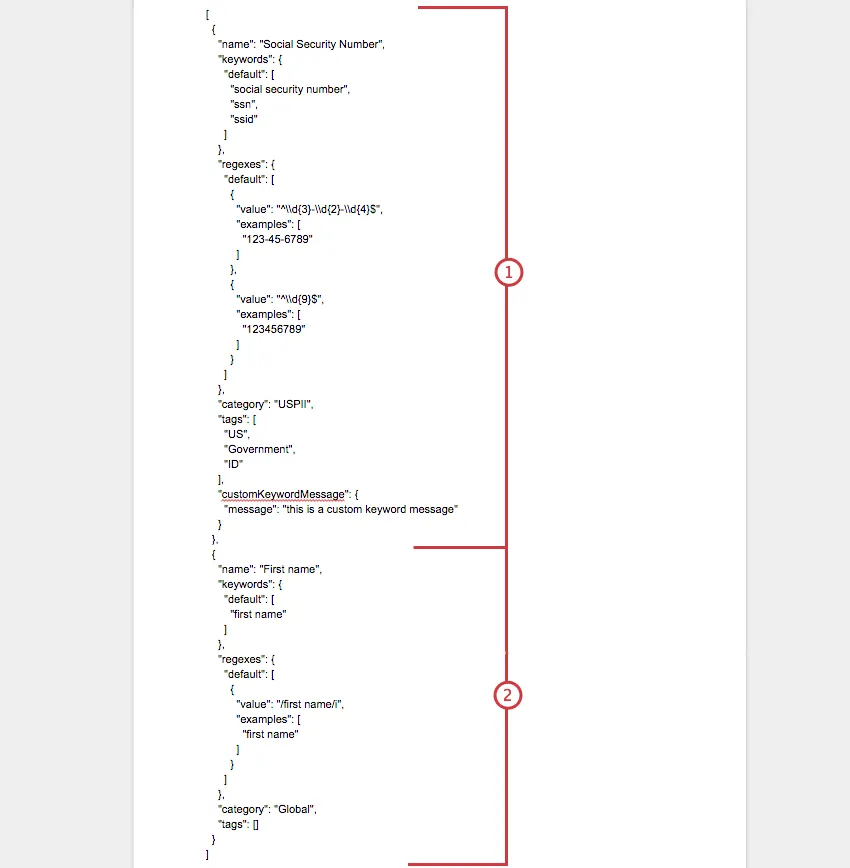
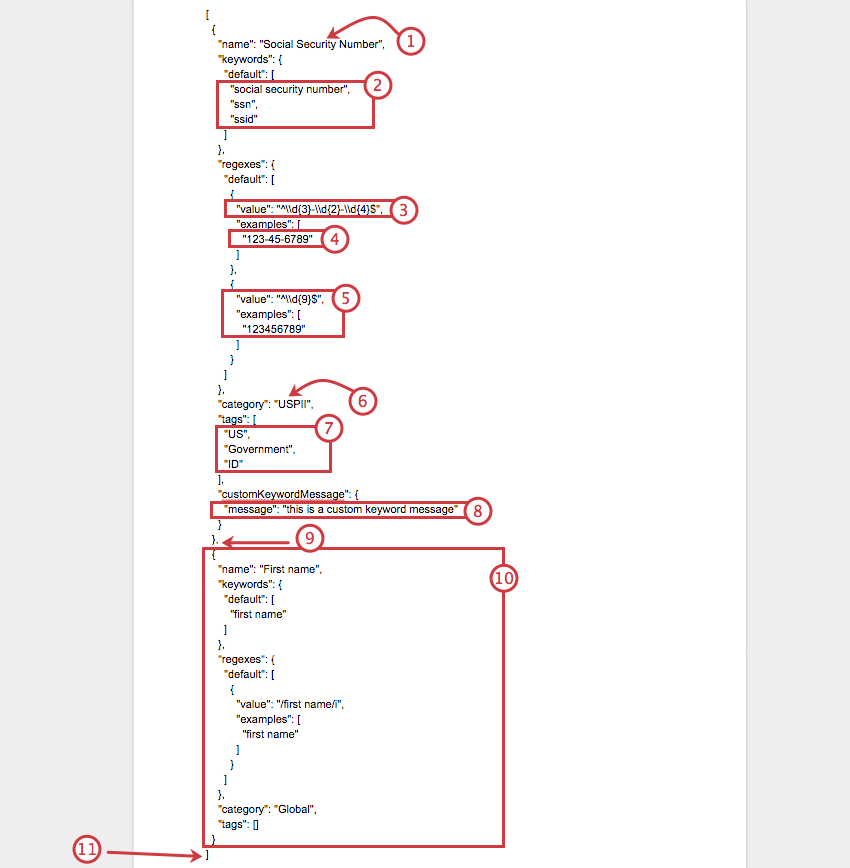
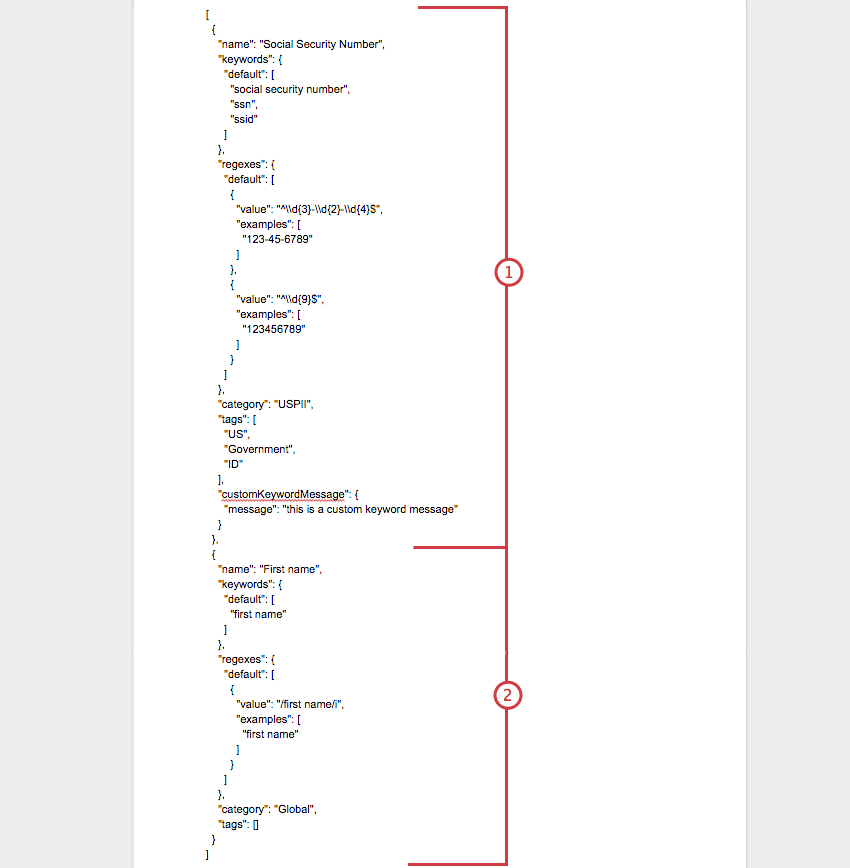
Below is an example of a completed JSON file, indicating where one custom topic (Social Security Number) ends, and the other (First name) begins.
File Type and Program
You can create and edit JSON files in any text editor program on your desktop. For example, TextEdit, Sublime Editor, or Notepad++.
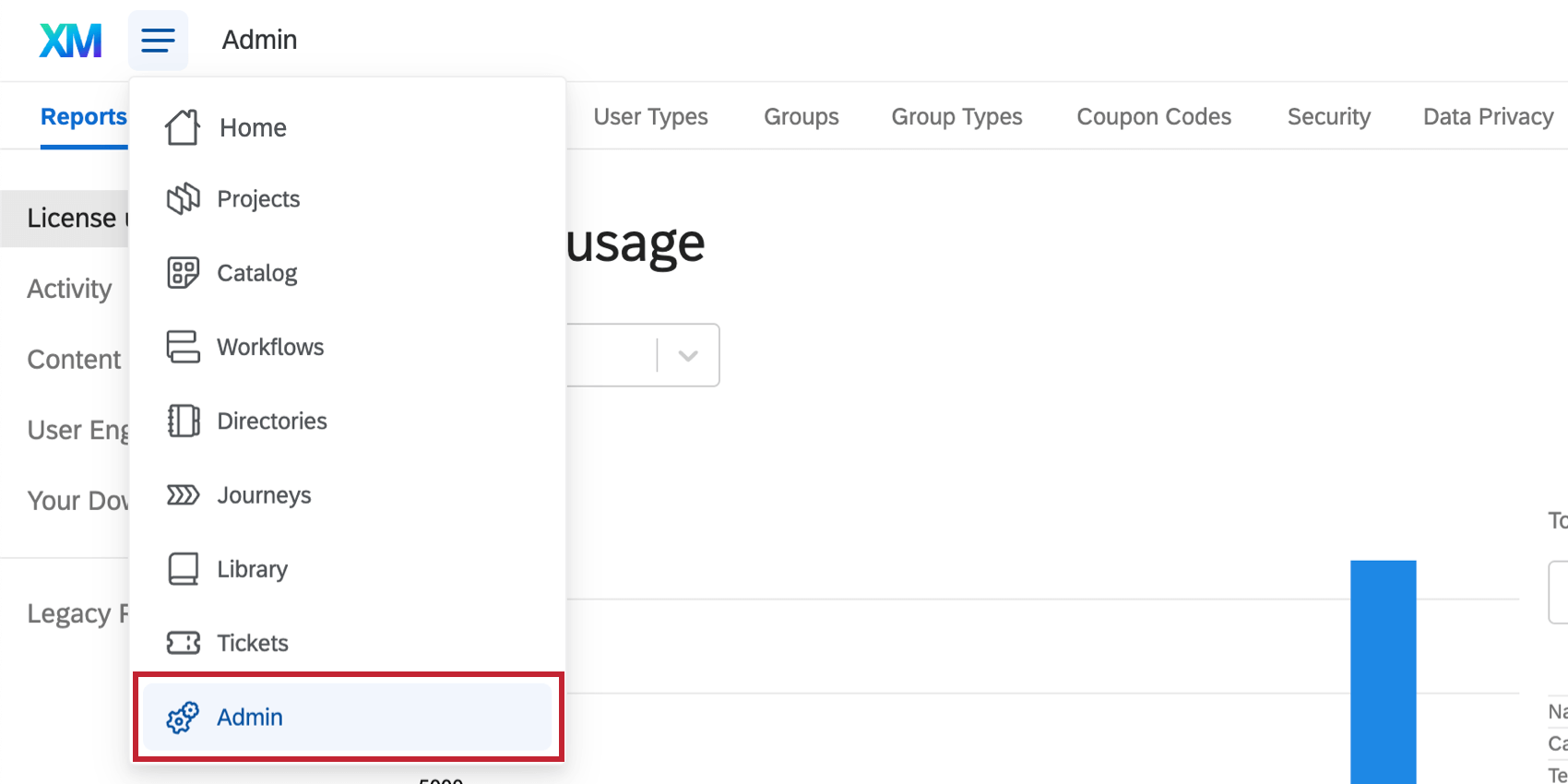
To download an example of a JSON file, follow steps 1-6 in the Importing Multiple Custom Topics section. Please do not deviate from the format provided.
Name and Keywords of Topics
These are custom topics – that means you can name them whatever you want! For example, you may want to make sure users on your brand don’t try to collect Social Security Numbers. You could call the topic “Social Security Number.”
The keywords are then how you identify someone is trying to collect a Social Security Number. To flag a question, you might look for the keywords “ssid,” “ssn,” and “social security number.” These keywords are not case sensitive.
 {
 "name": "Social Security Number",
 "keywords": {
 "default": [
 "social security number",
 "ssn",
 "ssid"
 ]
 }
Category and Tags for Topics
Categories are a means of organizing the different topics you’d like Qualtrics to flag. Like names, categories can also be called whatever you want. For example, for the topic “First name,” the category might be “Global,” since this is revealing and private information across the globe, and will apply to users collecting data in any region. In contrast, “Social Security Number” might be categorized as “USPII,” since U.S. implies it’s a U.S. classification system, and PII implying it is very private and protected information.
Tags are to help you search and define a given category. For USPII, the tags may be “US,” “government,” and “ID.”
 "category": "USPII",
 "tags": [
 "US",
 "Government",
 "ID"
 ]
Custom Message
You can define a custom message that appears to your users whenever they try to use flagged keywords in their survey.
If you do not want to include a custom message, you can simply eliminate this field from the file.
 "customKeywordMessage": {
 "message": "this is a custom keyword message"
 }
Regex
Regex (short for “regular expression”) defines parameters for topic values.
Attention: Regex is always evaluated case-insensitively when used here.
For example, think of a question such as, “What is your phone number?” For U.S. phone numbers, we only want answers that contain numbers, and we don’t want it to be more than ten digits long.
 "regexes": {
 "default": [
 {
 "value": "^\\d{3}-\\d{3}-\\d{4}$",
 "examples": [
 "123-456-7890"
 ]
 },
 {
 "value": "^\\d{10}$",
 "examples": [
 "1234567890"
 ]
 }
Qualtrics Support is unable to advise on regex, since it is technically custom coding. However, you can check out these resources for more help:
Example of Complete JSON File
[
 {
 "name": "Social Security Number",
 "keywords": {
 "default": [
 "social security number",
 "ssn",
 "ssid"
 ]
 },
 "regexes": {
 "default": [
 {
 "value": "^\\d{3}-\\d{2}-\\d{4}$",
 "examples": [
 "123-45-6789"
 ]
 },
 {
 "value": "^\\d{9}$",
 "examples": [
 "123456789"
 ]
 }
 ]
 },
 "category": "USPII",
 "tags": [
 "US",
 "Government",
 "ID"
 ],
 "customKeywordMessage": {
 "message": "this is a custom keyword message"
 }
 },
 {
 "name": "First name",
 "keywords": {
 "default": [
 "first name"
 ]
 },
 "regexes": {
 "default": [
 {
 "value": "/first name/i",
 "examples": [
 "first name"
 ]
 }
 ]
 },
 "category": "Global",
 "tags": []
 }
]
Importing Multiple Custom Topics
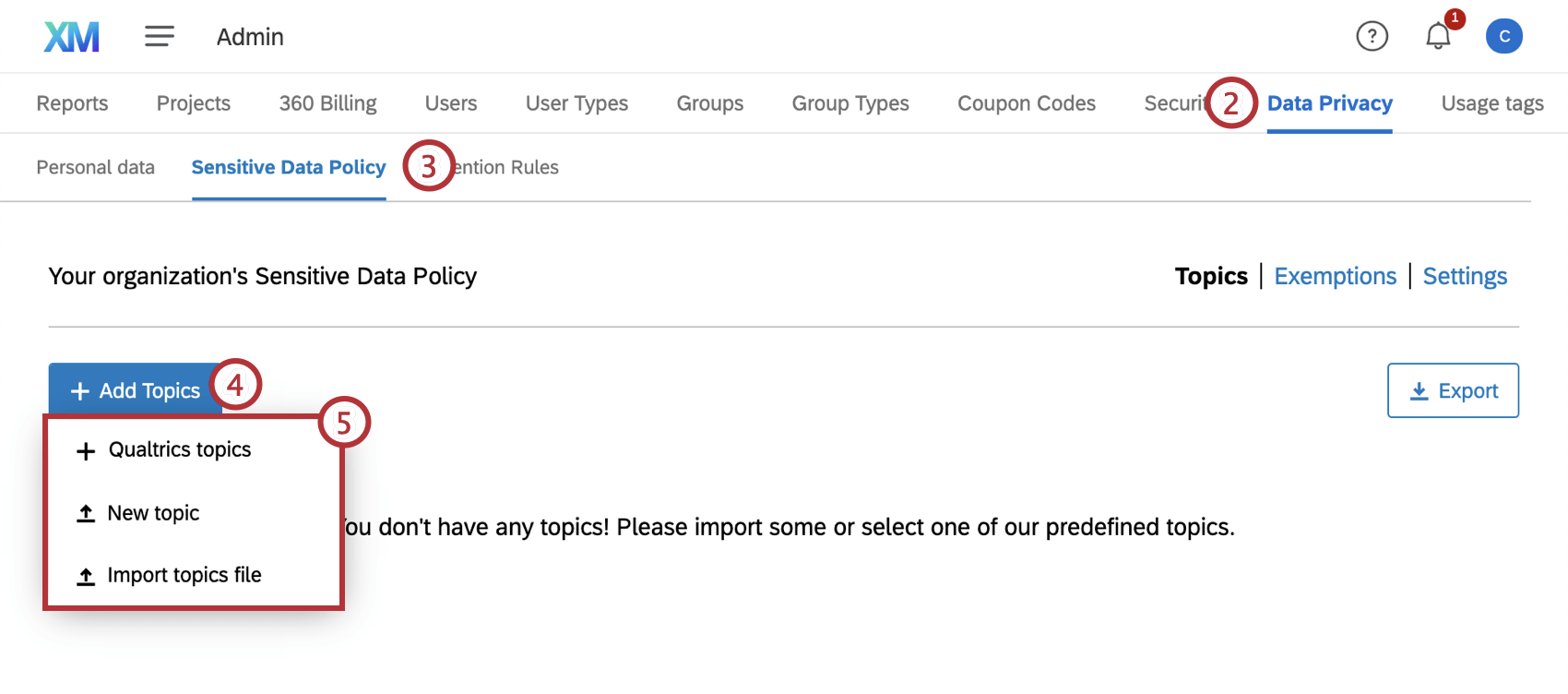
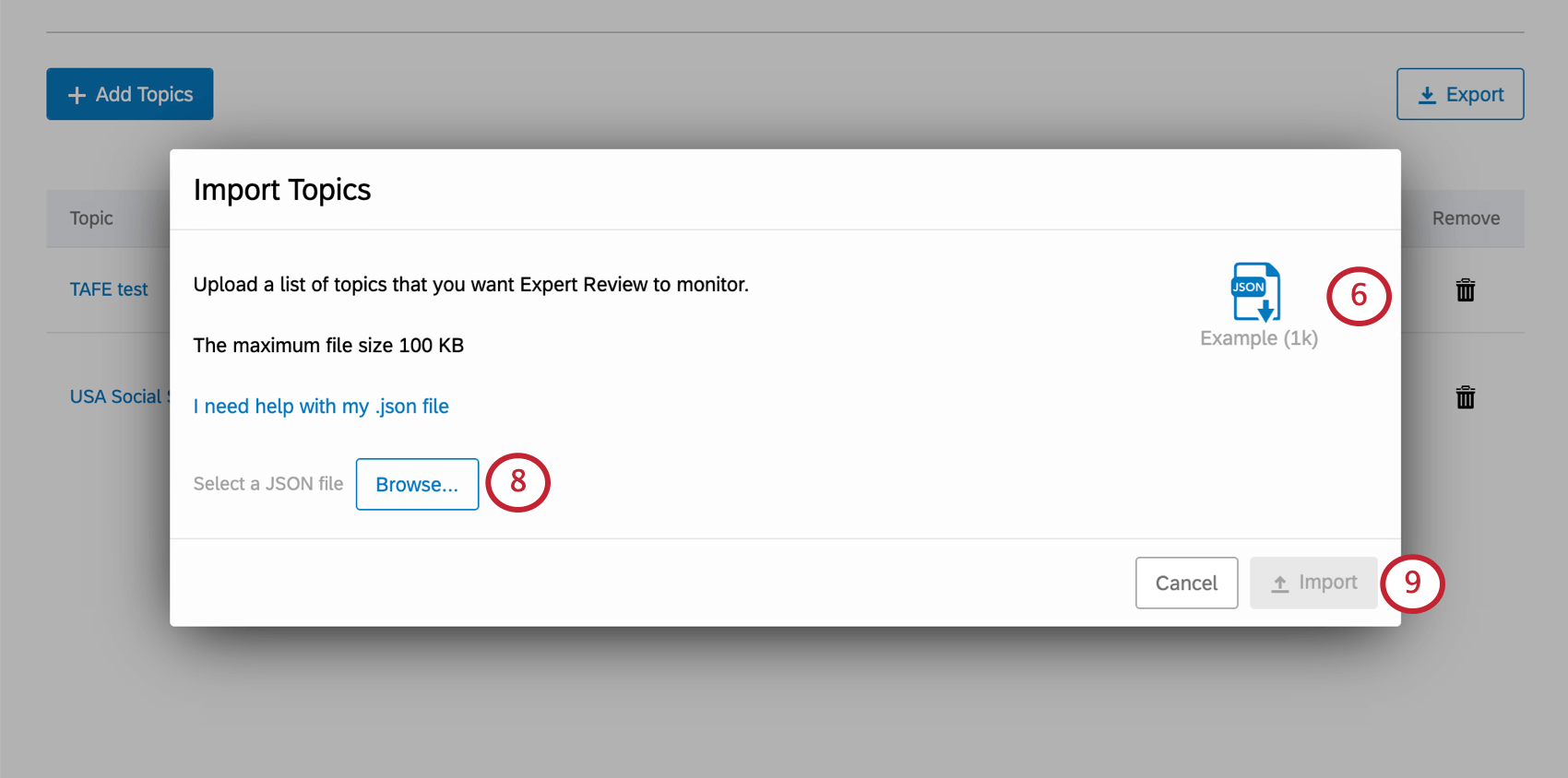
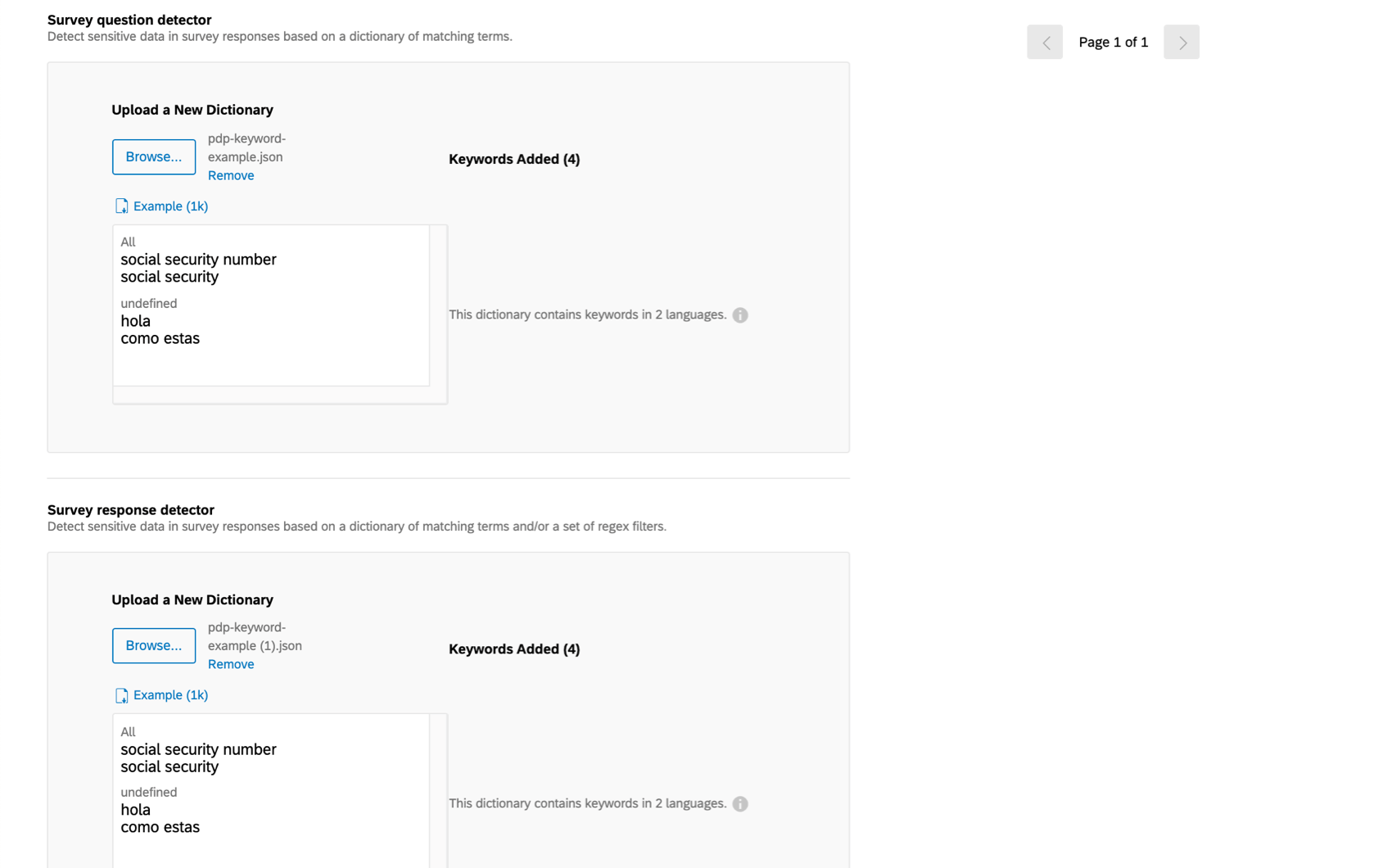
Adding a Single Custom Topic
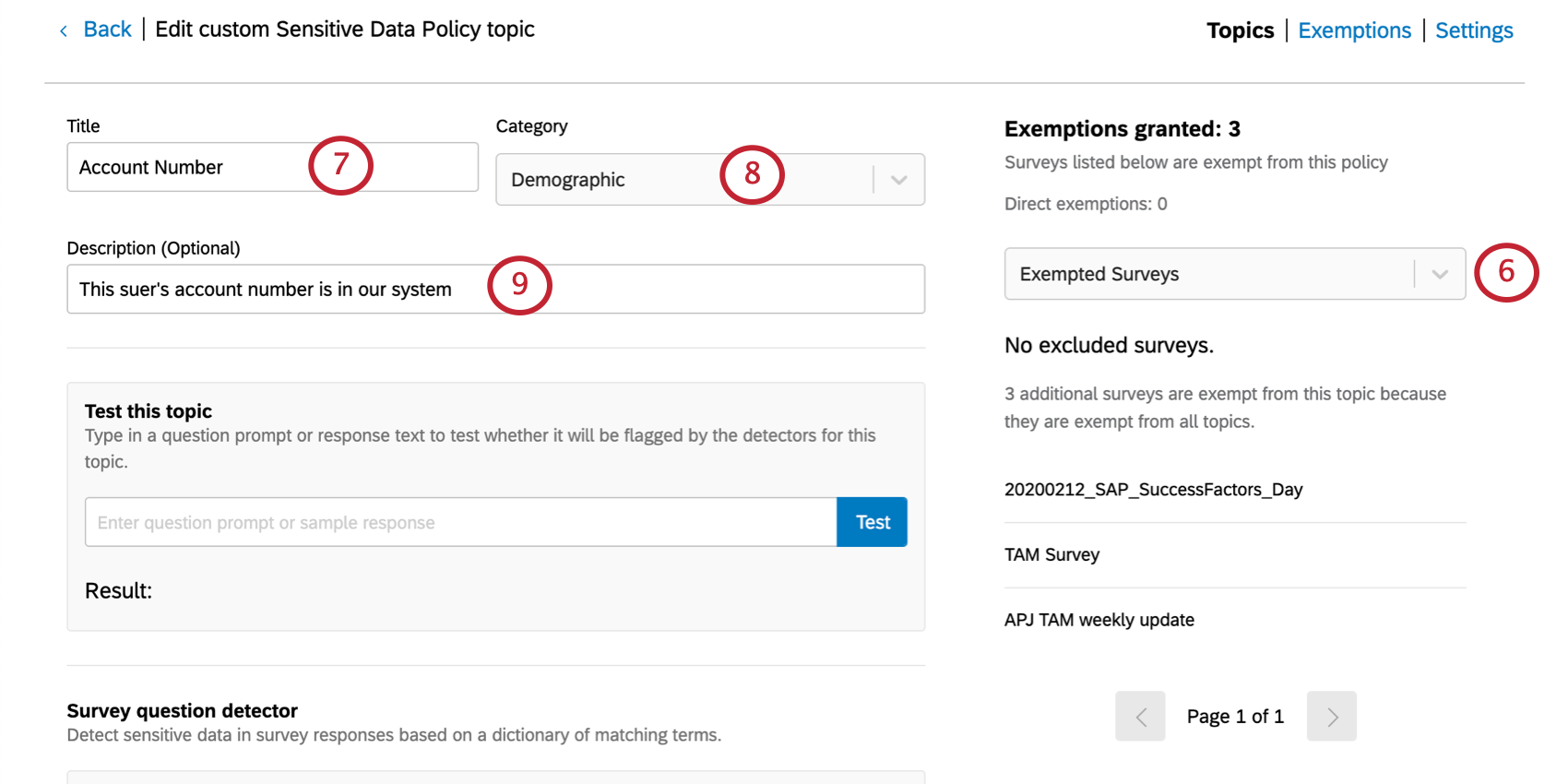
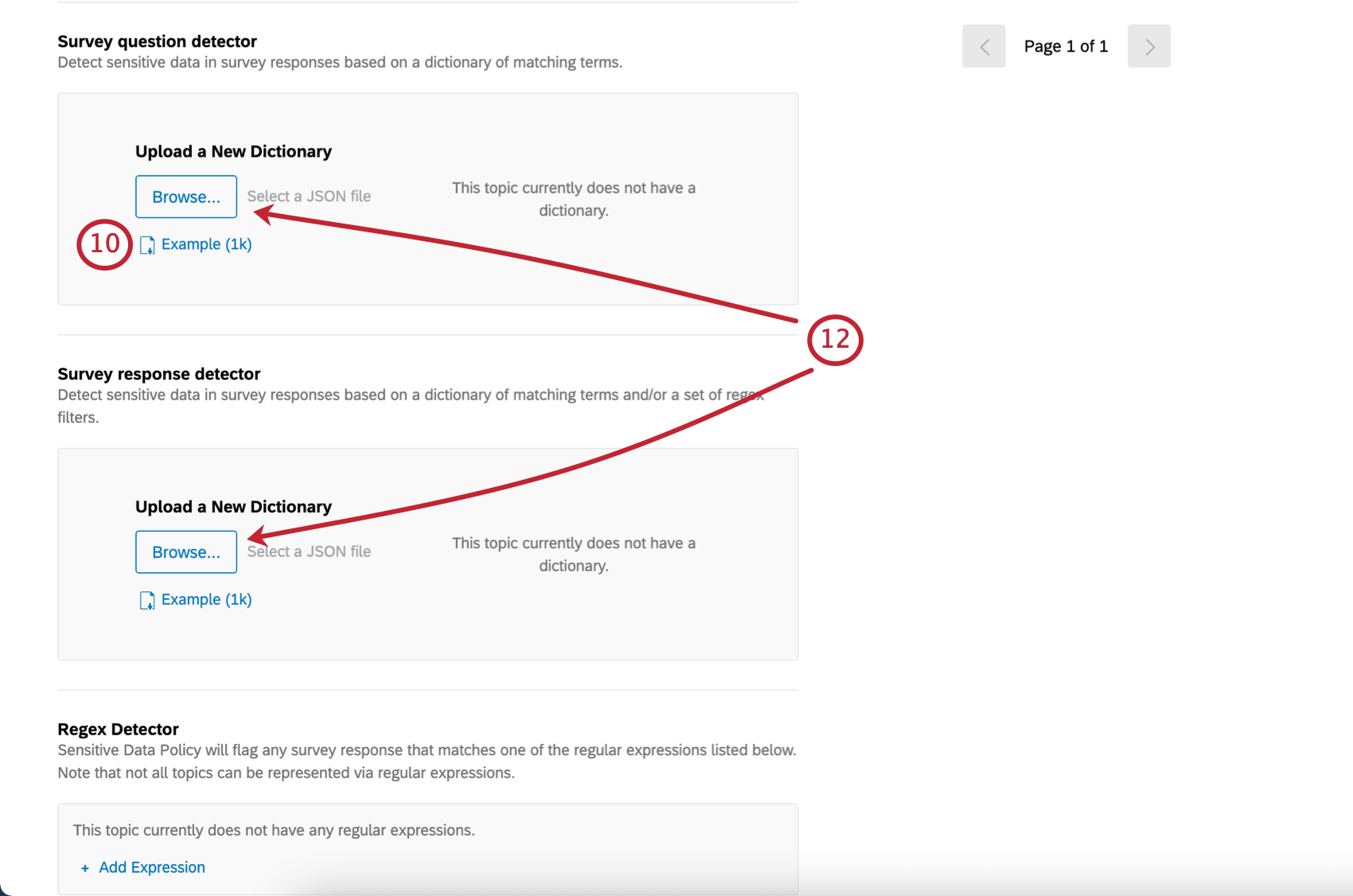
Qtip: This JSON formatting is similar to what is explained earlier on the page, but only pertains to one topic and its associated keywords per file, not multiple topics.
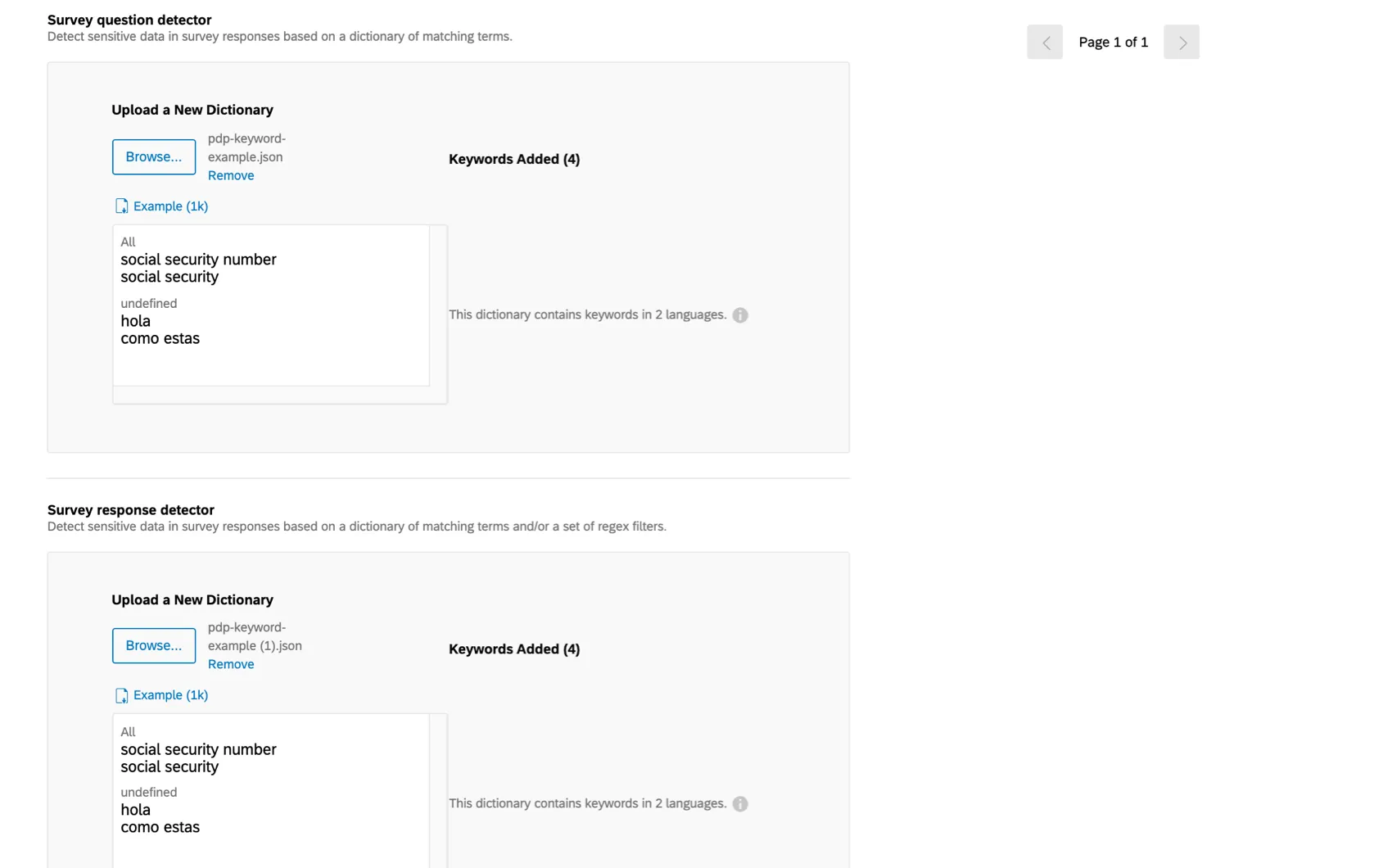
Qtip: If the keywords are the same, you are allowed to prepare just one file for both survey questions and survey responses – but make sure you upload it in both fields!
Qtip: Qualtrics Support is unable to advise on regex, since it is technically custom coding. However, you can check out these resources for more help:
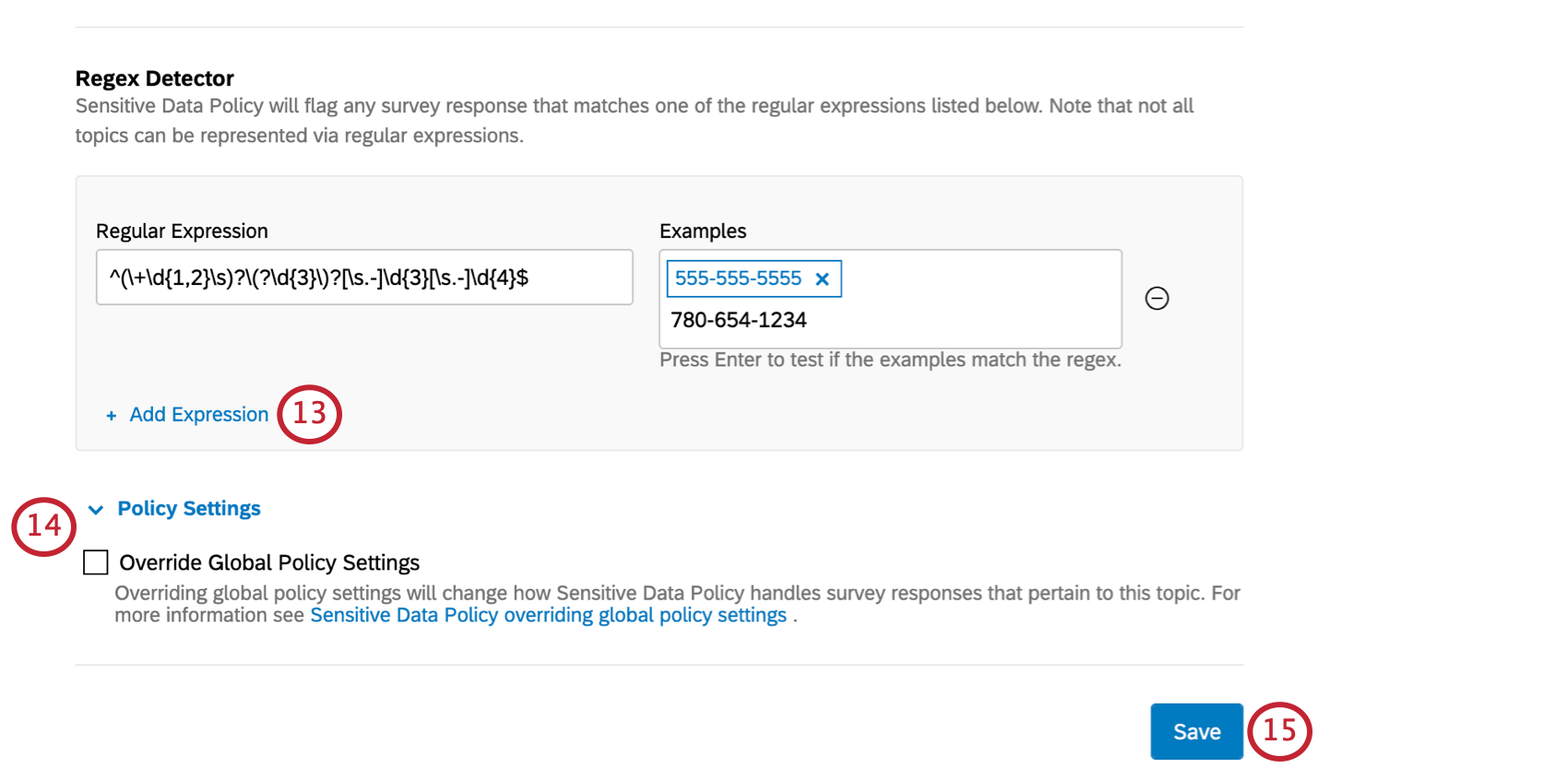
Attention: Regex is always evaluated case-insensitively here.
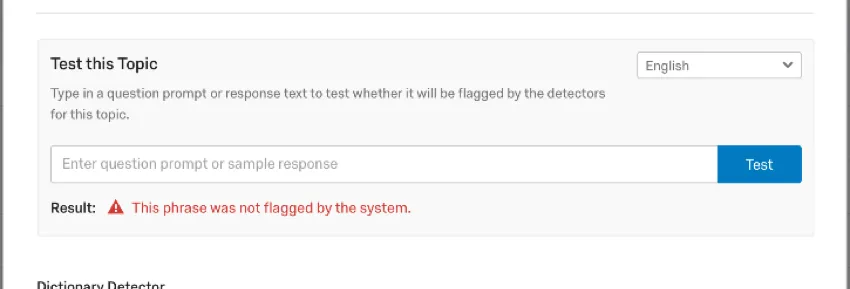
Qtip: Use the Test this topic section to test random phrases and words for how they flag. This can help you figure out if you set up your custom topic correctly.
That's great! Thank you for your feedback!
Thank you for your feedback!