

Setting Up the Offline App
What's on this page
About Setting Up the Offline Survey App
Qualtrics Offline Surveys is a downloadable application available for iOS and Android that allows you to administer surveys on your mobile device or tablet without an internet connection. Responses can be collected in the field on your device and then uploaded back into Qualtrics as soon as you have an internet connection.
This app is available for iPad, iPhone, and Android tablets and smartphones. Below is an image of the app you will want to download:

Qtip: Qualtrics Offline Surveys is an add-on feature for your Qualtrics license and will need to be enabled before you can use the app. Check with your Qualtrics representative to see if this feature is already included in your license.
Attention: The Offline App may not be available in the app store in all countries.
Getting Started
Before you can get started, you will need to make sure you have permission to use the app. If you are unsure if your account has access to the app, you may want to contact your Brand Administrator to make sure the Use Offline Mobile App and Access API permissions are enabled for your account.
Once your account has the right permissions, there are a couple of steps you’ll need to go through to set up the app on your device:
You should also be sure your device is compatible with the app. Because of the sensitive nature of the data recorded on the app, we require that your device:
- runs a version of iOS or Android that is still supported by the manufacturer (mobile)
- has either the App Store or Google Play store installed
- is not jailbroken
The offline app is not compatible with Amazon Fire Tablets.
Qtip: Feel free to log in to the same Qualtrics account from multiple devices. Responses collected on each mobile device can all be uploaded back to the same survey and tagged with the Device Identifier.
Downloading the Qualtrics Offline Surveys App
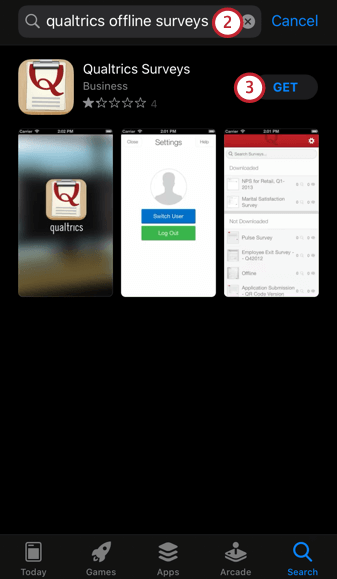
You can also download the Qualtrics Offline Surveys app to your device using these links:
iPad, iPod, & iPhone | Android Tablets & Phones
Entering Your Qualtrics Credentials
Qtip: Logging in to the Offline Surveys app requires an active internet connection. Once you’ve logged in and downloaded surveys you need, you’ll be able to go offline while collecting responses.
Attention: The app will automatically log you out after two months of inactivity.
Standard Login
If you use the standard login for accessing your Qualtrics account on a desktop (i.e. you directly log in to Qualtrics with a Qualtrics-specific username and password), then you’ll use the standard login as well for accessing the offline app. To log in to the app, enter your Qualtrics username and password, and then tap Sign In.
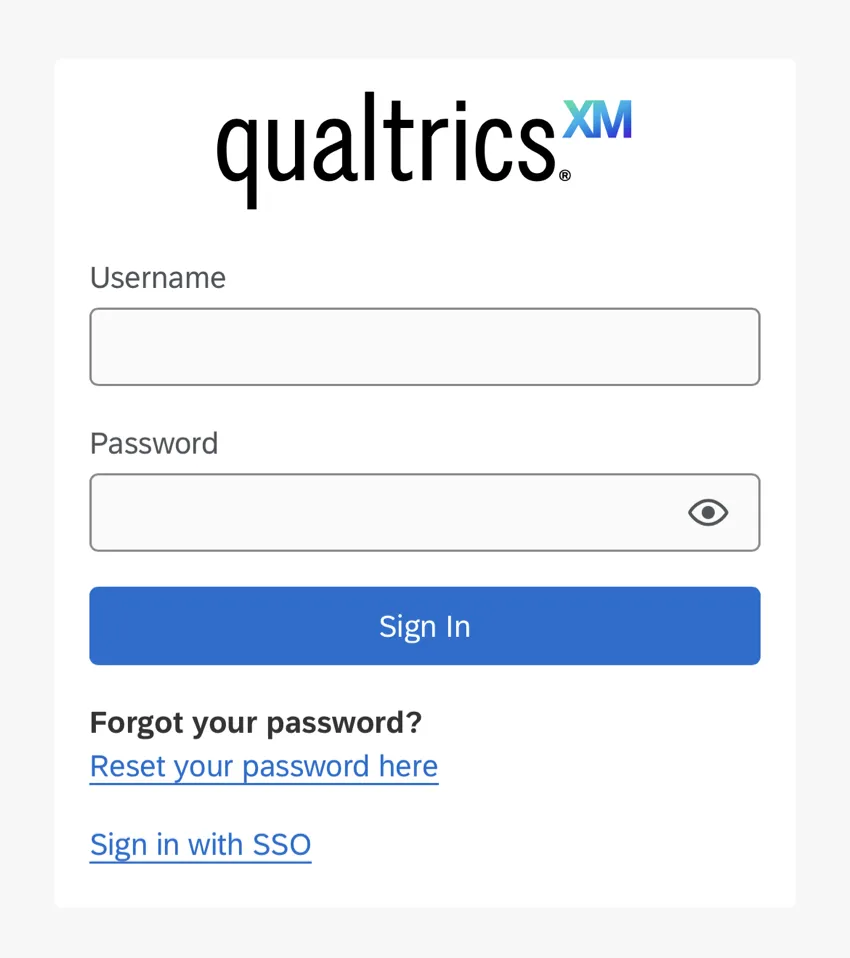
Qtip: If the app won’t let you log in, even after opening and closing or updating the app, you might not have permission to use it. Talk to your Brand Administrator to find out if your organization and your account have permission to use the Qualtrics Offline App. (Note: This is different from the Qualtrics XM App.)
SSO Login
Attention: The offline app does not support Google OAuth 2.0 as an SSO provider.
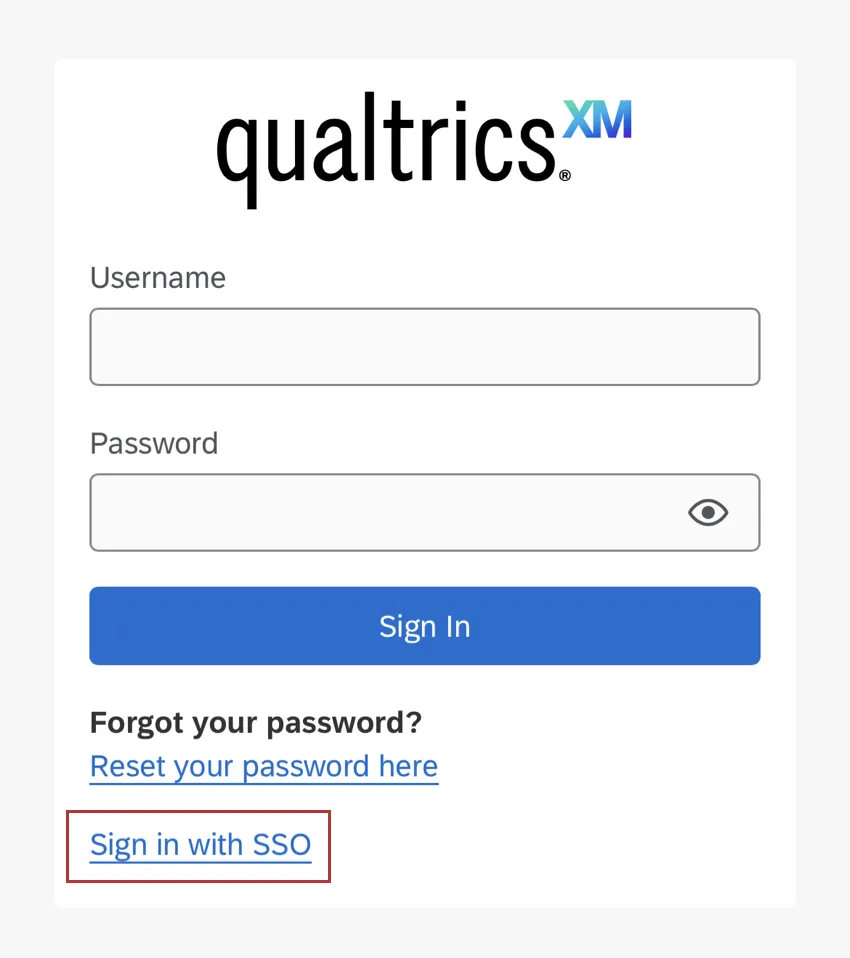
If your organization uses Single Sign-On (SSO) to log on (e.g., when logging into Qualtrics, you are redirected to your company’s login portal), you should click Sign in with SSO at the bottom instead. Visit the linked page if you’re unsure if your license uses SSO.
After clicking Sign in with SSO, enter your Organization ID to be brought to your organization’s login portal. See the Logging in with your Organization ID page for more details.
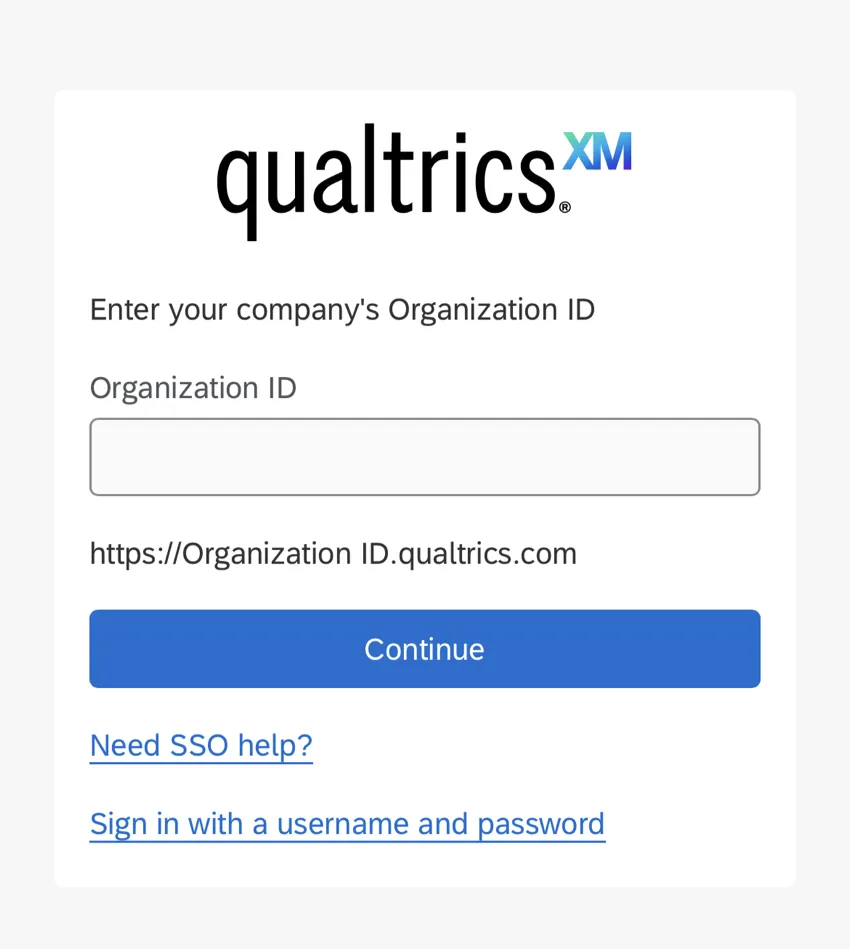
Qtip: If the app won’t let you log in, even after opening and closing or updating the app, you might not have permission to use it. Talk to your Brand Administrator to find out if your organization and your account have permission to use the Qualtrics Offline App. (Note: This is different from the Qualtrics XM App.)
Troubleshooting
Some accounts have difficulty logging in due to the number of surveys in the account. If your account has over 100 surveys, you are at risk. You’ll typically see an error message stating, “API Error: We were unable to retrieve data from our servers. Please ensure that you have a good internet connection and correct account permissions.”
To mitigate this issue, many organizations create “Offline User” accounts that are used strictly for offline surveys. By collaborating the surveys to these accounts, they can easily be used to collect responses that filter into the original account. To set up an Offline User account, make sure they have the following user permissions:
- Use Offline Mobile App
- Collaborate Projects
- Allow Non-Accessible Surveys
- Access API
In addition to the above user permissions, the project owner will also need to give the Offline User the following collaboration permissions:
- View Survey Results
- Download Survey Results
Using Device Identifier
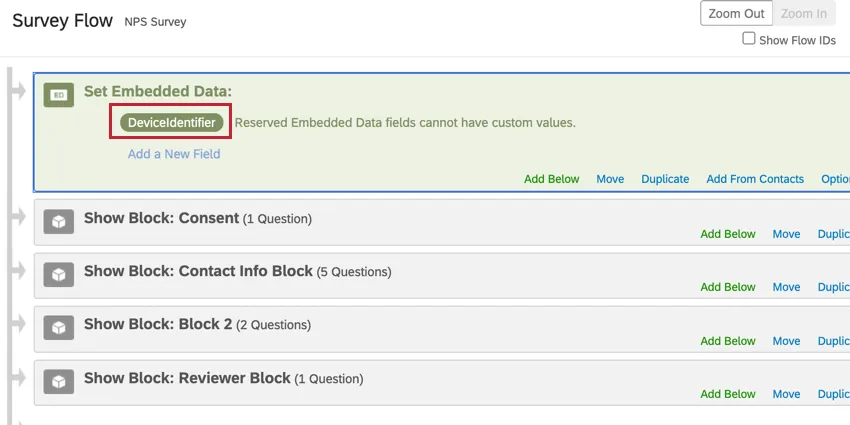
The Device Identifier field is useful for knowing which devices recorded which responses. This field can be updated at any time, but it will only affect the Device Identifier for future responses. This field is also useful if one device will be used by many administrators. Each admin can change the identifier to their name so responses can be better organized. After responses are uploaded, the Device Identifier will appear in the dataset only if you add the DeviceIdentifier Embedded Data field to your survey flow. Below is how to configure the Device Identifier field.
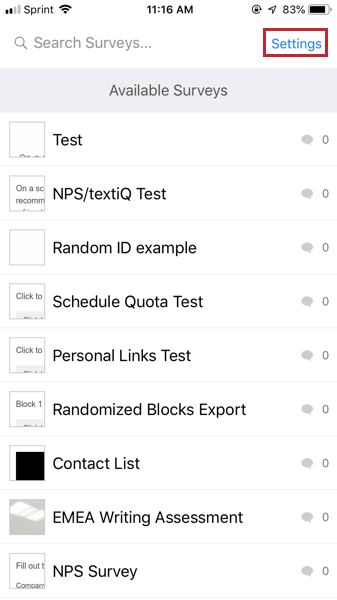
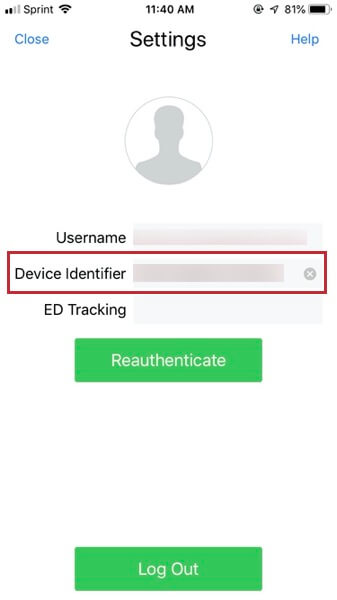
Qtip: Make sure to add the DeviceIdentifier Embedded Data field to your survey’s Survey Flow so this data will appear in your dataset!
Downloading Surveys
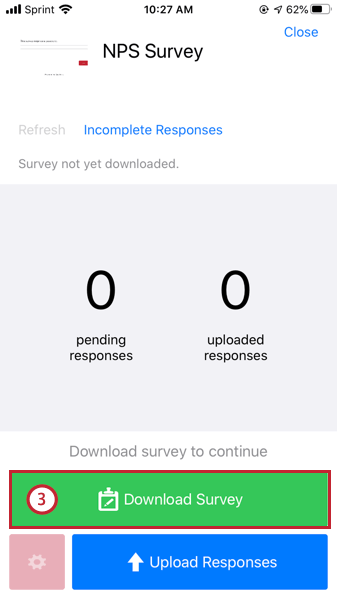
Attention: You can only download surveys that are compatible with the offline app. See Offline App Incompatible Feature for a comprehensive list of what survey features cannot be used in the offline app.
Qtip: Make sure you have a strong and stable Internet connection when downloading surveys
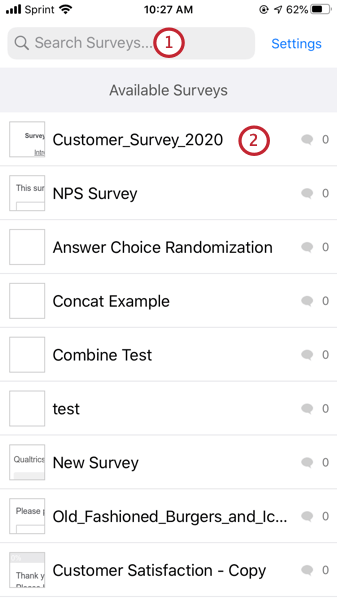
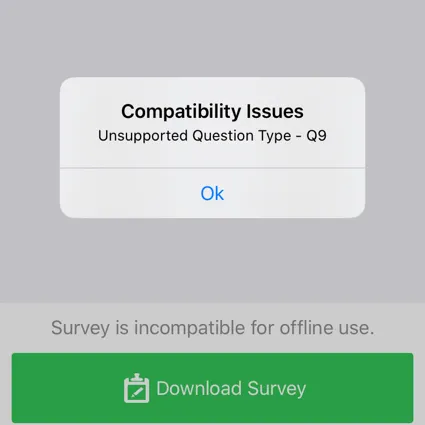
Qtip: Surveys are complex! With over 100 question types and countless variations of logic, not all surveys are compatible in the offline format. If you attempt to download an incompatible survey, you will receive an error letting you know what features of your survey are incompatible.
Because the app is always being improved, we recommend that you check back often and download the latest update. Once the Qualtrics Offline Surveys app has been enabled for your license, you’ll also have access to the Mobile Compatibility Advisor, which will alert you to any questions in the survey editor that aren’t compatible. See Offline App Incompatible Features for more information about what features are incompatible with the offline app.
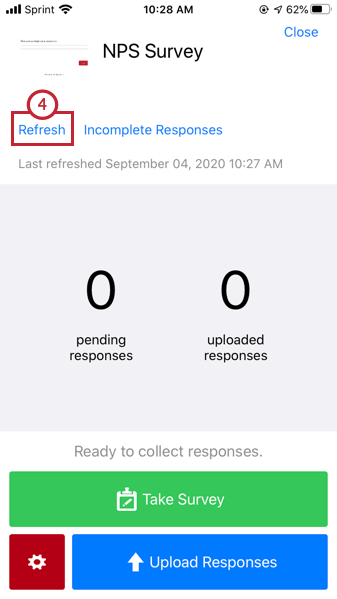
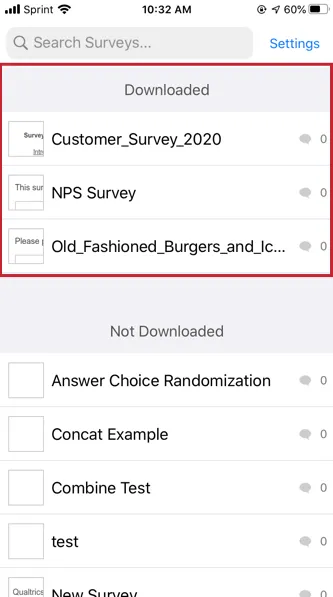
You can see your downloaded surveys above the rest of your surveys in the Downloaded section on the home screen.
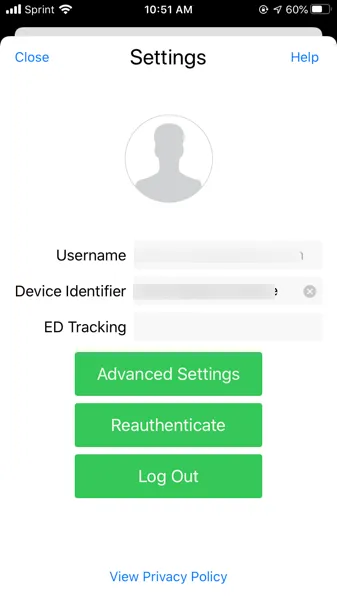
App Settings
The Settings menu contains options for managing and securing your account, such as adding a pin, reauthenticating into your account, and deleting all data from the app.
Advanced Settings: Contains the following settings:
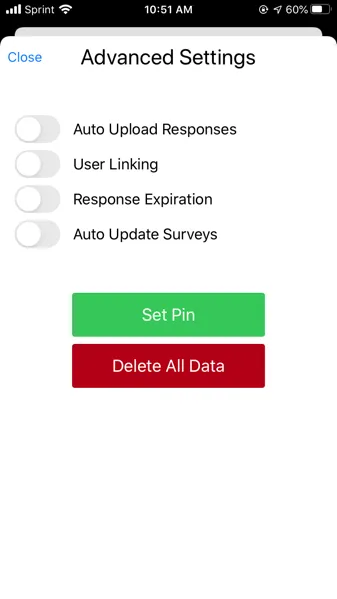
- Auto Upload Responses: Responses will be automatically uploaded to Qualtrics when your device connects to the Internet.
Use Linking: Allows users to save the following attributes to their dataset as embedded data: name, given_name, family_name, preferred_username, email. SSO users can also save their SSO attributes as embedded data when this option is enabled. Make sure to add an embedded data element to your survey flow to save this information in your dataset!

Qtip: You may need to reach out to your IT team to ask them what your organization’s SSO attributes are
- Response Expiration: Closes responses after the period of time defined in your survey’s incomplete survey response options.
- Auto Update Surveys: Surveys will be automatically updated when your device is connected to the Internet.
- Set Pin: This option lets you specify a 4 digit pin number for using the app. The app will ask for this pin after 10 minutes of being inactive in the background.
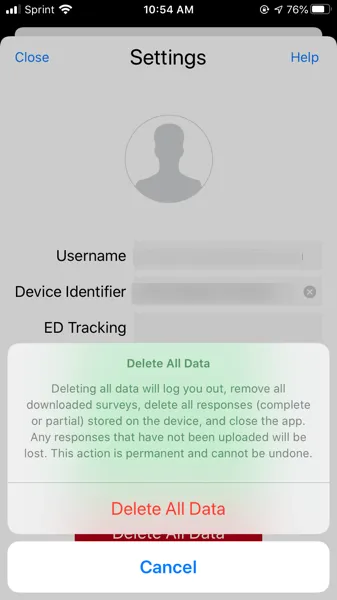
Delete All Data: This option lets you delete all data stored in the app. This includes any downloaded surveys and responses stored on the device. Additionally, you’ll be logged out of the app and the app will close. Any responses that have not been uploaded will be deleted. This action is permanent and cannot be reversed.
- Reauthenticate: This option brings you to the login screen for the offline app for entering your account credentials.
Log Out: This option logs you out of the app.

Attention: Never log out of the Offline App if you have responses to upload. If you log out of the app without uploading your responses, you will lose your responses.
FAQs
Why can’t I log in to the Offline App?
Why can’t I log in to the Offline App?
- Permission to use the app: The Offline App is an extra feature, and not every license or account has paid for access. It may be that your license does not include Offline App or that it does but the feature has not been enabled on your account. Contact your Brand Administrator for further details.
- SSO login: If your organization uses an SSO login to access Qualtrics, we don’t actually store your password on our servers. As such, you will need to log in with your organization's SSO method.
That's great! Thank you for your feedback!
Thank you for your feedback!