

Managing Segments in XM Directory
What's on this page
Qtip: Segmentation is not available to all licenses. If you are a Brand Administrator who is interested in this feature and you do not see a Segments tab in your directory, reach out to Account Services.

About Managing XM Directory Segments
Segmentation is the process of dividing the contacts in your XM Directory into different groups, based on demographics, needs, priorities, common interests, and other criteria. Once a segment is created, the members of your directory are automatically added and removed based on whether they match its criteria, meaning less maintenance required of your team, and more time to focus on insights.
Qtip: Segments can only be created and edited by users who have the permission Manage Directories enabled. Any user with Access XM Directory enabled can distribute to existing segments.
Qtip: You cannot opt a contact out of a segment without opting them out of the entire directory. See opting contacts out of the directory.
Distributing to XM Directory Segments
Once you’ve created your segments, you can distribute to them using the same methods of distribution you would for mailing lists. That means you can send the following kinds of distributions to segments:
- SMS (both invites and 2-way)
- Digital intercept targeting
- WhatsApp (both invites and 2-way)
- Unique link creation
Qtip: If you are distributing to a segment, contacts must remain in the segment to get a reminder. If they are removed from the segment they won’t receive reminders.
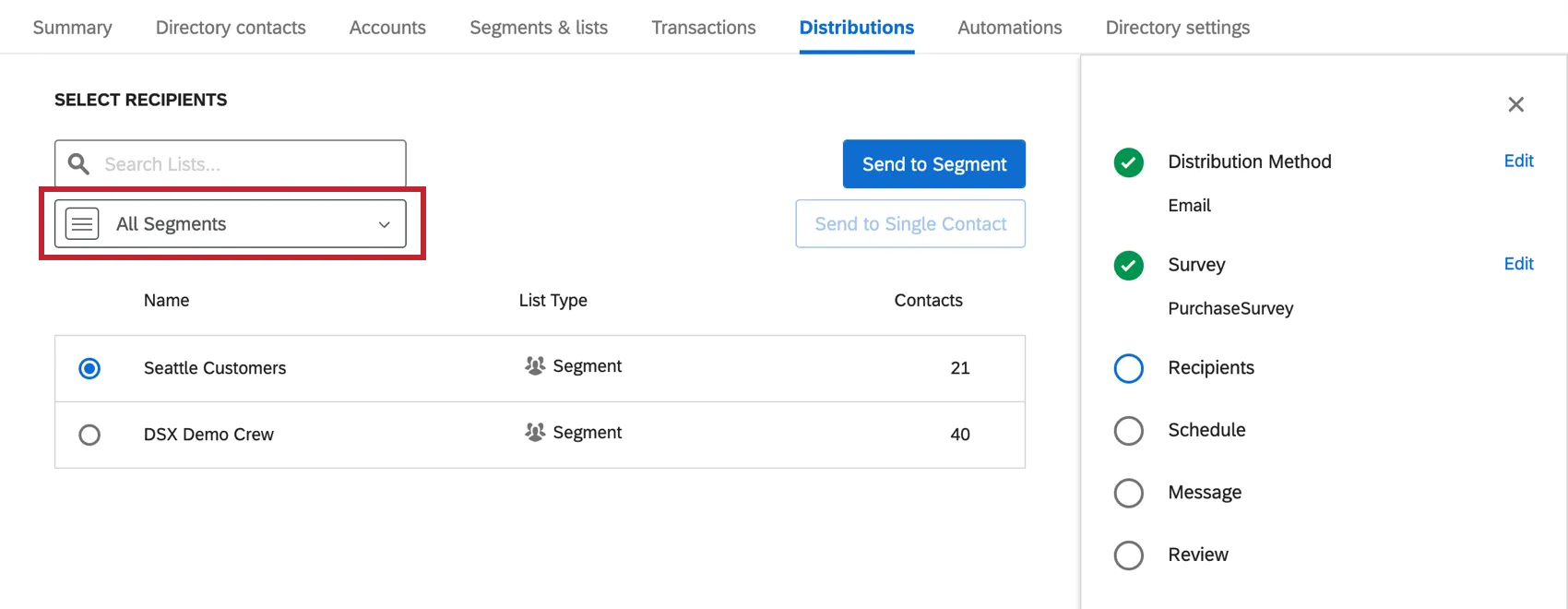
Start in the Distributions tab of XM Directory. When you get to the step where you choose recipients, select All Segments, then select your specific segment, as shown below.
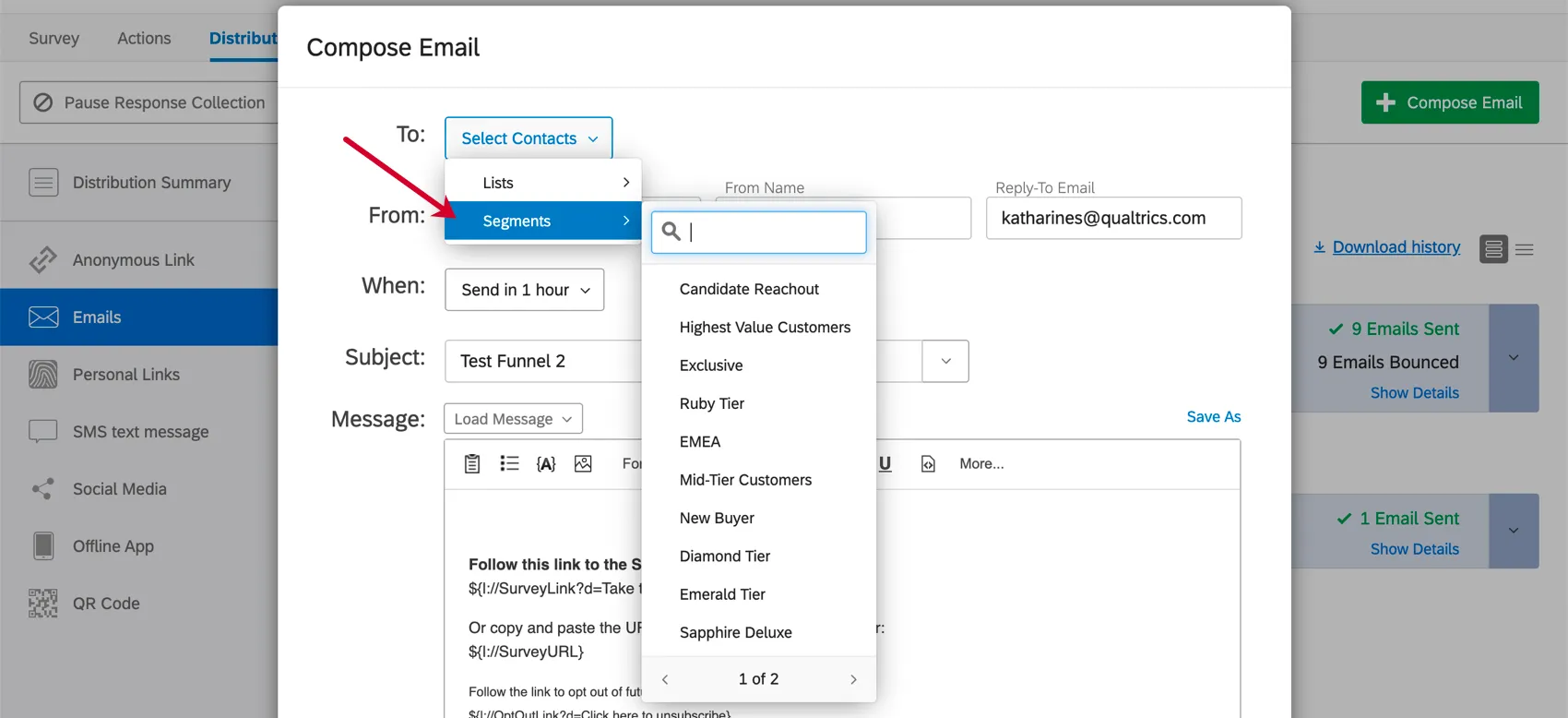
You can also distribute to segments from inside the Distributions tab of a survey, using methods like email, SMS, and personal links. For example, in a survey email invite, select the To field, then highlight Segments to see a list of segments you can distribute to.
You can also automate distributions to your segments, sending regular messages to them on a schedule. These solutions include the following workflows:
Segment Trends
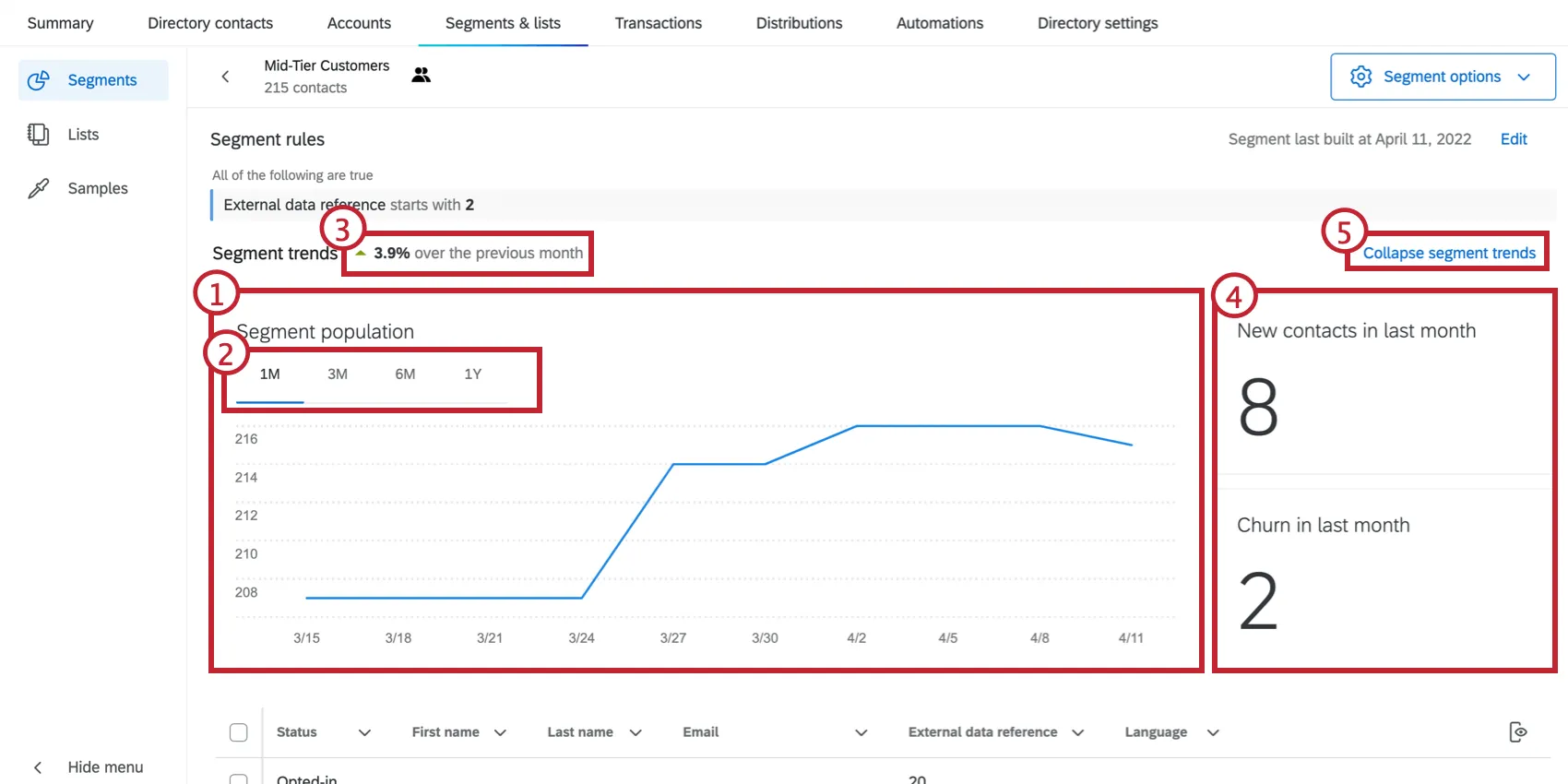
The segment trends chart makes it easy to identify segment membership trends including new contacts and lost subscribers over time.
Rebuilding Existing Segments
Segments are refreshed within 24 hours. This means that as you add new contacts to the directory that meet the segment’s criteria, or as contacts are updated so that they no longer meet criteria, the segment will take note of these changes and incorporate them once a day by default.
However, if you do not want to wait, you can rebuild the segment at any time.
Attention: Changes made in your directory that affect segment membership will not instantly be applied, even if you manually rebuild your segment. For example, rebuilding your segment immediately after updating a contact will not immediately remove that contact from your segment.

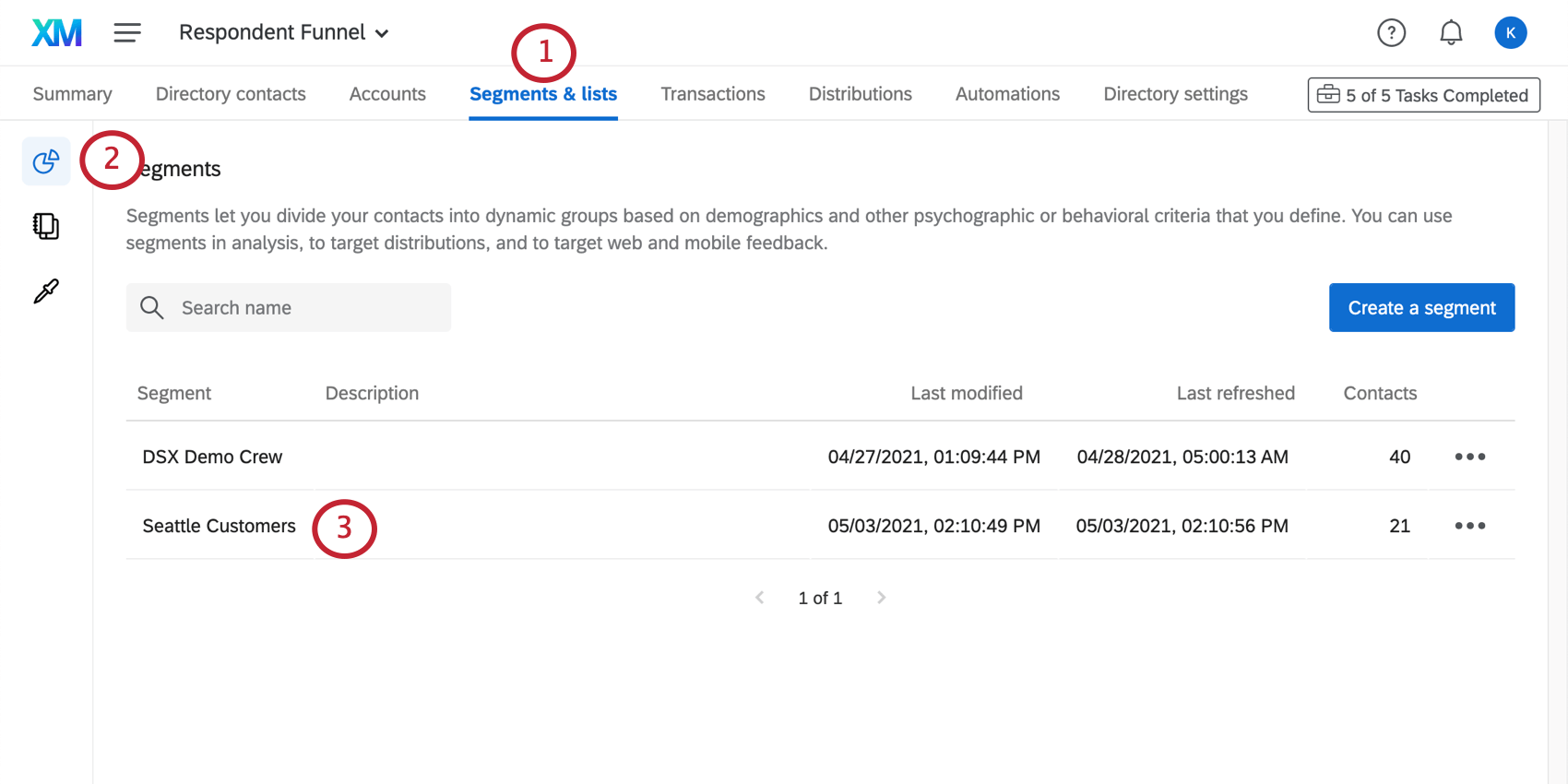
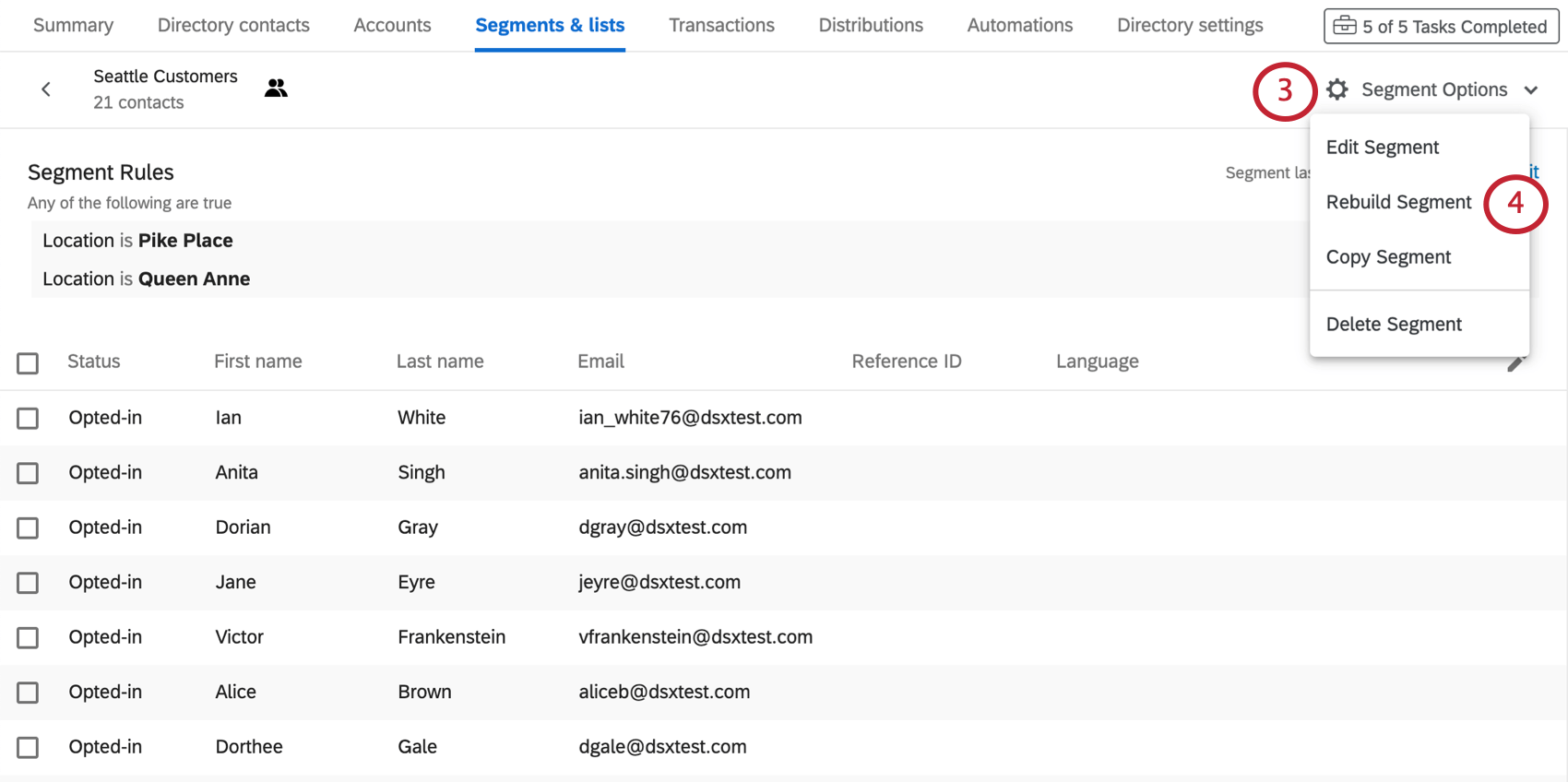
The segment may take some time to rebuild. Feel free to leave this page while it loads.
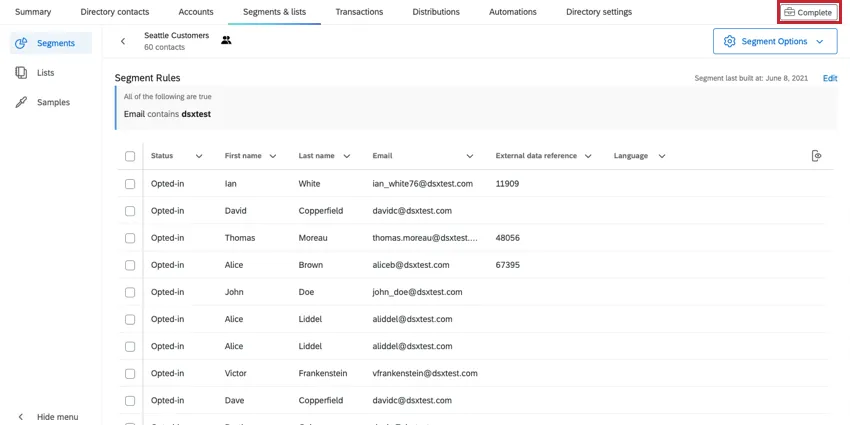
Qtip: There may be a little bit of time between when your tasks are shown as Complete and when the updates are actually shown in your segment.
Changing the Criteria for an Existing Segment
You can change the criteria for an existing segment. Once you do this, the segment will automatically rebuild itself, incorporating the appropriate contacts and removing those that do not fit the new criteria.
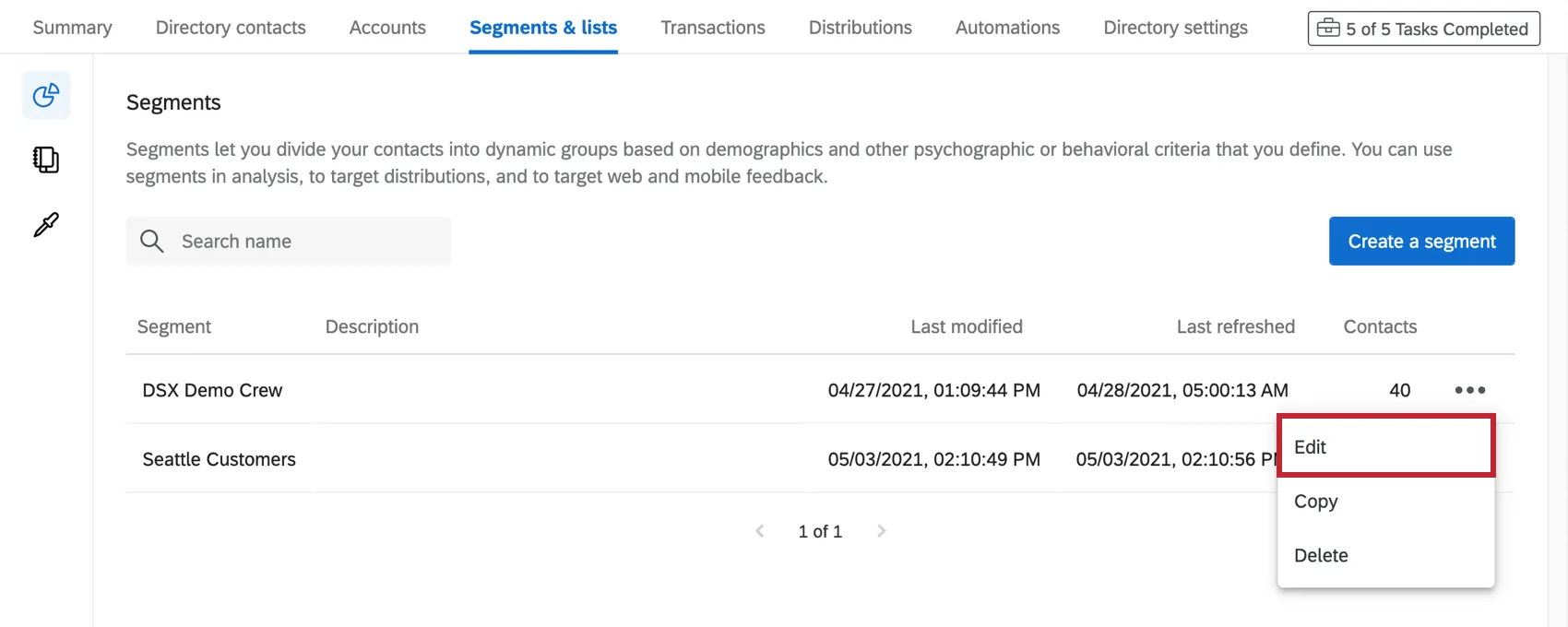
You can edit a segment’s criteria by using the dropdown and selecting Edit.
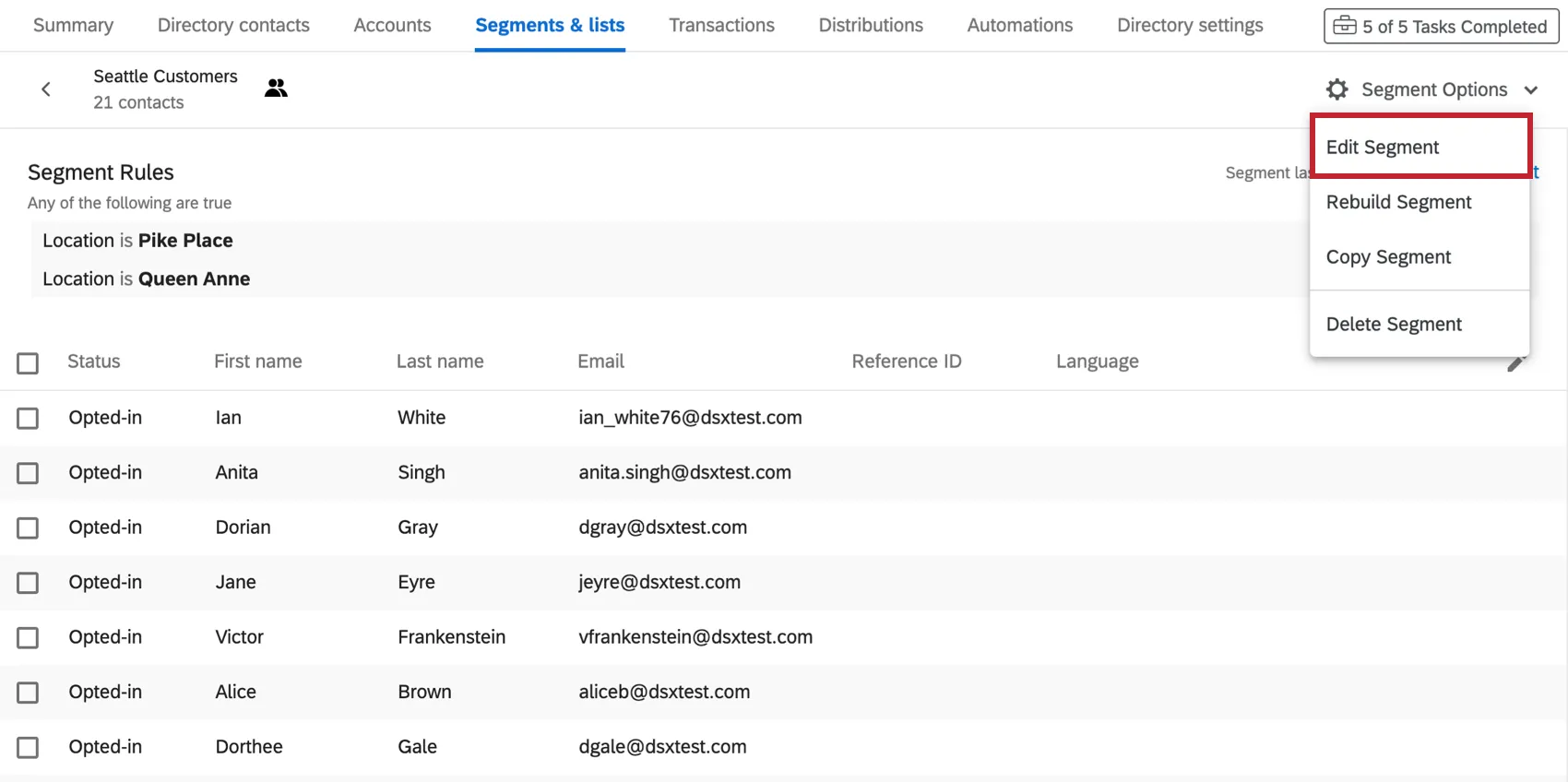
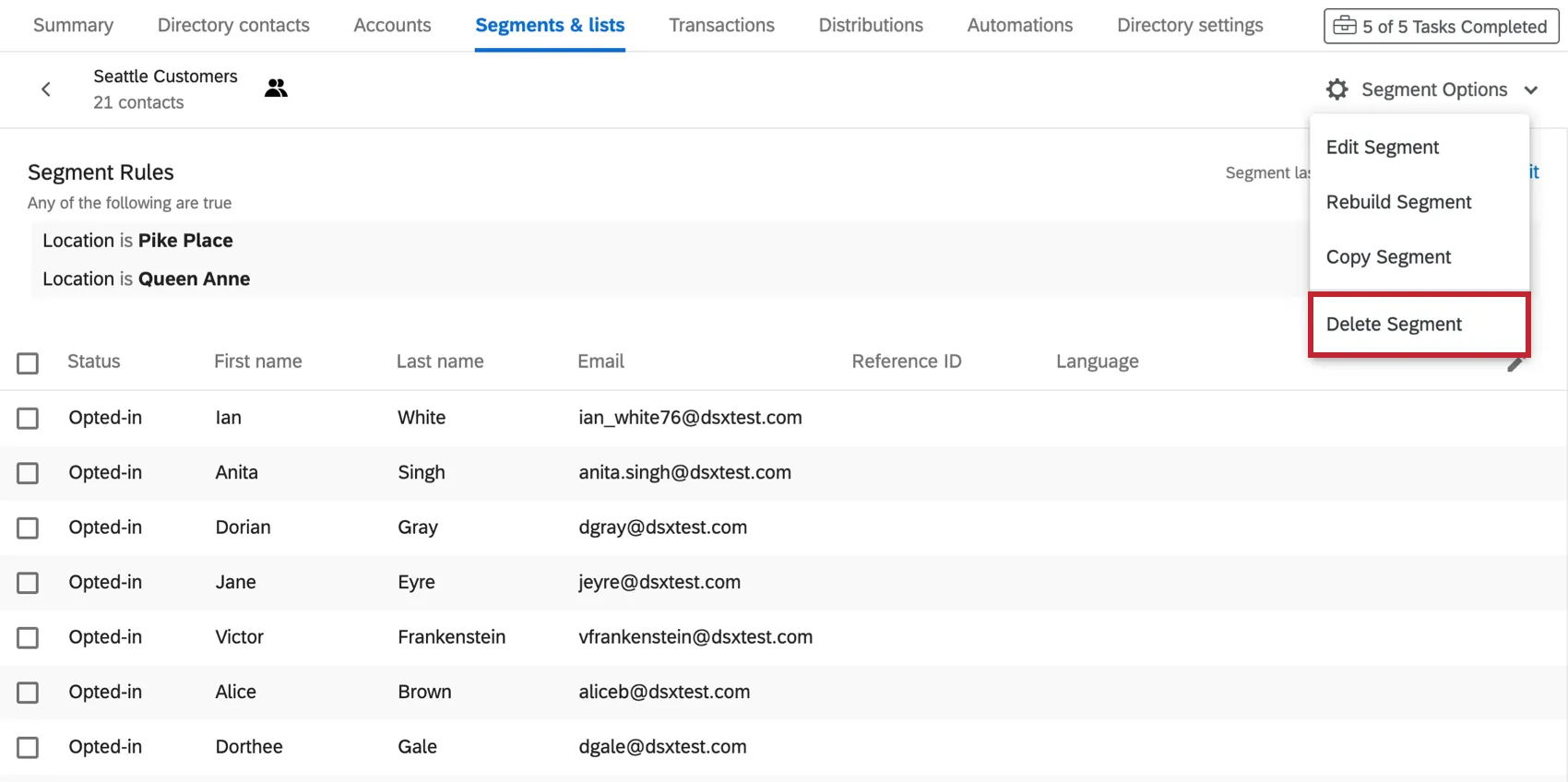
Or, if you’re inside the segment, click Segment Options and select Edit Segment.
Copying Segments
Copying segments can be useful if you plan to make a lot of similarly-formatted segments, and only need to change a few criteria at a time.
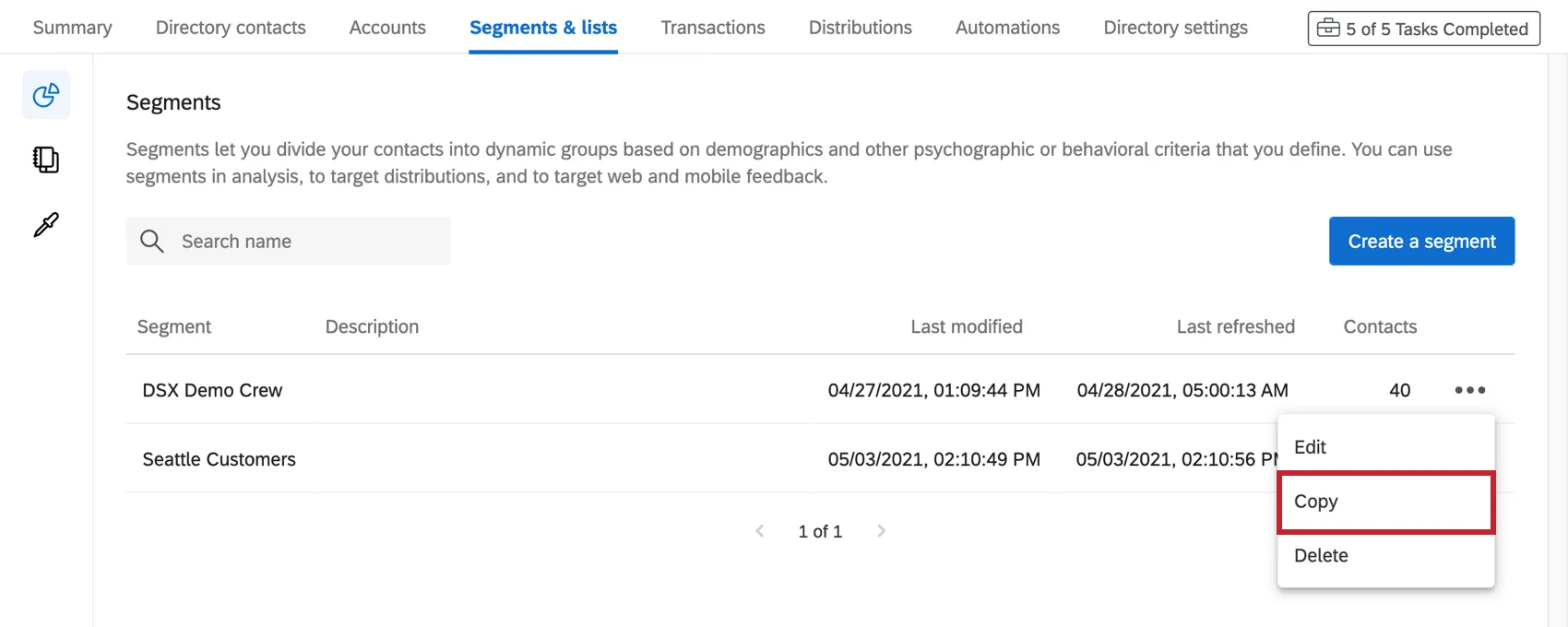
You can copy a segment by using the dropdown and selecting Copy.
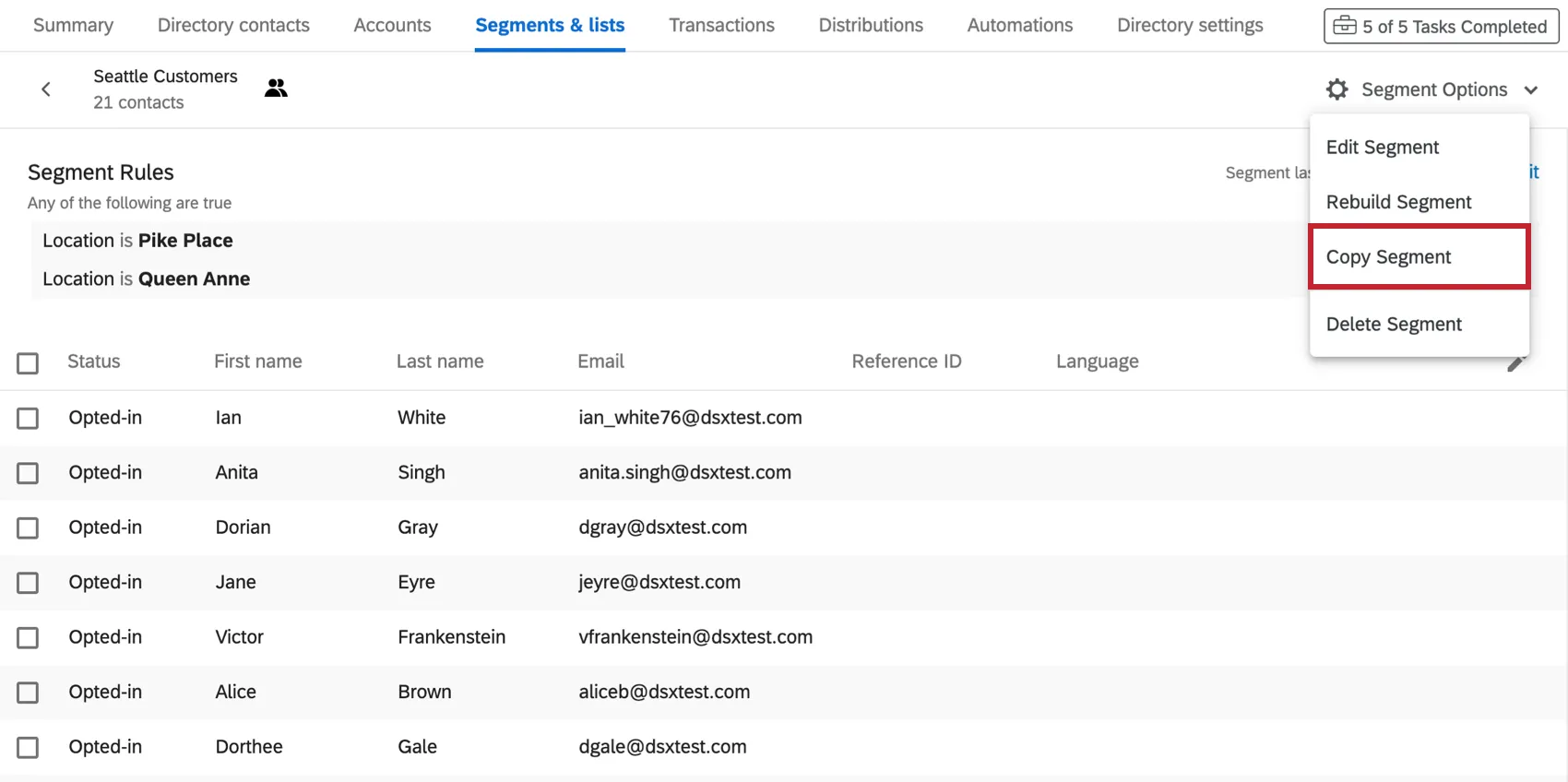
Or, if you’re inside the segment, click Segment Options and select Copy Segment.
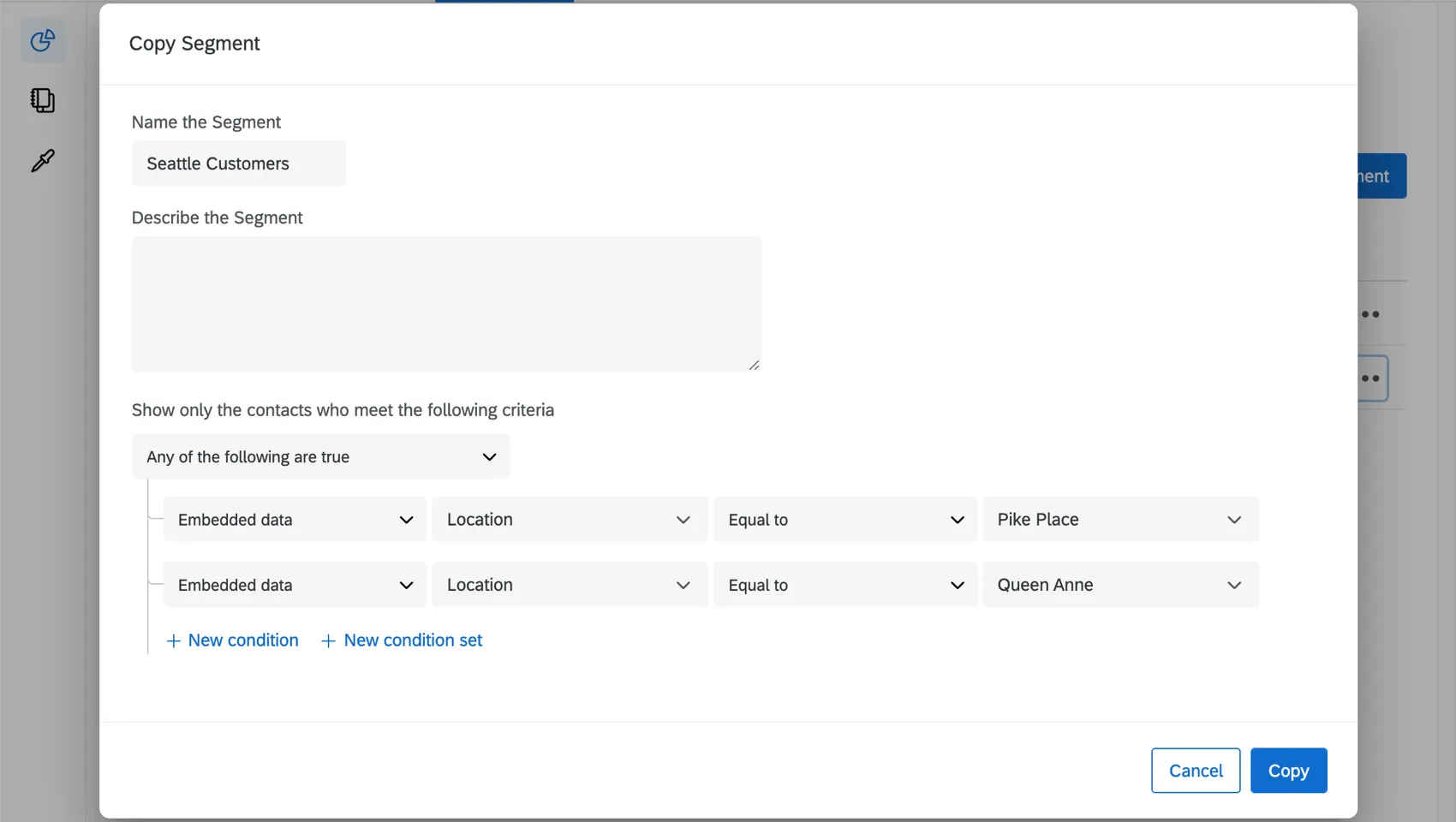
From there, you will be given the exact same criteria and can edit it before you finish creating your new segment. Don’t forget to give your segment a new name.
Deleting Segments
Warning: Once you delete a segment, it is irretrievable. Do not delete a segment unless you are absolutely sure that is what you want to do!
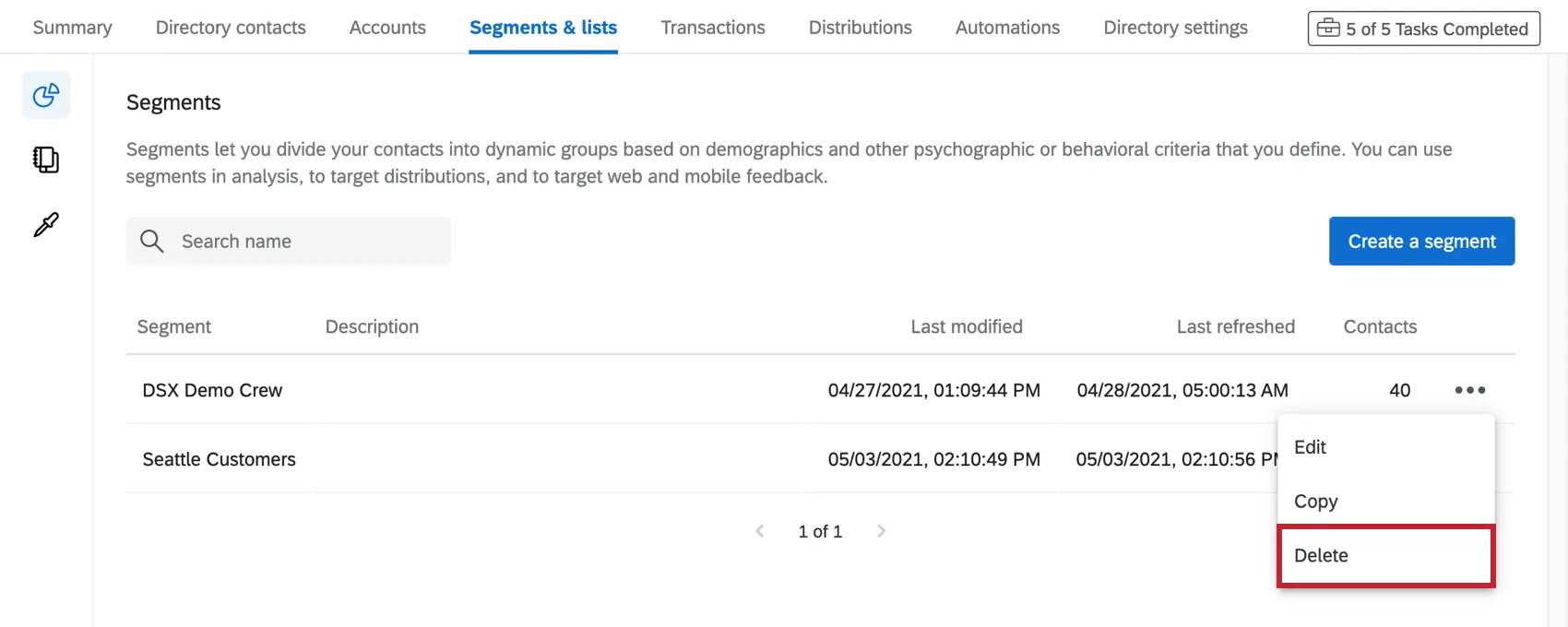
You can delete a segment by using the dropdown and selecting Delete, or, from inside the segment, by clicking Segment Options and selecting Delete Segment.
Marking Segments as Favorites
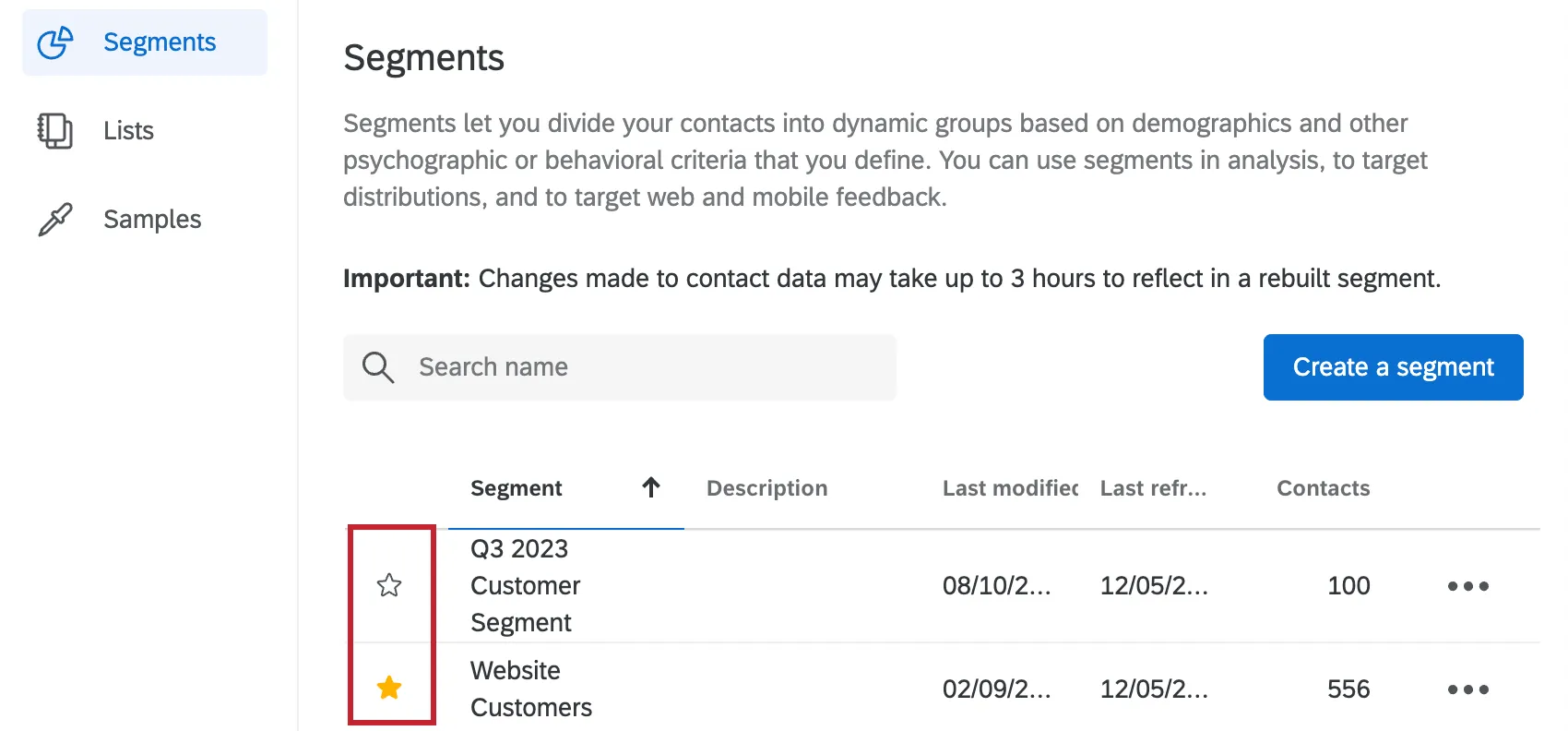
Clicking the star icon to the left of a segment will mark it as a favorite.
Using Segments in CX Dashboards
You can use segment membership in your CX Dashboards, making decisions and gathering insights based on which contacts belong to which segments.
To learn more, see Using Segment Data in Dashboards.
Creating Workflows for Segment Membership Changes
As contacts are added to or removed from your segments, you can automatically set off different tasks, such as sending notifications (such as emails or Slack messages), creating tickets (in Qualtrics, Freshdesk, or elsewhere), and much, much more. You can also set workflows when a contact opts into or out of a segment.
See Experience ID Segments Events for more details.
Projects That Can Use Segments
Qtip: The features discussed in this section are not necessarily included with every license. If you’re interested in getting access, please reach out to your Account Executive.
You can use XM Directory to create segments you can then use to distribute to several types of Qualtrics projects. However, not every Qualtrics project type is compatible with XM Directory.
XM Directory can be used to send the following:
- Survey projects
- Conjoint / MaxDiff
- Certain non-EX XM Solutions
In contrast, XM Directory cannot be used to distribute any Employee Experience (EX) projects. That means that no EX projects can be used with XM Directory, including Engagement, Pulse, 360, and more.
XM Directory contact data is completely separate from the employee / participant information saved in the Employee Directory. That means that data edited in one directory will never affect the other, and employee directory information cannot be used to build segments.
That's great! Thank you for your feedback!
Thank you for your feedback!