

Categories (EX)
What's on this page
Qtip: This page describes functionality available to Engagement, Lifecycle, Ad Hoc Employee Research, Pulse, and 360 projects. For more details on each, see Types of Employee Experience Projects.

About Categories
Qtip: A maximum of 100 statements can be added to each category.
Imagine your employee survey asks your participants to rate your company on concepts related to integrity. You’d like to combine all these questions together into one integrity score to display on your dashboard, but how? By using categories, you can group different sets of questions and metadata together for aggregate reporting.
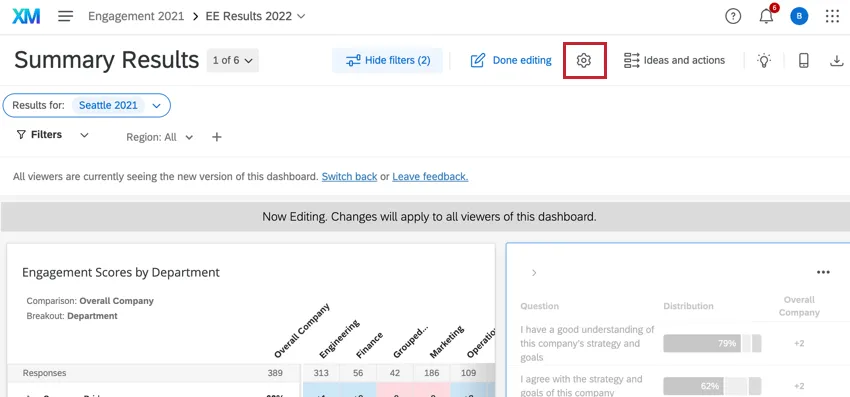
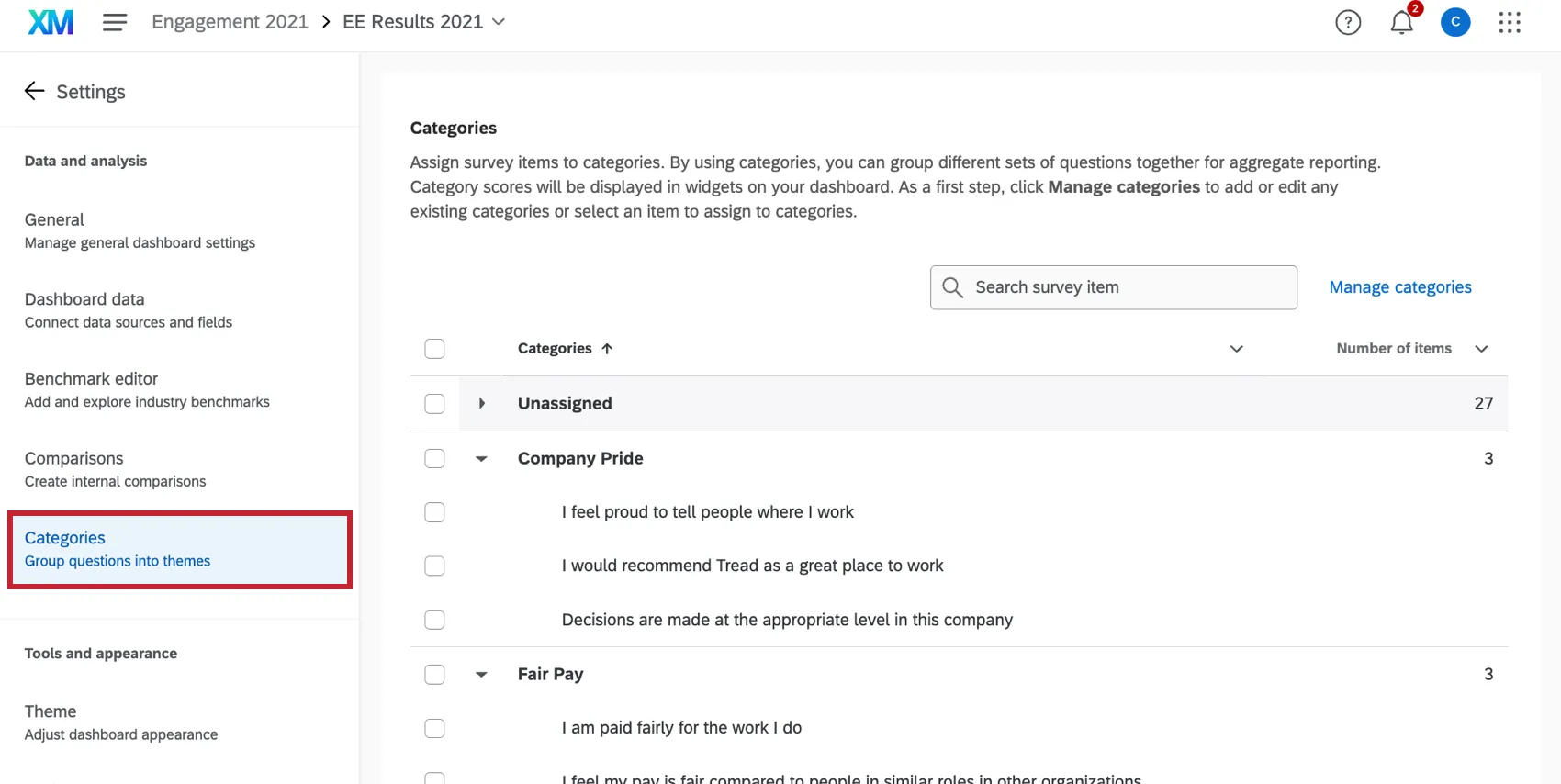
You can manage your categories by going to the Settings and selecting the Categories section along the left.
Qtip: Categories work differently in 360 dashboards than other EX dashboards. See Categories in 360 Dashboards for more information.
Qtip: If some items in a category don’t meet the response threshold or don’t have any responses, the category score is calculated without those items. Viewing all category scores allows managers to see the general themes in their results and understand where they are doing well and where they can improve, but the focus should be on item-level scores and trends, as those are more actionable. In contrast, within Comparisons category scores are hidden if items are missing.
How Category Scores are Calculated
Category scores are calculated by taking the weighted average of the question scores contained in the category. For example, let’s say we have a category that contains 3 questions with the following response counts and favorability scores:
- Question A: 75.13% favorable with 10,000 responses.
- Question B: 80.57% favorable with 9,500 responses.
- Question C: 73.23% favorable with 9,800 responses.
If these 3 questions are combined into 1 category and displayed in a widget, then the overall favorability score for the category will be 76.26%, calculated by:
[(75.13*10,000)+(80.57*9,500)+(73.23*9,800)] / (10,000+9,500+9,800) = 76.26% (rounds up to 76.3% if only 1 decimal place is shown)
Creating Categories
Qtip: The order that categories appear in the editing window is the same order that they’ll appear in when added to widgets.
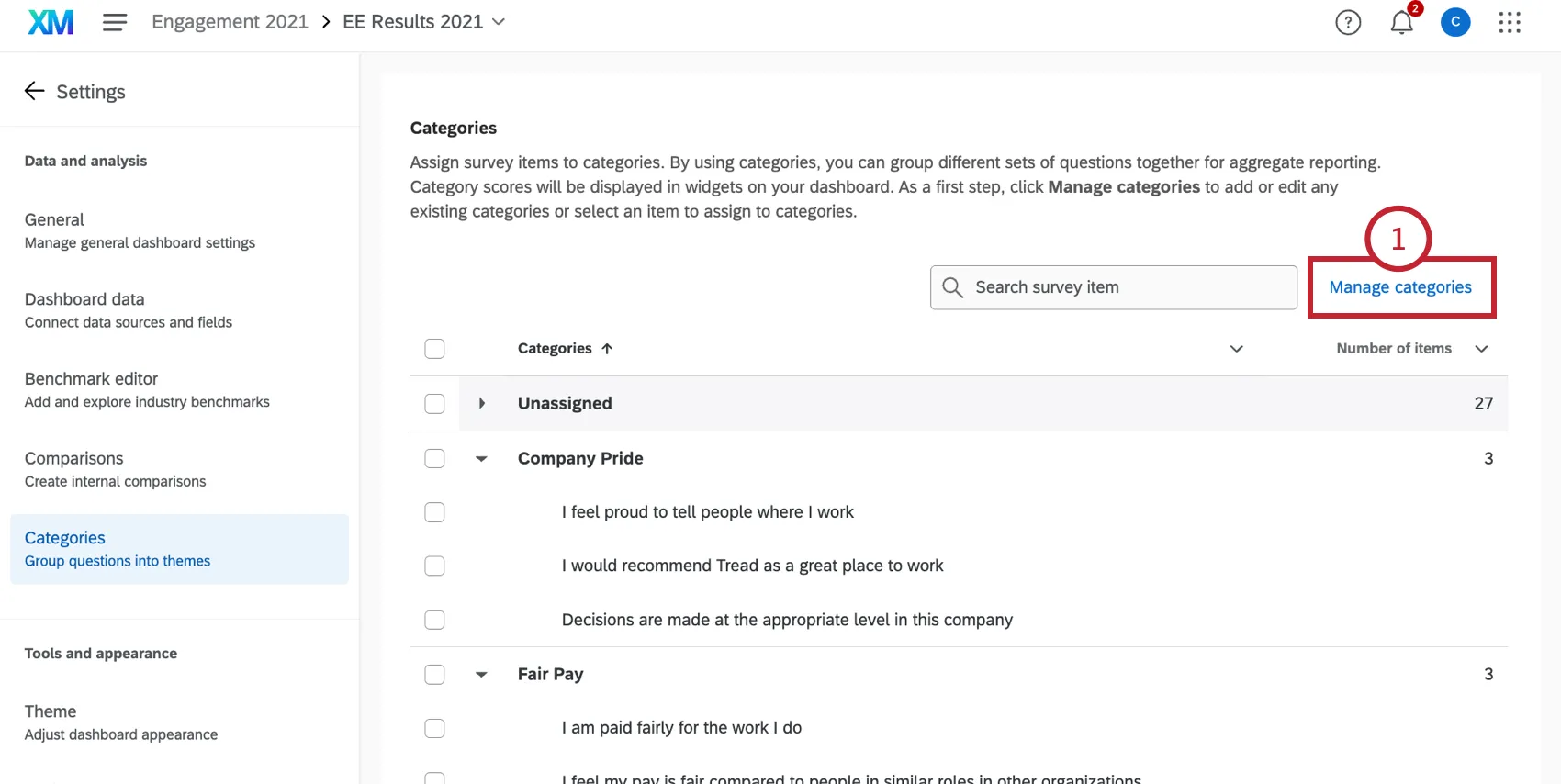
Click Manage categories.
Click Add category.
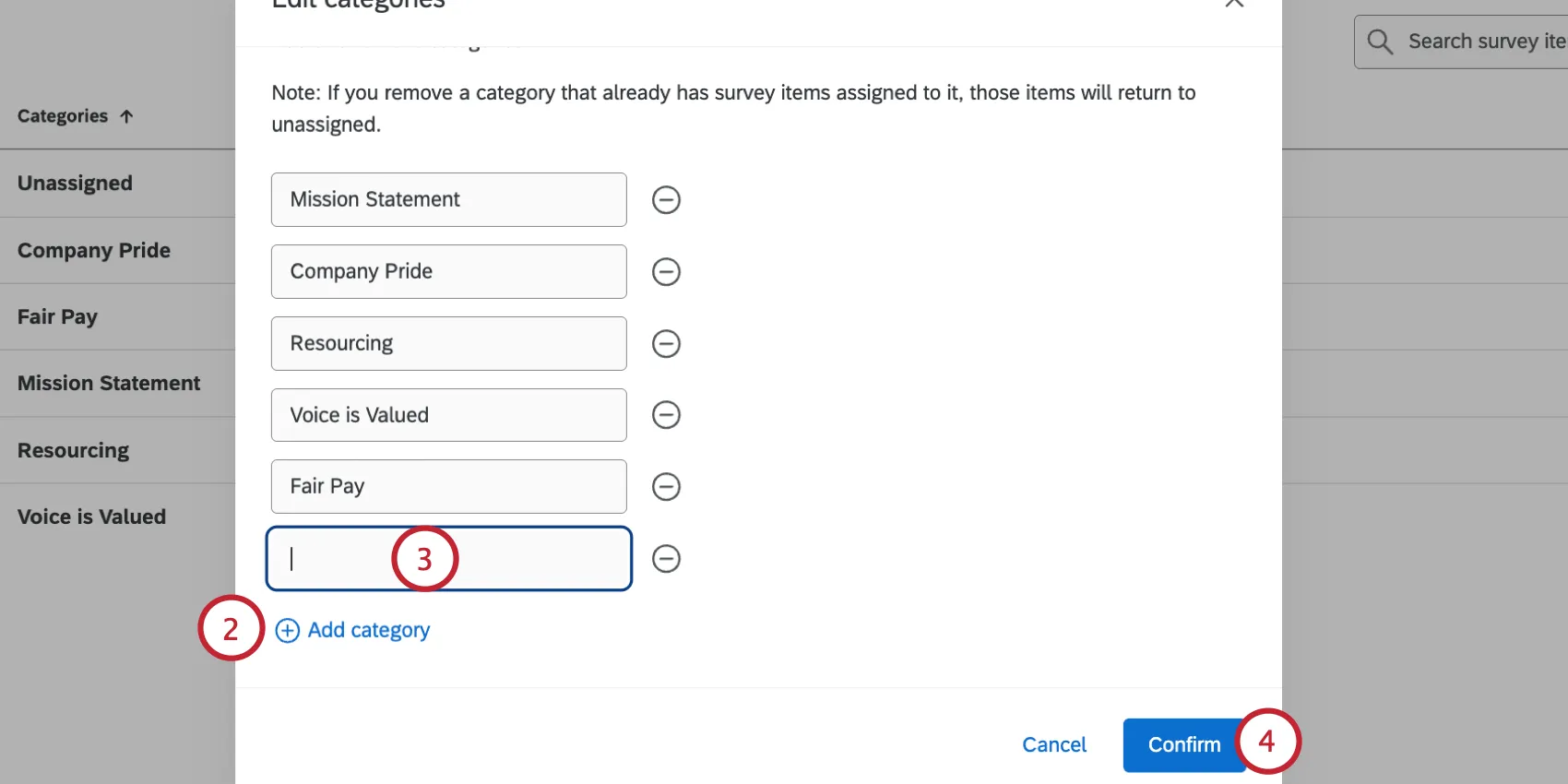
Enter a category name.
Click Confirm.
Managing Categories
Click Manage categories.
You can edit a category’s name by typing a new name for it.
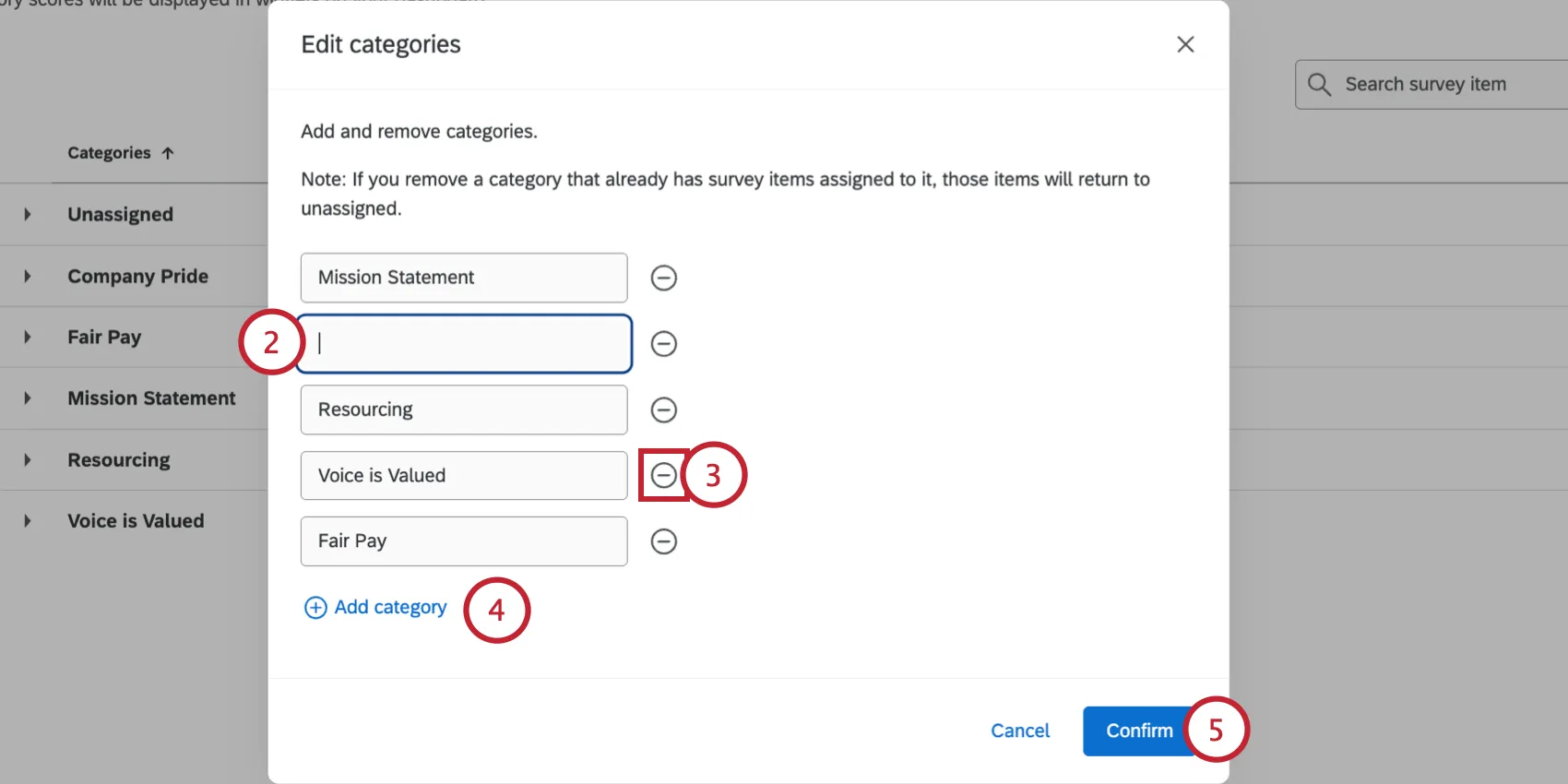
Click the minus sign ( - ) to delete a category. This will remove the category from any items assigned to it.
Click Add category to create new categories.
Click Confirm to save your changes.
Assigning Categories
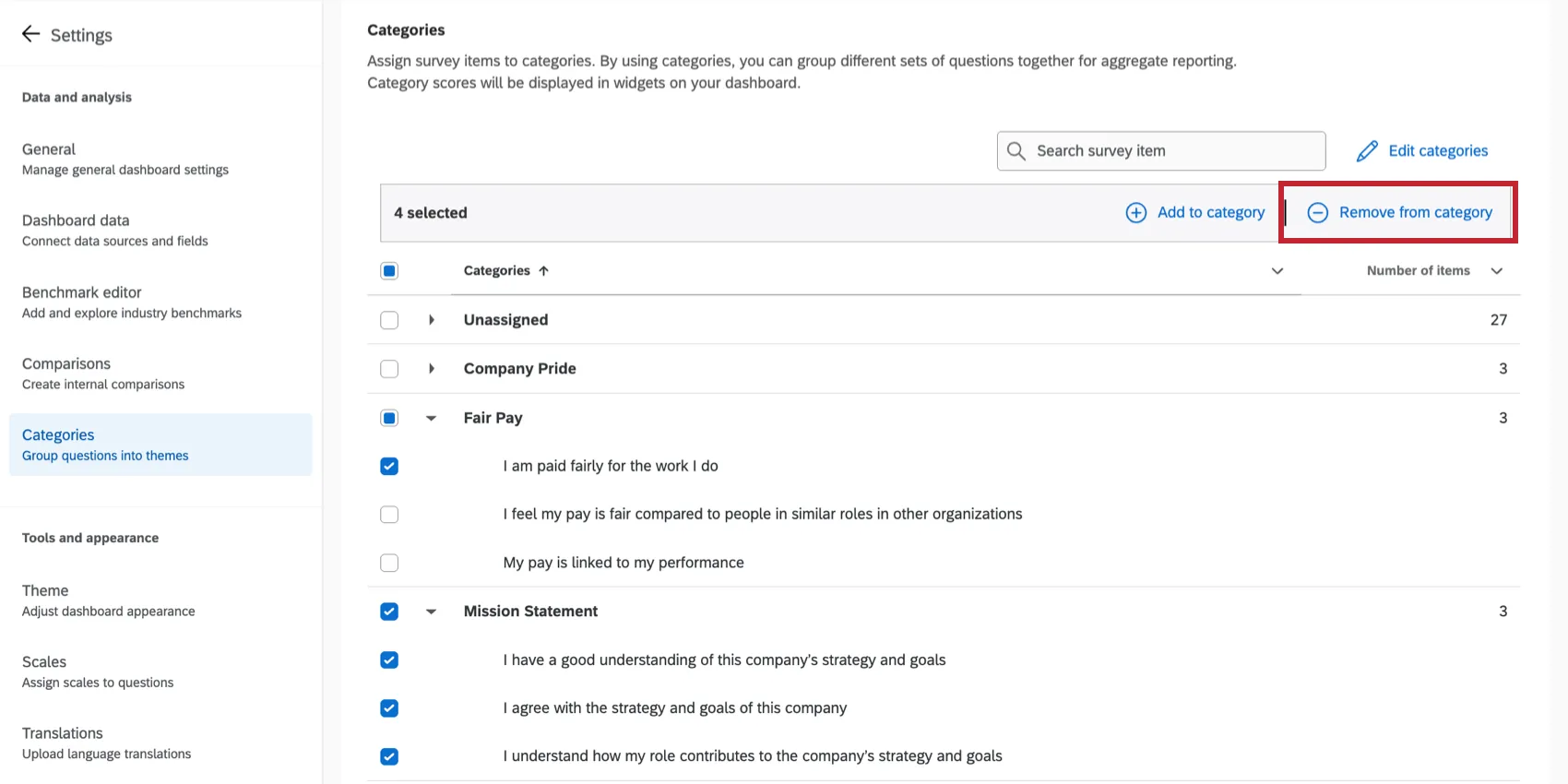
Click the checkbox next to each question or metadata you wish to add to a category. Alternatively, click the top checkbox to select all available items.
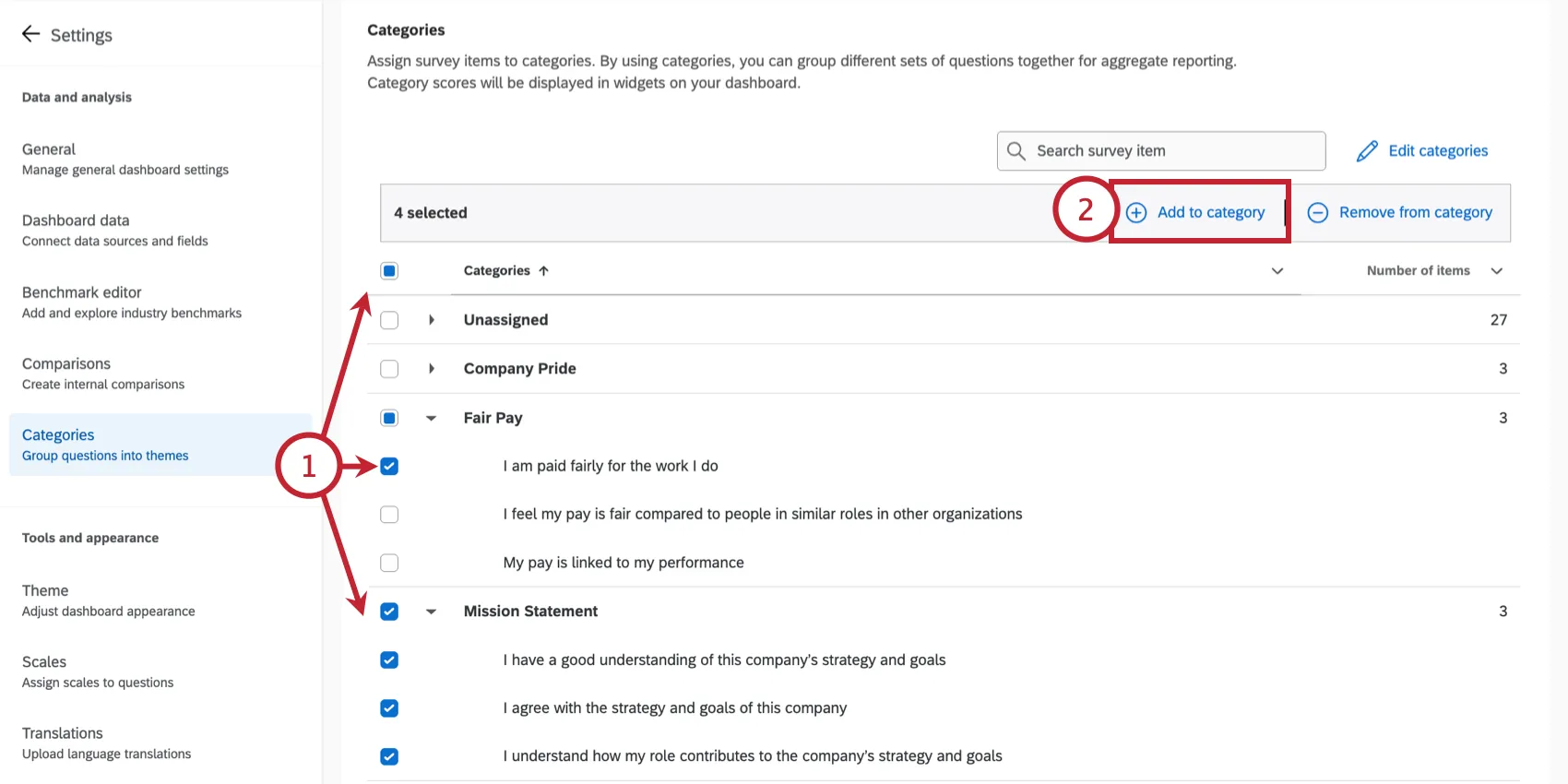
Qtip: Only Number Set field types are compatible with categories.
Click Add to category.
Choose the category or categories you’d like to add these items to.
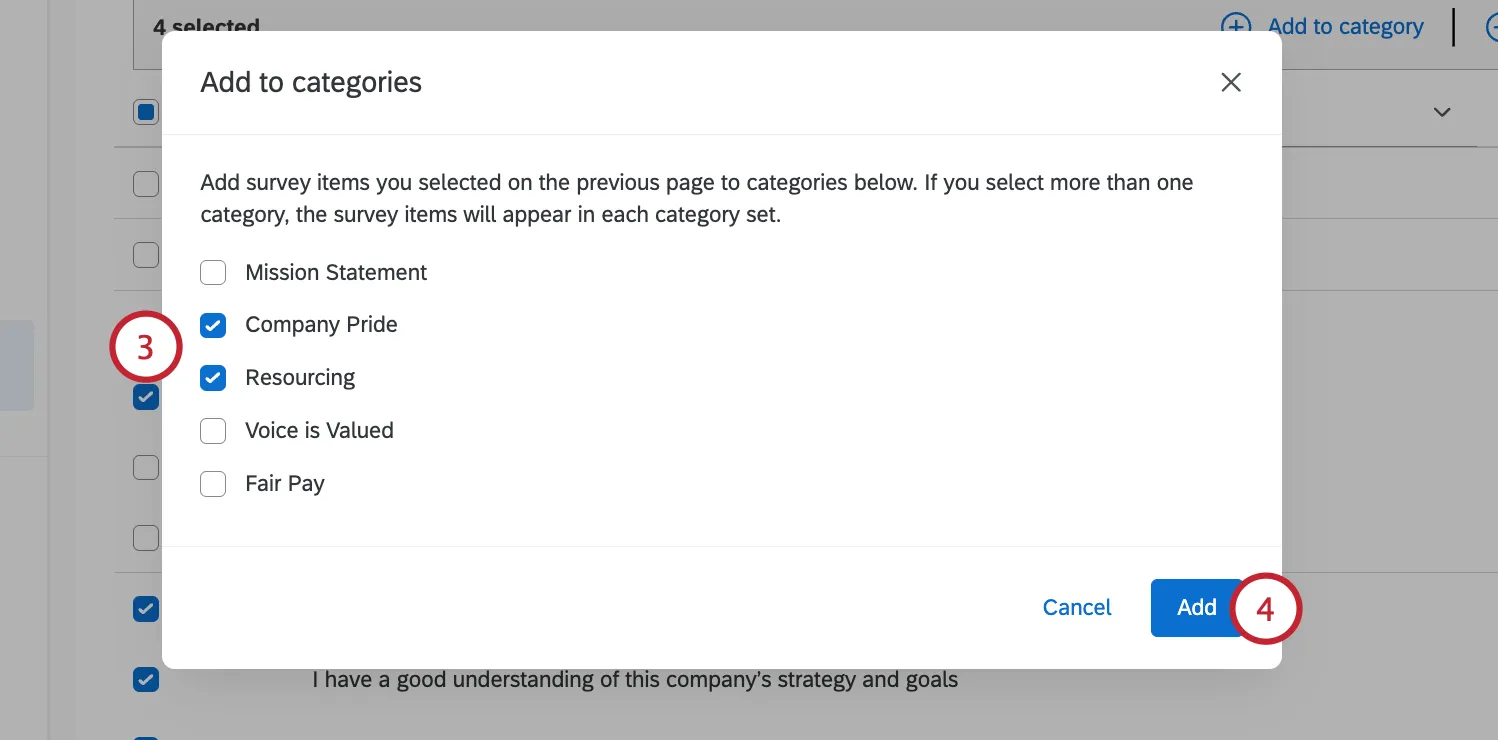
Click Add.
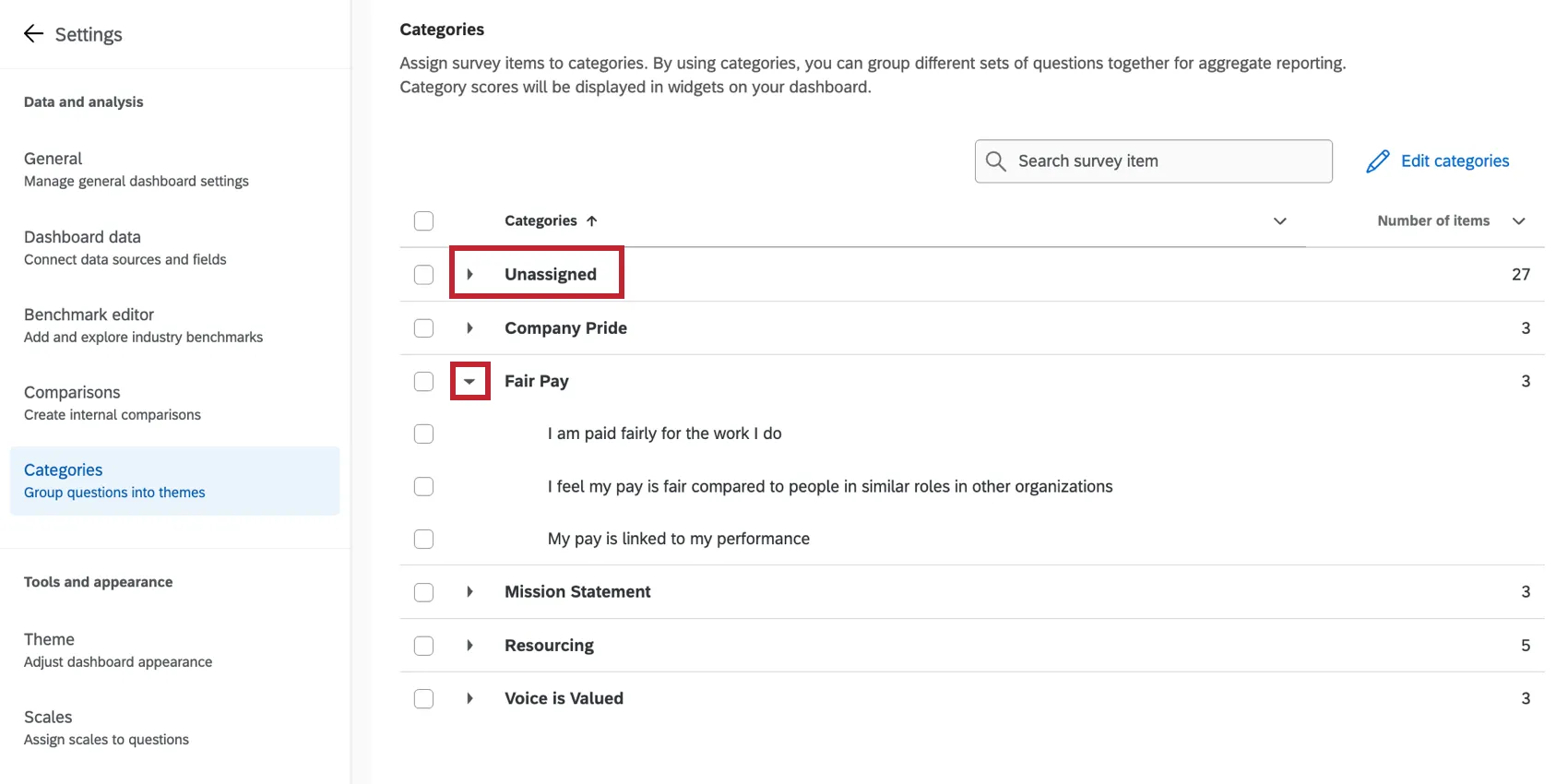
Qtip: Have a lot of items to manage? By default, any items without a category will appear in the Unassigned group, allowing you to easily find items that still need a category. Once assigned to a category, you can expand the different category groups to see which items are tagged to that category. You can also use the search bar at the top of the page to narrow down which items you want to manage.
Qtip: Are there statements in your category that are reverse-coded? Check out our Scale Settings page to figure out how to set this up.
Removing Items from Categories
Once you assign an item to a category, it will be listed under the category in your categories settings. To remove an item from a category, check its box and then click Remove from category.
Categories in 360 Dashboards
Qtip: The information in this section is only relevant for 360 dashboards.
For 360 dashboards, dashboard categories function differently. Categories are created by setting up scoring in your 360 survey. You can then choose these scoring categories as metrics in your dashboard widgets.
If your categories are up to date in your dashboard, then no action is needed from you in the Categories tab.
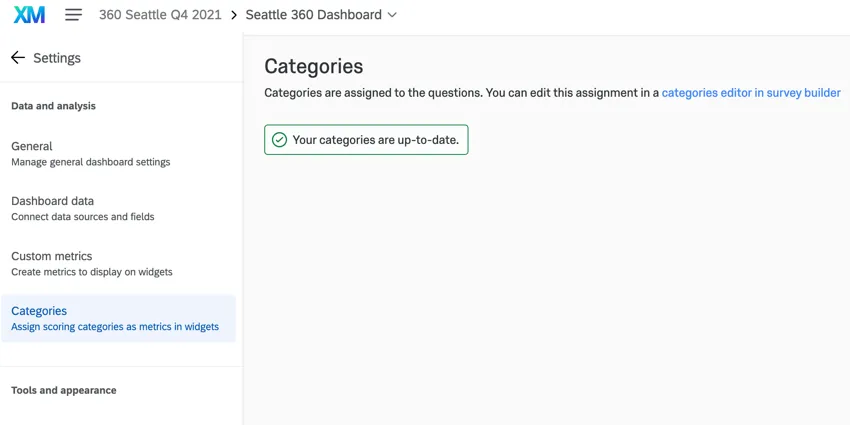
However, if your scoring categories have been edited since the dashboard was created, you will have a few options:
Click the categories editor in the survey builder hyperlink to be brought to the scoring categories editor.
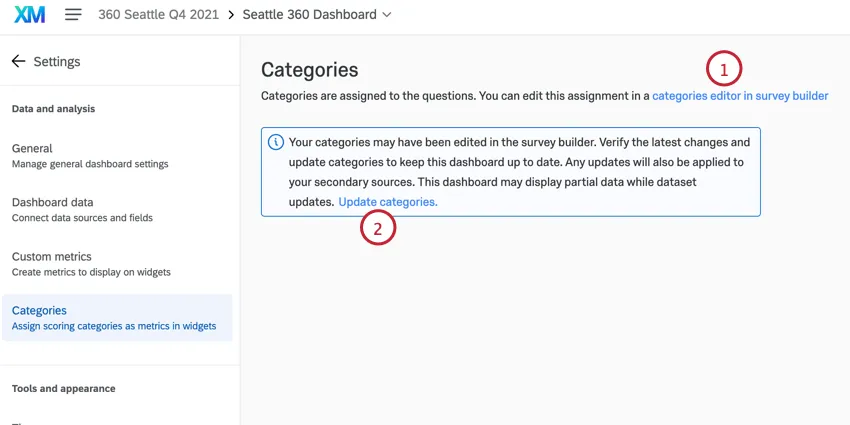
Click Update categories to refresh the categories in your dashboard. Note that this will cause your dataset to update and the dashboard will be unavailable while it updates.
Qtip: If you see error messages related to scoring category fields in the dashboard data, use this Update categories option.
Qtip: Scoring categories are read-only in the Dashboard data tab and cannot be edited there. If scoring categories are not initially mapped when you first create your dashboard, you can add them by creating new fields in the mapper and making sure that the scoring categories are named exactly the same in the primary source and the historical survey. Once you’ve verified that, update the Categories section in your dashboard settings, as shown above.
Widget Compatibility
The only widgets that are NOT compatible with categories are the following:
- Image widget
- Rich text editor widget
- Participation summary widget
- Word cloud widget
- Response rates widget
- Response ticker widget
Categories tend to behave a lot like Number Set fields when it comes to widget compatibility. Categories can be pulled into any of the widgets not listed above, either as the main field or as an additional metric. Categories cannot be used in page filters or widget filters.
The scorecard widget only displays data from categories and will not work if you do not have any set up.
FAQs
I'm mapping historical data, and I have categories set up. What will happen if the categories don't have the same items in them?
I'm mapping historical data, and I have categories set up. What will happen if the categories don't have the same items in them?
That's great! Thank you for your feedback!
Thank you for your feedback!