

Using Key Words (Designer)
What's on this page
About Using Key Words
XM Discover uses natural language processing to combine all potential variations of words into their normal word forms, called Key Words. Key words are dragged and dropped into rule lanes to create rules.
Qtip: For more information on creating rules, see Category Rules (Designer).

Example: If you drag the key word “Commute” into the rule lane, a rule for _mtoken:COMMUTE will be generated and also includes variations of the word commute, such as “commutes” and “commute’s”.

Key Word Tabs
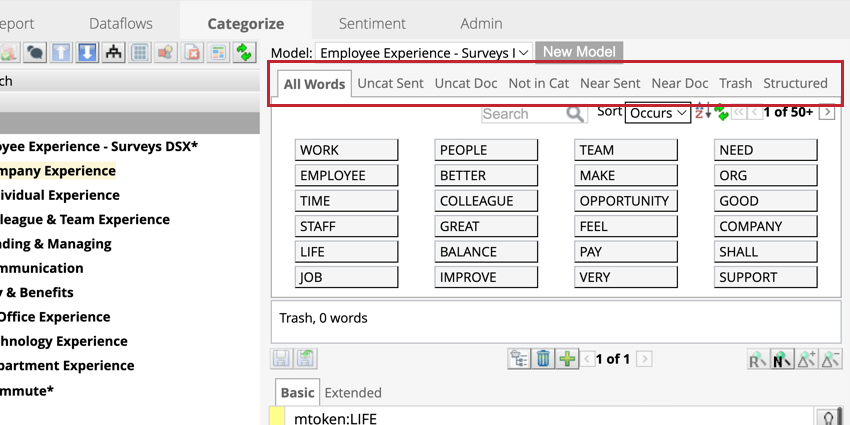
Key words are distributed between 8 tabs at the top of the word box.
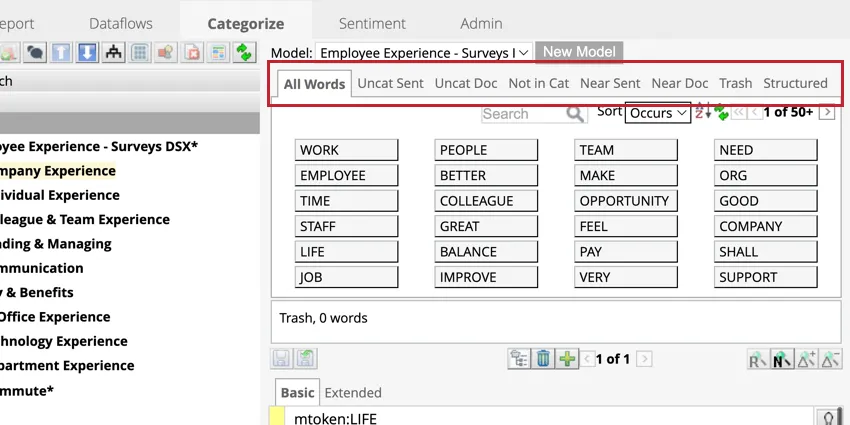
- All Words: All key words that occur in documents processed in the project.
- Uncat Sent: Key words from sentences that have not been categorized yet.
- Uncat Doc: Key words from verbatims of uncategorized sentences. If at least one sentence from a document is categorized, no key words from that document will be shown in this tab.
- Not in Cat: Key words from sentences which do not belong in the currently selected category.
- Near Sent: Key words from sentences that could be categorized to the chosen category. Does not include words that are already used as rules for the category.
- Near Doc: Key words from verbatims which contain sentences that match the category rules.
- Trash: Key words which were dragged into the trash area. See Trash Tab for more information.
- Structured: Structured data attributes configured for the project. These can be used to filter your data based on data from verbatim authors, such as gender, age, location, etc.
Qtip: Select which key word tab to show by default in the user preferences.
Qtip: Category-derived attributes are not available in the Structured tab and are not recommended for use in category rules.
Variations of Key Words
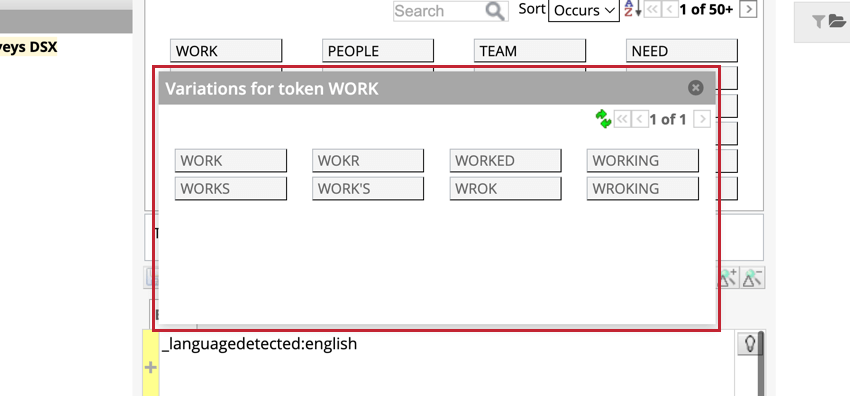
To view all variations of a key word, hold the control key and double-click the key word. A new window will open with the variations that are present in your project.
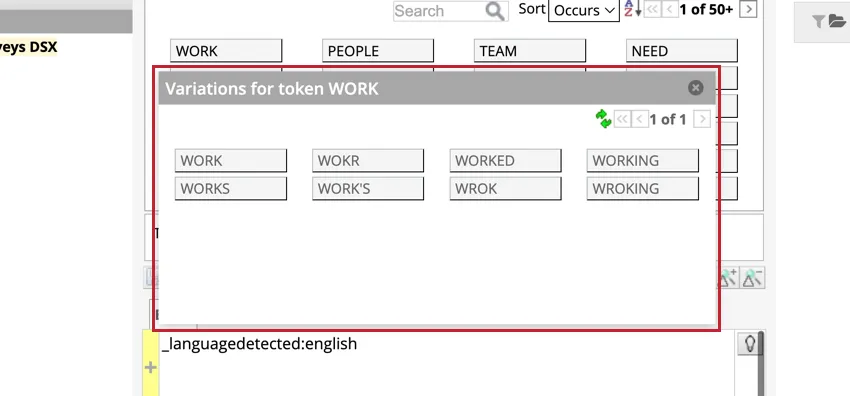
Qtip: You can drag variations of key words into the rule lane to look for a specific variation. To include all potential forms of the word, use the key word instead.
Associated Words
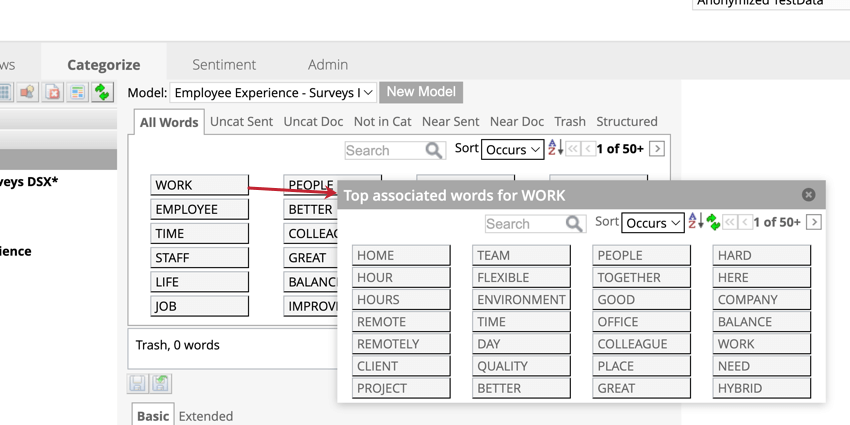
Associated words are identified by XM Discover as connected to the key word. For example, the word “Team” is connected to the word “Work”.
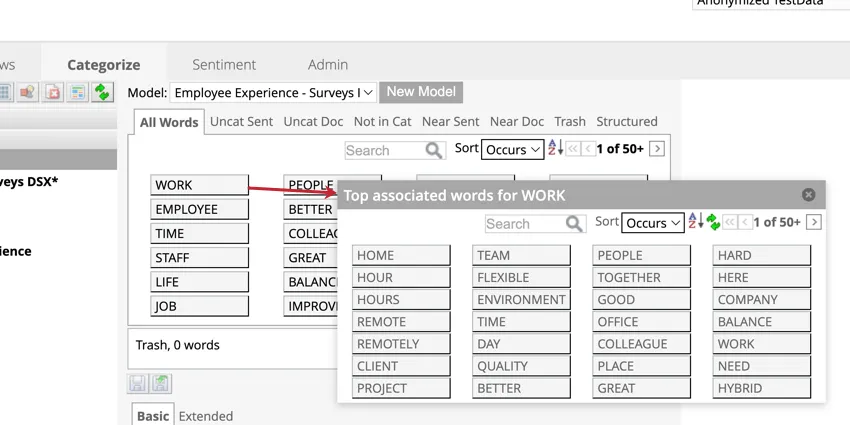
Qtip: A pair of associated words could return different sentences than a quoted phrase with the same words because associated words only include grammatical relationships. Quoted phrases will likely return the same or more results.
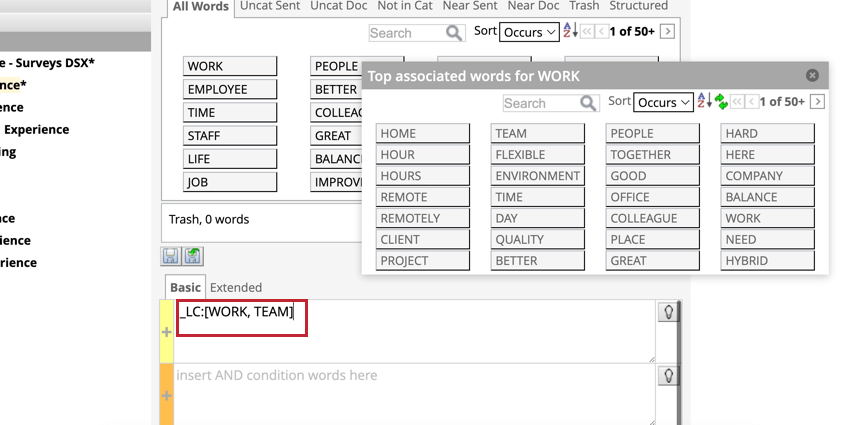
Associated words can be dragged into rule lanes to create a rule. These words will show the syntax: _LC:[WORD1, WORD2]. The LC stands for “Linguistic Connection”.
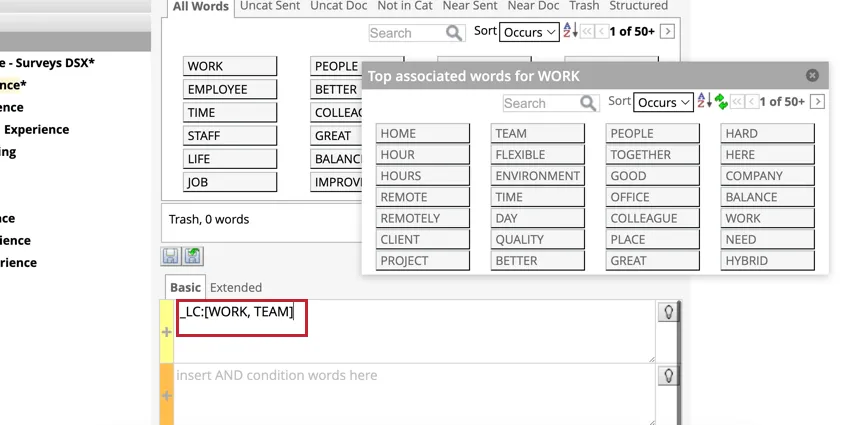
Attention: The order of the words in the linguistic connection determines what sentences are returned. When building rules, word 2 depends on word 1. For example, _LC:[ROOM, CLEAN] will return sentences where a room’s cleanliness is discussed, whereas _LC:[CLEAN,ROOM] will return sentences where the act of cleaning a room is discussed.

Attention: Any Associated words with a comma need to be put inside quotes. For example, _LC:[CALL CENTER, “WICHITA, KS”]
Qtip: Wildcards can be used with associated words, but cannot be the first symbol of the word.
NEGATIONS AND NON-NEGATIONS IN ASSOCIATED WORDS
To use a negation, put a ( – ) in front of the second word in a linguistic connection. To use a not-negation, put a ( + ) in front of the second word.
| Associated words syntax | What it will return |
|---|---|
| _LC:[ROOM, CLEAN] | “This room is not clean.” and “Every room is clean.” |
| _LC:[ROOM, -CLEAN] | “This room is not clean.” |
| _LC:[ROOM, +CLEAN] | “Every room is clean.” |
Trash Tab
The trash tab lets you temporarily mute certain words in your project. This can be useful to hide common or irrelevant words from reports, and allow more relevant words to be displayed in the key word tabs.
Drag and drop a key word into the “Trash” box to move it to the trash tab.
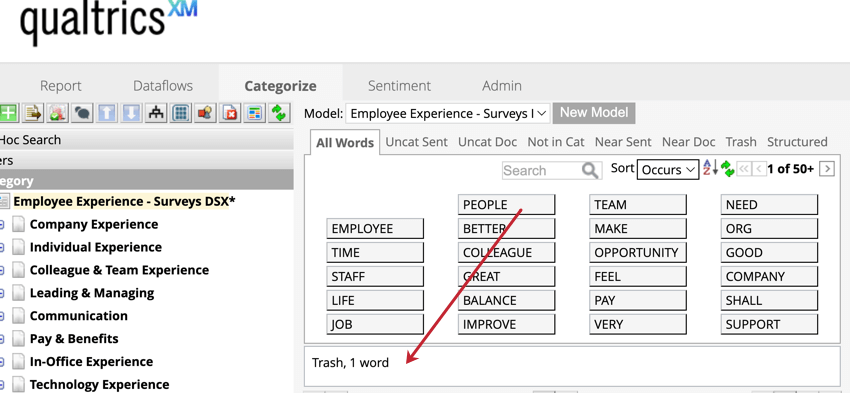
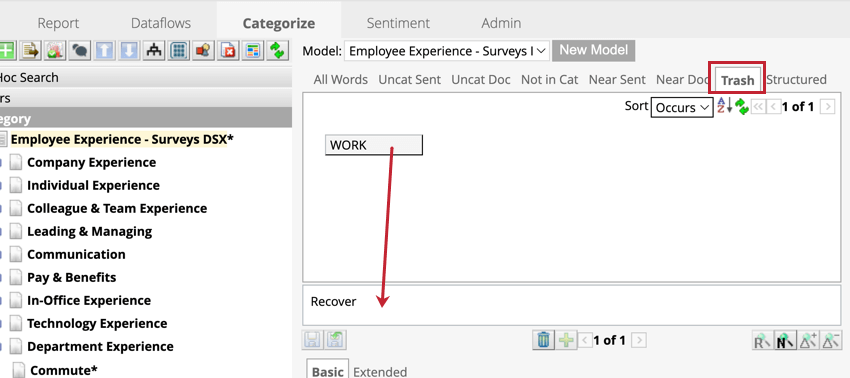
The trash tab displays all words that have been moved to trash. To bring a word out of the trash, drag and drop it into the “Recover” box.
That's great! Thank you for your feedback!
Thank you for your feedback!