

Response Requirements & Validation
What's on this page
About Response Requirements & Validation
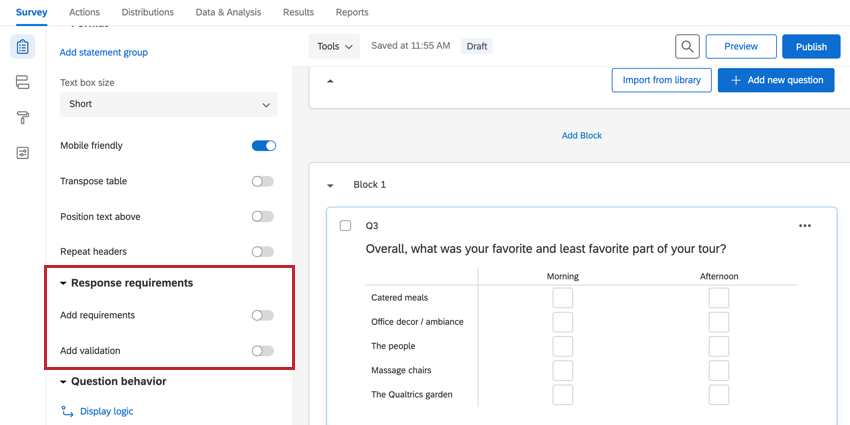
Response requirements & validation are used to alert respondents about questions they may have missed, or they can be used to solicit a specific kind of answer from respondents. To add validation to your question, navigate to the Response requirements section of the survey builder.
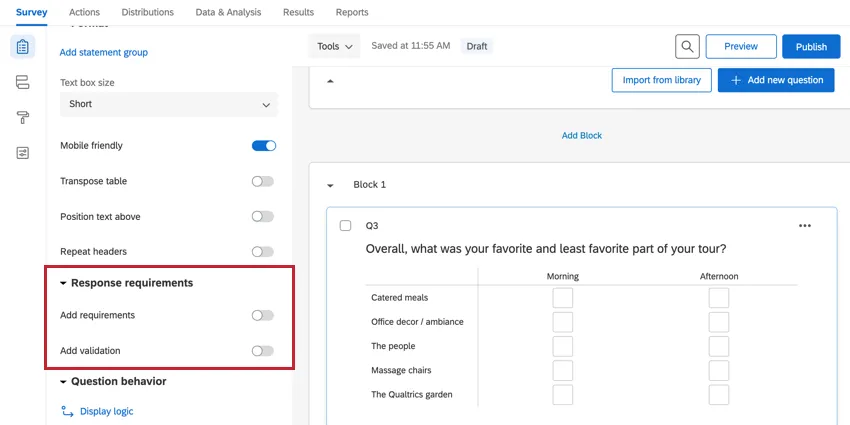
The following validation types are available for all questions:
- Add Requirements: After enabling Add requirements, the following options become available:
- Force response: Requires the respondent answer the question before they can continue the survey.
- Request response: Alerts the respondent about any unanswered questions, but allows the respondent to continue the survey without answering if they choose.
- Add Validation: After enabling Add validation, the following options become available:
- Custom validation: Used to force a certain type of response (for example, making sure a respondent selects the right amount of answer choices in a multi-select question).
Additionally, extra validation options appear under certain circumstances in the Add validation menu:
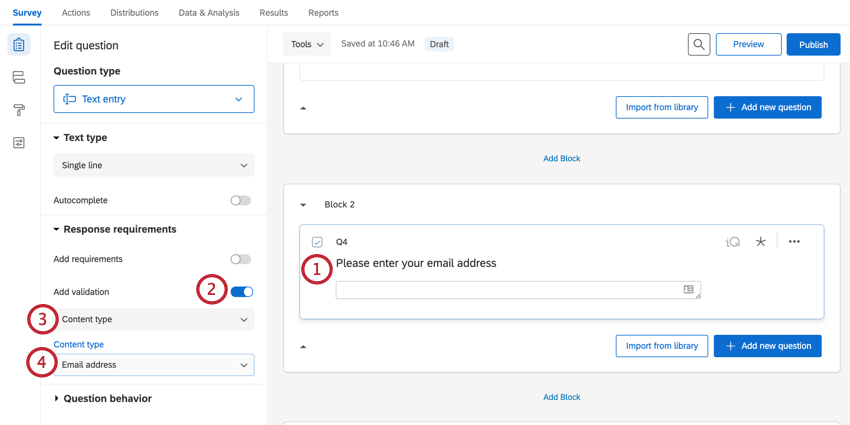
- Content validation: Used to force a certain response based on a certain type of content (such as when you want a respondent to enter a valid email address). This validation is used in questions that allow free response.
- Question-specific validation: Certain questions have built-in validation options. For example, constant sum questions have an additional option to require the question to total to a specific value. Qtip: For more information on each question type’s unique validation options, visit our question types page and select the question type you would like to learn more about.

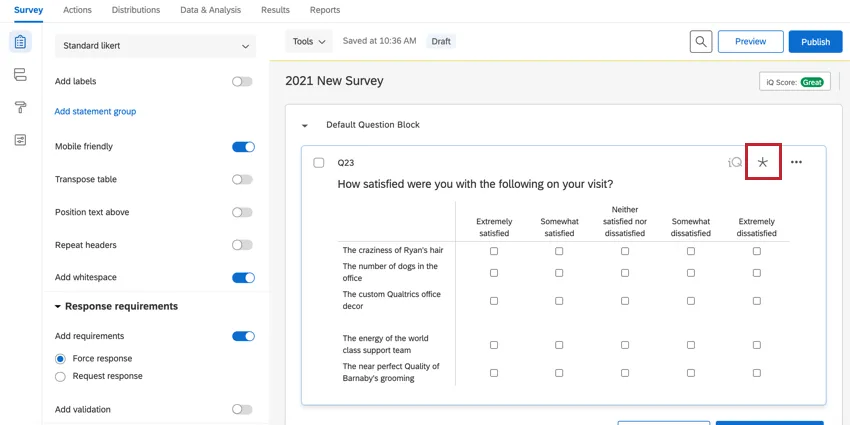
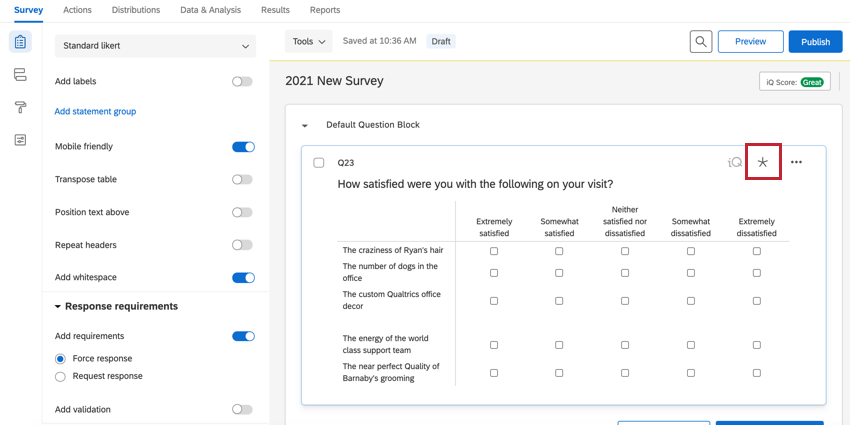
When any of the validation options are enabled, an asterisk icon will appear in the top right corner of the question, indicating that the question has some form of validation.
Qtip: You can’t edit the translations of default validation messages; only the translations of custom validation messages can be edited. See Translating Messages for more information.
Force Response
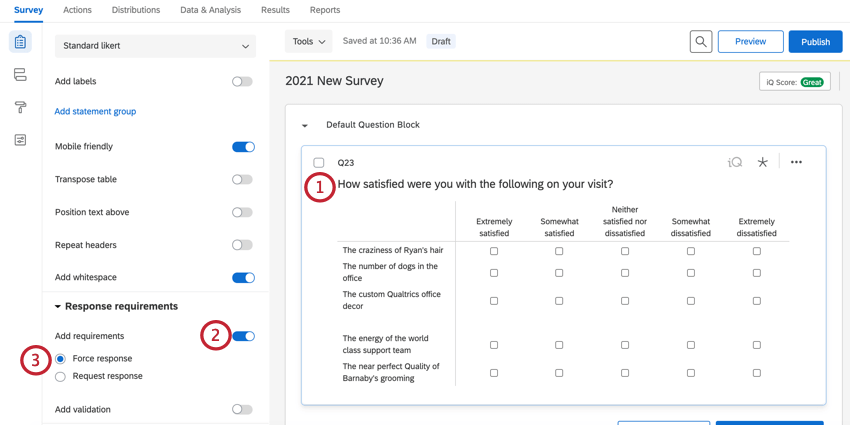
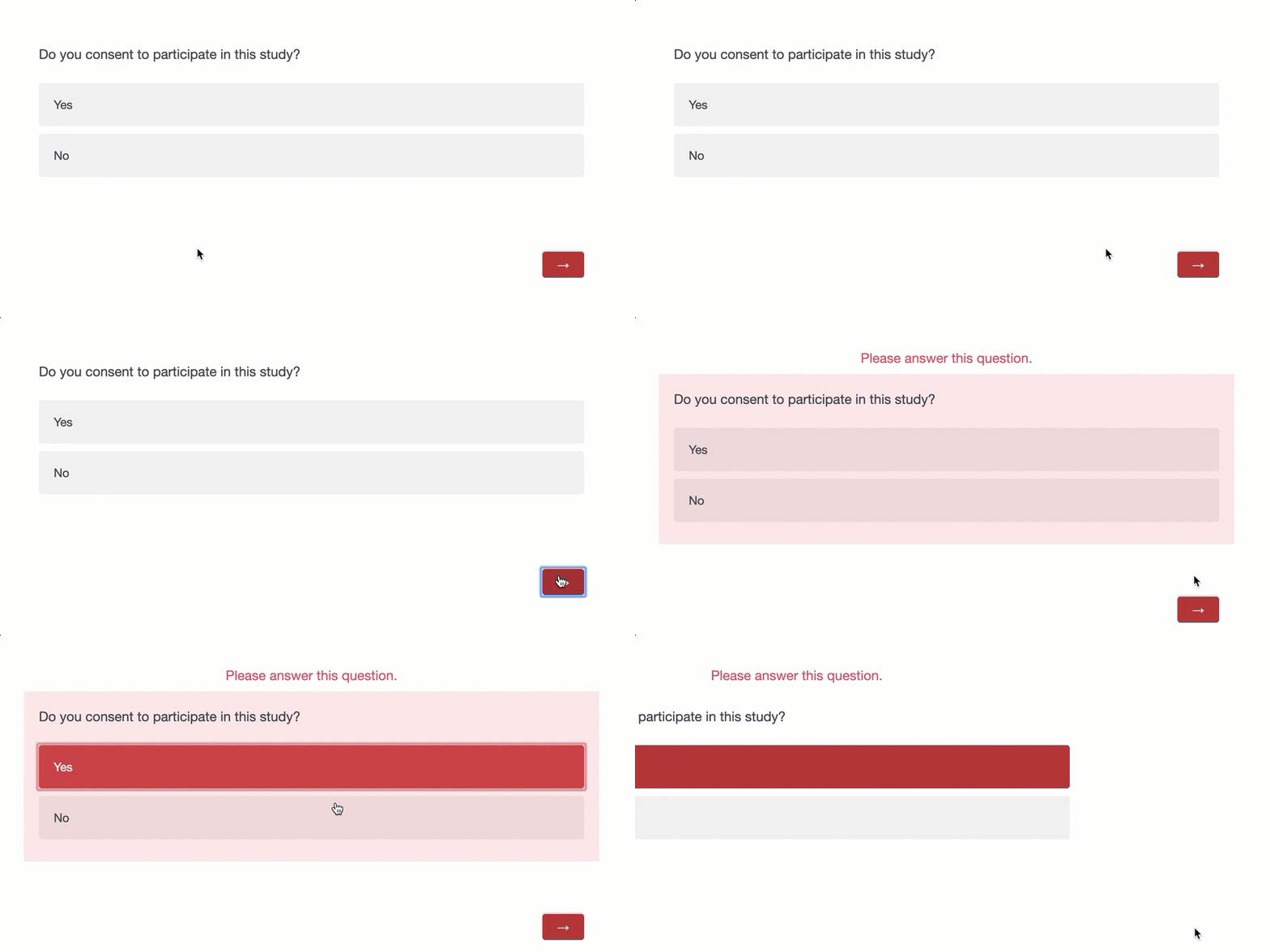
When enabled on a question, Force response makes it so that a respondent must answer the question before being able to continue to the next page of the survey. If certain questions in your survey are more important than others, or if survey logic depends on them, you may want to enable force response. If respondents try to progress without answering the question, they will see a message letting them know they must answer the question to proceed.

Example: Let’s say you begin your survey with a consent form. You can add force response to the consent form so your respondents can’t start the survey without first consenting.

Qtip: The default force response message is “Response required” if your survey uses the New Survey Taking Experience. The default message is “Please answer this question” for all other layouts. You can customize the force response message in your survey options.
To Enable Force Response on a question
Qtip: To set force response on multiple questions, select all of the questions and then choose Force response. For more information on how to select multiple questions, view editing multiple questions.
Request Response
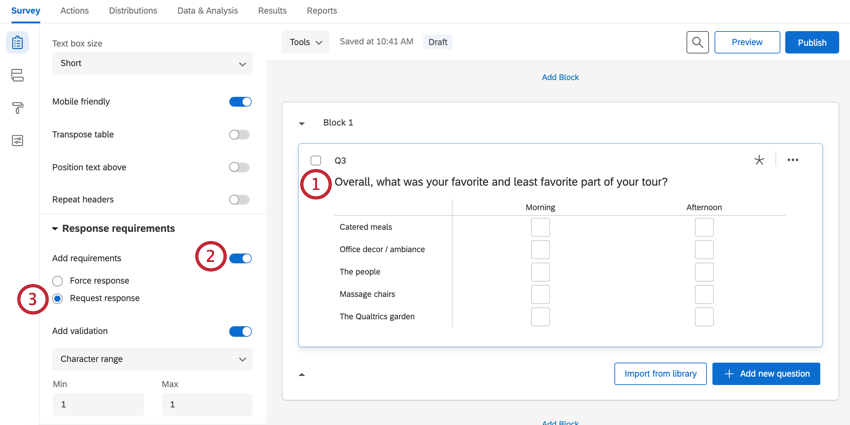
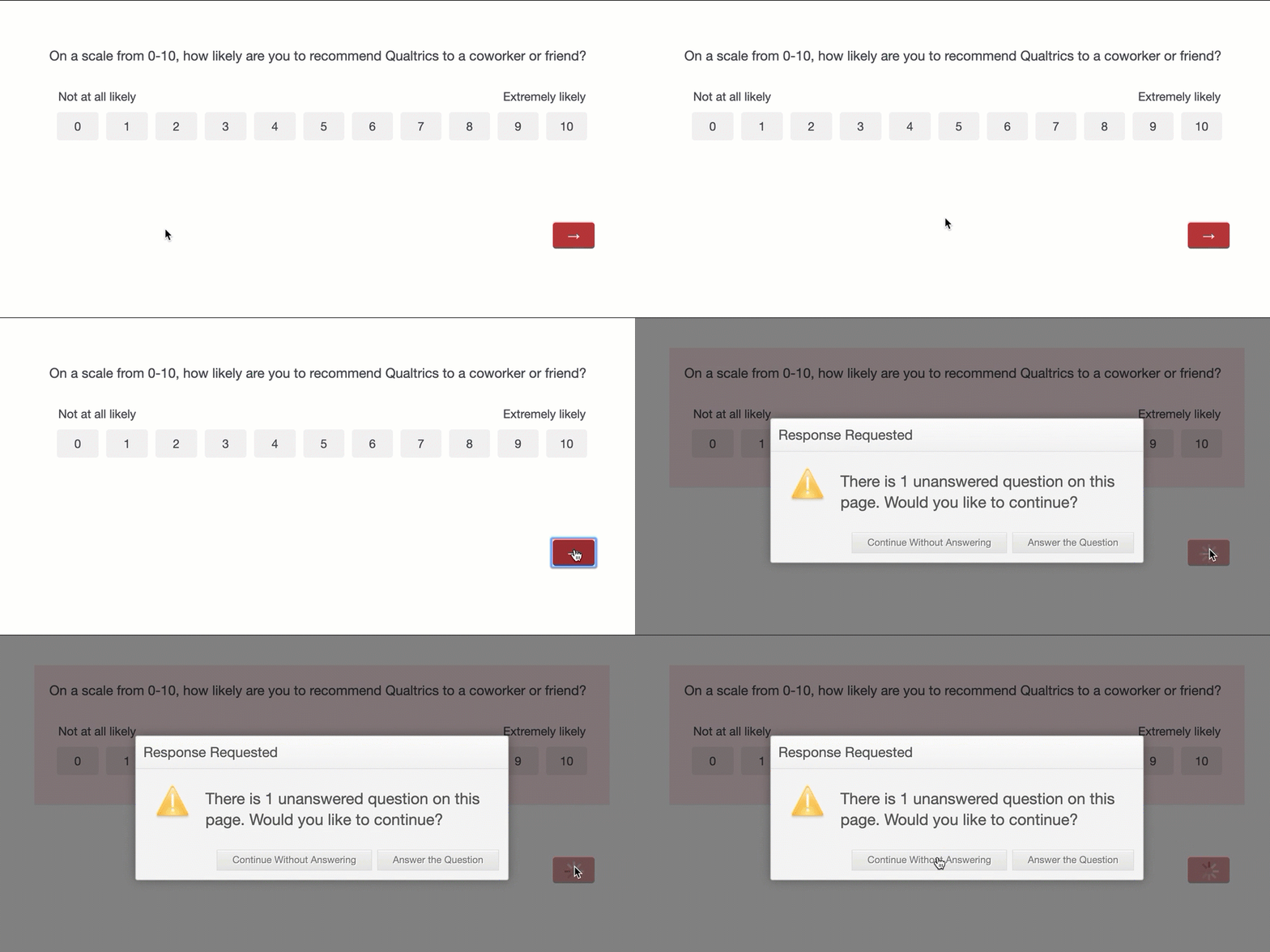
When enabled, Request response allows you to remind respondents that they missed a question without requiring that they go back and answer it. This can be a tactful way to increase question response rates without violating privacy guidelines that apply to many studies.
When request response is selected, and a respondent skips the question, Qualtrics will ask if the respondent would like to go back and answer the skipped question before they move to a new page.

To Enable Request Response on a question
Qtip: To set request response on multiple questions, select all of the questions and then choose Request response. For more information on how to select multiple questions, view editing multiple questions.
Qtip: At this time, you can’t change the appearance or wording of the request response message.
Content Validation
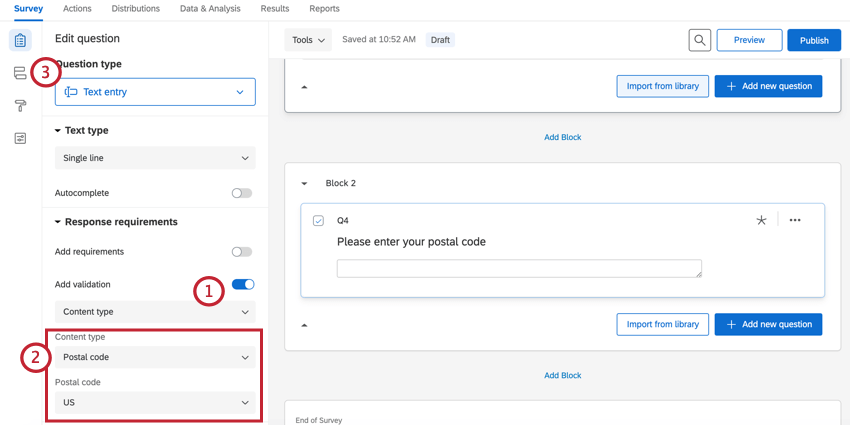
Content validation is used when you need your respondent to answer a question in a specific way according to a content type. For example, you may want them to enter a valid email address or postal code in a text box.
There are seven different types of content validation available for text entry questions:
- Email Address: Answers must include an email in a correct format. The entered email address must include an “@” symbol and a valid domain format (e.g., “qualtrics.com” / “university.edu” / etc.). For example, “barnaby@qualtrics.com” would pass this content validation.
- Phone Number: Respondents must enter a valid phone number without a country code. You can select to validate based on US, Canada, UK, Australia, New Zealand, or the Netherlands phone numbers by using the additional dropdown that appears after selecting phone number.
- US State: Answers must be valid US States, and they can be formatted as either full state names (e.g., “New York” or “Washington”) or abbreviated names (e.g., “UT” or “TX”).
- Postal Code: Answers must be a valid postal code, either in the 5-digit or 9-digit format. You can select to validate based on US, Canada, UK, Australia, New Zealand, or the Netherlands postal codes by using the additional dropdown that appears after selecting postal code.
- Date: Respondents must enter a valid date. You can specify the format of the date (e.g., mm/dd/yyyy) in the dropdown.
- Number: Answers must be numeric (answers cannot contain any textual characters).
- Text-only (Non-numeric): Answers must contain only text (answers cannot contain any numeric characters or punctuation).
To set Content Validation on a question
Response Clarity Validation
Attention: This feature is only available to users on the new simplified pricing and packaging plans. If you have questions about your Qualtrics pricing and packaging plan, reach out to Account Services.

Attention: At this time, response clarity validation can only be used for surveys with English (EN, EN-GB), Spanish (ES, ES-ES), French (FR, FR-CA), German (DE), or Japanese (JA) as the base language.
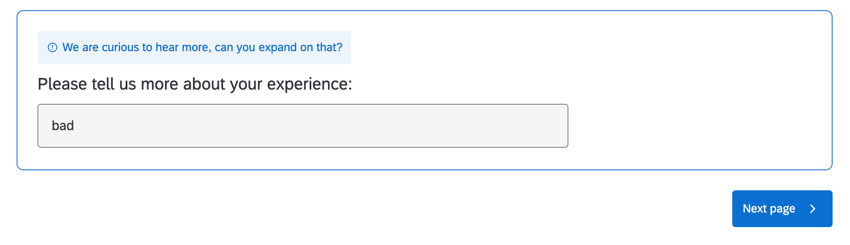
When enabled on a text entry question, response clarity validation analyzes the respondent’s answer using AI, and prompts them to give a fuller response if their answer is vague or only partially addresses the question. This prompt will appear when the respondent clicks the “Next” button to continue to the next page in your survey.
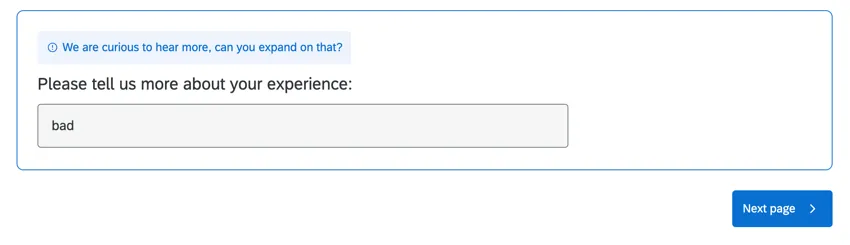
Response clarity validation uses Qualtrics’ internal large language model for AI capabilities.
Qtip: This prompt only appears a maximum of 1 time per question it is enabled on. If the respondent’s answer is still not clear after seeing this prompt, they will not see it again and will be allowed to continue the survey.
Qtip: While we have guardrails in place and are continually refining our products, artificial intelligence may at times generate output that is inaccurate, incomplete, or outdated. Prior to using any output from Qualtrics’ AI features, you must review the output for accuracy and ensure that it is suitable for your use case. Output from Qualtrics’ AI features is not a substitute for human review or professional guidance.
Enabling Response Clarity Validation
Qtip: You cannot use this option with the password question variation.
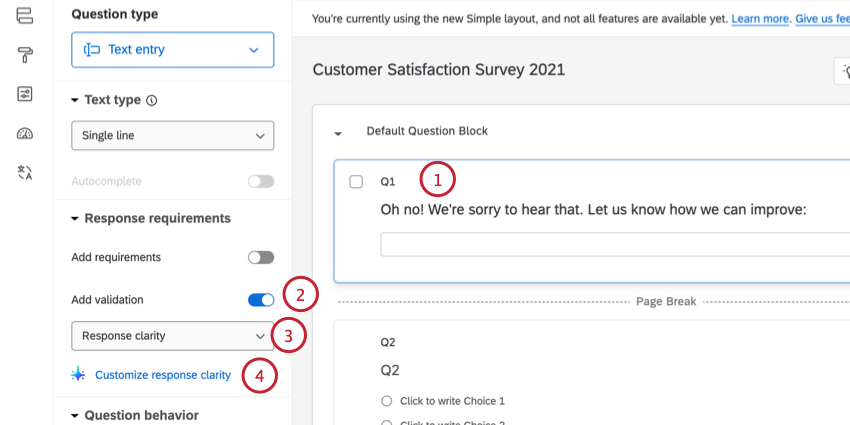
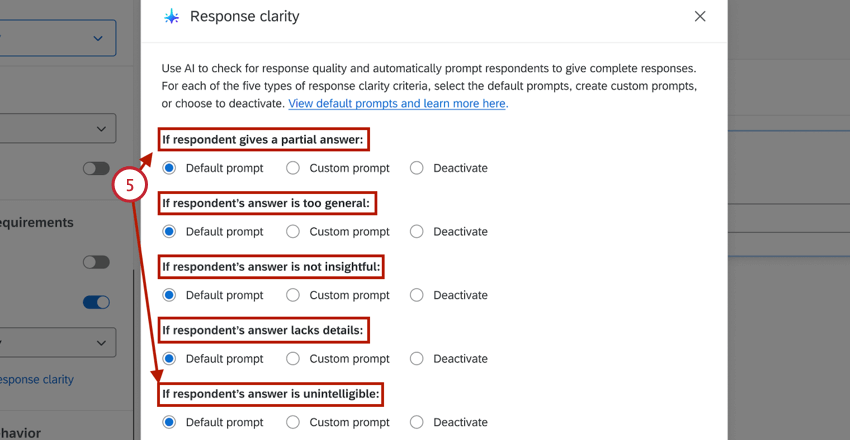
- Partial answer: The respondent’s answer did not fully answer the question or only answered parts of it.
- Too general answer: The respondent’s answer was too vague.
- Not insightful answer: The respondent’s answer does not provide any insights when it is reasonable to have an opinion on the question asked.
- Lacks details: The respondent’s answer did not provide any meaningful details.
- Unintelligible answer: The respondent’s answer does not make sense or does not contain real words.
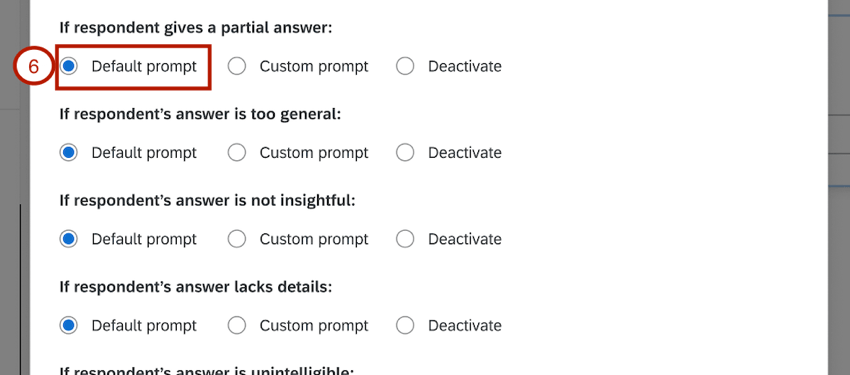
- Partial answer:
- We appreciate your response. Can you answer all parts of the question.
- That’s helpful. Can you review the question and answer all parts?
- Thanks for the feedback. Can you add additional information to fully answer the entire question?
- Too generalized answer:
- We’d like to hear more about that. Can you add additional detail to your response?
- Can you please explain that in a bit more detail?
- Can you tell me more about that? What makes you say X?
- Non-insightful answer:
- We value your opinion. Is there anything else you can share?
- Your input is valuable. Anything else to add?
- We’d like to get more specifics. Is there anything else you’d like to add?
- Lacks details:
- This is helpful. Can you tell us a little more about that?
- Can you provide more detail about your answer or give an example?
- We are curious to hear more, can you expand on that?
- Unintelligible answer:
- Your response was hard to understand. Can you try answering the question again?
- Your response is unclear. Could you clarify what you mean?
- Your response is important to us. Can you try answering the question again?
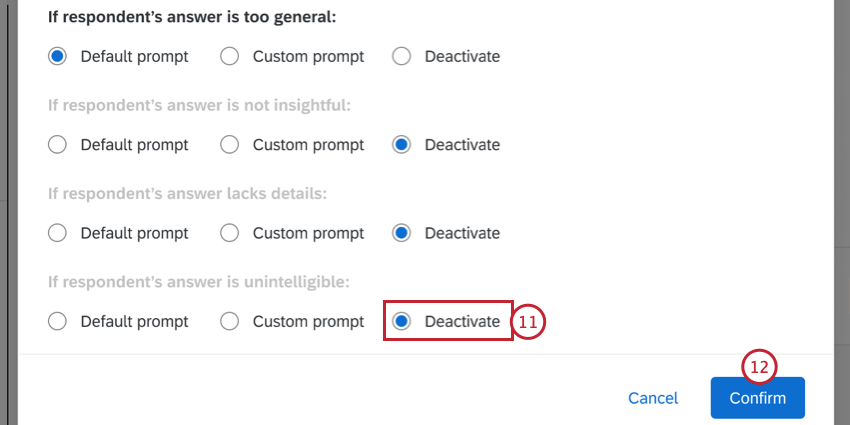
Qtip: When a response fits into one of these criteria, only 1 of the possible prompt messages will be displayed to the respondent.
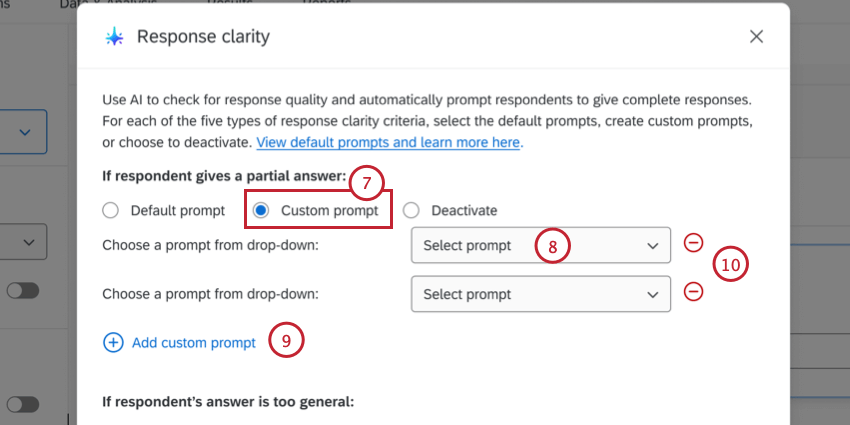
Qtip: When a response fits into one of these criteria, only 1 of the possible prompt messages will be displayed to the respondent.
Response Clarity Embedded Data
When you enable response quality validation on a question, there are additional embedded data fields available in your dataset to help track response clarity. These fields include:
- <QID>_AICategory: The category the original response was classified as. Possible values include:
- Passed – Good Answer: The respondent’s answer was sufficient and did not trigger response clarity validation.
- Passed – Not Applicable: The respondent understood the question and put in an effort to answer it, but the question did not apply to them
- AIError: There was an error analyzing the response.
- AITimeout: The AI analysis request timed-out.
- UnsupportedLanguage: The response was in an unsupported language.
- Gibberish: The response matched the “unintelligible answer” criteria.
- Insufficient Detail: The response matched the “lacks detail” criteria.
- Non-Insightful: The response matched the “non-insightful answer” criteria.
- Overly Generalized Answer: The response matched the “too generalized answer” criteria.
- Partial Answer: The response matched the “partial answer” criteria.
- <QID>_OriginalResponse: The user’s original response.
- <QID>_FollowUpPrompt: The exact prompt that was displayed to the user. This will be blank if the response passed the response clarity validation without triggering it.
Qtip: In the above embedded data field names, <QID> will be replaced with the question’s internal question ID.
Content Validation Example: Using Zip Codes to Find City and State
When you set a text entry question’s validation type to content validation and your content type to US Postal Code, you can use the zip codes your respondents provide to also record their city and state! This works by running the entered zip code against a database, and then saving the returned city and state as embedded data with their response. Note that this only works using the standard text entry question type.
Qtip: The embedded data value for the returned state will be the state’s abbreviation (e.g., UT for Utah, WA for Washington, etc).
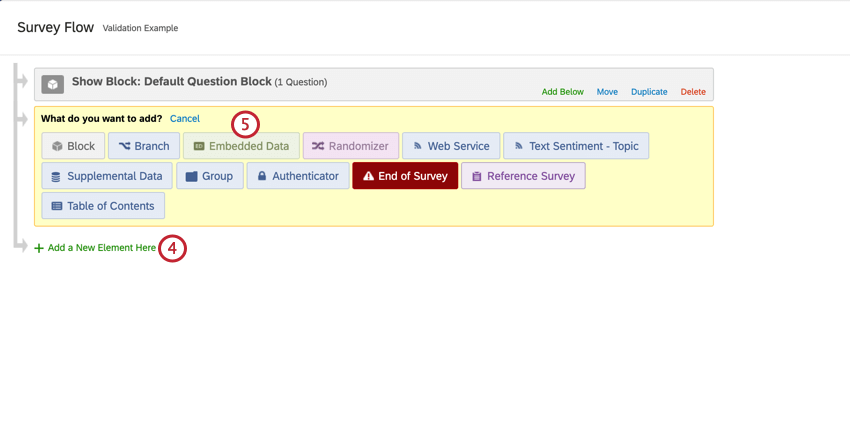
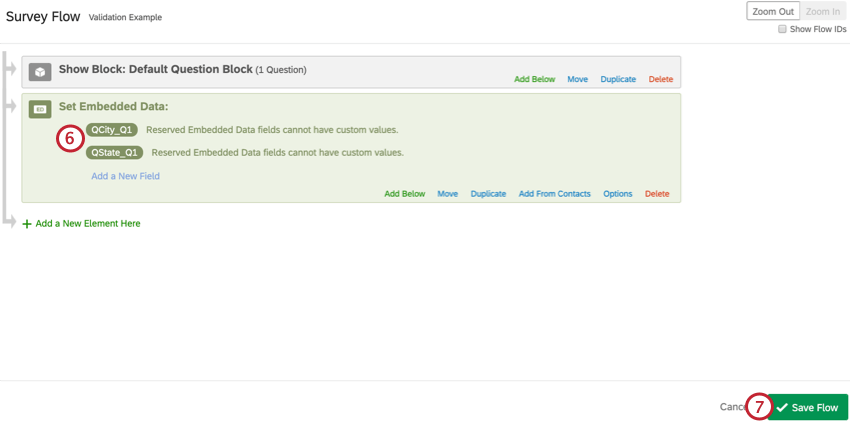
Example: For example, if you wanted to find the city for question seven, you’d call the Embedded Data QCity_Q7.
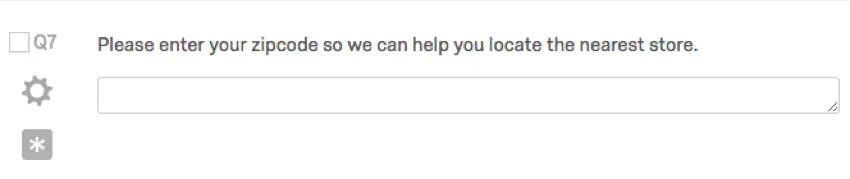
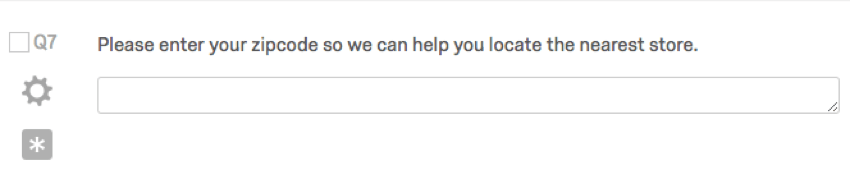
Qtip: This embedded data can be added anywhere in the Survey Flow. If you forget to add it before collecting content validated responses, that’s also fine – adding this element will retroactively add this data to your responses. However, if you want to use the city and state values in logic, you will need to move this element above the other elements that use the fields in logic.
Custom Validation
Custom validation is used when you need your respondent to answer a question in a specific way. For example, you may want them to enter a valid email address in a text box, or make sure your respondents are selecting the right number of answer choices.
Custom validation is not compatible with request response and acts similar to force response by requiring the respondent answer the question. You cannot use custom validation on a question while simultaneously making answering the question optional.
Example: Let’s say you want to include an attention check in your survey to make sure your respondents are filling it out accurately and to prevent straightlining. You can create a text entry box and require the respondent enter a specific keyword before continuing. This can be accomplished using custom validation.
To set Custom Validation on a question
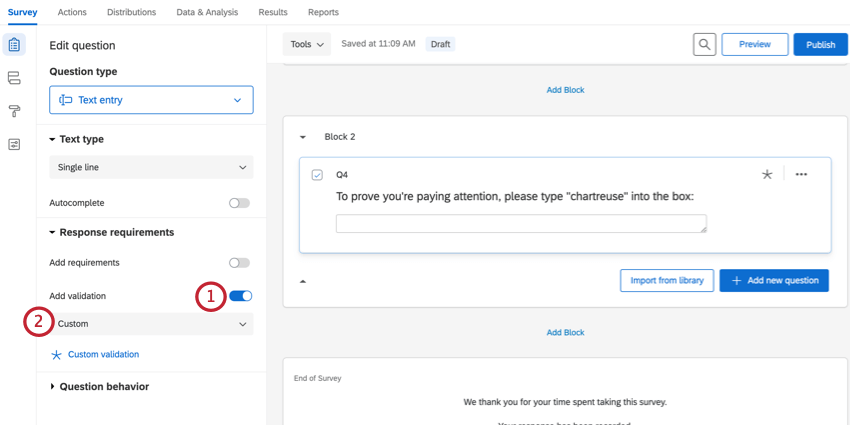
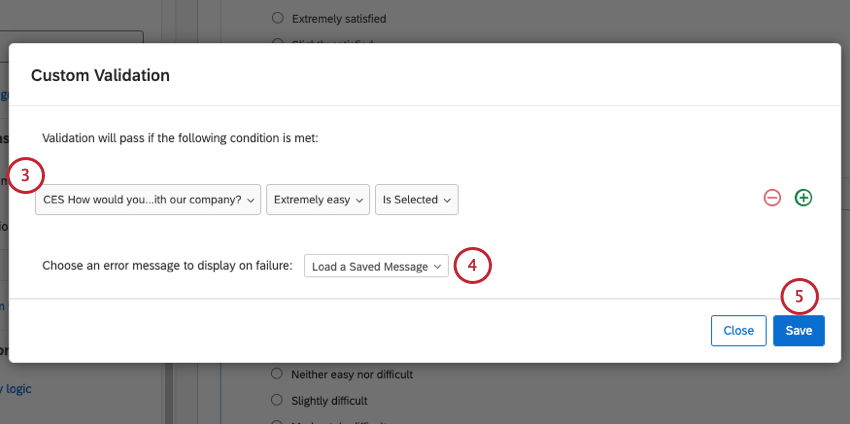
Qtip: Text entry questions will have an “Ignore case” option not shown above. If you don’t have a preference for whether respondents answer using capital or lowercase letters in their response, select Ignore Case.
Once you’re finished creating your custom validation logic, you’ll need to select a custom validation message. Read the following section on custom validation messages for more information.
Custom Validation Messages
Whenever you add custom validation to a question, you need to provide a message to display to your participants if they fail your validation conditions. This message usually lets participants know why they failed or what they need to enter in order to proceed in the survey.
There are 2 types of custom validation messages you can create: modified Qualtrics error messages, where you take a system default message and change the text, and completely new error messages, where you create your own message from scratch.
Qtip: You can’t edit the appearance of custom validation messages. This includes message font, color, and style.
Using a System Default Validation Message
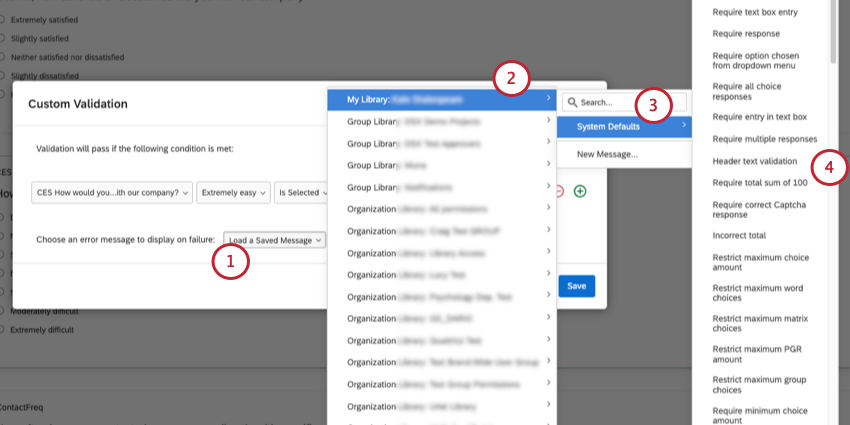
Qtip: Preview your survey to make sure you like the validation message you’ve chosen.
Creating a New Validation Message
To create your own validation message:
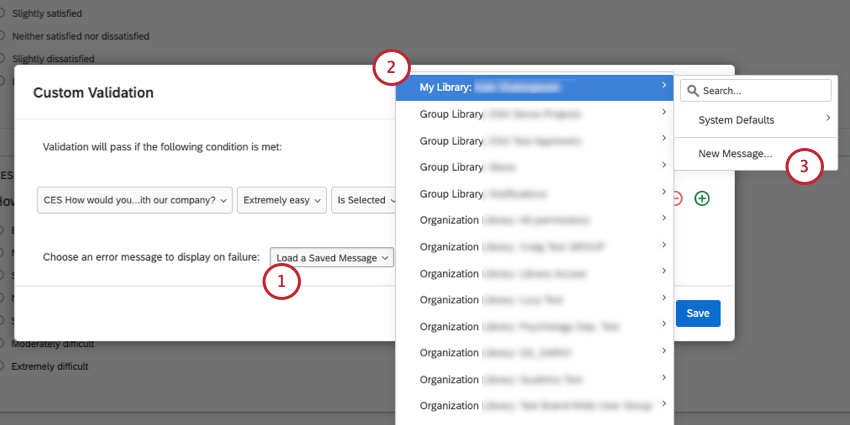
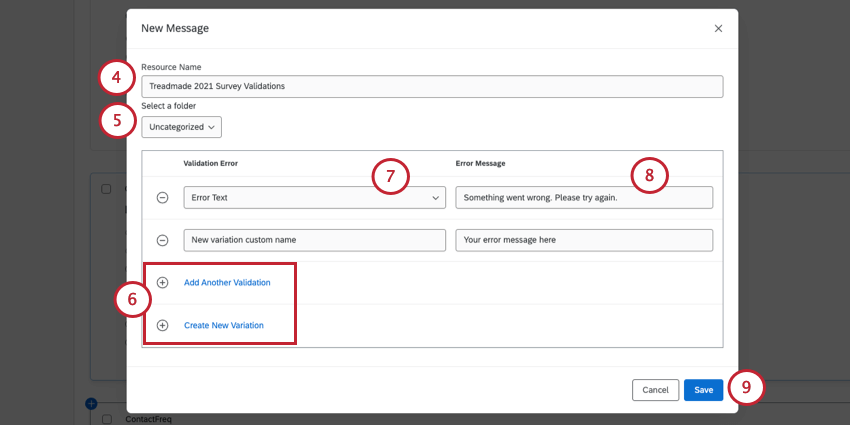
Qtip: After creating a new message, it will be available when you click Load a Saved Message and select your library.
- If you would like to use a Qualtrics error message as the base of your message, click Add Another Validation, then select the base error message you’d like to use.
- If you’d like to create your own error from scratch, click Create New Variation.
If you need to delete your error, use the minus sign ( – ).
Qtip: You can edit your custom validation messages in your library.
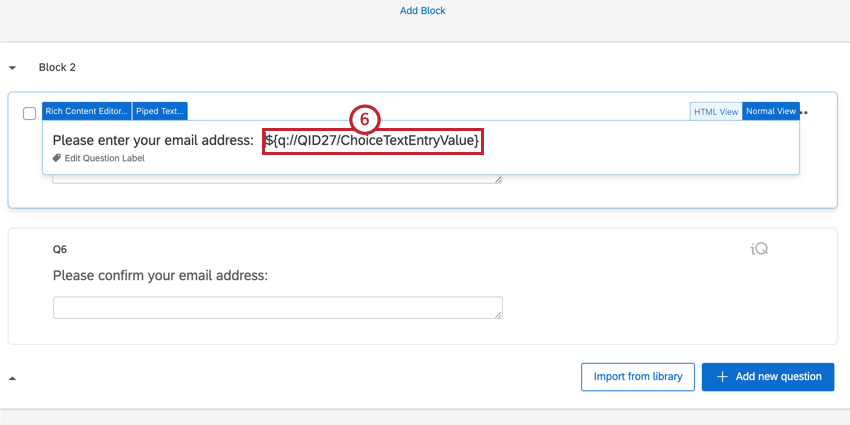
Custom Validation Example: Verifying an Email Address
You can use validation to ensure that 2 text fields are the same. This is useful when you need a respondent to verify information, such as confirming their email address. Follow the below steps to set up an email verification question.
Qtip: While this section is focused on confirming email addresses, the same methodology can be used for verifying any open text field, such as phone numbers or first/last name.
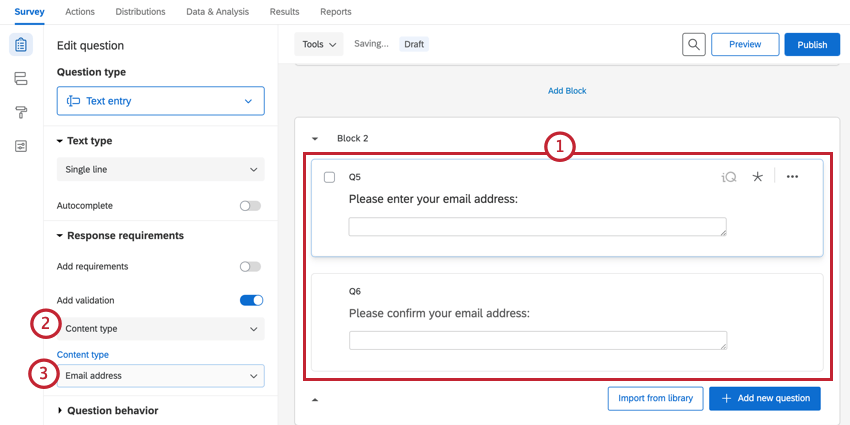
Qtip: This step ensures that the respondent will only be able to enter an email address.
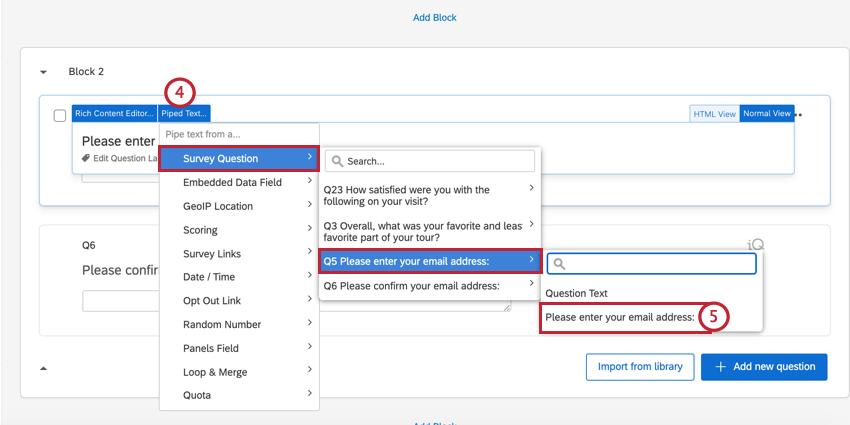
Qtip: Piped text code can only be generated in areas where the rich content editor is accessible. That does not mean, however, that it cannot be used in other locations. We’ll use this piped text to set up custom validation on our second text entry question.
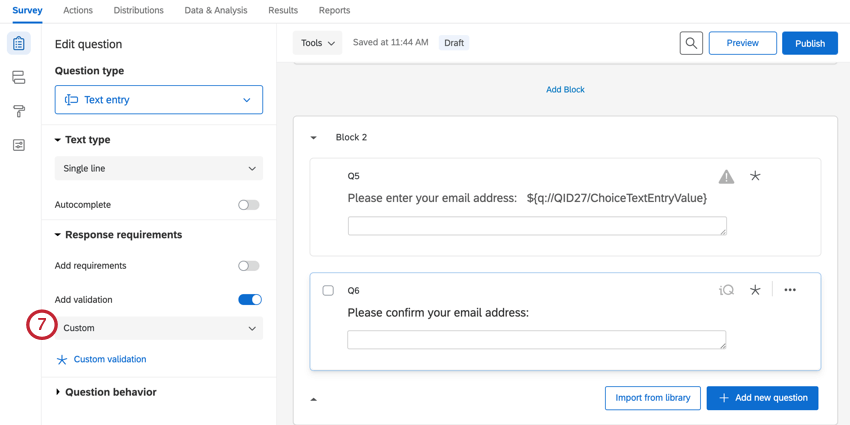
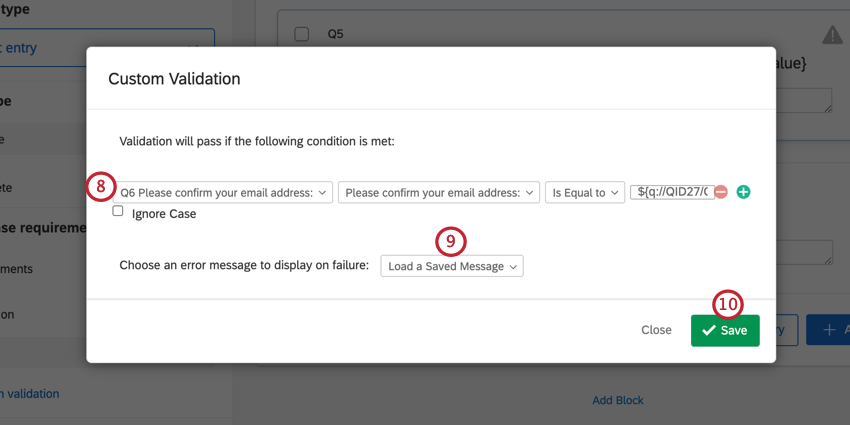
Qtip: When finished, preview your survey to make sure the validation was set up properly.
Response Requirements and Validation in Different Project Types
This feature is available in just about every type of project where you customize a survey. This includes:
FAQs
When I click the link, I see an old version of my survey! Are my changes not being saved?
When I click the link, I see an old version of my survey! Are my changes not being saved?
Next, check whether you have Allow Respondents to Finish Later turned on in your Survey Options. If you've been testing out your survey on the Anonymous Link while you make edits, then you're seeing an old version of the survey because a cookie was placed on your browser to save your progress. Open your Anonymous Link in an Incognito Window or a Private Window. If this window has your changes, then Save and Continue is just saving your place, and you don't have to worry about brand new respondents seeing an old version of the survey.
(Note: We recommend testing your survey using your preview link instead of your anonymous link for this reason.)
How do I require a respondent answer a question?
How do I require a respondent answer a question?
That's great! Thank you for your feedback!
Thank you for your feedback!